 Warden
How we chose, and our bias
We make Warden, so weigh our entry with that in mind. Every other description comes from the provider's own website as reviewed in September 2026, not from our testing. There are no scores or star ratings here.
Opal is a capable app. Its site describes Focus Rules, a Focus Timer, an Opal Score and milestone rewards on iPhone, Mac and Android, and a Deep Focus option that restricts ending a session early. The useful question is not whether Opal is good, but whether it fits the way your plan breaks.
Reference: Opal: features and supported devices
The short answer
- To spend nothing: start with Apple Screen Time, or try ScreenZen, which describes itself as free with optional donations.
- If you open apps on autopilot: one sec puts a pause before a selected app opens.
- If your laptop matters as much as your phone: Freedom blocks apps and websites across supported phones and computers.
- If you want the stopping point off your phone: Brick starts a session when you tap your phone against a physical device.
- If you like precise rules across Apple devices: Jomo describes rules tied to set times, allowances or actions on iPhone, iPad and Mac.
- If you want suggestions from your own usage, a Lockdown mode or a trusted person's approval on iPhone: Warden.
Free options: Apple Screen Time and ScreenZen
Screen Time is built in and costs nothing. In iOS 27, Apple describes Time Allowances for how long you use categories such as Social Media, Screen Time Schedules for when apps are available, and an Always Allowed list. In iOS 26 the same ideas are called App Limits and Downtime. For an adult the weak point is the passcode: if you set it yourself, you know it.
ScreenZen offers daily limits and scheduled blocks for selected apps and websites, and its site describes a lock mode intended to make limits harder to bypass. The app is free with optional donations, the company sells a separate device called halo, and its website lists iOS, macOS, Windows and Android.
Reference: Apple: Screen Time Schedules and Time Allowances
Reference: ScreenZen
When the reach is the problem: one sec
one sec interrupts the moment you open an app. Its site describes a breathing pause and other actions before a selected app opens, plus scheduled app blocking, time limits and intention-related tools, so it is more than a reminder.
It suits the habit of opening Instagram before you have decided to. A daily total cannot reach that moment; a pause can.
Reference: one sec
Beyond one phone: Freedom and Brick
Freedom describes app and website blocking across supported phones and computers, with blocklists, advance and recurring schedules, and a Locked Mode intended to prevent quitting a running session. If your distractions move from laptop to phone, that coverage matters more than any single phone feature.
Brick adds a physical device. You choose apps and start a session by tapping your phone against the Brick. Its site lists iOS and Android support, a strict option and emergency unbricks. The stopping point lives outside the phone, and you have an object to keep track of when you travel.
Reference: Freedom
Reference: Brick
Precise rules on Apple devices: Jomo
Jomo lists iPhone, iPad and Mac. Its site describes blocking at set times, after a limit or until you complete an action, with different block strengths and screen-time reflection tools.
It suits people who want to write exact rules and keep them the same across their Apple devices. Read the current documentation for the strict setting on each device you plan to use.
Reference: Jomo
Where Warden fits
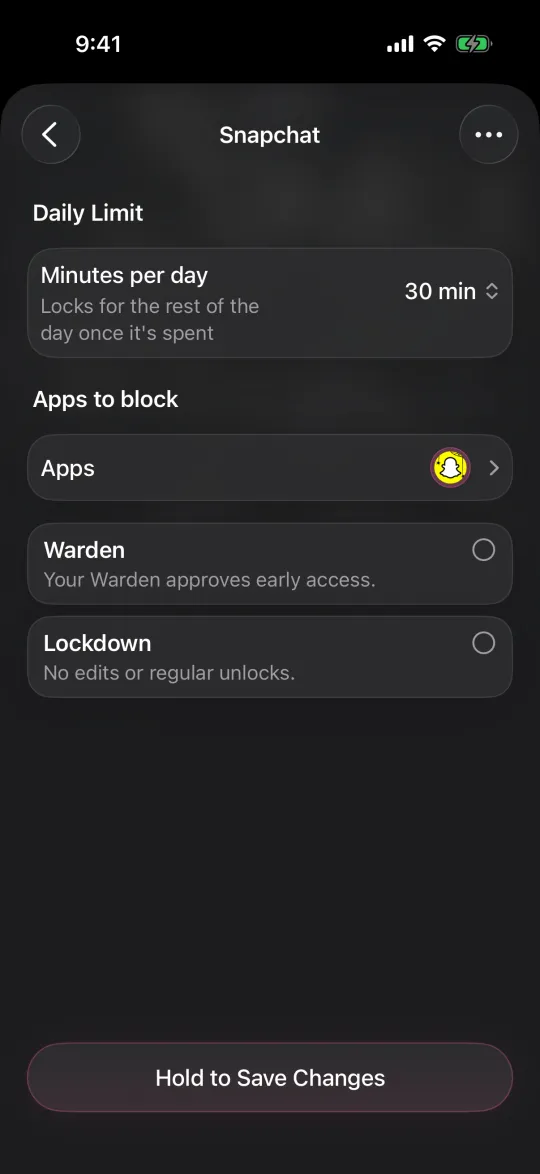
Warden is an iPhone app blocker. It can suggest apps to limit, a daily allowance and block times from your goals and available Screen Time patterns, and you approve every rule. Lockdown prevents ordinary early unlocks and edits to active rules until the block ends. You can also connect a trusted person, your Warden, to approve early access for the rules you choose.
Warden supports iPhone and iPad. If you rely on Opal for your Mac or an Android phone, you will need another option for those devices. A partner is optional: Standard rules and Lockdown work on your own, and emergency access stays available.
Choose by the moment your Opal plan breaks
Say you start a focus session at 9 PM and end it early most nights. A pause before opening will not help much, because you already chose to scroll. Before switching, try Opal's own Deep Focus. If that still does not hold, look at options that make the early exit harder in a different way: a Freedom session in Locked Mode, a Brick you leave in the kitchen, Warden's Lockdown, or a friend who approves extra time.
If the plan breaks at 2 PM on your laptop instead, a phone app alone will not cover it. Start with a cross-device option and keep the phone rule simple. Whatever you pick, run one rule for a week before adding a second.



