 Warden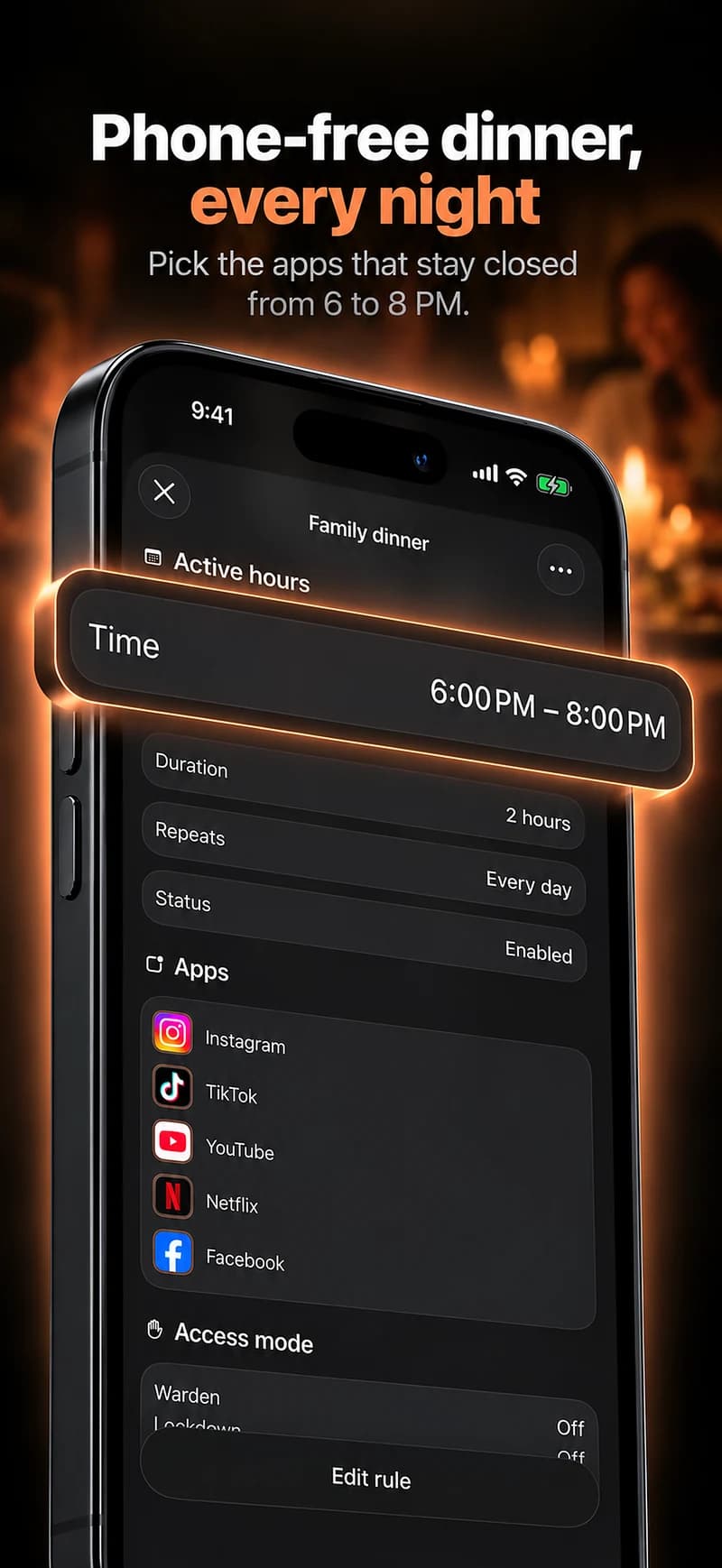
Start with one moment together.
A meal, conversation or shared activity has a clearer purpose than an all-day family screen-time score. Discuss which apps interrupt that moment and what needs to stay available.
Different household members may need different hours or exceptions. A shift worker, carer or person using an accessibility tool should not have to copy someone else's selection.
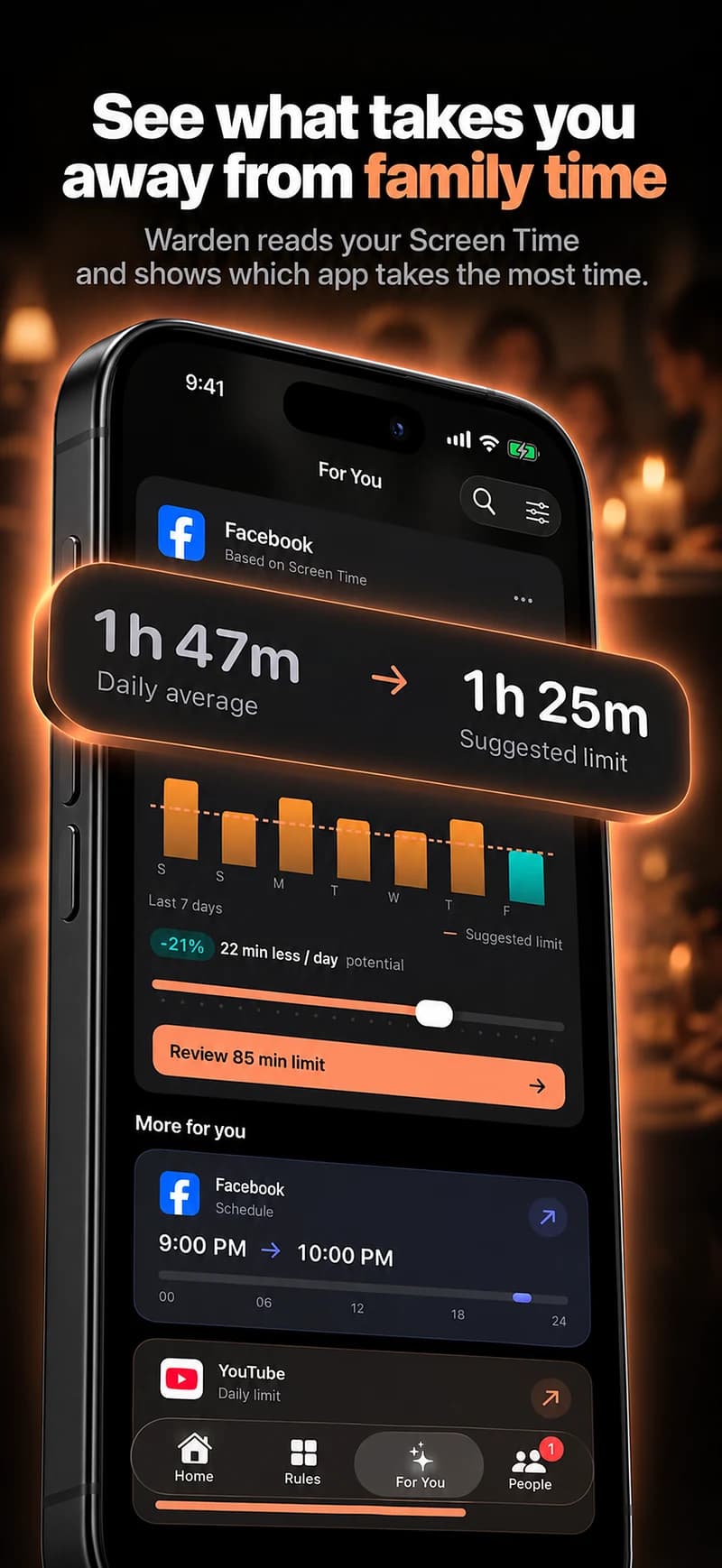
A starting point to make your own
| Routine | Example time | Purpose |
|---|---|---|
| Dinner together | 7 PM – 8 PM | An example routine for a meal. Keep essential communication available. |
| A parent helps | Set up together | Use Apple's family approval and age-appropriate consent. A parent's checkbox alone is not a child-account consent system. |
Warden for iPhone
Set it up without adding unnecessary rules
Daily limits, schedules and focus sessions
Install Warden and connect Screen Time when iOS asks. Then open Rules and tap the plus button.
Choose the apps or scope involved in this particular interruption. Use an allowance for total use, a schedule for recurring hours, or a session for a one-off task.
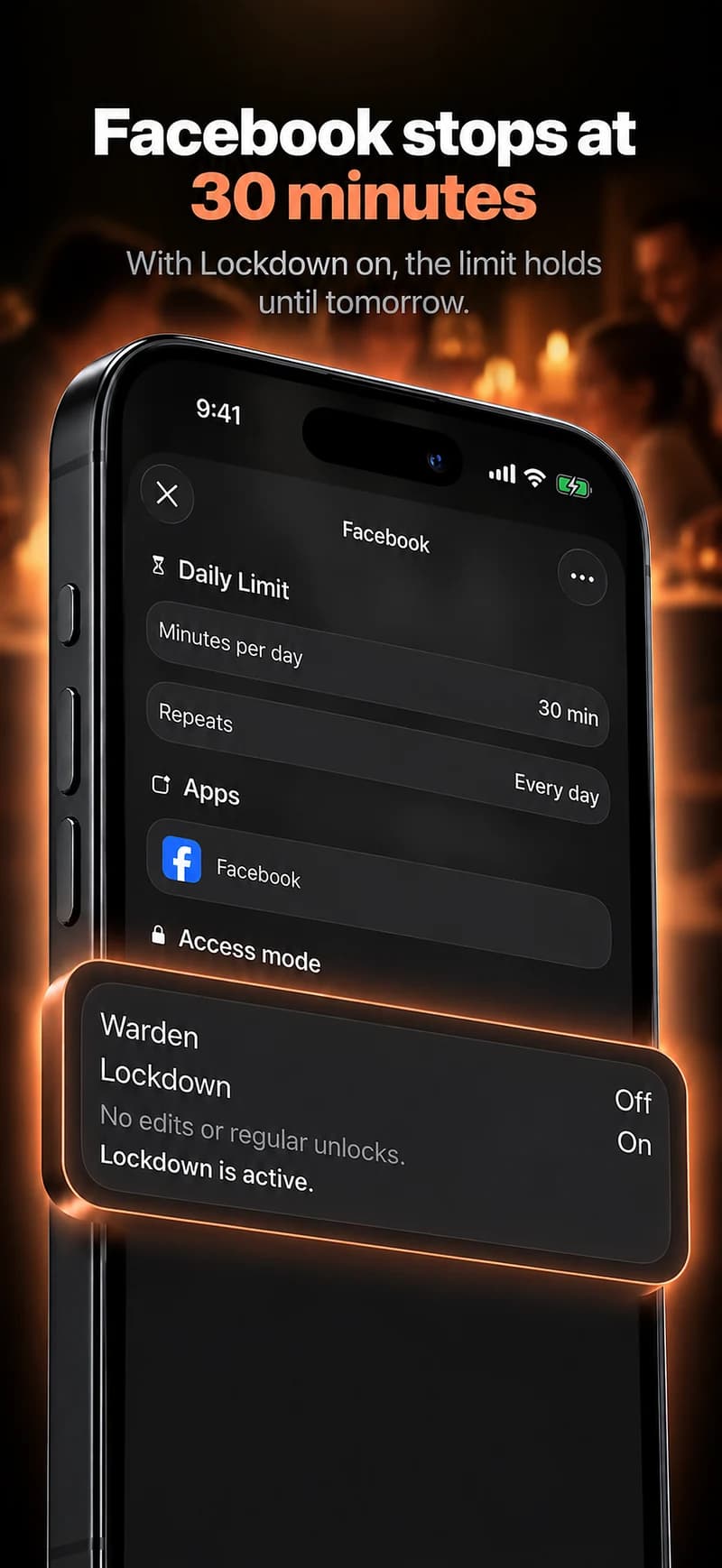
What Standard, Warden and Lockdown do
Choose Standard when you want to manage the limit yourself. Choose Warden when a person you trust should review early-access requests. Choose Lockdown to keep ordinary early unlocks off until the block ends.
Choose the access mode, then hold the save button to set the rule. Try a short block before using a long one. Emergency access remains separate from ordinary unlock requests.
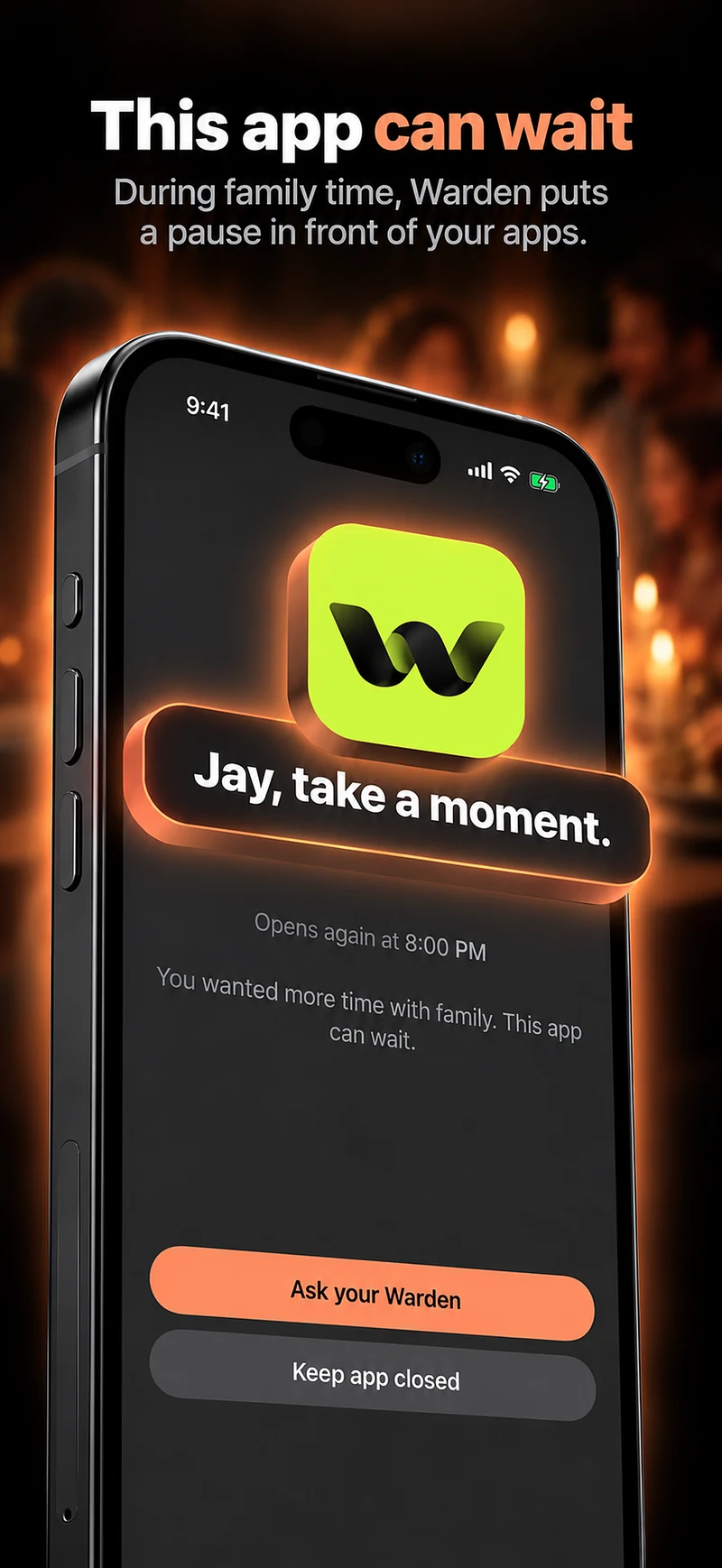
How Warden approval works
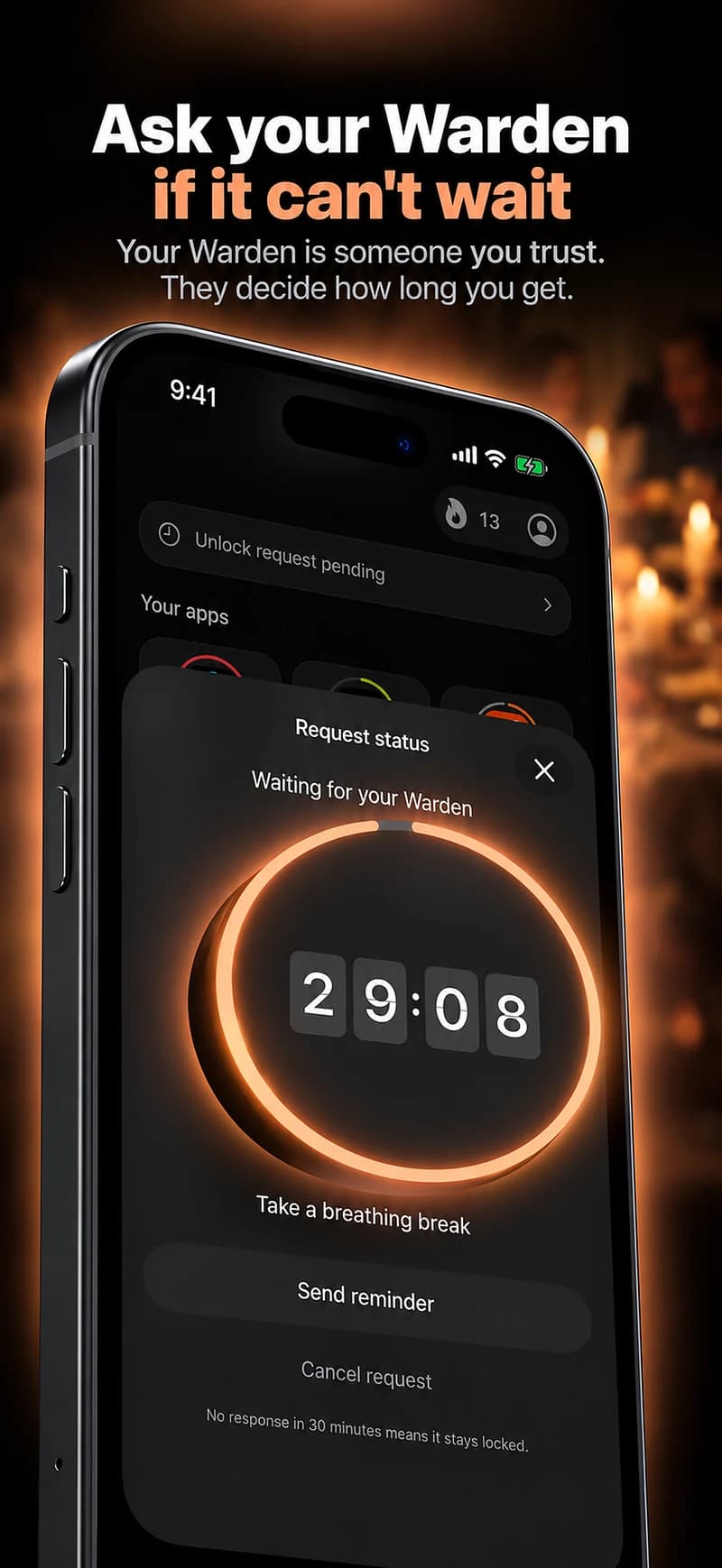
Choose how many minutes you need, add a note and hold to send. If nobody answers within 30 minutes, the request expires and the app stays locked.
An approval applies to the scope and time shown in the app. A declined or unanswered request does not lift the block. Emergency access remains a separate option on your device.

Distinguish adults' agreements from child controls.
Use Apple's Family Sharing Screen Time when a parent needs to manage a child's app, content or download restrictions. The family organizer or parent/guardian sets this up with the child's Apple Account. Apple's age requirements and available controls vary by region and OS version.
Warden adds agreed, on-device app rules and optional review of temporary-access requests. It does not remotely install itself, choose apps on another person's device or provide a child-surveillance dashboard. Its under-13 setup requires parent assistance and Apple's child Screen Time authorization; an ordinary Warden invitation does not grant that authorization.