Warden
What changed in iOS 27
Apple's iOS 27 user guide describes two tools. Time Allowances set how long you can use app categories such as Entertainment, Games and Social Media, plus a daily total. Screen Time Schedules divide your day into named time windows and choose which allowance categories are available in each one.
Apple notes that these features need iOS 27, iPadOS 27, macOS 27, watchOS 27, visionOS 27 or later on all your Apple devices. In a Family Sharing group, every device must be upgraded.
| Earlier App Limits | Time Allowances |
|---|---|
| Earlier Downtime | Screen Time Schedule |
| Always Allowed | Still called Always Allowed |
| Where to find them | Settings, then Screen Time |
Set a Time Allowance
Apps in a category stay usable until they reach that category's allowance or the daily total. If an app declares an associated website, Apple applies the allowance to both.
Open the Settings app and tap Screen Time.
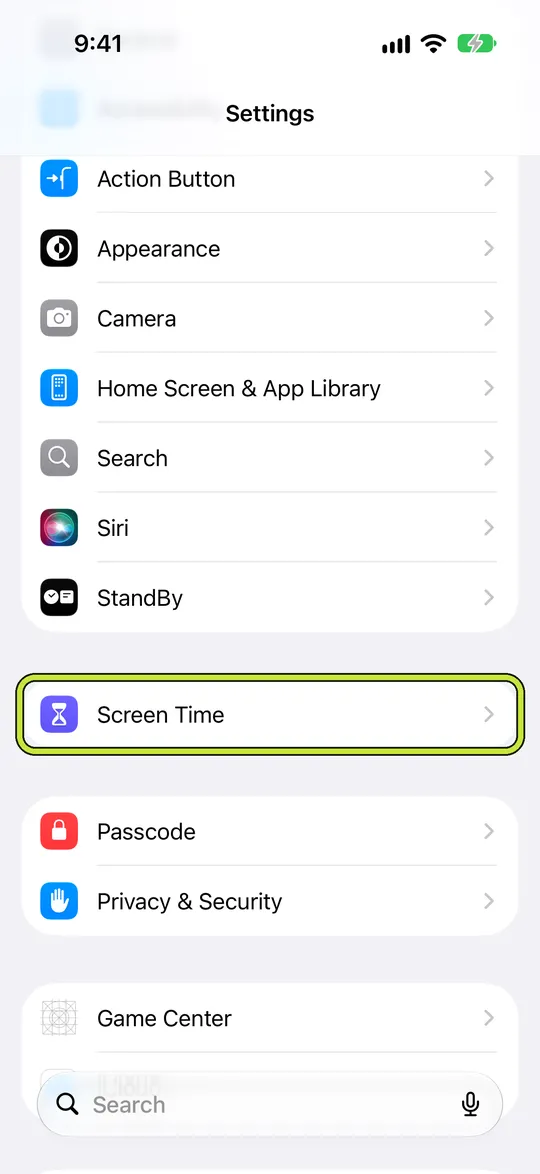
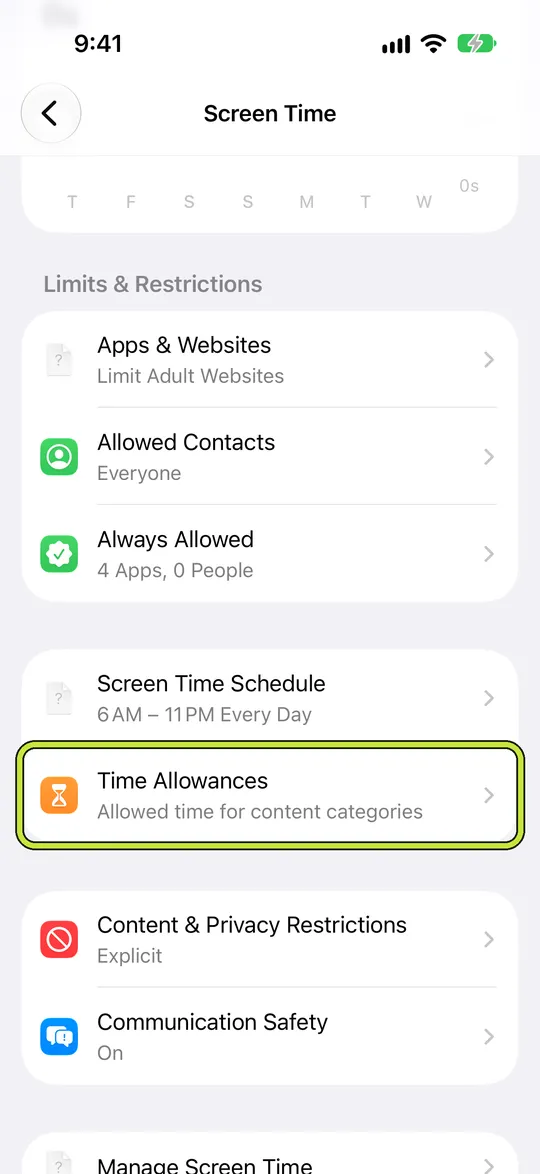
Tap Time Allowances. If asked, tap Turn on App and Website Activity.
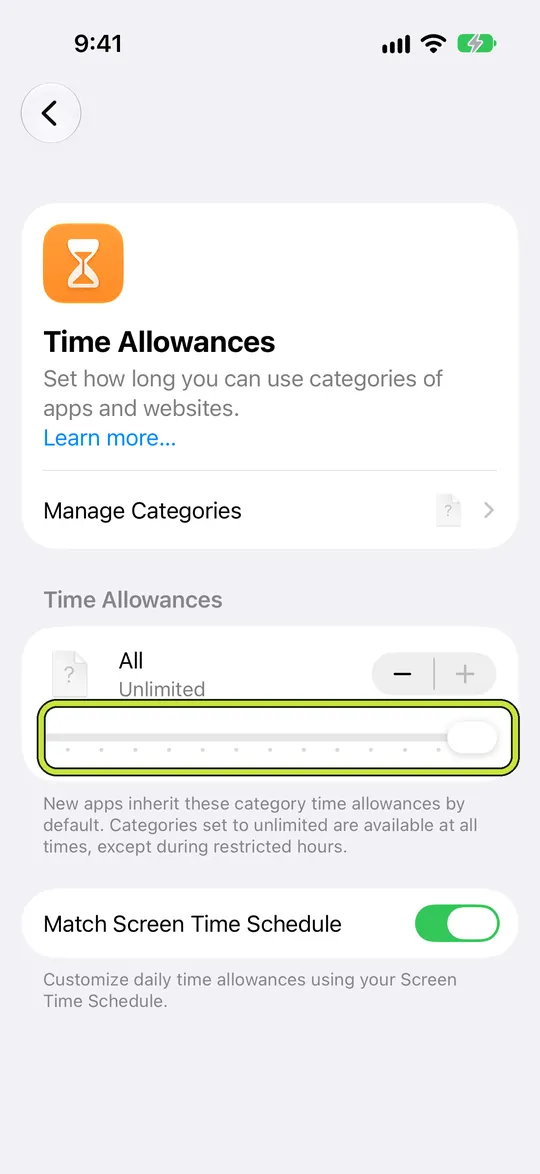
Tap All, then drag its slider to set your total time on the device each day.
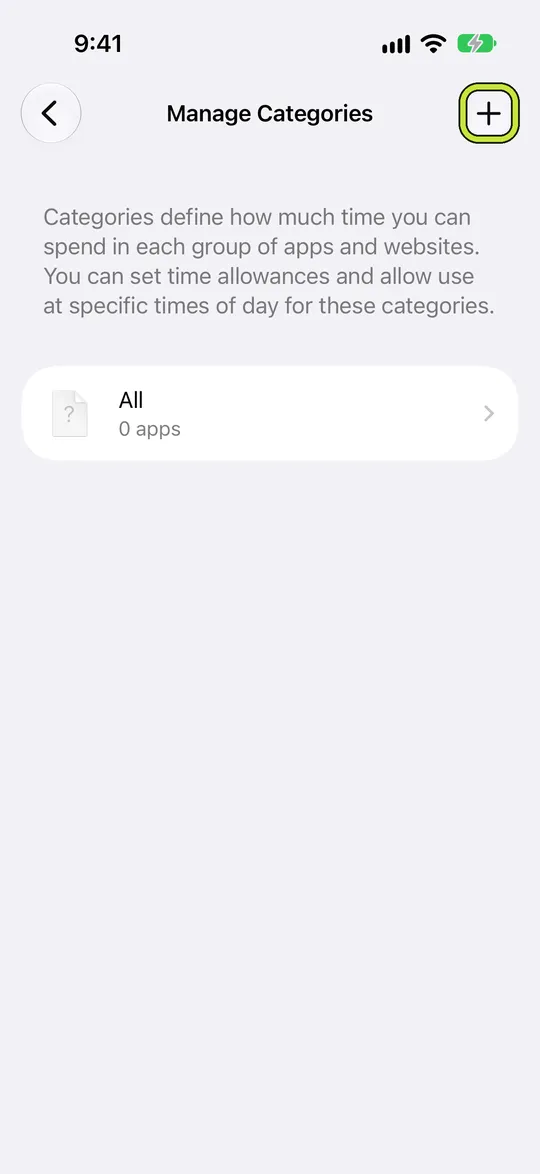
To limit a category such as Social Media, tap Manage Categories, tap the add button, then choose the category.
- Back in Time Allowances, tap the new category and drag its slider to set its time.
Set a Screen Time Schedule
A simple start is one evening window from 10 pm to 7 am with no Social Media category. Add more windows only after the first one holds.
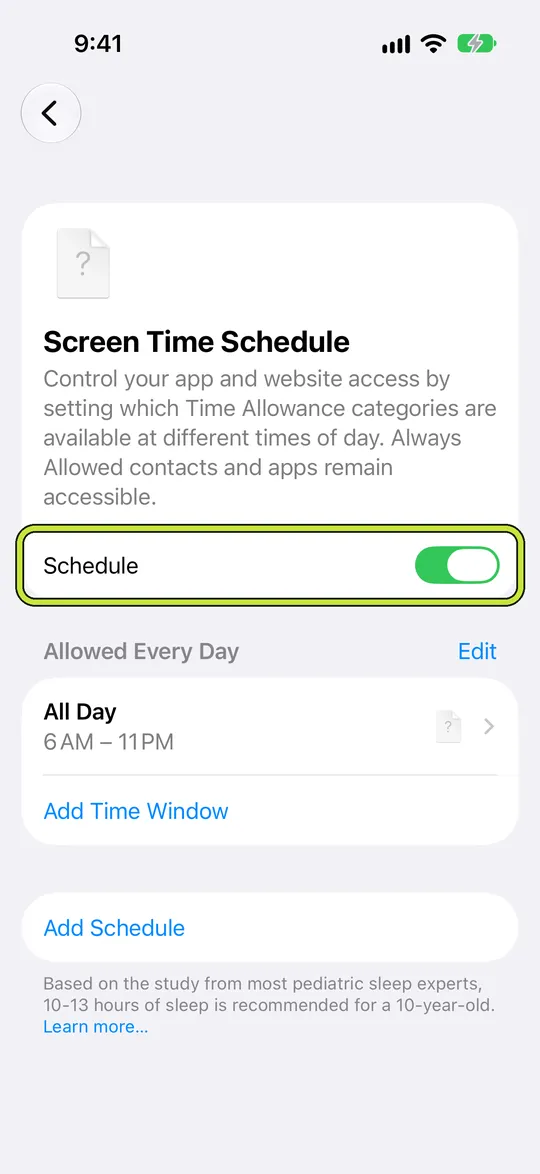
Open Settings, tap Screen Time, tap Screen Time Schedule, then turn on Schedule.
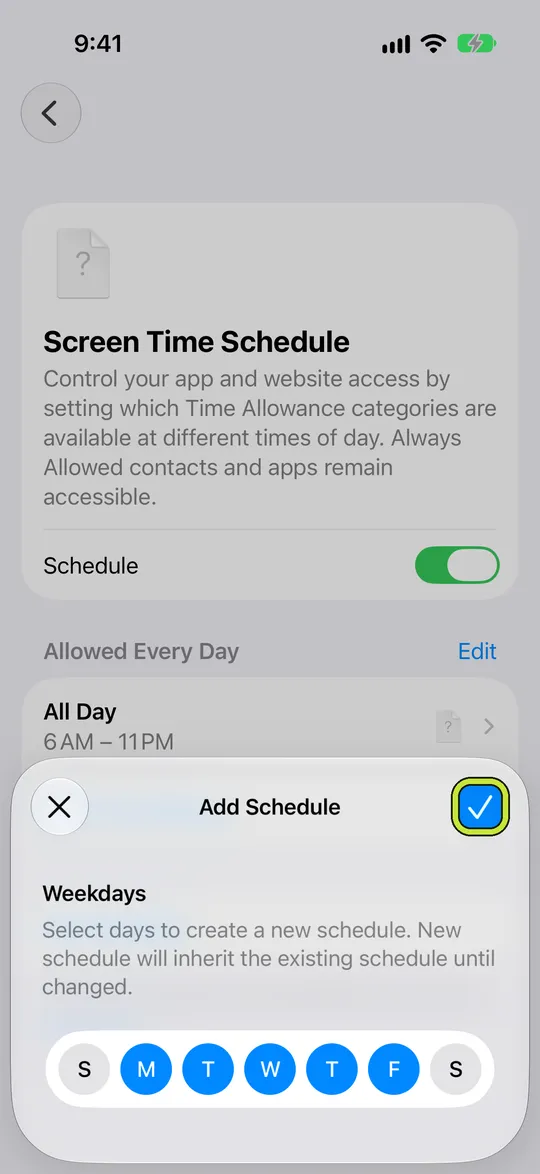
Tap Add Schedule, choose the days it covers, such as Monday to Friday, then tap Done.
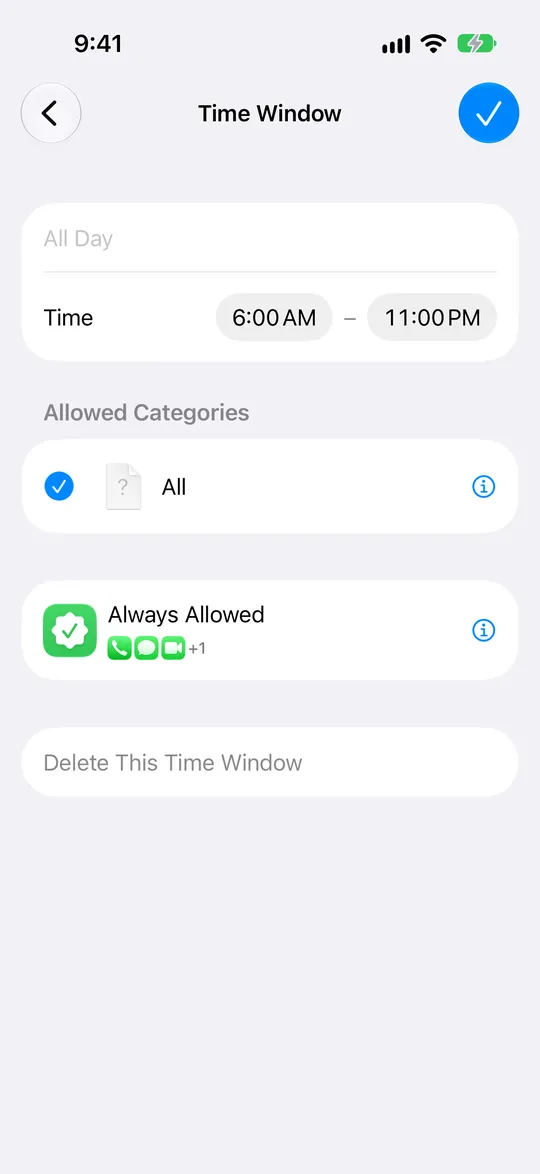
Tap a time window to change its start and end time and the categories allowed in it.
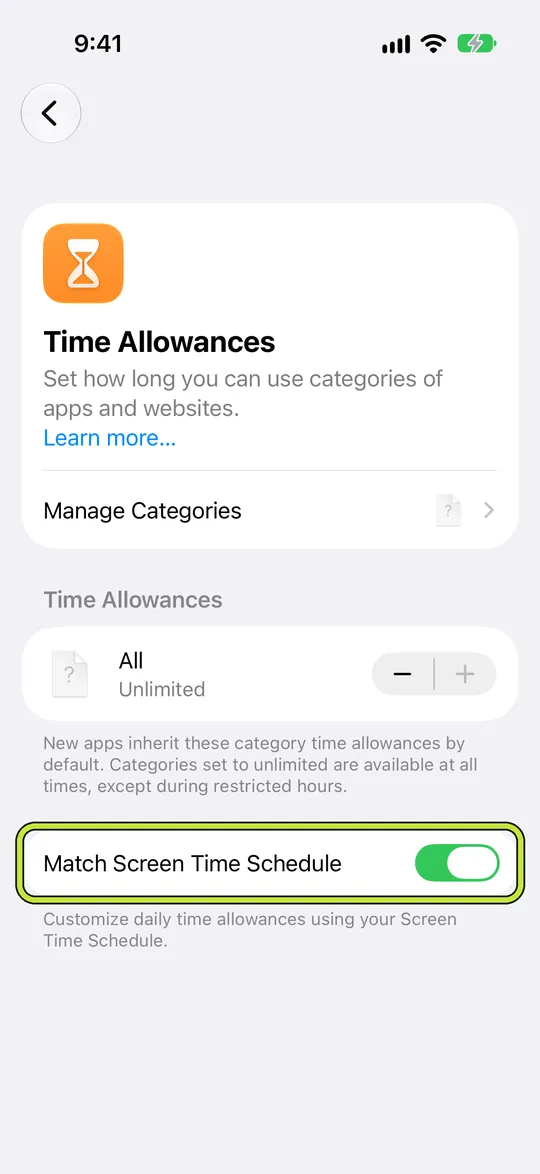
In Time Allowances, check that Match Screen Time Schedule is on, so your daily time allowances follow your schedule.
Keep the people you need reachable
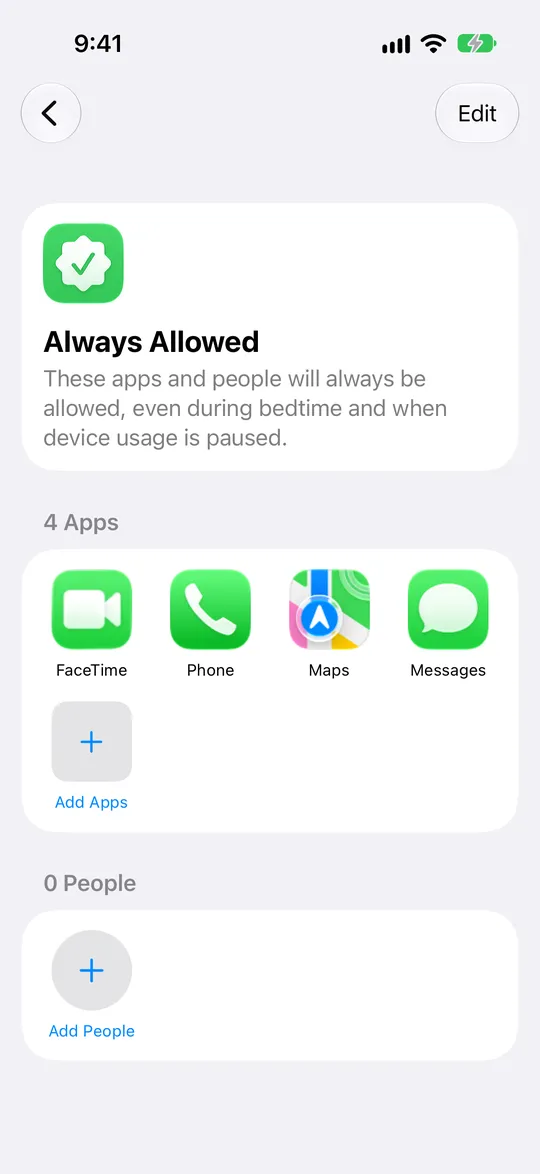
Always Allowed lists the apps you can use and the contacts you can reach regardless of any schedule or allowance. Apple suggests family members or the Health app for emergencies. Open Settings, tap Screen Time, tap Always Allowed, then tap Add Apps or Add People.
To use the same rules on your iPad and Mac, tap Manage Screen Time and turn on Share Across Devices. Apple says your schedules, allowances and usage data are then shared across devices signed in to the same Apple Account.
Reference: Apple: Set up Screen Time for yourself
If the setting is missing or the limit behaves differently
- Check your version in Settings → General → About. Instructions that say App Limits or Downtime describe the earlier interface; look for Time Allowances and Screen Time Schedule on iOS 27.
- If a category stops earlier than expected, check both its allowance and the daily total. The first limit reached can end access; raising only the category allowance may not change that.
- If an app stays available in a scheduled window, review that window’s allowed categories and the Always Allowed list. A daily allowance and a schedule answer different questions: how long, and when.
- Before relying on a new rule, try a short window while you are awake. Open a selected app, then check an essential app or contact. A rule should match your intended access before you use it overnight.
An evening schedule, start to finish
Say your evenings disappear into short videos. Create one schedule for every day with a single window from 10 pm to 7 am, and leave the Social Media category out of it. Add a partner or a parent to Always Allowed.
Change nothing else for the first week. If you find yourself raising the allowance at night, that is the moment a stronger rule, or another person's approval, is worth trying.
What the new names do not change
If you manage Screen Time for yourself, you can still change your own allowance at the moment you want to. The new layout makes limits easier to set, not harder to lift. For a child, Family Sharing keeps those controls with the parent.
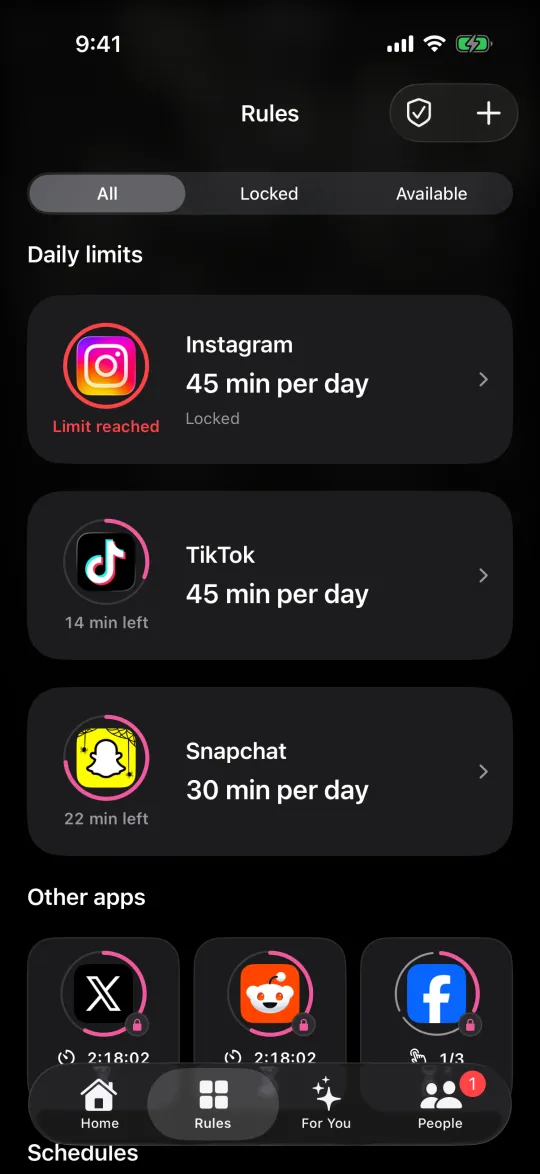
Warden adds its own rules on top of Apple's Screen Time permission: daily limits, schedules, Lockdown and optional trusted-person approval. It does not edit Apple's settings, so you can use both side by side.