
Skip to content

Screen Time

How to check your Screen Time on iPhone in iOS 27

Your iPhone already keeps a record of where your time goes. In iOS 27 the report sits one tap inside Screen Time, and it shows more than a total: your most used apps, how often you pick the phone up and how many notifications you get. Here is how to open it, read it and make it cover every device you use.

In this guide

Open your Screen Time report

Open Settings, tap Screen Time, then tap Daily Average. Tap Week for a summary of the whole week, or Day for a single day. Swipe left or right on the summary to go back through earlier days and weeks.

For a quicker look, add the Screen Time widget to your Home Screen. Your iPhone also sends a Screen Time Weekly Report notification; tap it to open the same summary, or find it later in Notification Center.

Reference: Apple: Set up Screen Time for yourself on iPhone

What the report shows

  • Your total time on the device for the day or the week.
  • Your most used apps, so you can see which one takes the most time.
  • Pickups: how many times you picked up your iPhone and your other devices.
  • Notifications: how many you received. Scroll down past the app list to find both.

Why your Screen Time total looks too high

Include your iPad and Mac

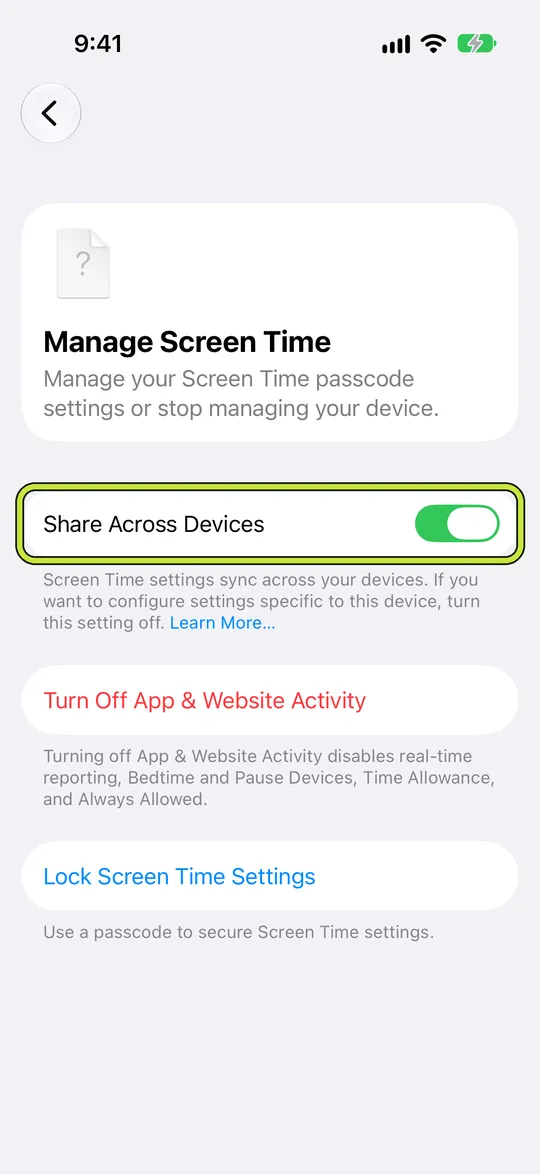
To see one combined report, open Settings, tap Screen Time, tap Manage Screen Time, then turn on Share Across Devices. Your schedules, time allowances and usage data are then shared across the iPhone, iPad and Mac signed in to the same Apple Account.

Apple notes that Share Across Devices needs iOS 27, iPadOS 27, macOS 27, watchOS 27, visionOS 27 or later on all your Apple devices. If you leave it off, each device keeps its own report and its own settings.
Reference: Apple: Set up Screen Time for yourself on iPhone

Manage Screen Time with Share Across Devices outlined

If your report is empty

  • Screen Time records nothing until App & Website Activity is on. Open Settings, tap Screen Time, tap Manage Screen Time, then tap Turn On App & Website Activity.
  • A report fills in from the day you turn it on. It cannot show time from before then.
  • Check your version in Settings, General, About. On iOS 26 and earlier the report sits under See All App & Website Activity instead of Daily Average.

Screen Time keeps turning off: what to check

Read it for one decision

A weekly total is easy to feel bad about and hard to act on. Look instead for the single app at the top of the list, and for the time of day when your pickups bunch together. Those two answers tell you what to limit and when.

Then check again a week later, on the same view, so you compare like with like.

Where App Limits and Downtime went in iOS 27

Example: the commute that showed up twice

The weekly view says four hours a day, which feels like too much but explains nothing. The Day view for a Tuesday shows two short spikes in pickups, around 8 AM and 6 PM, and the same video app at the top of the list both times.

So the first rule is small: an allowance for that one app, and nothing else changed. The next Tuesday's report is the test of whether it worked.

Turning the report into limits

Warden reads the Screen Time patterns your iPhone shares with it and suggests which apps to limit, how long to allow and when to block. You review each suggestion before it becomes a rule, and you can change it later.


How Warden suggests limits

Set it up without adding unnecessary rules

Daily limits, schedules and focus sessions

Install Warden and connect Screen Time when iOS asks. Then open Rules and tap the plus button.

Choose the apps or scope involved in this particular interruption. Use an allowance for total use, a schedule for recurring hours, or a session for a one-off task.

Editing a schedule that blocks apps from 10:00 PM to 7:00 AM every day

What Standard, Warden and Lockdown do

Choose Standard when you want to manage the limit yourself. Choose Warden when a person you trust should review early-access requests. Choose Lockdown to keep ordinary early unlocks off until the block ends.

Choose the access mode, then hold the save button to set the rule. Try a short block before using a long one. Emergency access remains separate from ordinary unlock requests.

The block screen with Ask your Warden and Keep app closed buttons

How Warden approval works

Choose how many minutes you need, add a note and hold to send. If nobody answers within 30 minutes, the request expires and the app stays locked.

An approval applies to the scope and time shown in the app. A declined or unanswered request does not lift the block. Emergency access remains a separate option on your device.

Common questions

Why does my Screen Time show no data?
App & Website Activity is probably off. Turn it on in Settings, Screen Time, Manage Screen Time. The report starts from that day and cannot show earlier use.
Can I see Screen Time for a specific day?
Yes. Open Daily Average, tap Day, then swipe left or right to move between days.
Does the report include my iPad?
Only if Share Across Devices is on in Manage Screen Time, and all your devices run iOS 27, iPadOS 27 or macOS 27 or later. Otherwise each device has its own report.

