
Skip to content

Screen Time

Why your Screen Time total looks too high

Before concluding that a Screen Time number is wrong, check what it summarizes. A weekly total, a daily average and a combined-device report answer different questions. Compare the same period and scope first, then collect a specific example if the number still looks inconsistent.

In this guide

Check the period and the unit

In Apple’s iOS 27 guide, open Settings > Screen Time > Daily Average, then choose Day or Week. Confirm the date you are reading. A total for a whole week should not be compared directly with one day’s use or with a daily average. Note the labels beside the number instead of relying on the size of a chart bar.

Reference: Apple: Screen Time reports and device sharing

Check whether other devices are included

Share Across Devices can combine Screen Time activity from an iPhone, iPad and Mac using the same Apple Account. In iOS 27, review Settings > Screen Time > Manage Screen Time > Share Across Devices. Do not change it just to make a total smaller: it also affects shared Screen Time settings. First establish which devices and period the report covers. Check Apple’s current OS requirements across all involved devices before enabling sharing.
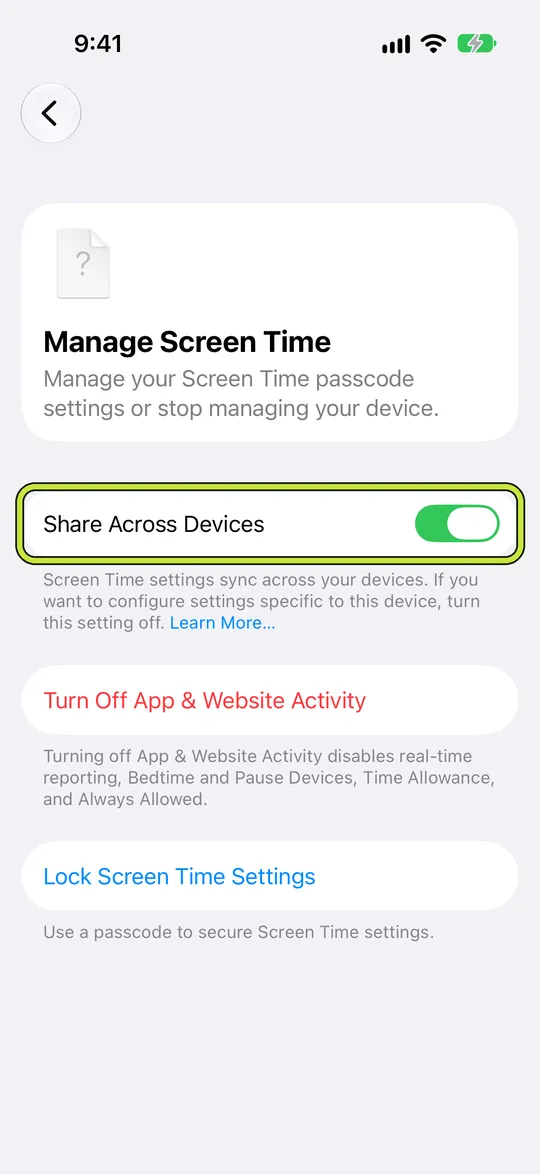
Reference: Apple: Screen Time reports and device sharing

Manage Screen Time with Share Across Devices outlined

Do not add unlike measurements together

Warden’s recorded protection describes periods when restrictions were active. Apple’s app-use report describes measured activity. An opening allowance is another kind of budget. These should not be added into one total or interpreted as a guaranteed amount of study, rest or time recovered. Read the explanation for the particular view before comparing it with a screenshot from another tool.

Example: an iPad lesson beside an iPhone report

You remember 40 minutes on the phone but also watched a lesson on an iPad. A combined report may cover both devices, so it is not a like-for-like comparison with the phone alone. Write down the date, view and devices, then compare the corresponding activity. Do not infer double counting or a defect merely because two differently scoped numbers differ.

Keep evidence when the scope still does not explain it

Record the OS version, selected period, device scope and the exact app or category that looks inconsistent. Capture only the relevant area and redact private names or messages before contacting support. Avoid reinstalling or clearing all activity as the first step, since that can remove the context needed to understand the issue. Missing information should not be treated as zero activity.


How to check your Screen Time on iPhone in iOS 27

iPad Screen Time: limits that fit your day

Set it up without adding unnecessary rules

Daily limits, schedules and focus sessions

Install Warden and connect Screen Time when iOS asks. Then open Rules and tap the plus button.

Choose the apps or scope involved in this particular interruption. Use an allowance for total use, a schedule for recurring hours, or a session for a one-off task.

Editing a schedule that blocks apps from 10:00 PM to 7:00 AM every day

What Standard, Warden and Lockdown do

Choose Standard when you want to manage the limit yourself. Choose Warden when a person you trust should review early-access requests. Choose Lockdown to keep ordinary early unlocks off until the block ends.

Choose the access mode, then hold the save button to set the rule. Try a short block before using a long one. Emergency access remains separate from ordinary unlock requests.

The block screen with Ask your Warden and Keep app closed buttons

How Warden approval works

Choose how many minutes you need, add a note and hold to send. If nobody answers within 30 minutes, the request expires and the app stays locked.

An approval applies to the scope and time shown in the app. A declined or unanswered request does not lift the block. Emergency access remains a separate option on your device.

Common questions

Does a large total prove a Screen Time bug?
No. First compare matching dates, units and devices. If the same scoped view still looks inconsistent, report that specific example without assuming its cause.
Does Warden protection time equal app-use reduction?
No. An active restriction records protection, not a counterfactual measure of what you would have done or proof of an offline activity.

