 Warden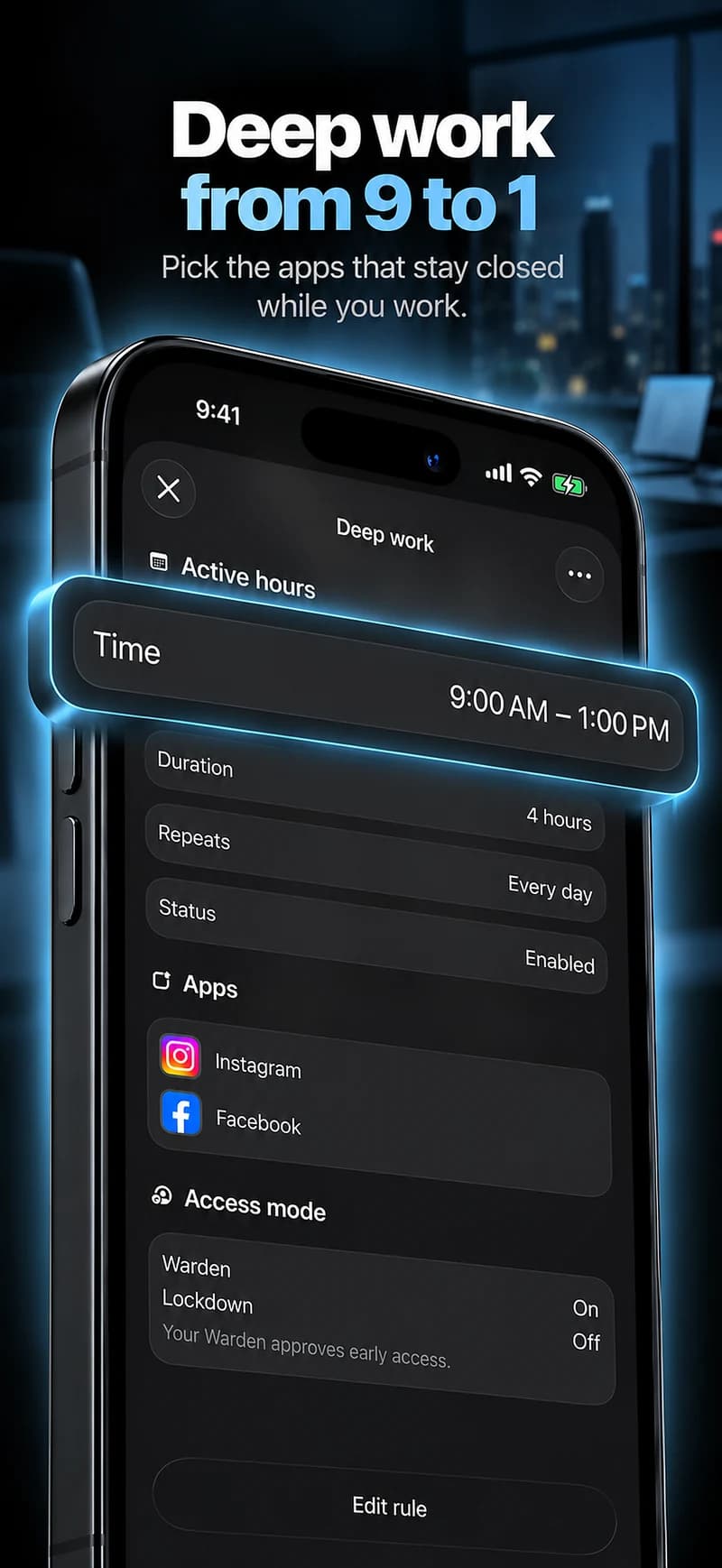
Build around a task, not an all-day ideal.
Choose one period that benefits from fewer app checks: preparing a document, writing code or working through a review. A recurring morning window can help when the task has a regular place; a focus session can fit a changing calendar.
Keep communication, authentication, travel and research needs in view. If a broad category blocks a tool your job requires, narrow the rule instead of creating a stream of predictable exceptions.
A starting point to make your own
| Routine | Example time | Purpose |
|---|---|---|
| A clear morning | 9 AM – 11 AM | An adjustable weekday window for the apps that interrupt your work. |
| A proper finish | Last 30 minutes | Use a focus session to finish one task before switching away. |
Warden for iPhone
Set it up without adding unnecessary rules
Daily limits, schedules and focus sessions
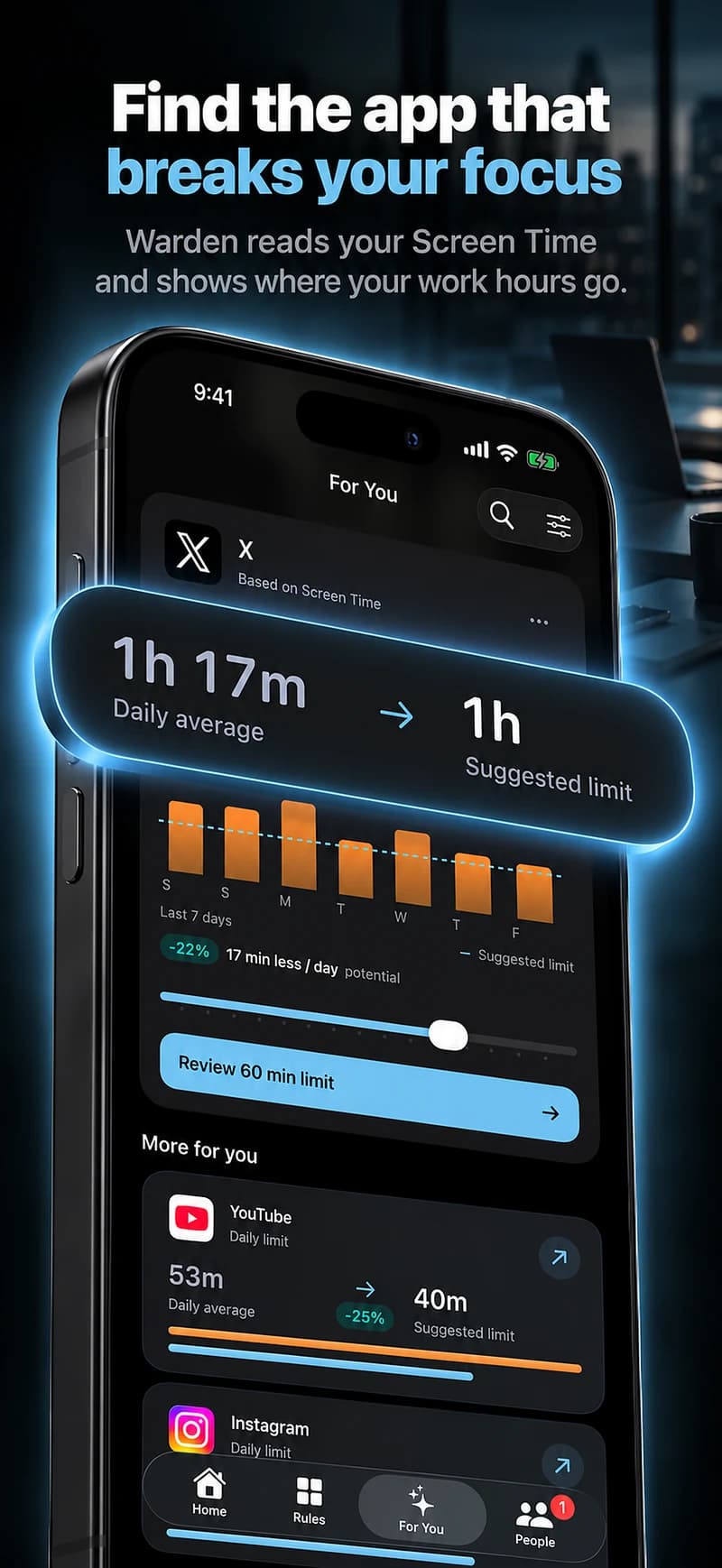
Install Warden and connect Screen Time when iOS asks. Then open Rules and tap the plus button.
Choose the apps or scope involved in this particular interruption. Use an allowance for total use, a schedule for recurring hours, or a session for a one-off task.
What Standard, Warden and Lockdown do
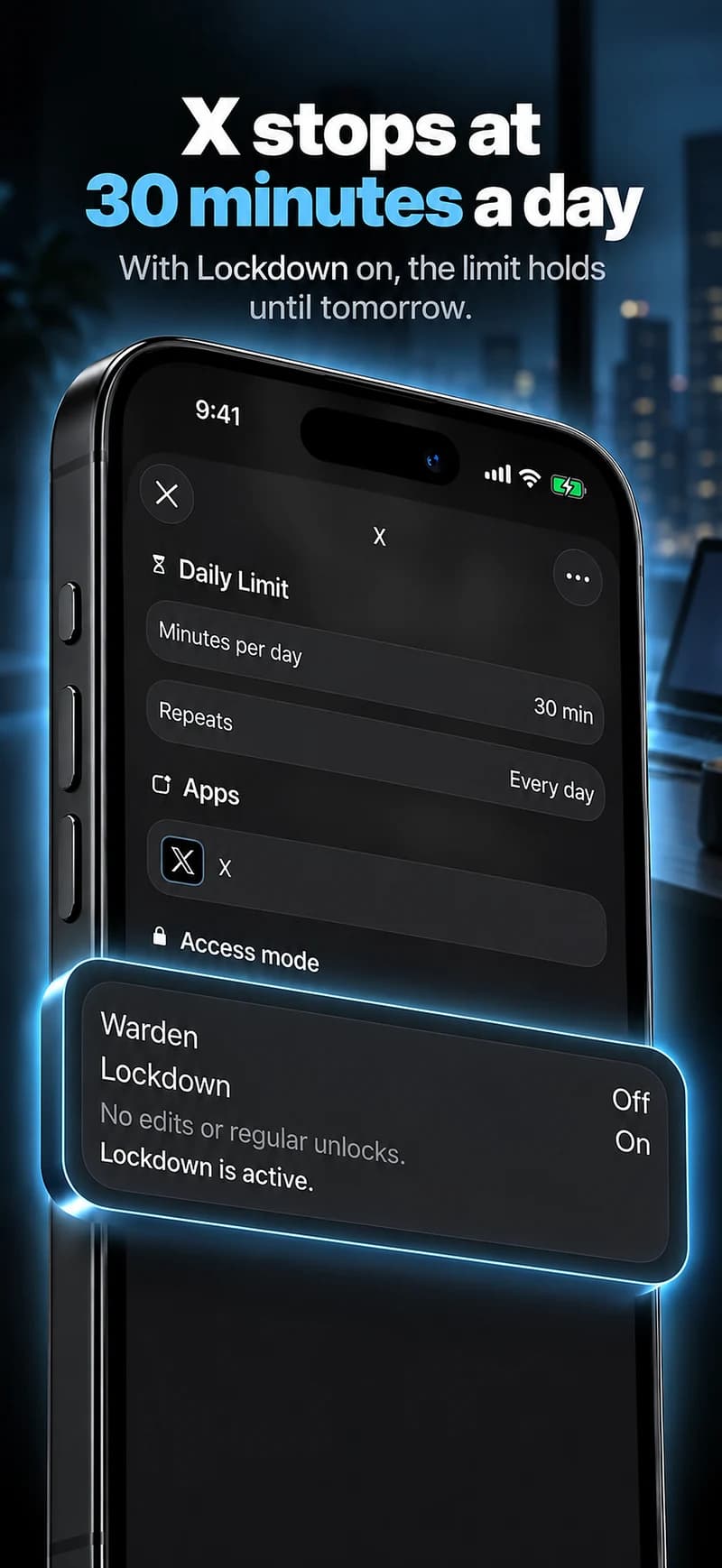
Choose Standard when you want to manage the limit yourself. Choose Warden when a person you trust should review early-access requests. Choose Lockdown to keep ordinary early unlocks off until the block ends.
Choose the access mode, then hold the save button to set the rule. Try a short block before using a long one. Emergency access remains separate from ordinary unlock requests.
How Warden approval works
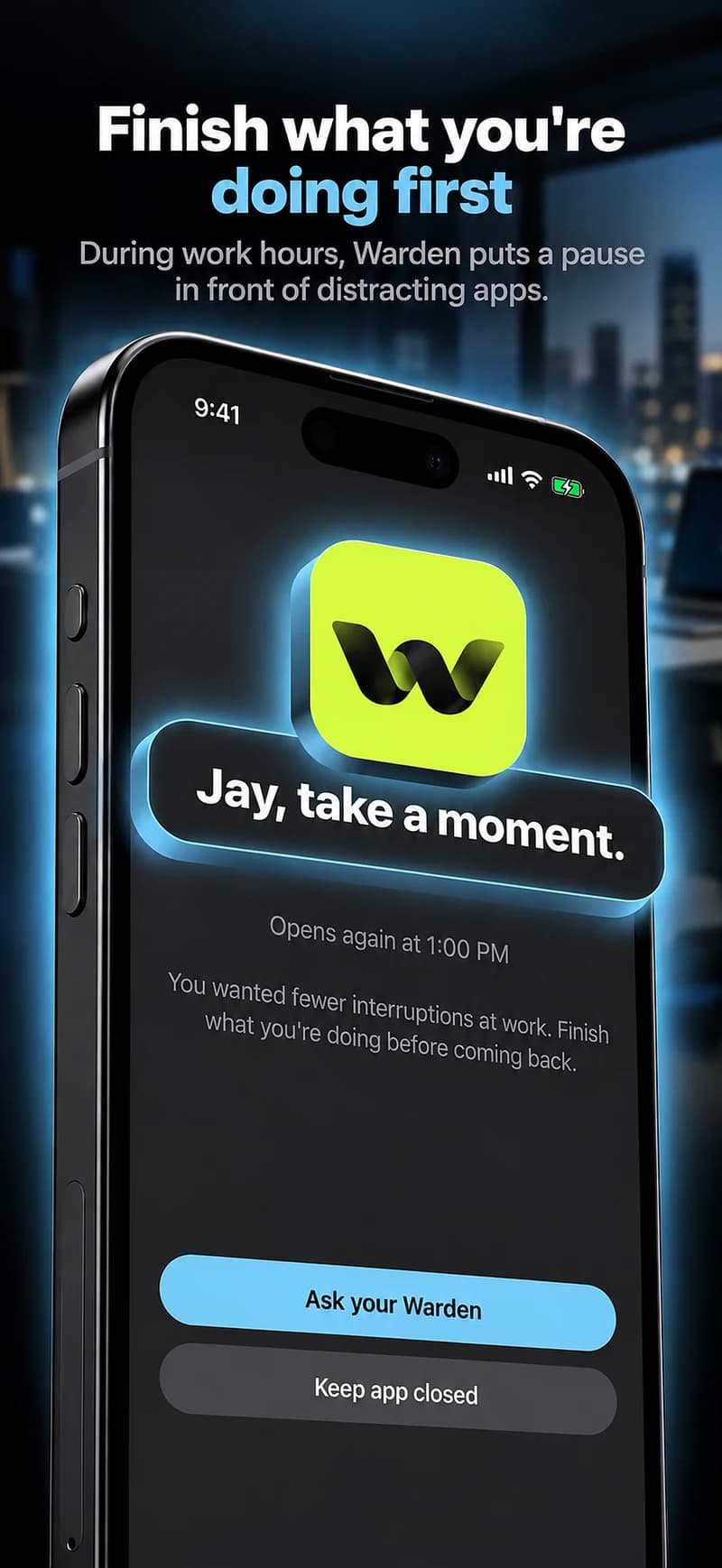
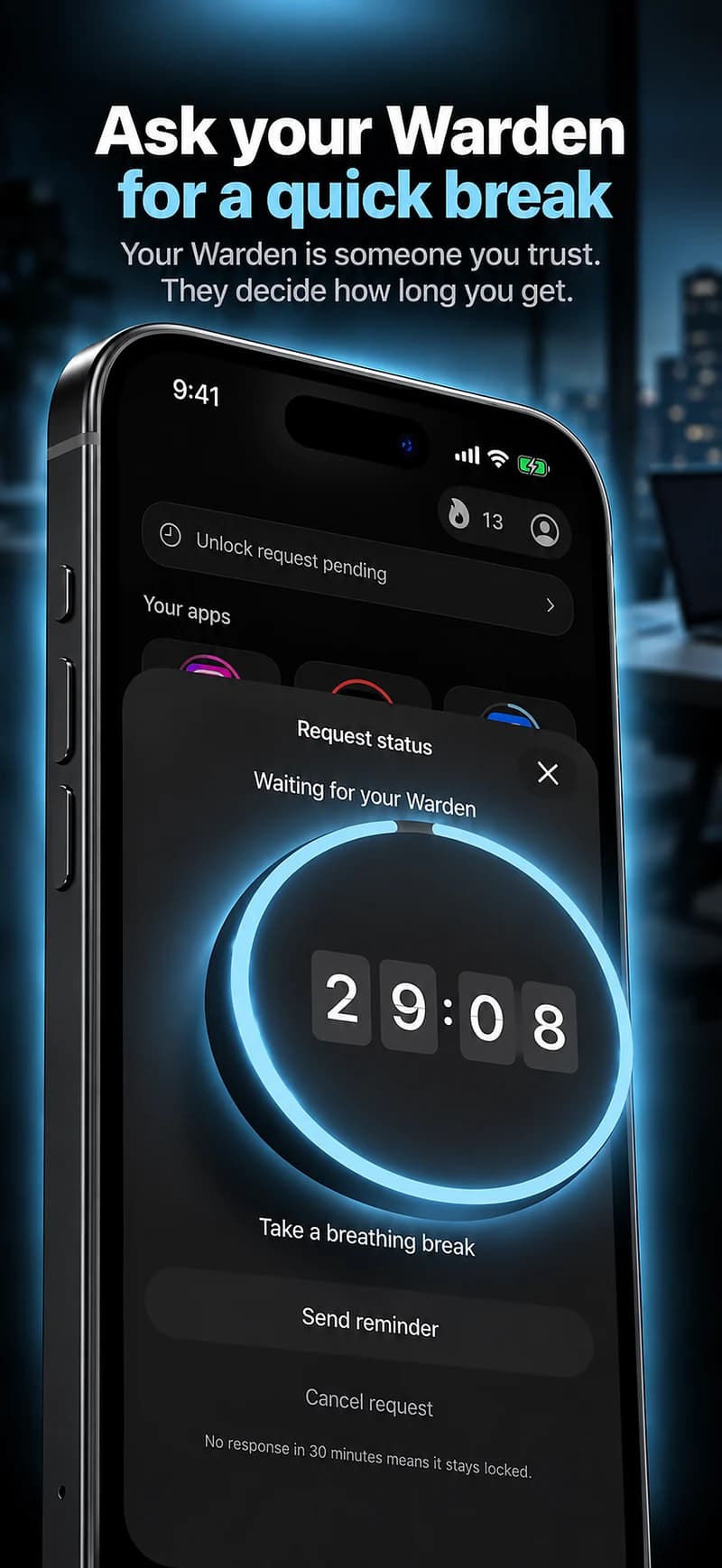
Choose how many minutes you need, add a note and hold to send. If nobody answers within 30 minutes, the request expires and the app stays locked.
An approval applies to the scope and time shown in the app. A declined or unanswered request does not lift the block. Emergency access remains a separate option on your device.

Review the work window itself.
Judge whether the selected apps interrupted the intended task. A lower whole-phone total does not necessarily mean better work, particularly when your role uses the phone.
Choose trusted-person approval only when someone freely agrees to help. A personal boundary should not become an employer requirement for activity monitoring or shared passwords.