 Warden
Warden for iPhone
How to set up Warden.
Install the app, connect Screen Time, choose the apps and decide how strict each rule is: Standard, Warden or Lockdown. Each step shows the screen you will see.
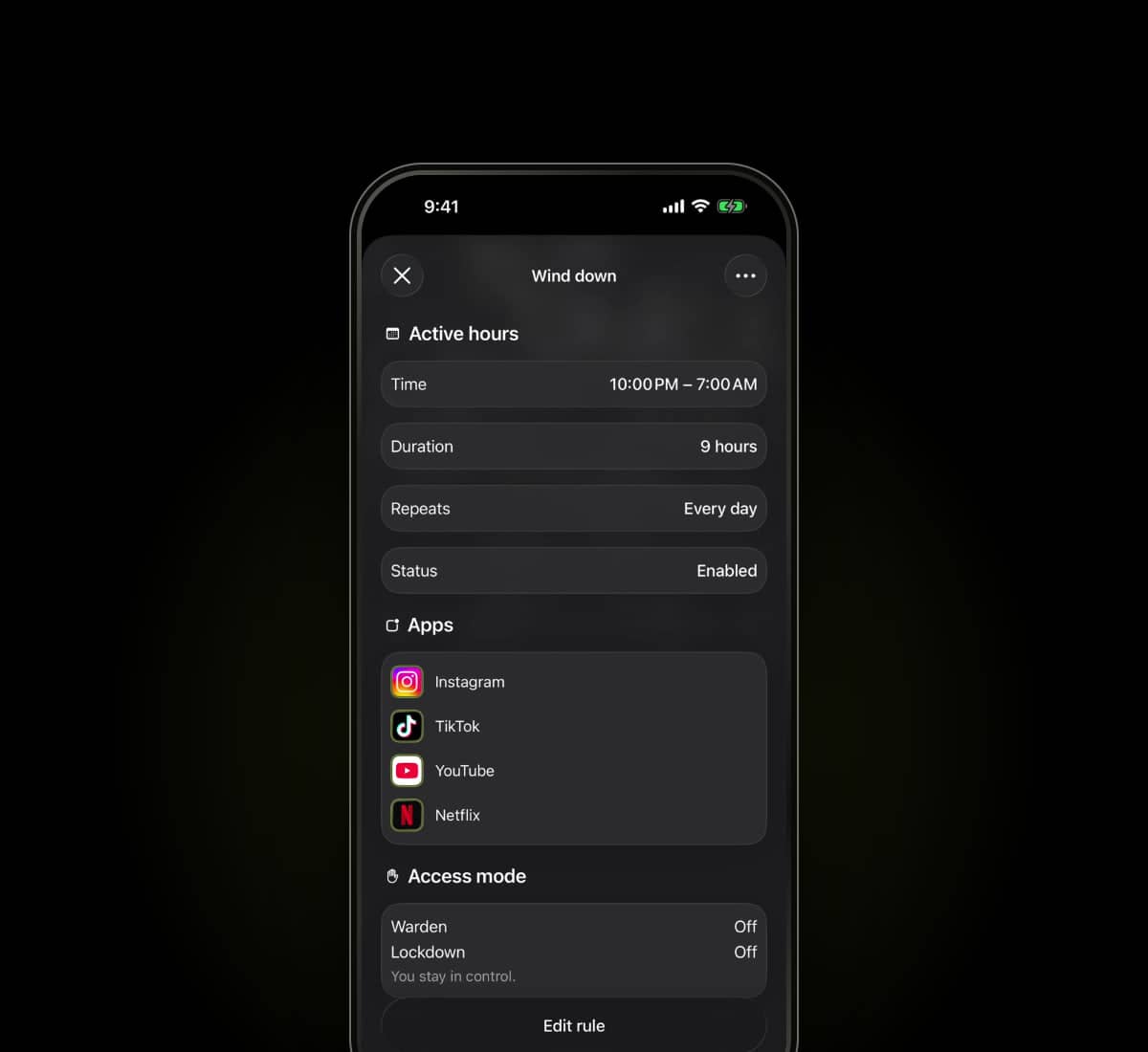
Install Warden.
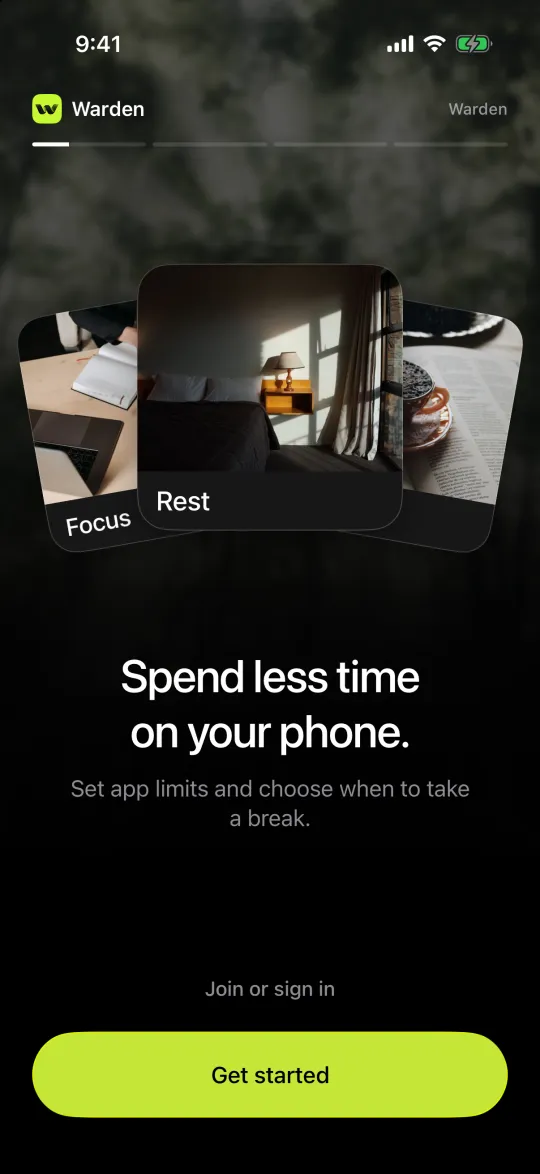
Install Warden from the App Store on your iPhone. Open Warden and tap Get started.
Get Warden for iPhoneChoose how to start.
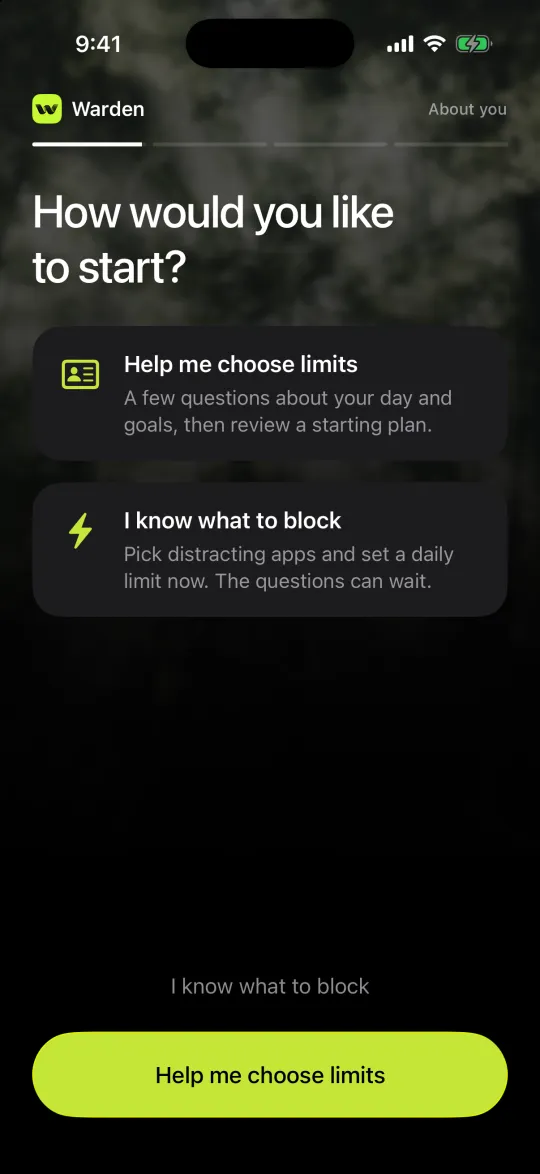
Choose Help me choose limits to answer a few questions about your day and review a starting plan, or I know what to block to pick apps and set a limit straight away. You can change everything later.
Connect Screen Time.
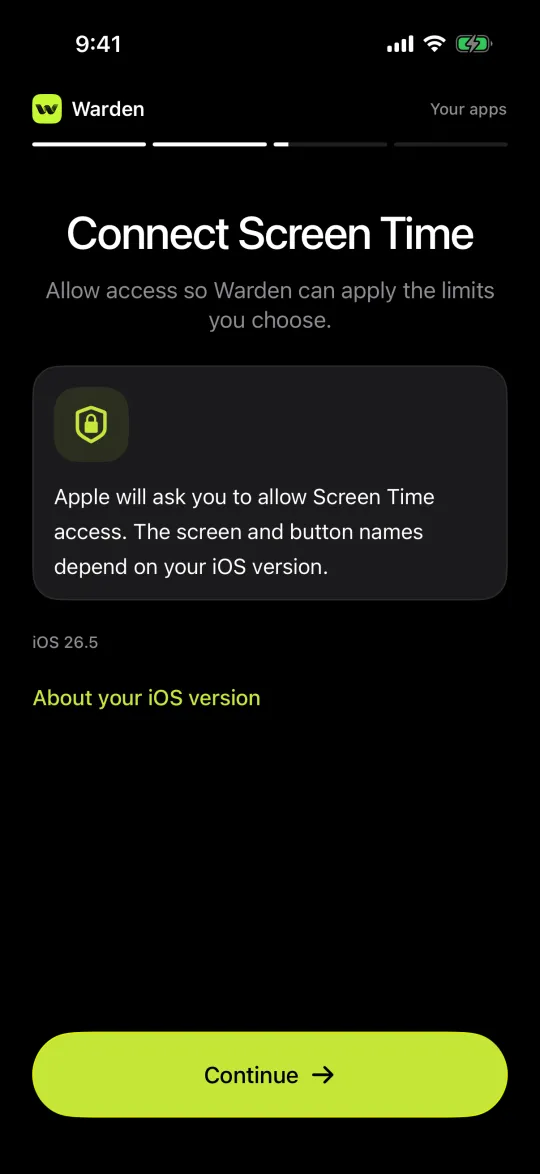
Warden blocks apps through Apple’s Screen Time system, so iOS asks you to allow access. Tap Continue and approve Apple’s prompt. Its wording depends on your iOS version.
Warden applies limits to the apps you select. It does not read your messages or browsing. App-use history for suggestions needs separate supported access; without it, you can still create every rule by hand.
How Screen Time permissions and reports differSet a daily limit.
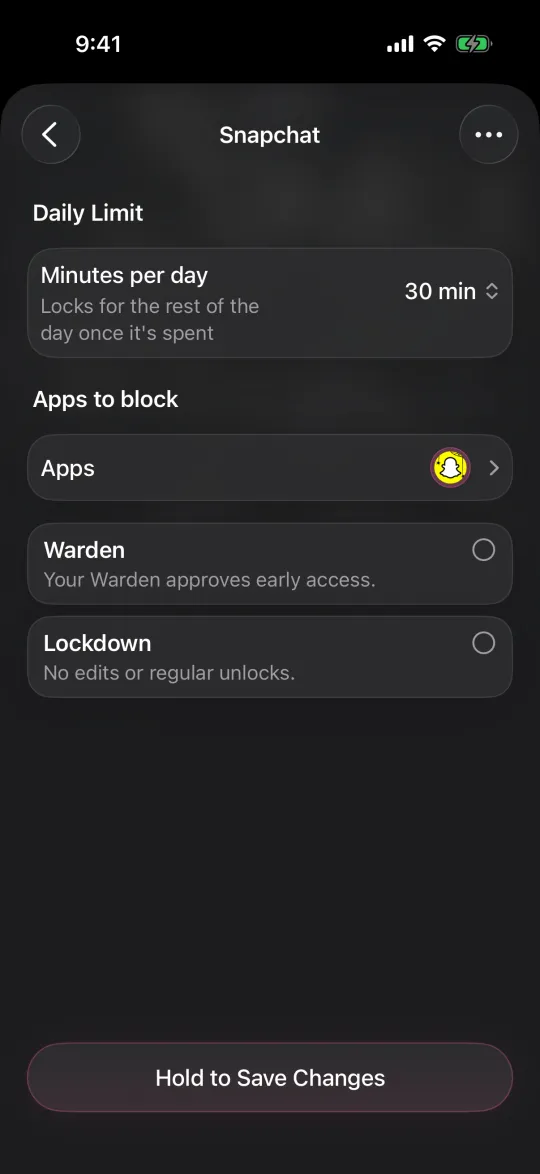
A daily limit gives selected apps a number of minutes each day. Each app can have its own limit, and the Rules screen shows the minutes left on each one.
- Open Rules and tap the plus button.
- Choose Daily limit, tap Apps and select the apps to include.
- Set Minutes per day. When the minutes are used, the apps lock for the rest of the day.
- Choose the access mode, then hold the save button to set the rule.
Or block apps at set hours.

Choose Custom schedule to block apps during set hours, such as 10:00 PM to 7:00 AM. Set when it starts and ends, the days it repeats and the apps it blocks.
Use a One-time lock for a single break, or an Opening limit to allow a few short openings a day instead of a time budget.
Choose Standard, Warden or Lockdown.
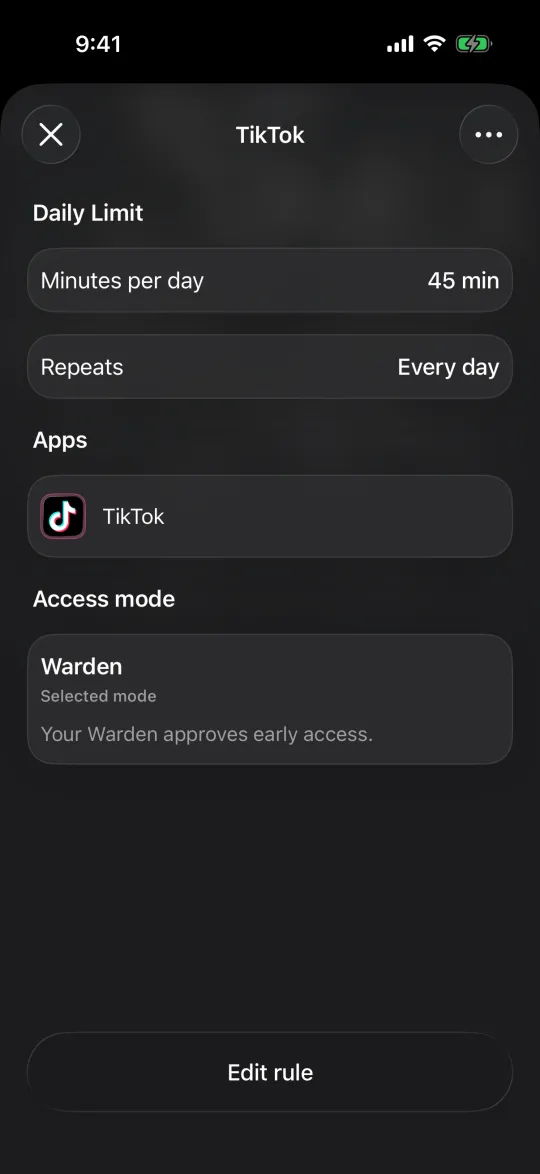
Every rule has an access mode. It decides what happens when you want a blocked app before the rule ends. Leave both options unselected for Standard, or select Warden or Lockdown. You choose per rule, so a bedtime schedule can be strict while a daily limit stays flexible.
- Standard
- You can open a blocked app yourself for 1 to 15 minutes by holding a button, and you can edit the rule at any time. Free.
- Warden
- Early access goes through the person you invited. They approve a request for a set number of minutes or decline it. No answer means the app stays locked. Pro.
- Lockdown
- No early unlocks and no edits while the rule is active. It needs no other person. Pro.
- Emergency access
- Works in every mode, including Lockdown, without approval.
What Lockdown locks.
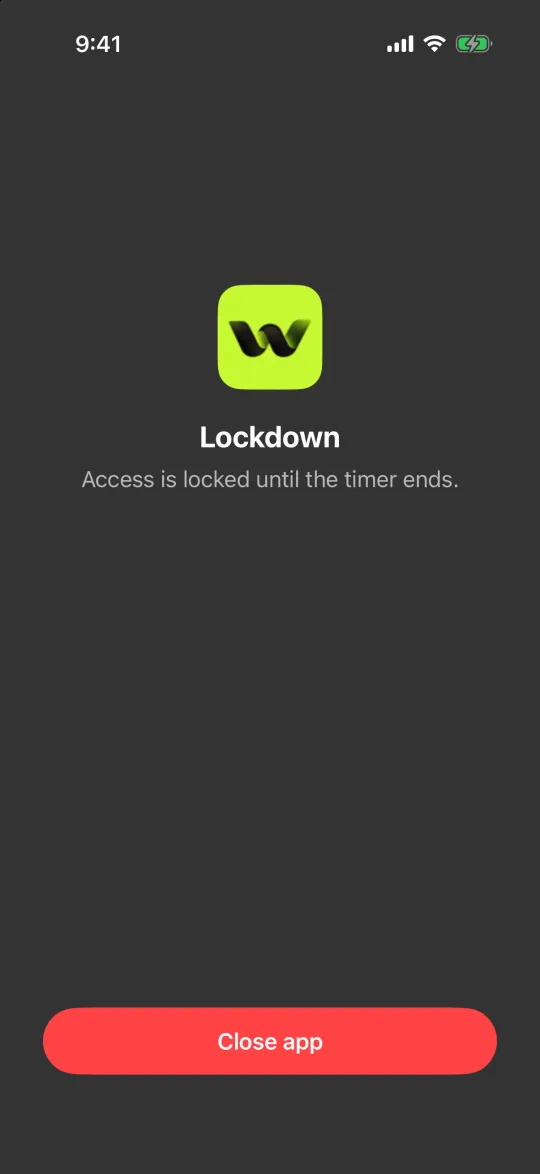
Lockdown is for the rule you keep undoing. While a Lockdown rule is active, the block screen has one button, Close app. The rule cannot be edited or deleted, apps cannot be removed from it, and signing out is paused. You can still add new rules, because a new rule only adds blocks.
A Lockdown schedule is active during its hours. A Lockdown daily limit becomes active when its minutes are used and stays that way until the limit resets the next day. After that you can edit the rule or switch it back to Standard.
Lockdown makes a rule harder to undo inside Warden. It does not stop you changing iOS permissions, and emergency access stays available.
Add your Warden.
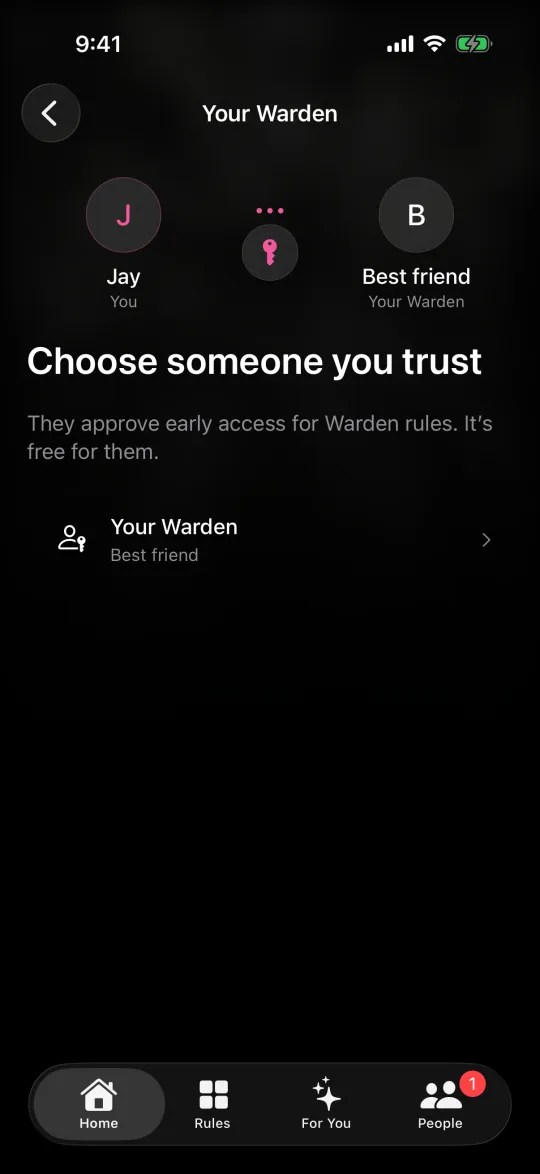
Your Warden is a friend, partner or family member who approves early access for rules set to Warden mode. Open People and invite your Warden by link, code or QR. They accept it in the Warden app. Being a Warden is free.
Your Warden sees the requests you send and the progress you share, not your screen, messages or browsing. You can be someone else’s Warden at the same time; their requests appear on the same People screen.
How trusted-person support worksWhen you open a blocked app.

iOS shows Warden’s block screen instead of the app. It says why the app is blocked and when it opens again. Keep app closed takes you back. The other button depends on the rule: Ask your Warden in Warden mode, or a short unlock you hold to start in Standard.
Ask for a few minutes.
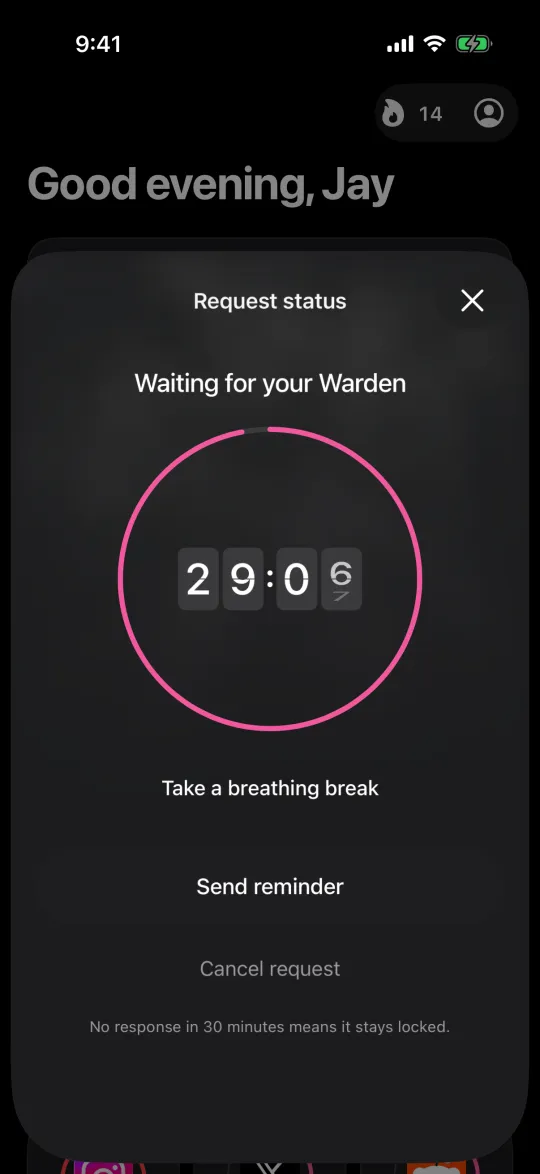
Choose how many minutes you need, add a note and hold to send. If nobody answers within 30 minutes, the request expires and the app stays locked.
Your Warden approves or declines.
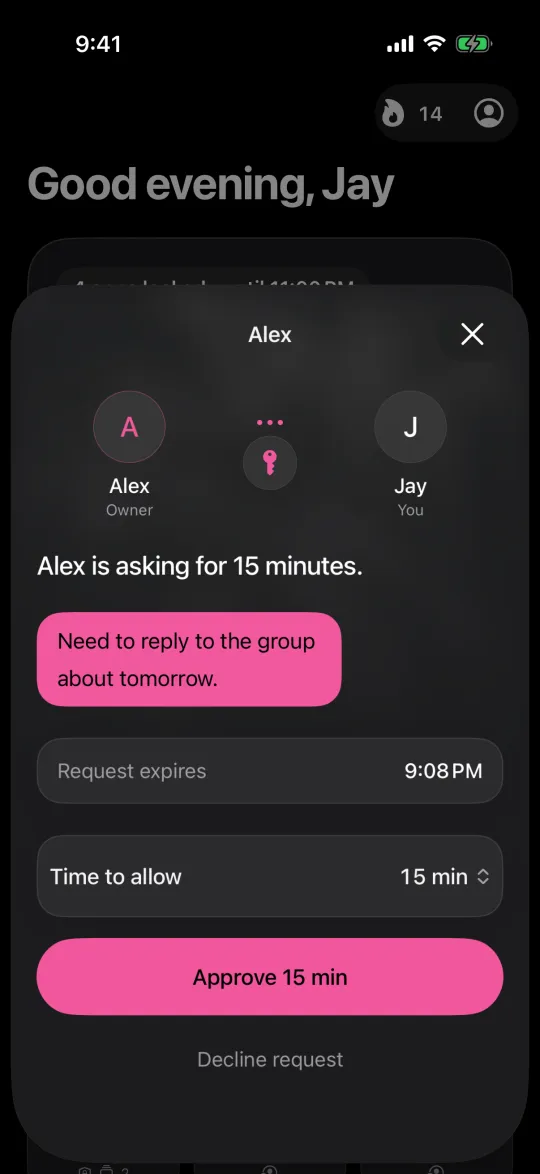
Your Warden gets a notification, reads your note and chooses how many minutes to allow, or declines. Silence never counts as approval.
Examples of a clear replyThe app opens for those minutes.
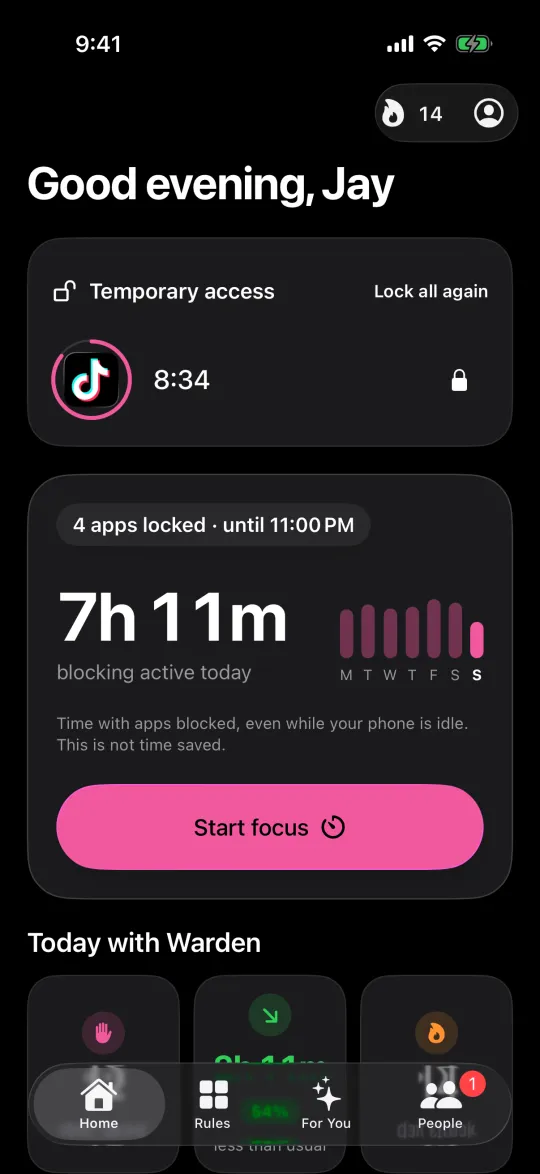
Approved time shows on Home as a countdown. When it runs out, the app locks again. Lock all again ends it early.
If it is a real emergency.
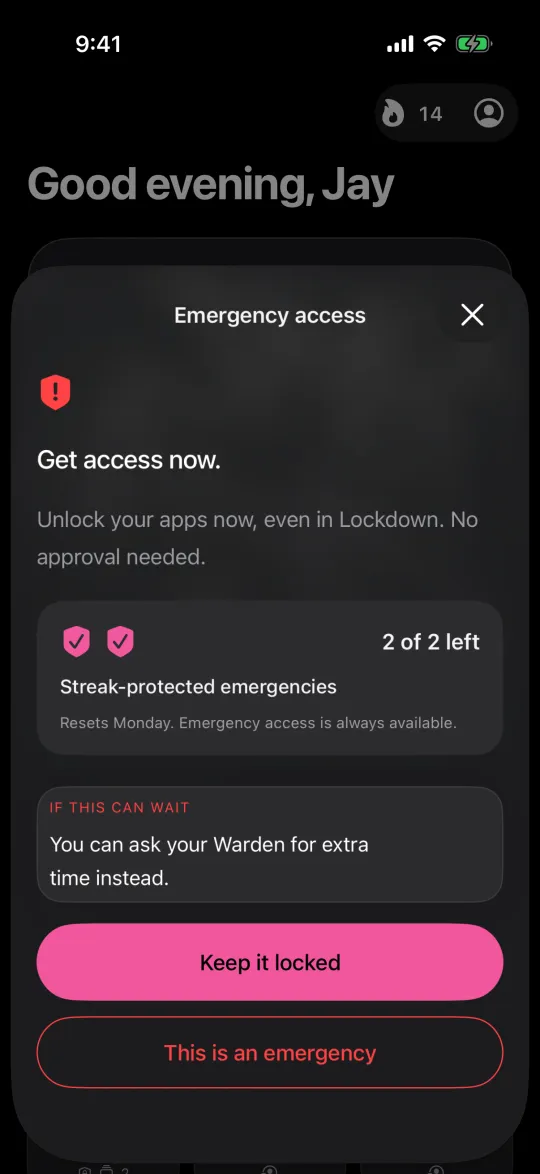
Emergency access unlocks your apps at once, even in Lockdown, with no approval and no signal needed. Your Warden is told when you use it. Your first two uses each week keep your streak; after that, a use restarts it.
Check how it is going.
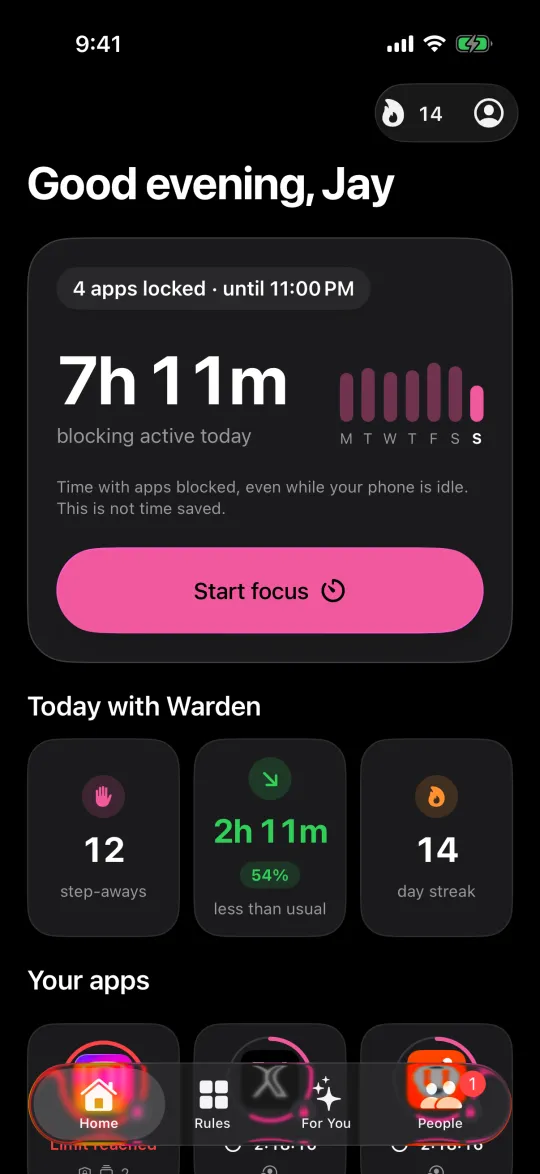
Home shows how long blocks were active today, how many times you closed a blocked app, and your streak. Blocking time counts while your phone is idle too, so it is not time saved.
For You suggests limits from your Screen Time history when that data is available. Nothing changes until you review and save a suggestion. If a rule keeps blocking something you need, adjust its apps or hours.
Get help with a rule