 Warden
The main pieces of an iPhone blocker
Family Controls handles authorization and the selection of apps, categories and domains. Managed Settings applies restrictions, including the shield shown when access is blocked. Device Activity supplies monitoring and report infrastructure. A product combines these pieces with its own saved rules and interface.
This separation matters when diagnosing a problem. A rule can be saved correctly while authorization is missing, or a report can be temporarily unavailable while an existing block still works. Seeing one screen succeed does not prove every part of the system has fresh information.
Reference: Apple: Family Controls
A private report is not a general-purpose data export
DeviceActivityReport presents a report built in an extension. Warden’s usage comparisons are calculated in that report context rather than exporting the resulting private measurements to its website. A web landing page cannot inspect a visitor’s Screen Time merely because they opened it.
Separately authorized app-and-website data access has its own eligibility and approval requirements. Do not equate it with ordinary Screen Time permission, and do not make the opposite claim that no app can ever display names or usage. The correct answer depends on the particular API and authorization.
Reference: Apple: DeviceActivityReport
A threshold event is not a continuously readable stopwatch
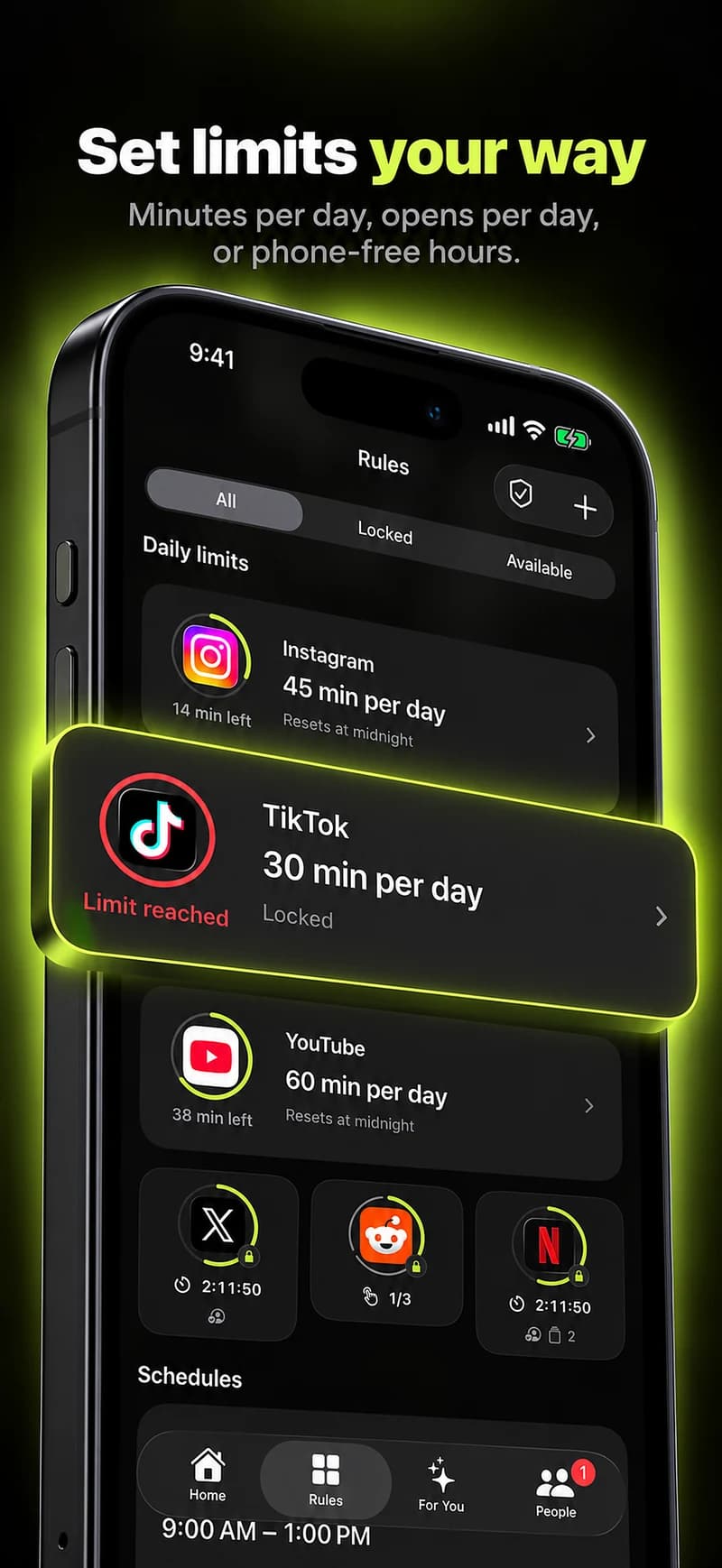
A daily limit needs monitoring configured for the correct selection and period. When a usage threshold is reported, the app’s extension can update the relevant restriction. A visible countdown, a focus session’s elapsed time and an app’s measured usage are different quantities.
This is why a serious limit test includes an actual app, a known allowance, the relevant day, and the status after the threshold. A progress ring should not pretend to be a live reading when the system has only delivered an older report.
Reference: Apple: Device Activity
Ask what is measured and what is inferred
“Blocked for 45 minutes” records a restriction. “Used 30 minutes less than usual” compares readings against a stated baseline. Neither proves that the user exercised for 45 minutes or that the blocker caused the reduction. Those distinctions belong in the product, not only its legal pages.
Useful questions for a provider are: Where is analysis performed? What is sent to the server? What happens without a report? Which parts work offline? Does a privacy statement distinguish the website, the app and a connected person? Warden’s privacy notice answers those scopes separately.
Trace a rule through the system
A developer needs to distinguish configuration, enforcement and presentation. A saved selection is not proof of monitoring. A running monitor is not proof its threshold callback was delivered. A visible chart is not proof that a restriction is currently applied. Test these states separately, including the case where the host app is closed.
For a daily app limit, register the intended activity interval and threshold, then apply the appropriate managed restriction when the event is delivered. Keep report rendering independent of that path. Use the same selection and time basis when comparing the displayed allowance with observed behavior, and never use a missing report as permission to invent zero usage.



