 Warden
Warden for iPhone
Understand your screen time.
See the app use Screen Time reports, the intervals Warden protected, and comparisons where enough history is available. Each tells you something different about your day.
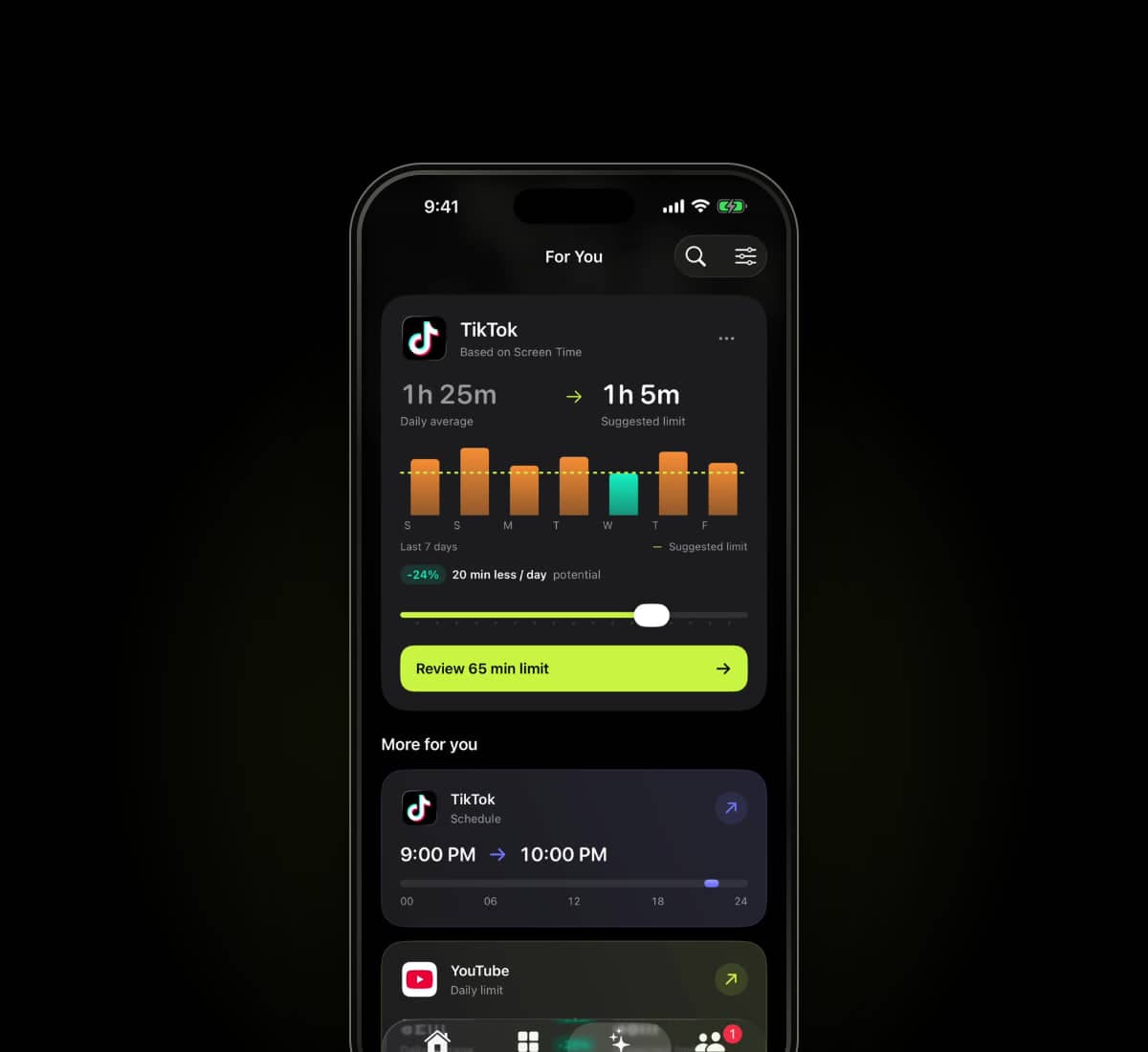
See reported app use.
Review the activity available through Apple’s Screen Time reporting system for a day or a longer period.
Reports may be unavailable or incomplete. Check the selected apps and reporting period before comparing totals.
Check when a block was active.
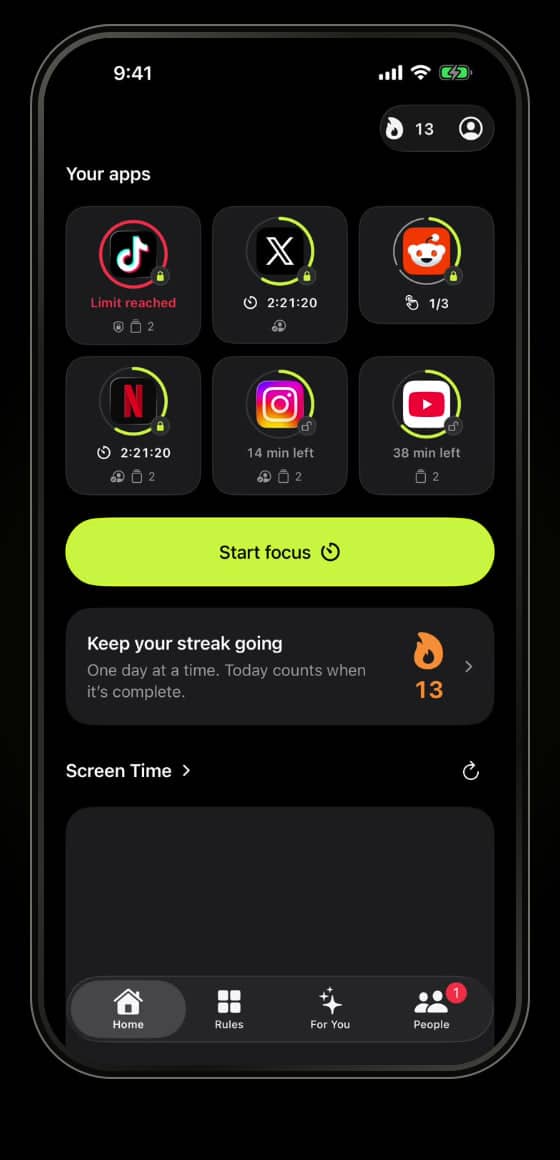
Protected time records intervals when Warden observed an applied restriction. Overlaps count once; temporary and emergency access affect the record.
An active block does not show what you did instead. It is not a measurement of time saved.
Compare the same hours.
Warden compares completed hours with enough comparable history. Missing or stale reports do not count as zero use.
When there is not enough history, a meaningful pace comparison is unavailable.
- Reported use
- Activity returned for the selected app and reporting period.
- Protected time
- Recorded intervals with a restriction active.
- Below usual pace
- Less reported use than a stated comparable baseline.
- Completed activity
- Not established by a block or usage reading alone.
Troubleshoot a missing report.
A missing chart does not necessarily mean a block stopped working. Reporting and blocking use different system features.
Check Screen Time authorization, enabled rules and any temporary access.
Troubleshoot a limit that appears not to work