Warden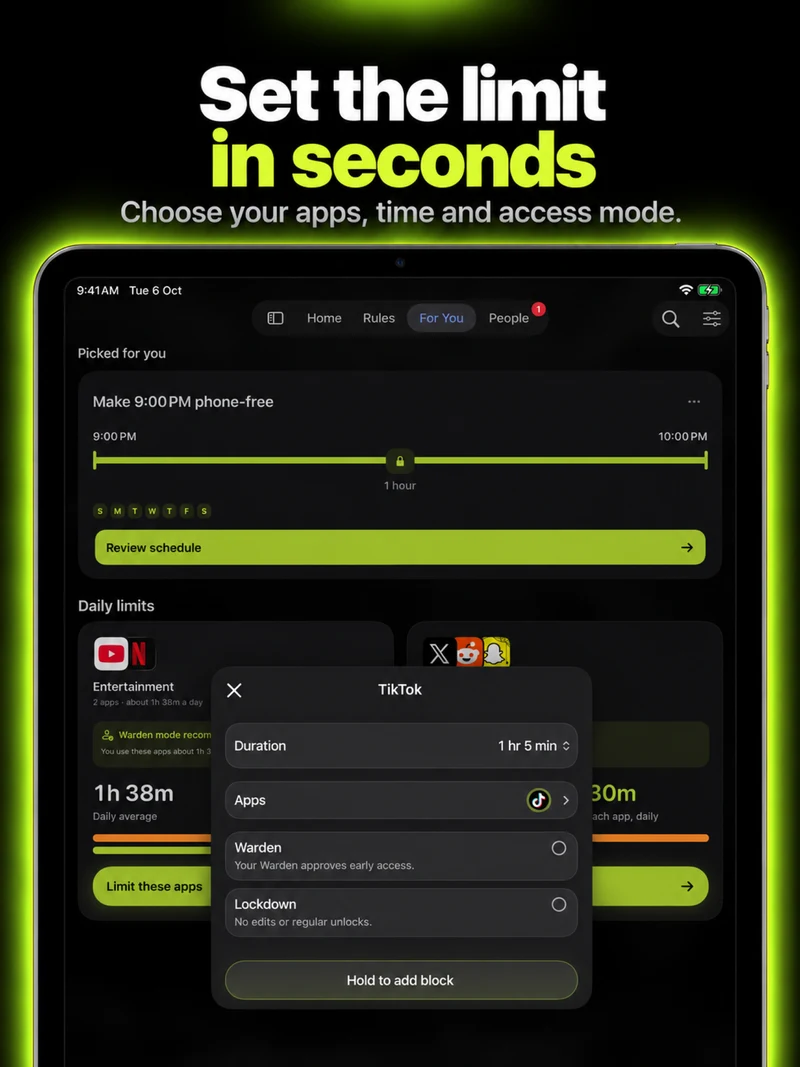
Start with the iPad and account you mean to change
Open Settings > Screen Time on your own iPad and turn on App & Website Activity if needed. Review Share Across Devices before interpreting a total as iPad-only use: Apple can share Screen Time settings and reports between devices signed in to the same Apple Account.
If you are managing a child’s device, use Apple’s family setup instead of treating these personal-device steps as parental-control instructions. For a school or work iPad, check with the person who manages it before changing restrictions.
Use the controls for your iPadOS version
In iPadOS 27, Time Allowances sets daily budgets for app categories. Screen Time Schedule organizes when those categories are available. Open Settings > Screen Time and choose the control that matches your goal.
For a recurring study window, open Screen Time Schedule, enable Schedule, and add the days and windows. Review the categories allowed in each window. For an overall entertainment budget, adjust that category in Time Allowances. Manage Categories lets you review the grouping.
Apple says the new allowance and schedule features need version 27 or later across the relevant devices. If your iPad still shows App Limits and Downtime, choose your older iPadOS version in Apple’s guide rather than hunting for a missing new label.
Reference: Apple: Screen Time schedules and time allowances on iPad
Protect the work without blocking the tools
Before selecting a broad category, check where your textbook, drawing app, school portal and reference videos belong. An entertainment app may also host a lesson you need. A narrow selection or a different window may be more useful than treating everything on the iPad alike.
Review Always Allowed for essential apps and contacts. Then try the actual task with the restriction active. Open the notes, reference material and communication tools you need. A successful setup supports that task; it does not merely produce a smaller usage total.
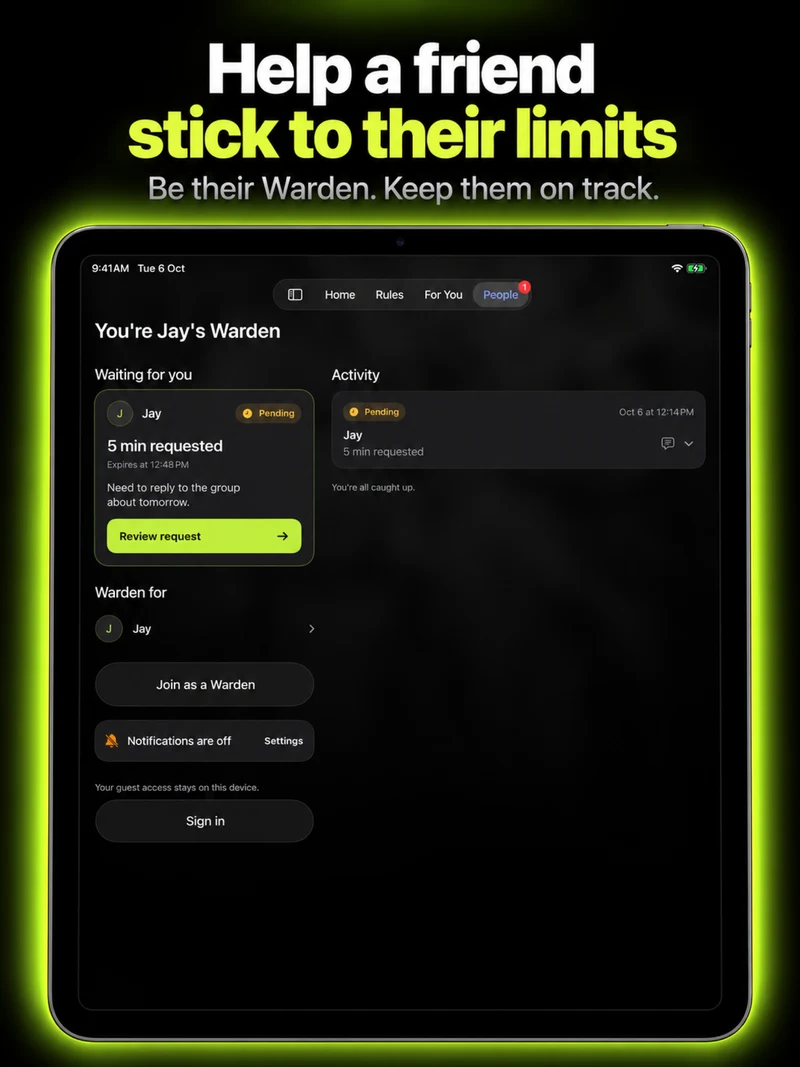
Check Warden on this iPad before relying on a rule
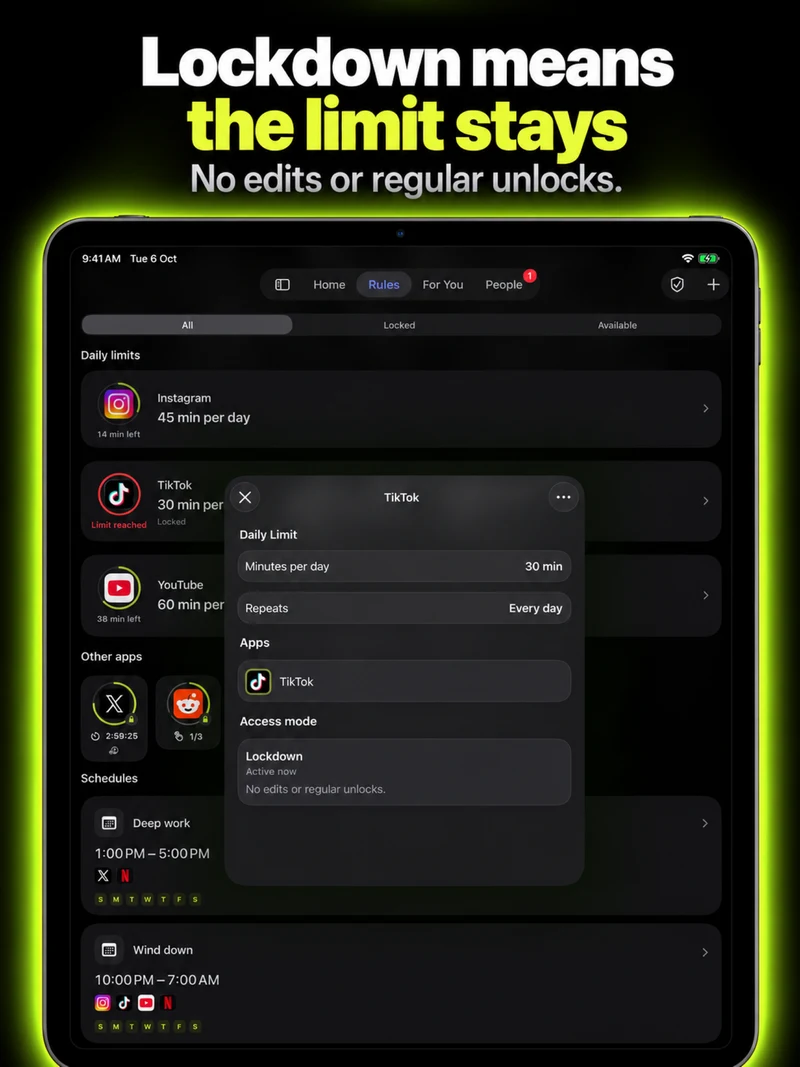
In Warden, review the selected apps and access mode before saving a rule. Keep the tools you need for the task available, and start with a short block to check the result.
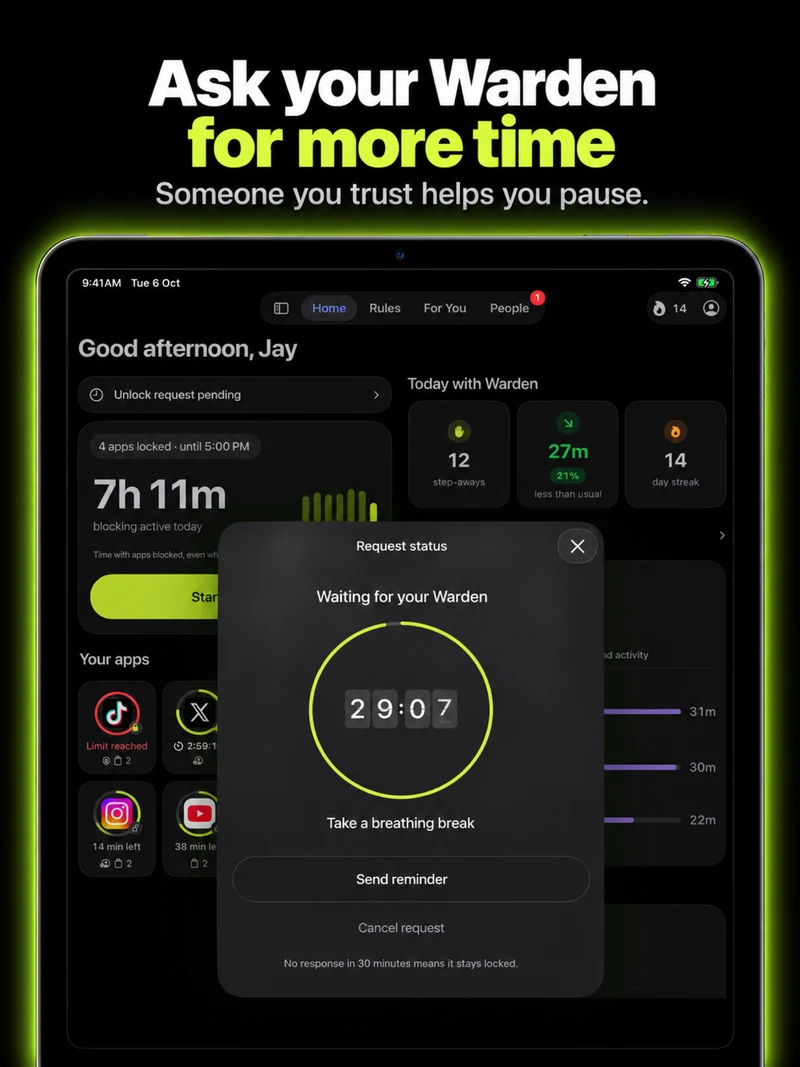
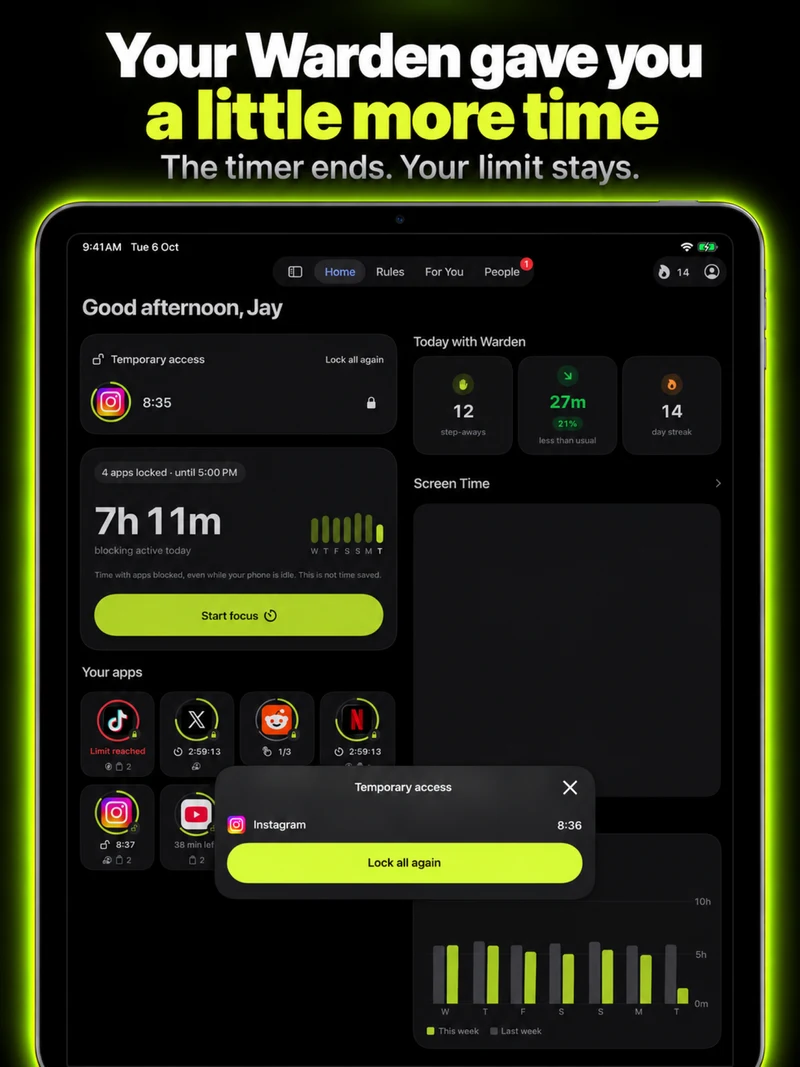
If you use Warden, confirm its Screen Time connection on this device. Choose a short test rule and verify both the selected app and an app that should remain available. If someone helps approve early access, agree on their availability and test the request together.
Do not assume Apple’s Share Across Devices setting proves that another app’s rules or permissions have synchronized. Check Warden on each device you intend to use.
A worksheet, a notes window and one distracting game
For a forty-minute worksheet session, keep the worksheet and notes app available and select the game you tend to open between questions. Check that the rule covers the game without blocking the school portal used to submit the work.
At the end, review where you became distracted. If the distraction moved to an unselected app, reconsider the selection. If a needed tool was blocked, narrow it. The aim is a workable study session, not a rule that makes schoolwork impossible.