Skip to content

Screen Time

Screen Time Always Allowed: setup, limits and usage reports

Always Allowed keeps selected apps and contacts available through Apple’s Screen Time schedules and allowances. It does not remove their use from your activity report or override every restriction on the phone. Here is how to edit the list, check what it permits and distinguish it from Warden’s separate exceptions.

In this guide

What Always Allowed does

In iOS 27, Apple describes Always Allowed as the apps you can use and the contacts you can communicate with at all times, regardless of any Screen Time schedules or Time Allowances you have set. Apple suggests family members or the Health app for emergencies.

In iOS 26, the same list keeps apps and contacts available during Downtime and after you reach your App Limits.

Apple’s Always Allowed list concerns Apple Screen Time. Do not assume it exempts an app from a separate Warden rule. Review each app selection and test the communication tools you need.

Where App Limits and Downtime went in iOS 27

Keep essential apps available while blocking distractions

Reference: Apple: Screen Time Schedules and Time Allowances

How to add or remove apps and people

You manage the list in Screen Time settings. In iOS 27 it also appears in each time window of your schedule.

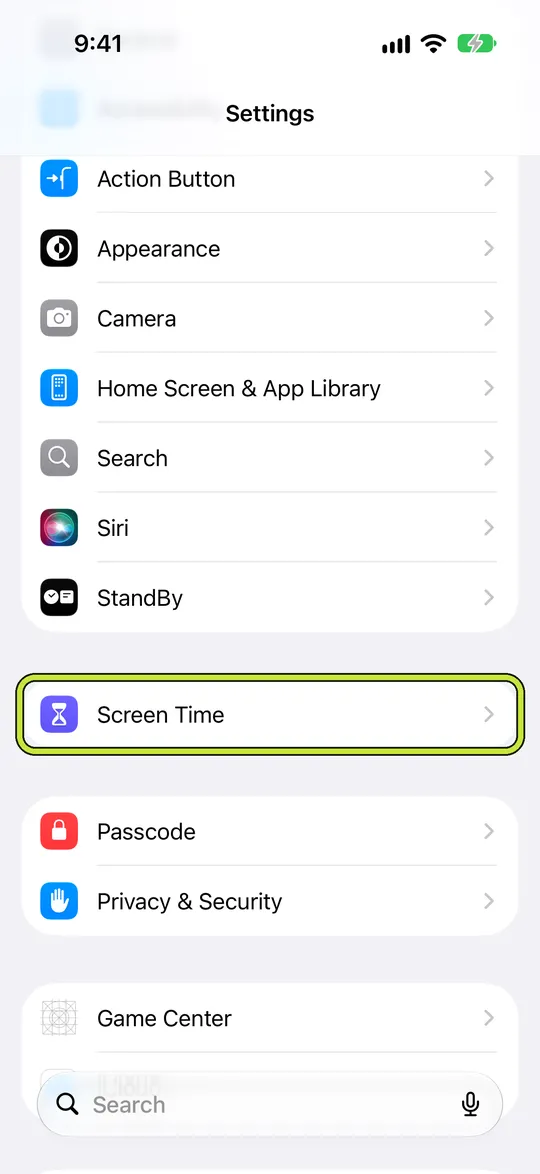
  1. Open Settings and tap Screen Time.

    The Settings app with Screen Time outlined
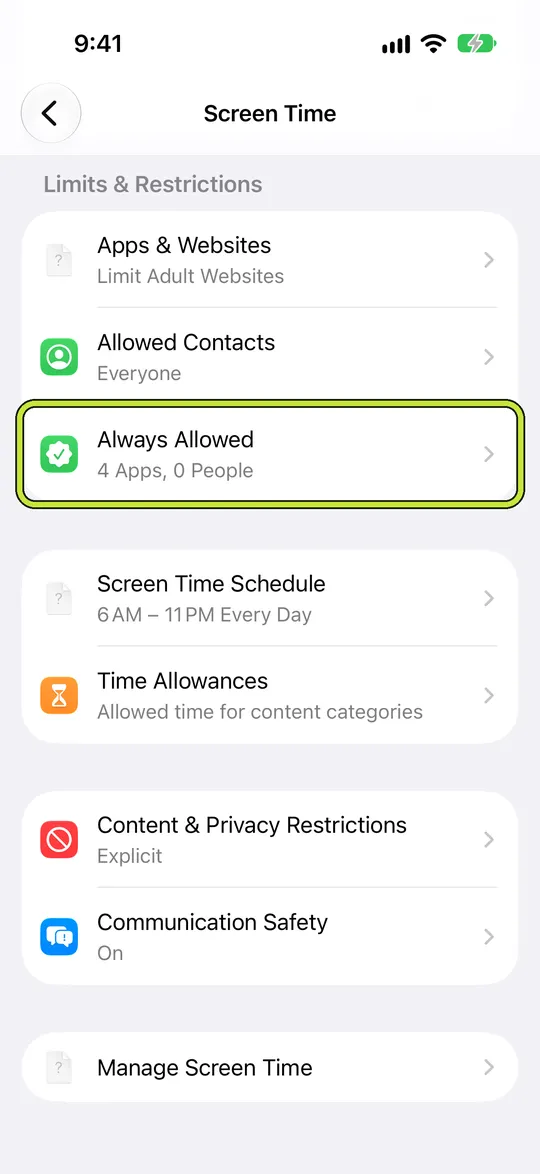
  2. Tap Always Allowed.

    Screen Time settings with Always Allowed outlined
  3. Tap Add Apps or Add People, then choose what to add.
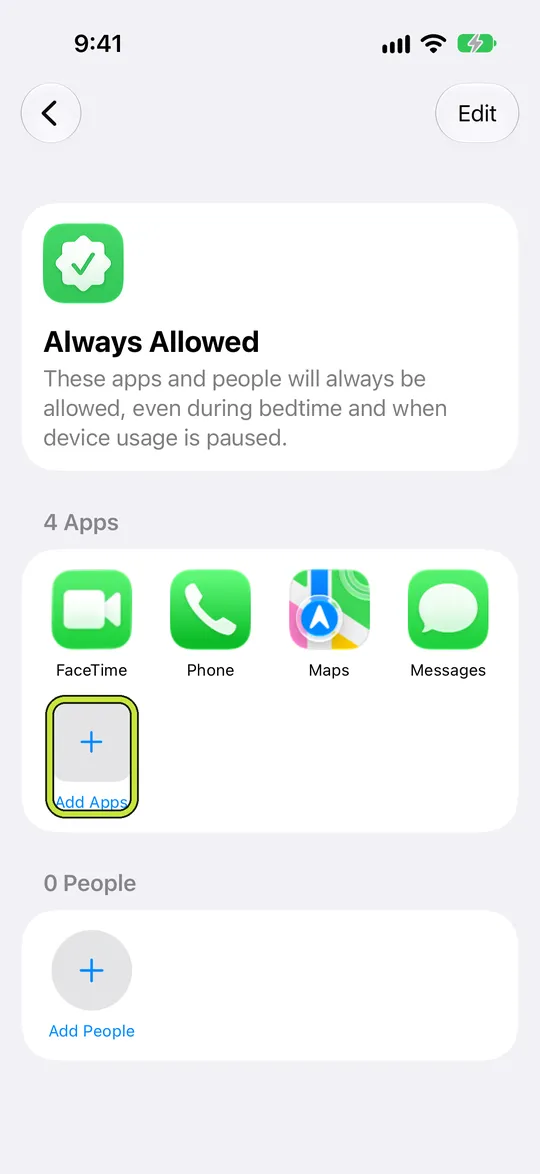
    Always Allowed with Add Apps outlined
  4. To remove an app or person, tap Edit, then the remove button next to it.
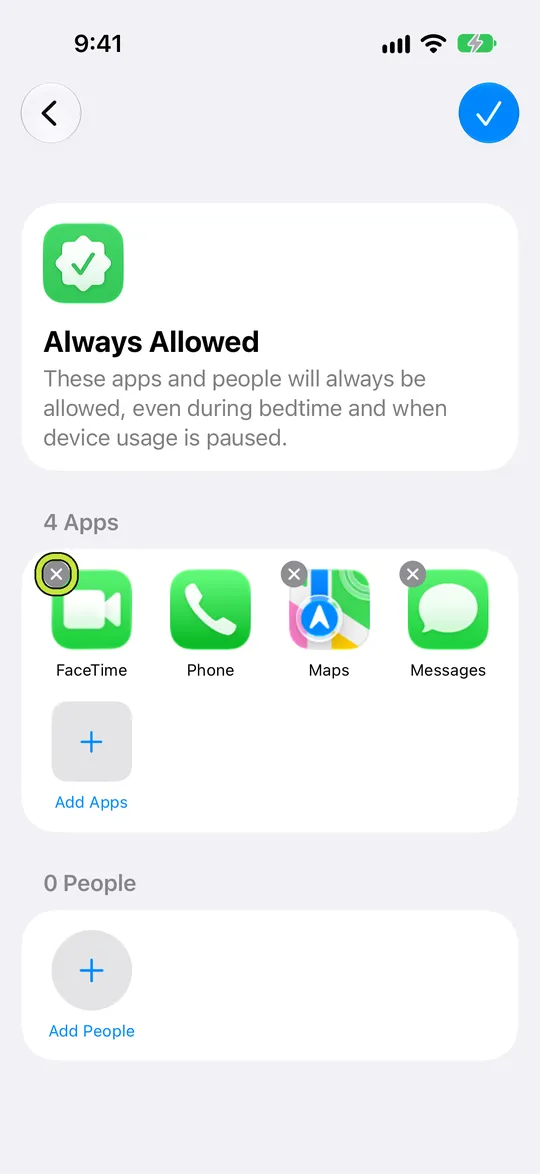
    Always Allowed in edit mode, with remove buttons on the apps

What belongs on the list

  • People who must always reach you: family, anyone you care for, a partner.
  • Apps you need for safety or health, such as the Health app, or maps when you travel.
  • Tools you rely on at every hour, for example an authenticator app for work sign-ins.
  • Not apps with a feed inside them. Anything with endless content undoes the schedule.

The gap it can open

Always Allowed is broad by design: an app on it stays open through every schedule and allowance. Add a messaging app with stories or a video tab, and the evening block you set for social media now has a door in it.

If your limits seem to stop working, check this list before anything else, and remove anything that is there for convenience rather than need.

Warden has its own Always Allowed list

Warden keeps its own Always Allowed screen, for apps that stay available while any Warden rule is active. It takes individual apps rather than whole categories. If you use both Screen Time and Warden, check both lists when something stays open that you expected to be blocked.

How Warden unlock approval works

Get Warden on the App Store

Example: the chat app that became the scroll

A 10 PM to 7 AM schedule blocks social apps, and it works for a week. Then the late scrolling moves to a chat app that was added to Always Allowed so a sibling could message at night, and that app has its own short video tab.

Remove the chat app, add the sibling as a contact on Always Allowed instead, and ask them to use Messages or a phone call after 10. The person stays reachable and the video tab closes with everything else.


Set it up without adding unnecessary rules

Daily limits, schedules and focus sessions

Install Warden and connect Screen Time when iOS asks. Then open Rules and tap the plus button.

Choose the apps or scope involved in this particular interruption. Use an allowance for total use, a schedule for recurring hours, or a session for a one-off task.

Editing a schedule that blocks apps from 10:00 PM to 7:00 AM every day

What Standard, Warden and Lockdown do

Choose Standard when you want to manage the limit yourself. Choose Warden when a person you trust should review early-access requests. Choose Lockdown to keep ordinary early unlocks off until the block ends.

Choose the access mode, then hold the save button to set the rule. Try a short block before using a long one. Emergency access remains separate from ordinary unlock requests.

The block screen with Ask your Warden and Keep app closed buttons

How Warden approval works

Choose how many minutes you need, add a note and hold to send. If nobody answers within 30 minutes, the request expires and the app stays locked.

An approval applies to the scope and time shown in the app. A declined or unanswered request does not lift the block. Emergency access remains a separate option on your device.

Common questions

Do Always Allowed apps count towards screen time?
Always Allowed changes what is blocked, not what is measured. The apps stay open through your schedules and allowances, and your Screen Time report still shows the time you spend in them.
Why is an app on Always Allowed still blocked?
Something else may be blocking it. Always Allowed covers Apple's schedules and allowances; Content and Privacy Restrictions and third-party app blockers such as Warden have their own settings, so check those too.
Can I add a whole category to Always Allowed?
Apple's list takes individual apps and contacts. Warden's own Always Allowed list also takes individual apps rather than categories.