 Warden
Make a task list before an app list
Write down signing into work, receiving a necessary call, finding directions and showing a ticket. A login may involve a browser, an authenticator, a password manager and an approval notification. A banking task may need Messages or a provider-specific confirmation. These are examples to check on your own setup, not a reason to make every financial app a permanent exception.
Inspect the actual selection in each blocker
In Warden, review the apps, websites and categories saved in the rule. Broad categories can include a tool you need, while an app-only selection may leave a website available. Warden also has its own Always Allowed list, which exempts its selected apps and websites from Warden blocks, including Digital Detox. Save necessary exceptions before starting: new exceptions cannot be added during an active Digital Detox, and active Lockdown rules can also prevent changes. Apple’s separate Always Allowed list does not automatically change Warden’s list. Test the full task with your intended rules active.
Use Apple Always Allowed for Apple’s own restrictions
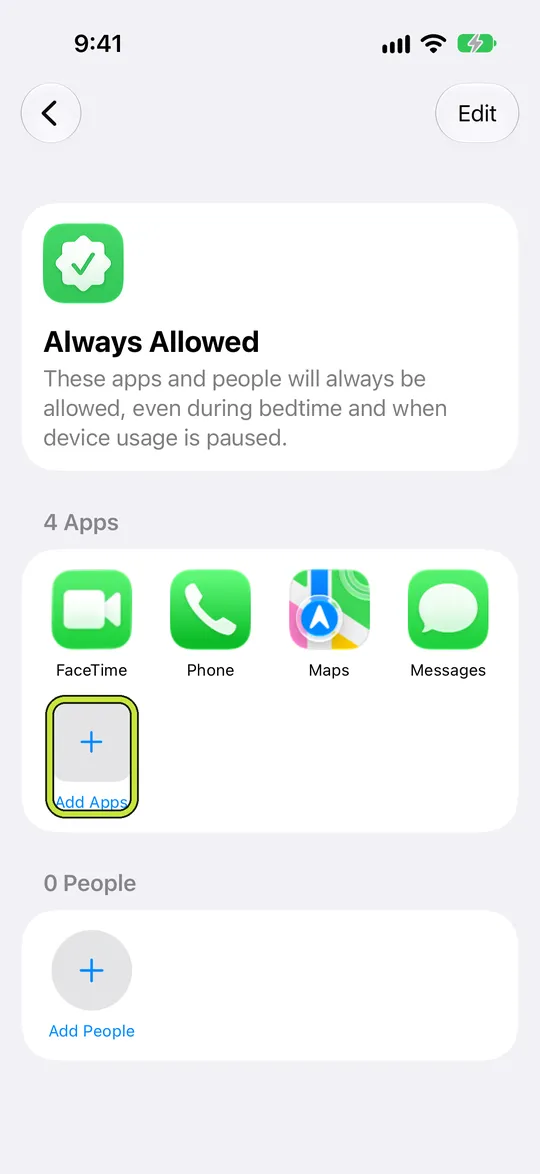
In Apple’s iOS 27 Screen Time settings, Always Allowed lets you choose apps and contacts available despite Apple’s schedules and allowances. Open Settings > Screen Time > Always Allowed and review the list. This is separate from reviewing Warden selections. Test your needed communication method under the actual combination of restrictions you plan to use.
Reference: Apple: schedules and Always Allowed
Example: a work login needs a second app
You plan to block entertainment during a 90-minute writing task. In a short trial first, sign into the document system and follow its normal authentication steps. If the authenticator or approval app is blocked, revise the selection before starting the long session. Never share a one-time code with an accountability partner to get around the problem; their role is not to handle your account credentials.
Retest when the workflow changes
After changing banks, ticket providers, work sign-in tools or devices, repeat the relevant short test. Keep recovery information through the provider’s recommended secure process. Warden’s emergency access is separate from routine exceptions, and it does not replace account recovery or a guaranteed emergency communication service. Avoid discovering the difference at the moment you need a code or ticket.



