 Warden
Choose breadth deliberately
Individual selections suit a specific problem: one game, one feed or one shopping app. A category is useful when the interruption spans several related apps and you want to manage that group together.
The tradeoff is precision. A category that sounds recreational may contain a tool you use professionally. Read the actual selection on your device rather than assuming every service has the same categorization or that every useful exception has already been made.
Keep essential exceptions explicit
Before saving, identify the apps you must reach during the window: communication, travel, work or school resources. Use the product’s supported exception controls and test the result on the phone.
An exception should solve a specific access need. If the app you exempt is also where most distraction occurs, consider a narrower schedule or a separate daily allowance instead of creating a broad exemption without reviewing its effect.
Understand shared allowances
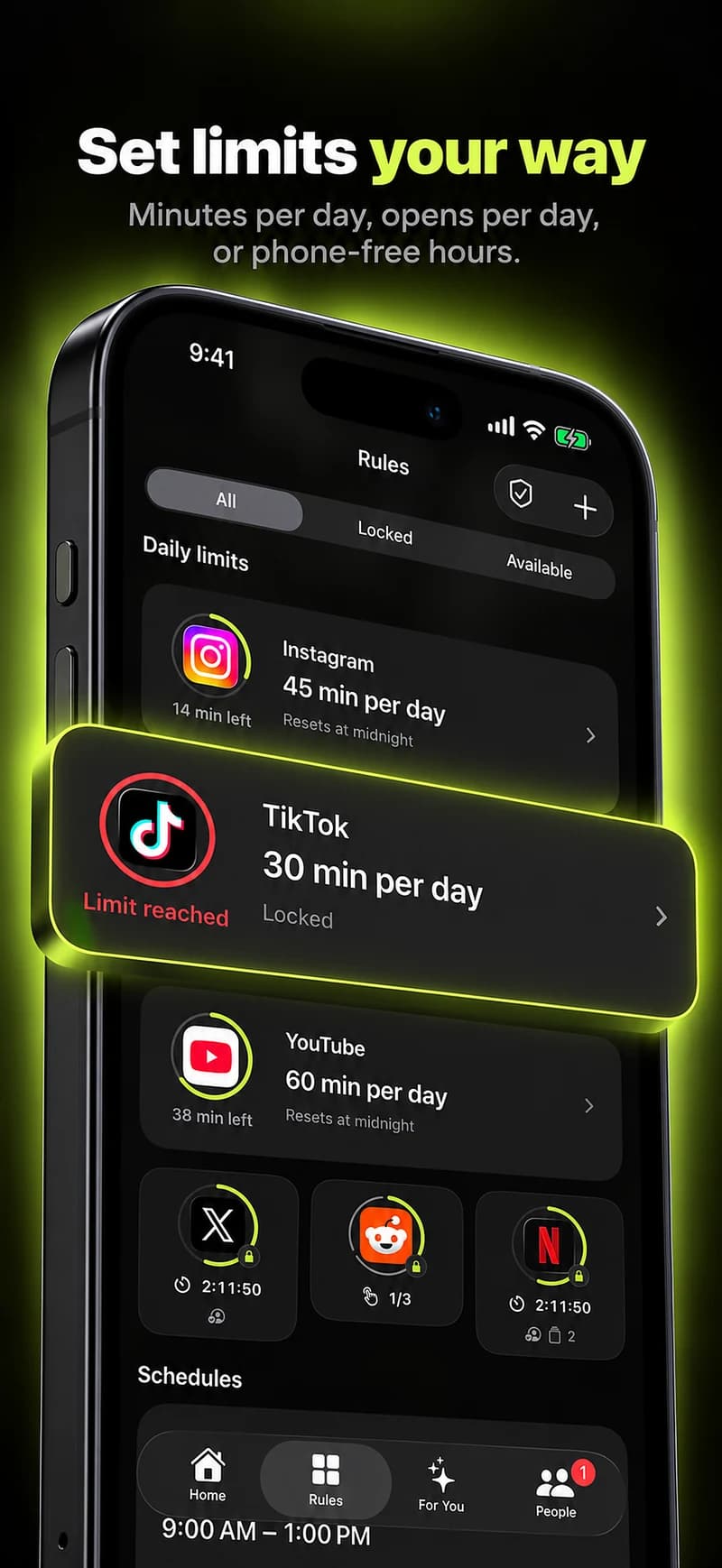
A grouped daily limit may count time across several selected apps rather than awarding the same amount to each. A scheduled block instead applies during a clock window, regardless of whether you already used those apps earlier.
Decide whether your goal is “thirty minutes across these games” or “thirty minutes for this game.” Those are different budgets. Inspect the saved rule and use separate limits when you need independent allowances.
Reference: Apple: app limits and categories
Revisit the group when your apps change
A new job, class or installed app can change which selections are useful. Do not treat a category chosen months ago as a permanent inventory you never need to inspect. Review it when you notice unexpected blocks or gaps.
For a new category rule, start with a short test. Check one intended target and one necessary exception. If behavior differs from the displayed scope, collect that specific example for support rather than adding another overlapping category rule.
Test a category at its edges
Before relying on a category-wide block, list two apps you expect it to include and one useful app you need available. Check those apps on the device after the rule starts. This small test reveals more than assuming a broad category label has exactly the meaning you had in mind.
Think separately about websites, apps with multiple uses and any explicit allowed exceptions. Avoid combining several category rules until you understand which one controls the access you are testing. In a shared allowance, using one selected app may consume time meant for the whole scope; inspect the rule’s wording instead of assuming every app gets its own full budget.



