Warden
Which method fits
| Every app except one, now | Guided Access |
|---|---|
| Apps closed at the same hours each day | Screen Time Schedule (iOS 27) or Downtime (iOS 26 and earlier) |
| Apps closed after a daily total | Time Allowances |
| Every app right now, for a set time | A Warden digital detox |
Keep the iPhone in one app with Guided Access
Guided Access holds the whole screen in one app. Apple notes that Crash Detection and emergency calls aren't available during a session, so end it before you might need them.
- Open Settings, tap Accessibility, tap Guided Access, then turn it on.
- Tap Passcode Settings, then set a Guided Access passcode.
- Open the app you want to keep, then ask Siri to turn on Guided Access, or use Control Center or the Accessibility Shortcut if you added it there.
- Tap Start. To end the session, triple-click the side button and enter the passcode.
Close apps at set hours with a Screen Time Schedule
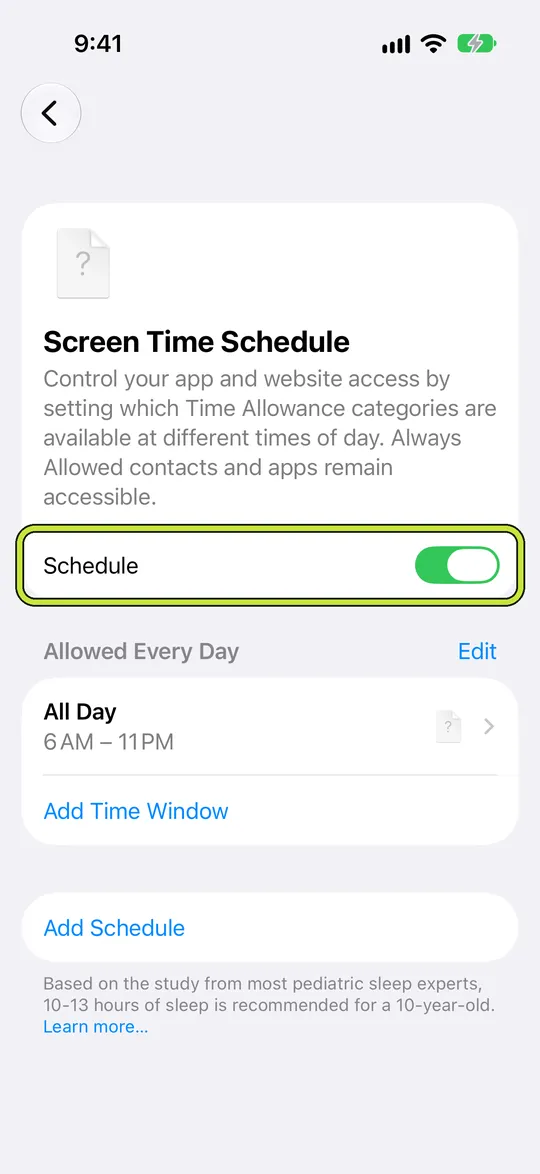
On iOS 27, open Settings, tap Screen Time, tap Screen Time Schedule, then turn on Schedule. Add a schedule, tap its time window, and choose which Time Allowance categories are available during it. Apps and contacts on Always Allowed stay available.
On iOS 26 and earlier the same idea is called Downtime. Try a new window for an hour while you're awake before you rely on it overnight.
Cap your total time with a daily allowance
Time Allowances on iOS 27 has a slider for your total time on the device each day, as well as one for each category. Apple says apps stay usable until they reach either their category's allowance or the daily total. On your own iPhone you can raise it again in Settings, so it works as a reminder more than a lock.
Block everything now, for a set time
The same detox starts from Apple Watch, from Siri ("Start a digital detox in Warden") or from a shortcut. Standard can be ended early. Lockdown can't, apart from emergency access.
- Open Warden and tap Start focus on Home.
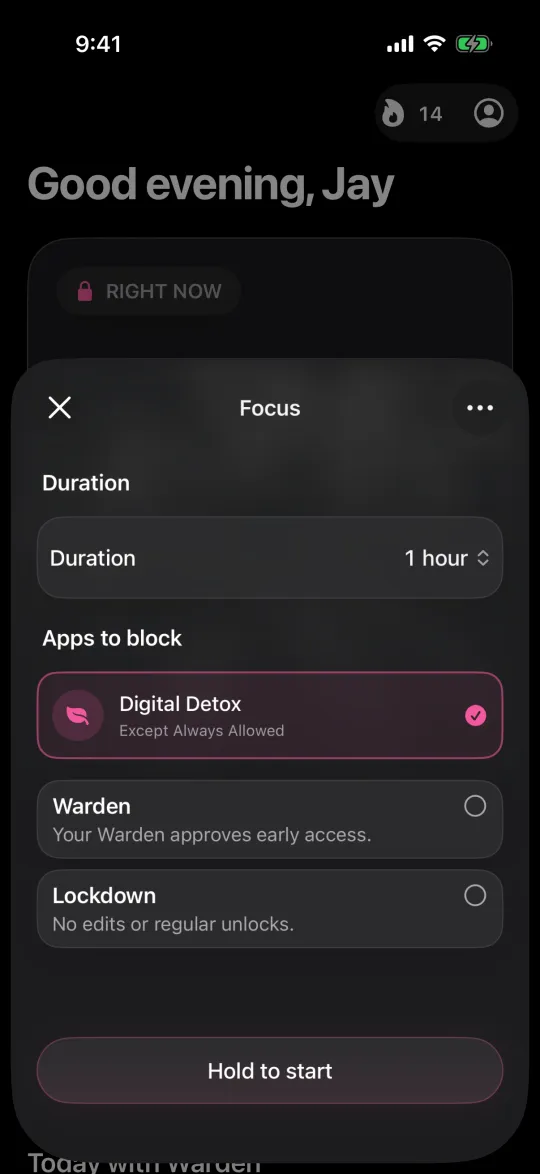
- Tap Digital detox, so the session covers every app except Always Allowed.
- Choose the length, from 15 minutes to 4 hours, and the access mode.
- Hold Hold to start.
Two hours for one report
Say a report is due Monday and Sunday afternoon is clear. Add Phone, Messages and your writing app to Always Allowed, then start a 2-hour detox in Lockdown. Every other app shows the block screen until it ends, and the three you need stay open. When the timer runs out there is nothing to undo; the apps open again on their own.
Getting out early
- Guided Access: triple-click the side button and enter its passcode.
- Screen Time on your own iPhone: change or turn off the schedule or allowance in Settings.
- Warden in Standard: end the detox from the app or the watch.
- Warden in Lockdown: it runs until the timer ends. Emergency access is there for a real emergency.