 Warden
Lock an app
To open the app, tap it and authenticate. It locks again automatically after you quit it. To remove the lock, touch and hold the app, tap Don't Require Face ID, then authenticate.
- Go to the Home Screen.
- Touch and hold the app until the Quick Actions menu opens.
- Tap Require Face ID (or Touch ID or Passcode).
- Tap Require Face ID (or Touch ID or Passcode) again to confirm.
Reference: Apple: Lock or hide an app on iPhone
Hide an app
The app leaves your Home Screen and moves to a Hidden folder at the bottom of App Library, which needs authentication to open. To see everything you have hidden, open Settings, tap Apps, then tap Hidden Apps.
Apple says apps that came with the iPhone cannot be hidden, and neither can the app you set as your default browser or, in the EU, your app marketplace.
- Touch and hold the app until the Quick Actions menu opens.
- Tap Require Face ID (or Touch ID or Passcode).
- Tap Hide and Require Face ID, authenticate, then tap Hide App.
What a lock does and does not do
According to Apple, information inside a locked app does not appear in other places, such as notification previews, search, Siri suggestions, CarPlay or your call history. That makes it a privacy feature: useful when you hand your phone to someone.
The lock and hidden status apply only to that iPhone and do not sync with iCloud. Children under 13 in a Family Sharing group cannot lock or hide apps, and for ages 13 to 17 a parent can still see the app and its use through Screen Time.
Why a lock will not help you use an app less
A lock asks who you are, not whether now is a good time. Your face answers in under a second, so the lock adds no real pause for the person who owns the phone.
If the goal is less time in an app, use a rule about time instead. In iOS 27 that means a Time Allowance or a Screen Time Schedule. An app blocker such as Warden adds daily limits, schedules and a Lockdown mode that stops ordinary early unlocks.
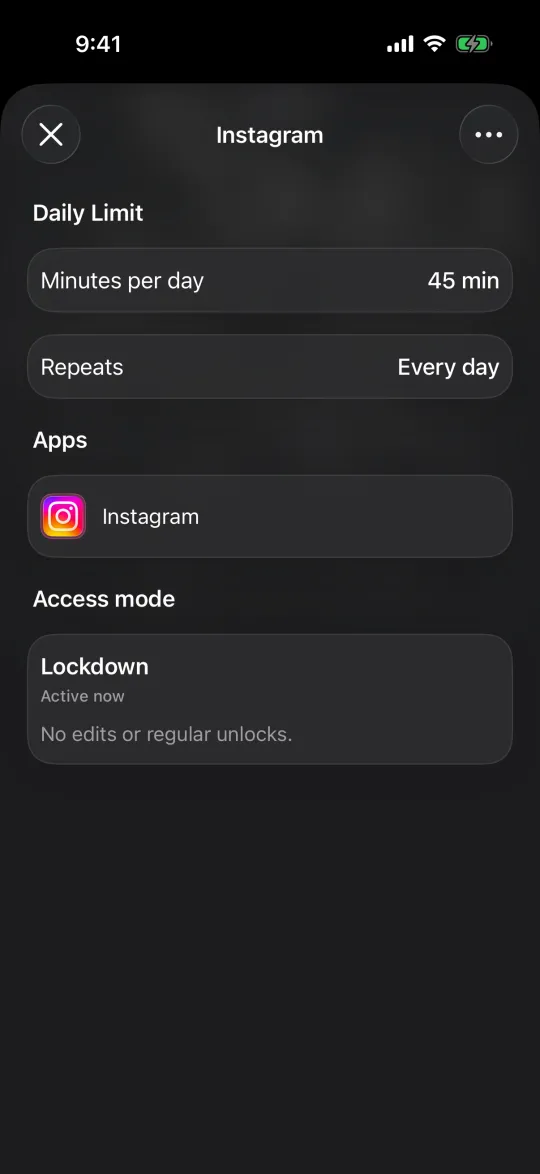
One app, two different settings
Say you want Instagram private from anyone borrowing your phone, and closed after 10 pm. Lock it with Face ID for the first goal. For the second, add a schedule that blocks social apps from 10 pm to 7 am. The lock handles who can open it; the schedule handles when.



