
Skip to content

App limits

How to block apps with a shortcut on iPhone

Search for a shortcut that blocks apps and you mostly find automations that send you back to the Home Screen when an app opens. That interrupts the habit, and you can switch it off in a few taps. A shortcut can start a real block when an app provides the action, and Warden does: Start Digital Detox blocks every app outside Always Allowed for as long as you set.

In this guide

What a Home Screen automation does

The usual version is a personal automation with the App trigger: when Instagram is opened, go to the Home Screen. It interrupts the moment, but the app itself isn't blocked, the automation can be turned off in the Shortcuts app, and it only covers the apps you list.

Reference: Apple: Setting triggers in Shortcuts

Add Warden's actions to a shortcut

End Digital Detox is the matching action. It ends a Standard detox only; Warden and Lockdown sessions keep running.

  1. Install Warden and connect Screen Time.
  2. Open Shortcuts and find Warden under App Shortcuts.
  3. Tap Start Digital Detox, then tap Use in New Shortcut.
  4. Set the minutes (15 to 240), the access mode and whether it starts silently.

Reference: Apple: Run app shortcuts

Ask Siri instead

You don't need to build anything first. Say "Start a digital detox in Warden" or "Start Warden detox" to your iPhone or Apple Watch, and Siri starts a 30-minute Standard detox and tells you when it ends. "Stop Warden detox" ends a Standard one.
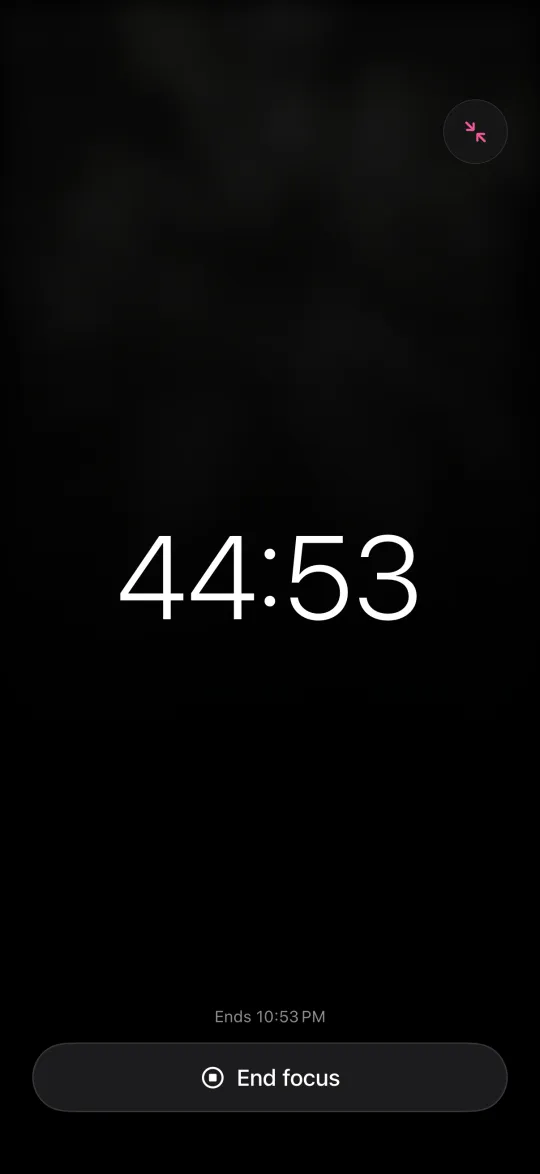
A digital detox running on iPhone, counting down to its end

Start a detox when a Focus turns on

Apple's list of triggers that can run without asking includes Time of Day, Wi-Fi and Do Not Disturb, and you allow it under Privacy with Allow Running When Locked. For other Focus triggers, Shortcuts may ask you to confirm first.

  1. In Shortcuts, create a new shortcut with Warden's Start Digital Detox action.
  2. Tap Edit, then Automation, and choose a Focus trigger, such as Work, with When Turning On.
  3. Save it. The next time that Focus turns on, the detox starts with it.

Reference: Apple: Add automations to Shortcuts

Run it from Apple Watch

Warden's actions are in the Warden watch app as well, so Siri on the watch can start a detox. A shortcut you build on the iPhone appears in the watch's Shortcuts app when you turn on Show on Apple Watch in its details.

Reference: Apple: Run shortcuts from Apple Watch
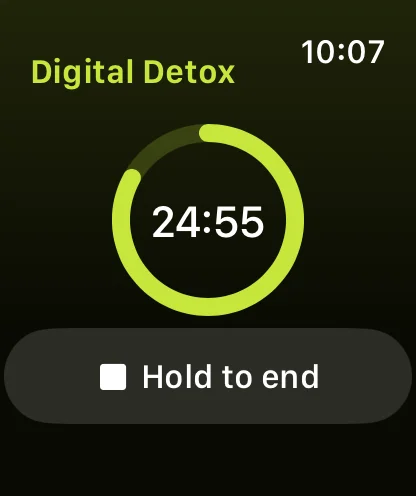
A digital detox running on Apple Watch, with the time left in a ring

The first hour of a workday

Say you want the first hour of each workday without social apps. Build a shortcut with Start Digital Detox set to 60 minutes and Lockdown, give it a Time of Day trigger at 9:00 on weekdays, and turn on Allow Running When Locked. At 9 the detox starts whether or not you remember it, and only your Always Allowed apps open until 10.

Limits of the shortcut approach

  • A shortcut starts a block; it can't make a running one stricter. Choose the mode in the action.
  • End Digital Detox ends Standard sessions only.
  • The detox covers every app outside Always Allowed. To block only some apps, use a Warden rule instead.


How to block all apps on iPhone at once

Set it up without adding unnecessary rules

Daily limits, schedules and focus sessions

Install Warden and connect Screen Time when iOS asks. Then open Rules and tap the plus button.

Choose the apps or scope involved in this particular interruption. Use an allowance for total use, a schedule for recurring hours, or a session for a one-off task.

Editing a schedule that blocks apps from 10:00 PM to 7:00 AM every day

What Standard, Warden and Lockdown do

Choose Standard when you want to manage the limit yourself. Choose Warden when a person you trust should review early-access requests. Choose Lockdown to keep ordinary early unlocks off until the block ends.

Choose the access mode, then hold the save button to set the rule. Try a short block before using a long one. Emergency access remains separate from ordinary unlock requests.

The block screen with Ask your Warden and Keep app closed buttons

How Warden approval works

Choose how many minutes you need, add a note and hold to send. If nobody answers within 30 minutes, the request expires and the app stays locked.

An approval applies to the scope and time shown in the app. A declined or unanswered request does not lift the block. Emergency access remains a separate option on your device.

Common questions

Is there a shortcut to block apps on iPhone?
The common shortcuts send you to the Home Screen when an app opens. To block apps for a set time, use an app's own action, such as Warden's Start Digital Detox, which blocks every app outside Always Allowed for 15 minutes to 4 hours.
Can Siri lock my apps?
Siri can run an app's actions. With Warden installed, say "Start a digital detox in Warden" and Siri starts a 30-minute detox that blocks every app outside Always Allowed.
Can I block apps automatically when Work Focus turns on?
Yes. Create a shortcut with Start Digital Detox and give it the Work Focus trigger with When Turning On. Shortcuts may ask you to confirm before it runs.

