
Skip to content

Screen Time

How to turn off Screen Time on iPhone, or just one limit

Most people who search for how to turn off Screen Time want one limit gone, not the whole feature. In iOS 27 you can switch off everything, only your schedule, or a single Time Allowance, and each is a different setting. Here are Apple's steps for all three, plus what to do when the iPhone asks for a passcode.

In this guide

Turn off Screen Time completely

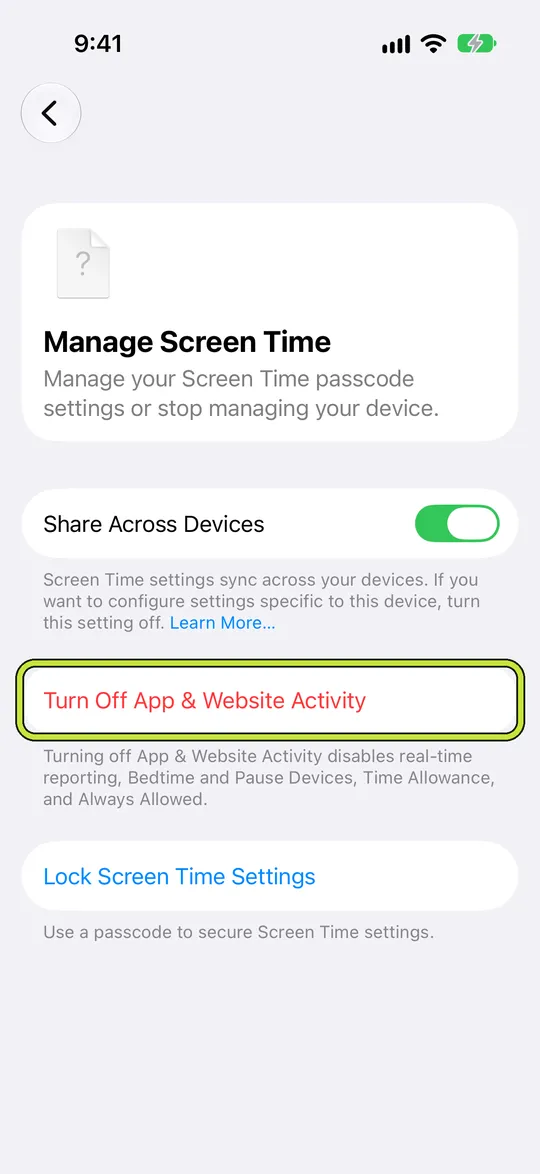
Open Settings, tap Screen Time, tap Manage Screen Time, then tap Turn Off App & Website Activity. Your Screen Time report needs App & Website Activity, so it stops filling in as well.

To turn it back on, return to the same screen and tap Turn On App & Website Activity.
Reference: Apple: Set up Screen Time for yourself on iPhone

Manage Screen Time with Turn Off App & Website Activity outlined

Turn off only your schedule

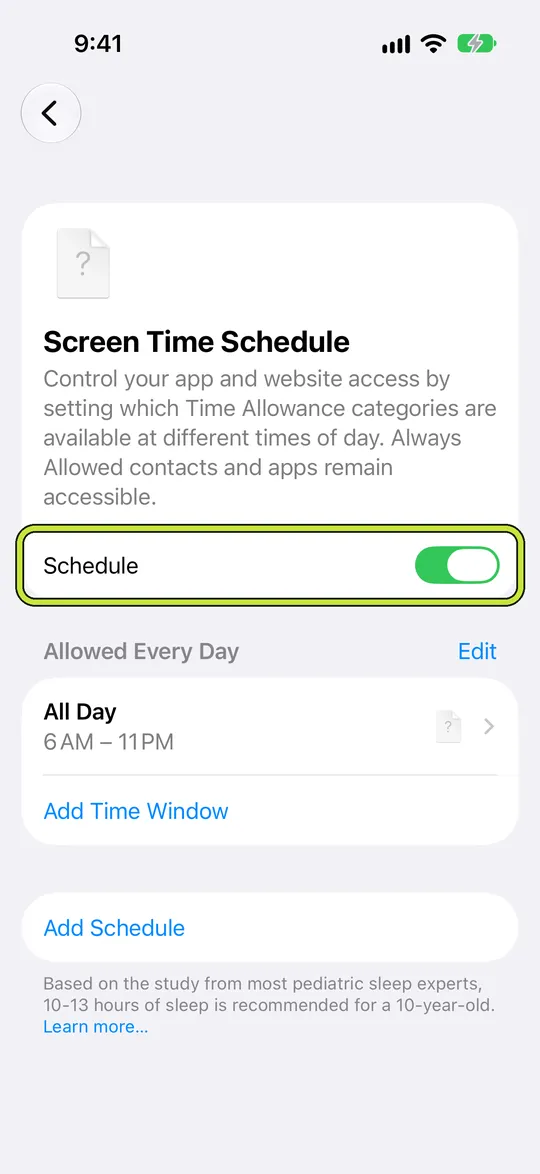
If the problem is the hours, not the feature, open Settings, tap Screen Time, tap Screen Time Schedule, then turn off Schedule. Your Time Allowances and your report stay as they are.
Reference: Apple: Set up Screen Time for yourself on iPhone

Screen Time Schedule with Schedule turned on

Remove one Time Allowance

Open Settings, tap Screen Time, tap Time Allowances, then tap Manage Categories. Select the category, such as Social Media or Games, then tap the delete button, which includes the category's name. The other categories keep their allowances.

Reference: Apple: Set up Screen Time for yourself on iPhone

Reference: Apple: Screen Time Schedules and Time Allowances

Keep one app open instead

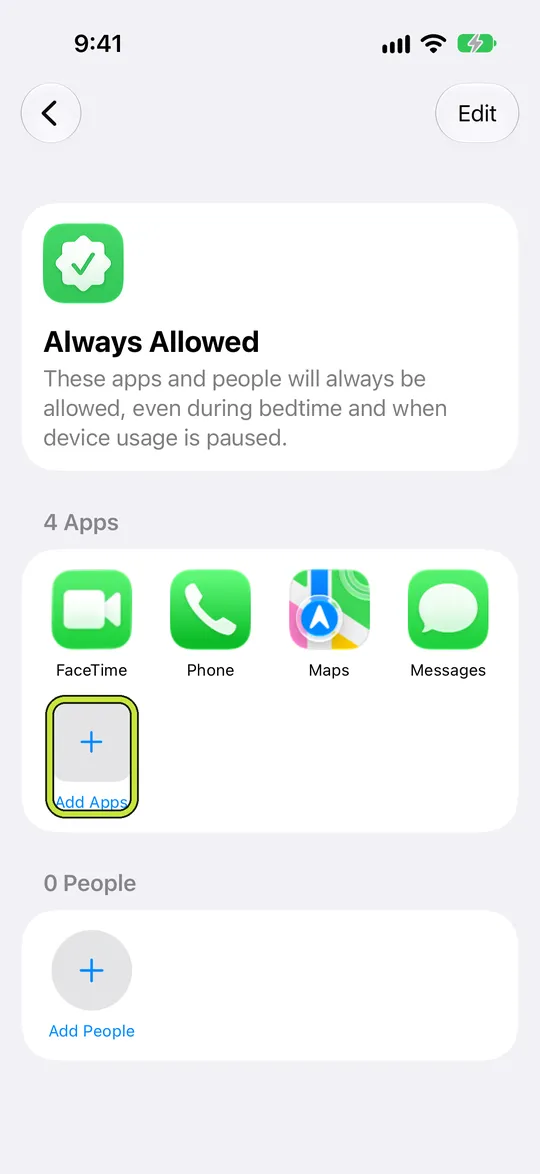
If a single app keeps getting blocked when you need it, add it to Always Allowed rather than turning anything off. Open Settings, tap Screen Time, tap Always Allowed, then tap Add Apps. Apps on that list stay available through every schedule and allowance.
What Always Allowed means in Screen Time

Always Allowed with Add Apps outlined

If it asks for a passcode

  • A Screen Time passcode protects these settings. Enter it to make changes.
  • If you forgot it, you can reset it with the Apple Account used for Screen Time Passcode Recovery.
  • If a parent manages Screen Time for you through Family Sharing, the settings are controlled from their device, and turning them off is their decision.

Forgot your Screen Time passcode? How to reset it

Example: the evening schedule that ate the morning

A schedule set for 10 PM to 7 AM also blocks a podcast app on the early train, and after a week of reaching for the settings the plan is to turn Screen Time off altogether.

Instead, the window moves to end at 6 AM and the podcast app goes on Always Allowed. The evening block keeps working and the morning complaint is gone, with one setting changed rather than all of them.

Third-party app blockers have their own switch

Apps such as Warden use Apple's Screen Time permission but keep their own rules, so turning off Apple's settings does not change them. In Warden you pause or edit a rule inside the app. A rule in Lockdown stays on until it ends, with emergency access still available.


How Lockdown works

Set it up without adding unnecessary rules

Daily limits, schedules and focus sessions

Install Warden and connect Screen Time when iOS asks. Then open Rules and tap the plus button.

Choose the apps or scope involved in this particular interruption. Use an allowance for total use, a schedule for recurring hours, or a session for a one-off task.

Editing a schedule that blocks apps from 10:00 PM to 7:00 AM every day

What Standard, Warden and Lockdown do

Choose Standard when you want to manage the limit yourself. Choose Warden when a person you trust should review early-access requests. Choose Lockdown to keep ordinary early unlocks off until the block ends.

Choose the access mode, then hold the save button to set the rule. Try a short block before using a long one. Emergency access remains separate from ordinary unlock requests.

The block screen with Ask your Warden and Keep app closed buttons

How Warden approval works

Choose how many minutes you need, add a note and hold to send. If nobody answers within 30 minutes, the request expires and the app stays locked.

An approval applies to the scope and time shown in the app. A declined or unanswered request does not lift the block. Emergency access remains a separate option on your device.

Common questions

Can I turn off Screen Time for just one app?
Add the app to Always Allowed in Settings, Screen Time. It then stays available through every schedule and allowance while your other limits keep working.
Why can't I turn off Screen Time?
Either a Screen Time passcode protects the settings, or a parent manages Screen Time for you through Family Sharing. Enter or reset the passcode, or ask the parent.
Will turning off my schedule delete my Time Allowances?
Apple lists them as separate settings in iOS 27: Schedule is one switch under Screen Time Schedule, and each allowance is deleted on its own under Time Allowances.

