Warden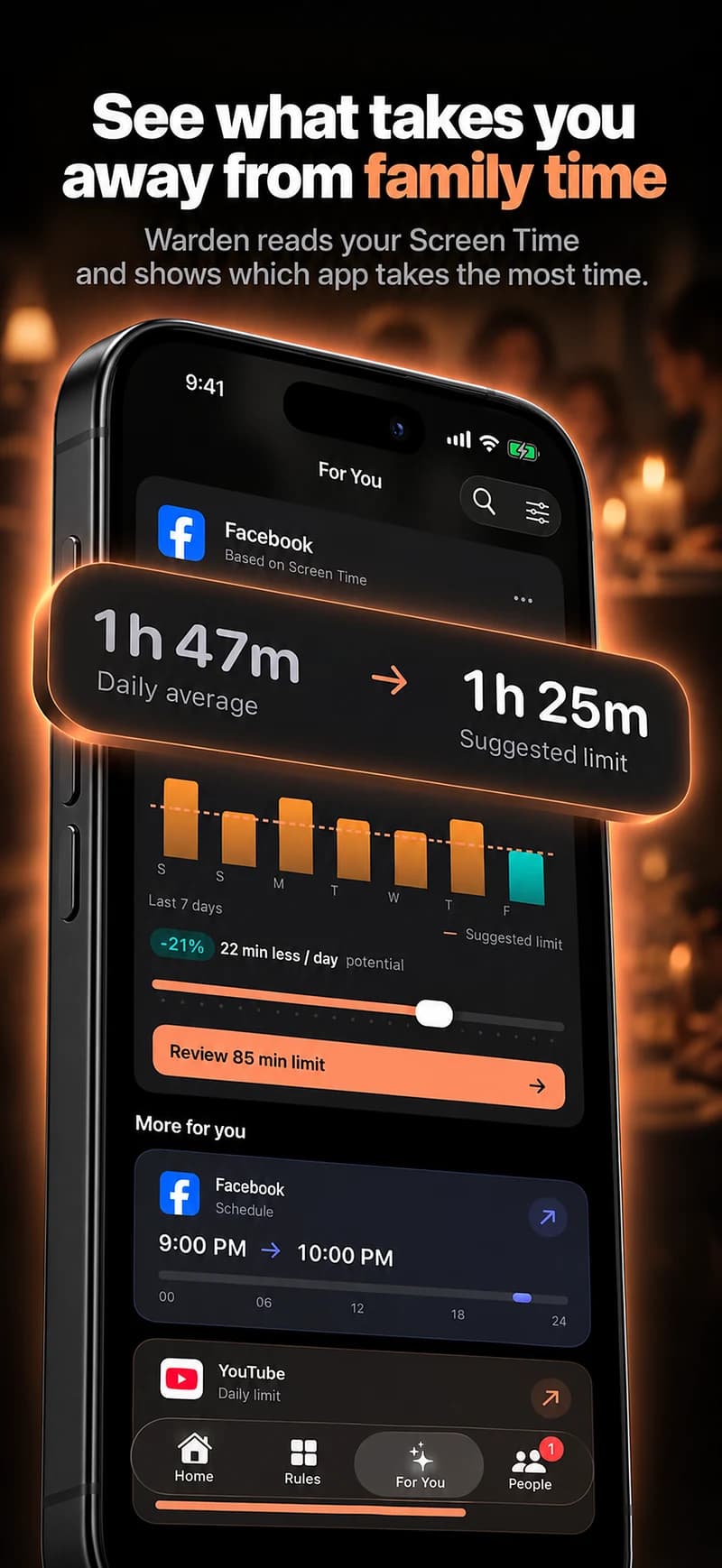
Which downloads actually need approval?
Ask to Buy applies to eligible App Store downloads and purchases. Price is not the only distinction: a new free app can prompt a request, and a shared family app can behave differently from an app the child already owns. Start with the account’s download history, not just the button’s cloud icon.
The table describes Apple’s documented request behavior. It does not promise that every payment inside every app goes through Apple. Purchases outside the App Store ecosystem and alternative app distribution have separate limitations. Check those routes separately where available.
| New free App Store app | An eligible new download can require approval. |
|---|---|
| Paid app or eligible in-app purchase | A request can be sent before purchase. |
| Redownload of the child’s own purchase | Apple says no new approval request is sent. |
| Redownload of a shared family app | Apple lists this as an eligible request. |
| App update | Apple says no purchase-approval request is sent. |
| Redemption code | Apple says using the code does not send a request. |
Reference: Apple: Ask to Buy and download eligibility
Reference: Apple: alternative distribution limits
Turn on Ask to Buy in the current family controls
Use the child’s own Apple Account in your Family Sharing group. The organizer or a parent/guardian manages approval; sharing an adult account makes the arrangement harder to understand. Keep the family’s devices updated and add the approver to the child’s contacts.
These steps follow Apple’s updated iOS 27 family-control interface. Accessing the new experience also requires the family’s software and parental controls to be updated. An older layout is not, by itself, evidence that approval is off. Defaults and the ability to disable approval vary by age and region.
The navigation uses Apple’s English labels; wording may differ by language or software version.
- On the parent’s iPhone, open Settings, then Family.
- Select the child whose downloads you want to manage.
- Open Apps & Websites, then Restrictions.
- Open Ask to Buy and enable Require Purchase Approval. Enter the Screen Time passcode if asked.
Reference: Apple: Ask to Buy and download eligibility
Reference: Apple: current family-control setup
Review a request without handing over your account
Treat the request as a review, not an instruction to tap yes quickly. Check the app’s developer, description, age information and whether it asks for subscriptions or additional purchases. A familiar icon or a zero download price does not answer those questions.
After approval, the item belongs to the child’s Apple Account. Apple says a declined request produces a notification for the child. If a request is dismissed or left unapproved for 24 hours, ask the child to send it again. A missed notification can still be found in Messages.
- Open the request in Messages or its notification and review the item.
- Approve or decline after checking the app, price and age information.
- If approving requires authentication, use your Apple Account or Face ID yourself. Do not give the child your password.
Reference: Apple: Ask to Buy and download eligibility
When a request does not appear
First rule out an action that does not require approval, such as an update or a redownload of the child’s own purchase. Turning the setting off and on repeatedly will not make those actions become new purchases.
For an app-exception request that never arrives, Apple’s checklist includes current software, the Apple Account email enabled for iMessage, recent iMessage use within 30 days, Messages notifications and synced iCloud contacts. That is a checklist for the exception-message workflow, not a guarantee that changing one setting repairs every purchase request.
- Check Messages as well as Notification Center; a hidden banner is not the same as a missing request.
- Confirm the child and approver are in the intended Family Sharing group and using their own Apple Accounts.
- If a second adult should respond, the organizer can designate that family member as Parent/Guardian. Only one approver needs to handle a request.
- For a time-sensitive need, agree on another plan while troubleshooting. Do not leave essential school or communication access dependent on an unseen notification.
Reference: Apple: Ask to Buy and download eligibility
Reference: Apple: app exceptions and missing requests
An app exception is separate from time to use it
A child can also request an exception for an app above the age restriction you chose. Review that app’s age-rating details before deciding. This is a content-access decision; it does not provide an unlimited daily allowance or remove every other Screen Time restriction.
In the updated controls, approved apps can be reviewed and blocked later. Blocking makes the app unavailable and dims it on the Home Screen; it does not delete the app. If the question is when the app can be used, adjust a schedule or time allowance separately.
- On the parent’s device, open Screen Time, then Family and select the child.
- Open Apps & Websites and inspect the Allowed list.
- Select the app, choose Block App and review the result on the child’s device.
Schedules and time allowances in iOS 27
Reference: Apple: app exceptions and missing requests
Test the arrangement with a wanted free app
Pick a genuinely wanted, age-appropriate free app the child has not already acquired. Do not use a paid app, a subscription trial or an in-app checkout merely to test the process. Make sure the school or activity does not depend on completing the test immediately.
Record which account requested the app and whether it was new, shared or previously owned. That short note makes a missing request much easier to diagnose than a screenshot of the download button alone.
- Confirm the app is new to the child’s account and that the displayed download is free.
- Have the child request the download while both devices are available.
- Find the request in Messages and try declining it first.
- If you still want the app, send a new request, approve it and confirm the download.
- Open the app together and test any separate usage schedule, website approval or school-login requirement.
Where Warden fits, and where it does not
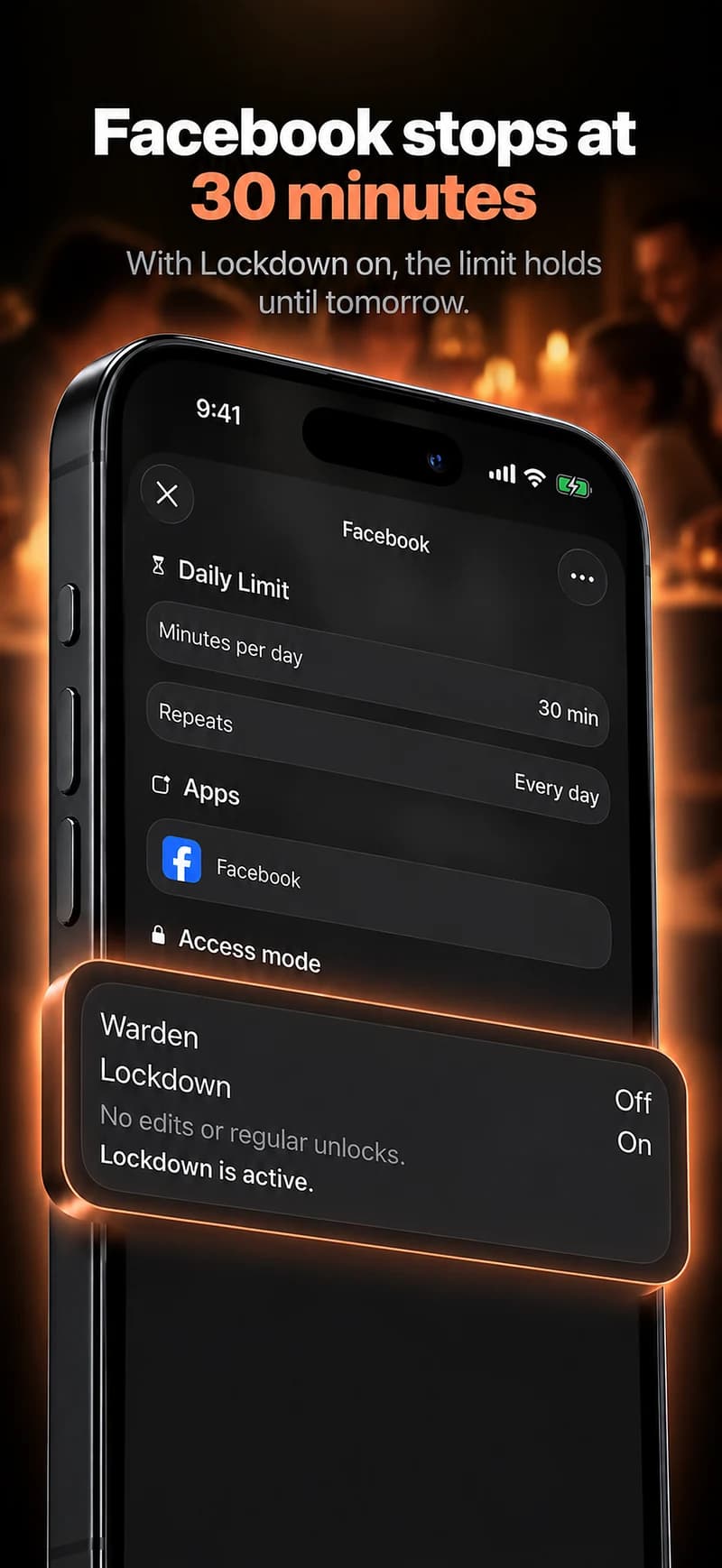
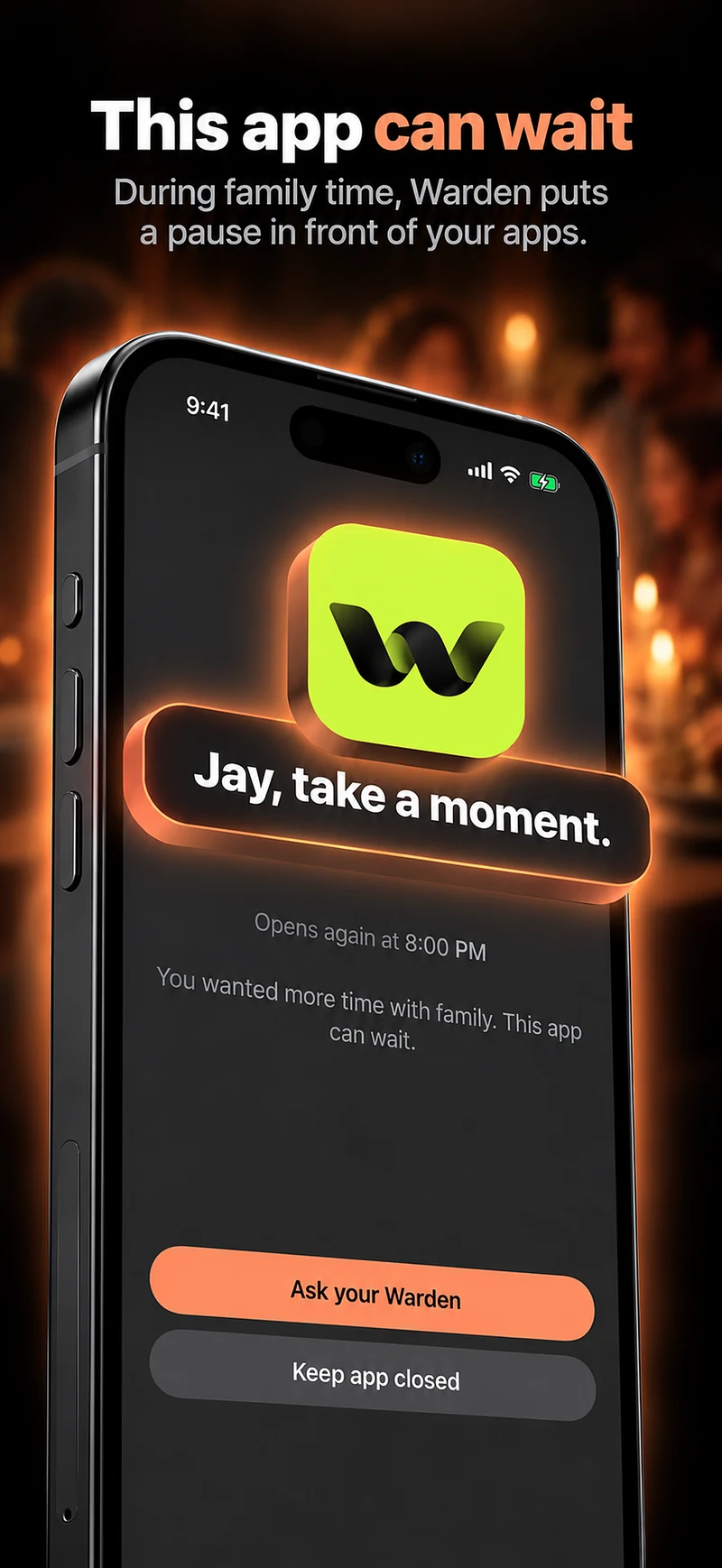
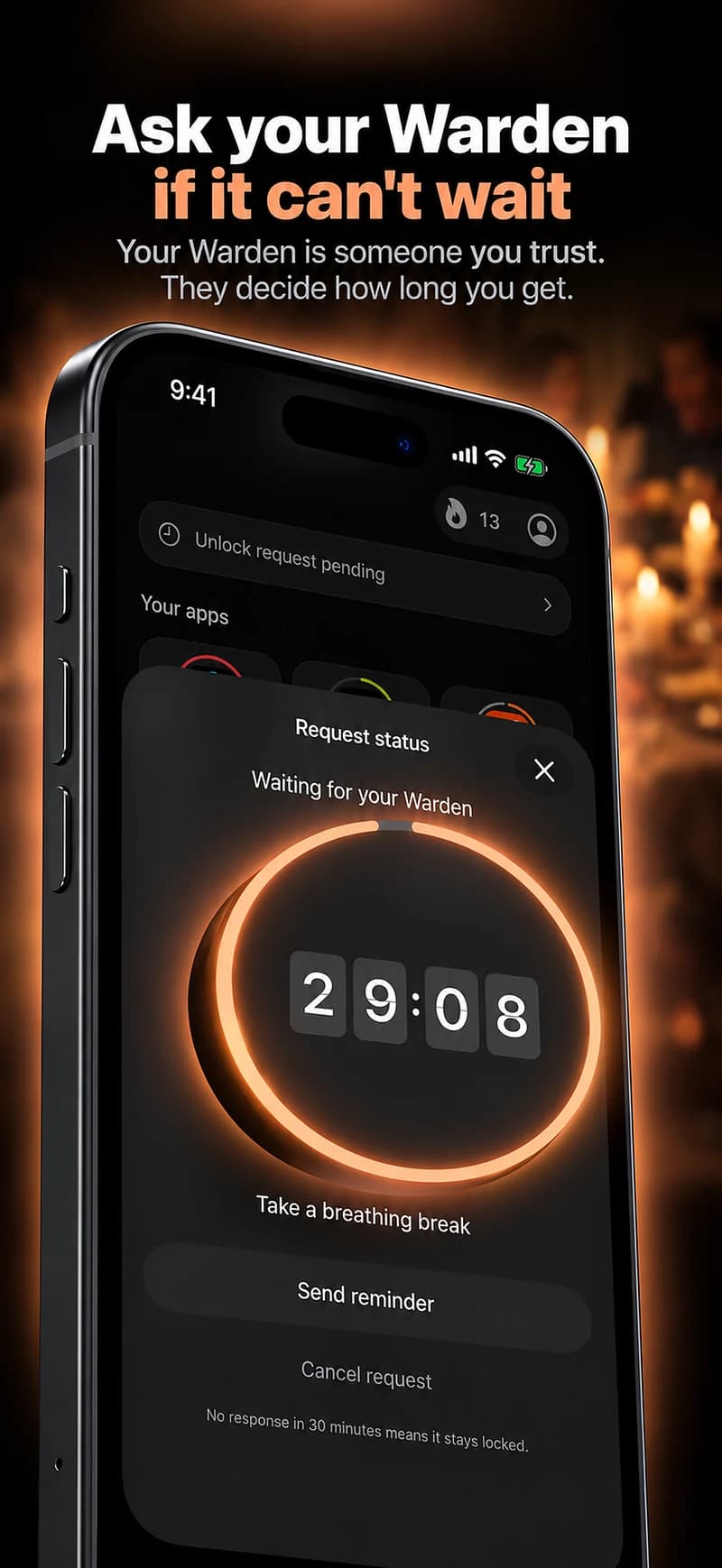
Warden’s trusted-person request is for early access within Warden app-blocking rules. The screenshot here shows a request for 15 minutes in Warden. It is not an Apple purchase request, a Family Sharing inbox or permission to download something from the App Store.
Use Apple’s family controls for a child’s download and content permissions. A voluntary Warden arrangement can support a separate app-use boundary where appropriate, but it does not turn a friend into a Family Sharing parent or guardian. Neither kind of approval guarantees that another active restriction is removed.
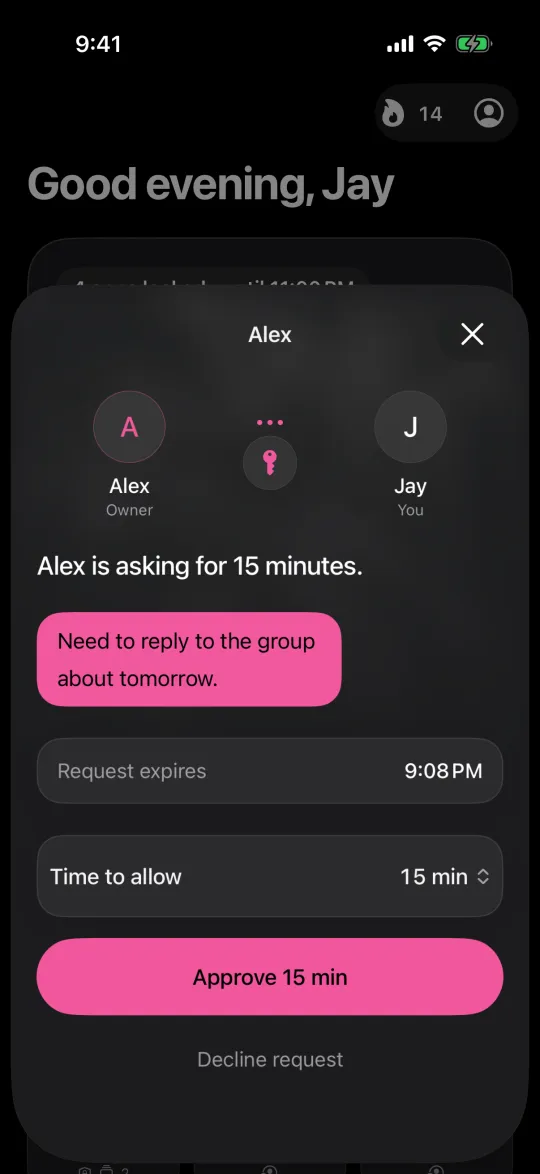
Example: a school app needed tomorrow
A child needs a new quiz app before the next school day. During a quiet evening, the parent checks the developer and the free download, then first declines a test request so both people know what that answer looks like. The child sends a new request, and the parent approves only after deciding the app is wanted.
They open the app together and check whether a school login, browser link or separate purchase is still needed. They then choose an appropriate time allowance for ordinary use and agree who can respond during school hours. A redownload of an app the child already owns is treated as a different test case, not proof that the setup has failed.