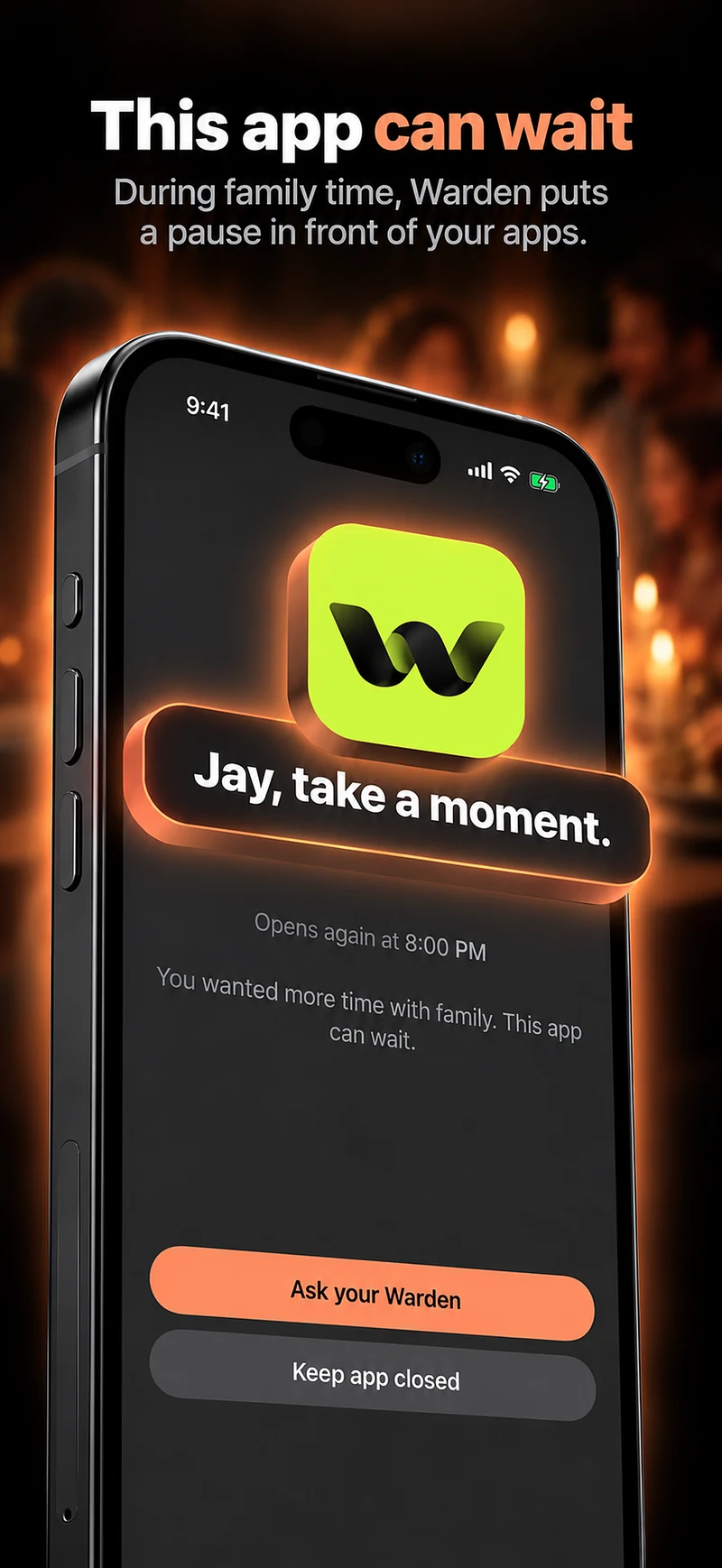
Warden
Begin with the parts of the day
List the moments affected by phone use: homework, meals, travel, winding down and contact with friends. A single total can hide very different activities, so ask which apps support school or communication and which keep interrupting the planned task.
For example, blocking every communication app during homework may also block the class group. A more specific selection can protect the work period while keeping a needed resource available. Review the choice with the teenager instead of assuming a category label tells the full story.
Use the appropriate family controls
Apple’s Family Sharing setup lets a parent manage a child’s Screen Time and respond to exception requests. The available features and account requirements can vary with age and region. Follow current platform instructions and use the child’s own account rather than sharing an adult account.
A third-party invitation or a checkbox saying “I’m the parent” is not a complete legal consent process for collecting a child’s data. Keep names, ages and sensitive details out of a general marketing form.
Reference: Apple: manage a child’s Screen Time
Make requests predictable
Agree on a few ordinary exceptions: a school deadline, an arrangement with a friend, or a task requiring an app during the usual block. A request should say what is needed and roughly how long it takes. The answer can be a limited yes, not only unlimited access or a blanket no.
Decide how an unanswered request is handled. Parents cannot always respond immediately; an emergency route should not depend on winning an argument or receiving a push notification in time.
Review without turning the report into a scorecard
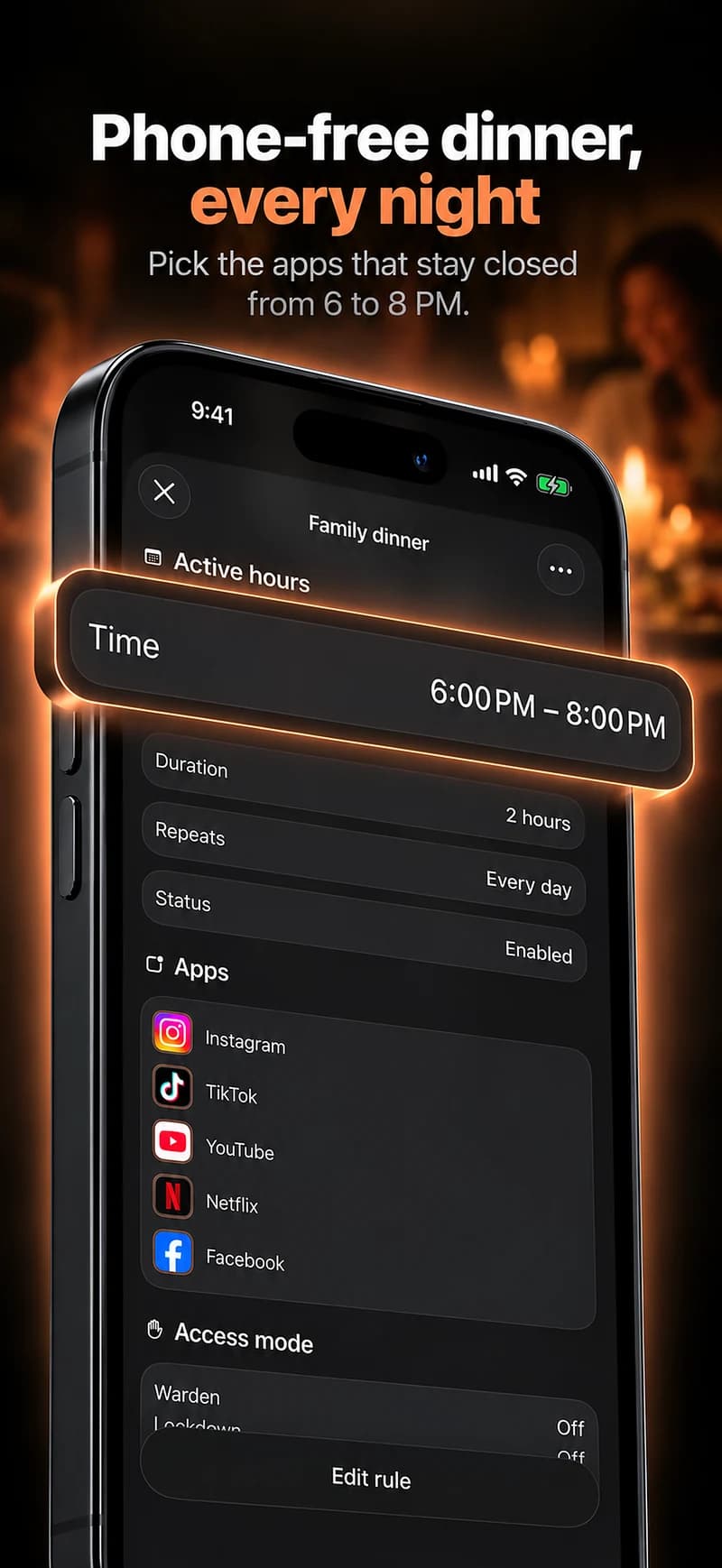
Choose a review time when no one is in the middle of wanting access. Discuss whether the hours worked, whether necessary apps were blocked and whether the exception process felt fair. Adjust a rule that repeatedly catches legitimate activity.
Use the minimum information needed for that discussion. An activity report is not a complete account of someone’s friendships, learning or wellbeing. Consider privacy and age-appropriate independence alongside the practical boundary.
Parent authorization and a trusted Warden are different roles
Apple’s family controls manage a child’s Screen Time through the family setup. In Warden, parent-assisted Screen Time permission and choosing someone to approve extra time are separate steps. A trusted-person invitation does not by itself authorize access to a child’s Screen Time.
If your family uses Warden’s trusted-person option, a parent can be the person who reviews early-access requests. Follow the parent-assisted permission flow when the app offers it, and complete the required Apple authorization. Check the current account and age requirements before setup. This does not give the parent a live view of messages or establish remote control over every setting.
- Keep school resources, essential contacts, travel and accessibility tools available before adding restrictions.
- Choose one short rule together. If the parent will review exceptions, invite them as the Warden and confirm the connection before relying on it.
- Test a blocked app and an essential app separately. Send a small extra-time request and check that the parent receives it and can respond.
- Agree what happens when the parent cannot answer. An unanswered request leaves the block in place; emergency access is separate. Review the plan after the first school night.
Review one school-night routine together
Write down the hours, the selected distractions and what still needs to work: homework resources, transport, family communication and accessibility tools. Ask the young person to point out conflicts before the routine starts. A long list of restrictions is not automatically more useful than one clearly understood window.
Set a review date and discuss exceptions without using the usage total as a character judgment. Use the platform’s age-appropriate family setup, not an adult account with a false date of birth. If either of you cannot explain what happens when more time is needed, the arrangement is not ready to rely on.