Warden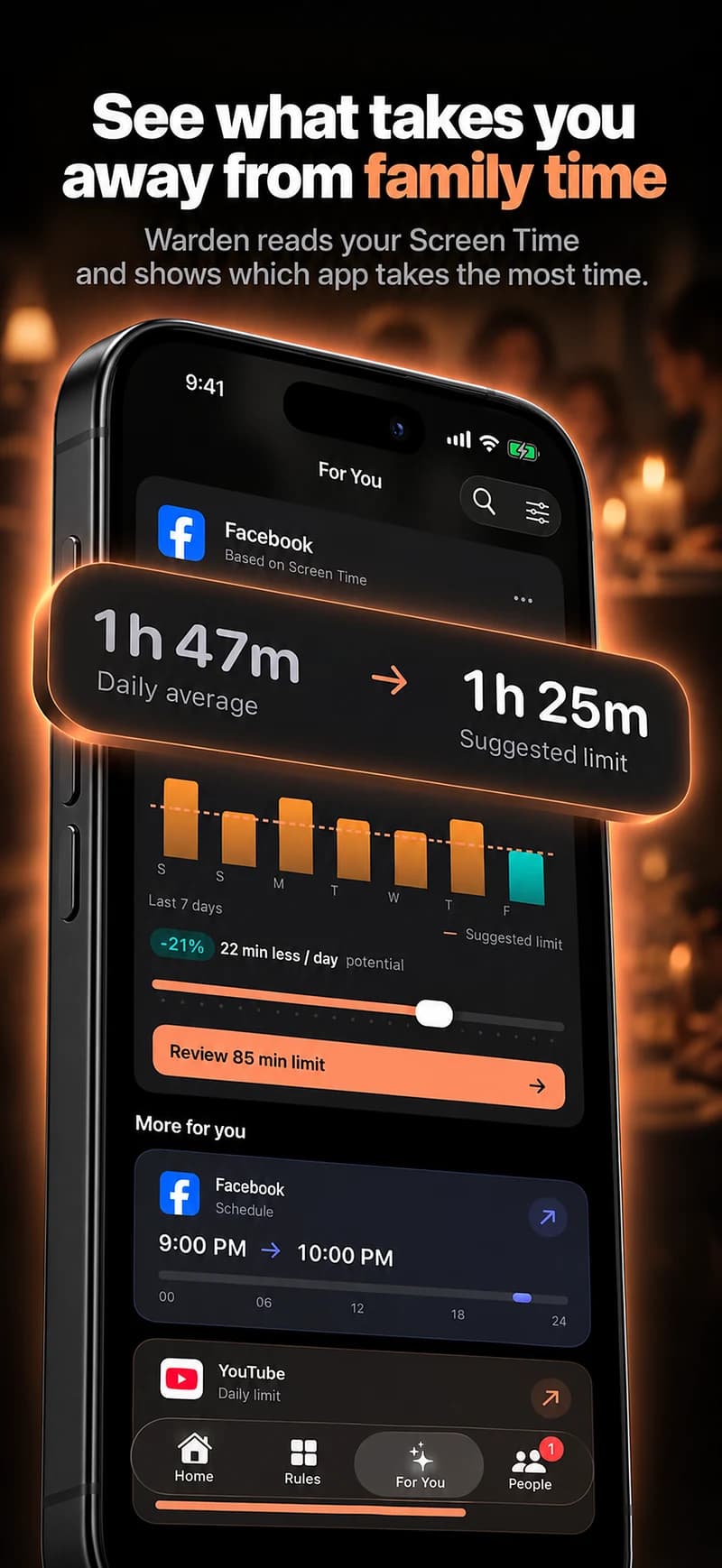
Check the family setup first
Apple’s updated family controls require more than an update on the child’s iPhone. Check all devices in your Family Sharing group, then update the parental controls. A household with older software may still use the previous Screen Time interface.
- Use the child’s own Apple Account within Family Sharing, rather than sharing a parent’s account.
- Apple lists iOS 27, iPadOS 27, macOS 27, watchOS 27 and visionOS 27 for the updated experience.
- Add the organizer or parent/guardian to the child’s contacts so requests can reach them.
- Agree who will answer during school hours and what the child should do if nobody is available.
Choose approval rather than a general content filter
Approved Websites Only is the option for an allowlist: begin with known sites and review requests for new ones. Limit Adult Websites is a different policy; do not assume it makes every new site require approval. Age and regional requirements can affect defaults and available choices.
Separate three questions: which sites can open, how long the browser is usable, and when it is available. Website approval, a daily allowance and a schedule have different jobs. An approved website may still be unavailable because another time restriction is active.
Turn on Ask to Browse from the parent’s iPhone
These are the English labels in Apple’s current iOS 27 family-control guide. Localized wording may differ. If the layout is different, check the software and parental-control upgrade before following an older Content & Privacy Restrictions walkthrough. Keep the Screen Time passcode private.
- Open Settings, choose Family, then select your child.
- Open Apps & Websites, then Restrictions.
- Under Websites, open Filtering.
- Choose Approved Websites Only for Ask to Browse. Enter the Screen Time passcode if prompted.
Reference: Apple: Ask to Browse
Approve a request and learn how to withdraw it
Open the request message on the parent or guardian’s device and approve or decline it. Apple also supports approval on the child’s device with the Screen Time passcode. Approval adds the website to the allowed list until you block it later; it is not a fifteen-minute unlock. If nobody responds within 24 hours, the child needs to request again.
- Check the address before approving. A familiar name does not replace reviewing the actual site.
- Agree what to do if an approved site displays an unexpected page. Approval does not establish that every page or interaction is suitable.
- After approving a test site, return to Settings → Family → your child → Apps & Websites.
- Select that website and choose Block Website.
- Confirm, then test access again on the child’s device.
Reference: Apple: Ask to Browse
Test the actual homework journey
Use one ordinary assignment, not just the school homepage. Keep the trial short so you can correct a mistaken setting immediately.
- Before a new term, agree on an alternative for urgent work when a parent cannot answer: ask the teacher or use a school-supervised device.
- Review the allowed list together after the first week. Discuss the specific site needed and whether its approval should remain, rather than approving everything after one frustrating task.
- Open the school site on the child’s iPhone and check access to the assignment itself.
- Follow a needed link to another website. Send a request if required and check which parent receives it.
- Approve, then try that link again in the child’s browser.
- Try a second, unapproved site and check that the expected request appears. Then reopen an already approved school page.
- Repeat the task in any other browser the child uses. Apple specifies Safari and supported browsers, so do not assume every browser or in-app web view behaves identically.
If the request or an approved page does not work
- No request arrives: check the family role, the child’s separate account, the parent’s contact entry and the device/control upgrades. If a parent is present, use supported on-device approval without handing over the passcode.
- An approved page is unavailable: inspect its Allowed or Blocked state, then check time allowances and schedules separately. Note the restriction shown on the child’s screen.
- Only part of an assignment opens: record the address at the failing step. A sign-in or reference link may lead to another site. Test that step instead of allowing all sites.
- An old request no longer works: send a new one. Apple documents a 24-hour response window.
- One browser behaves differently: record the OS version, browser and example address for support. Avoid claiming the filter covers every browsing surface.
Warden’s trusted-person approval is a different tool
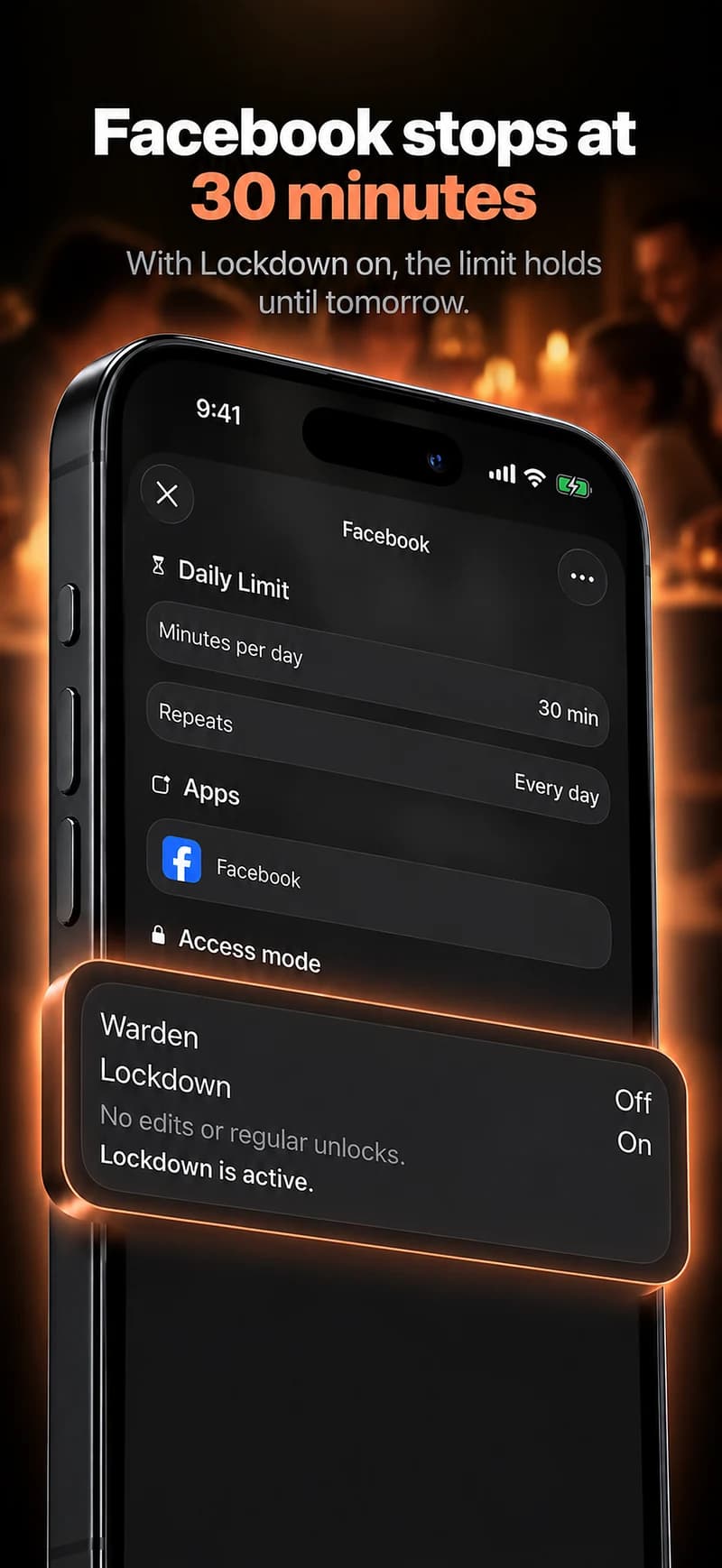
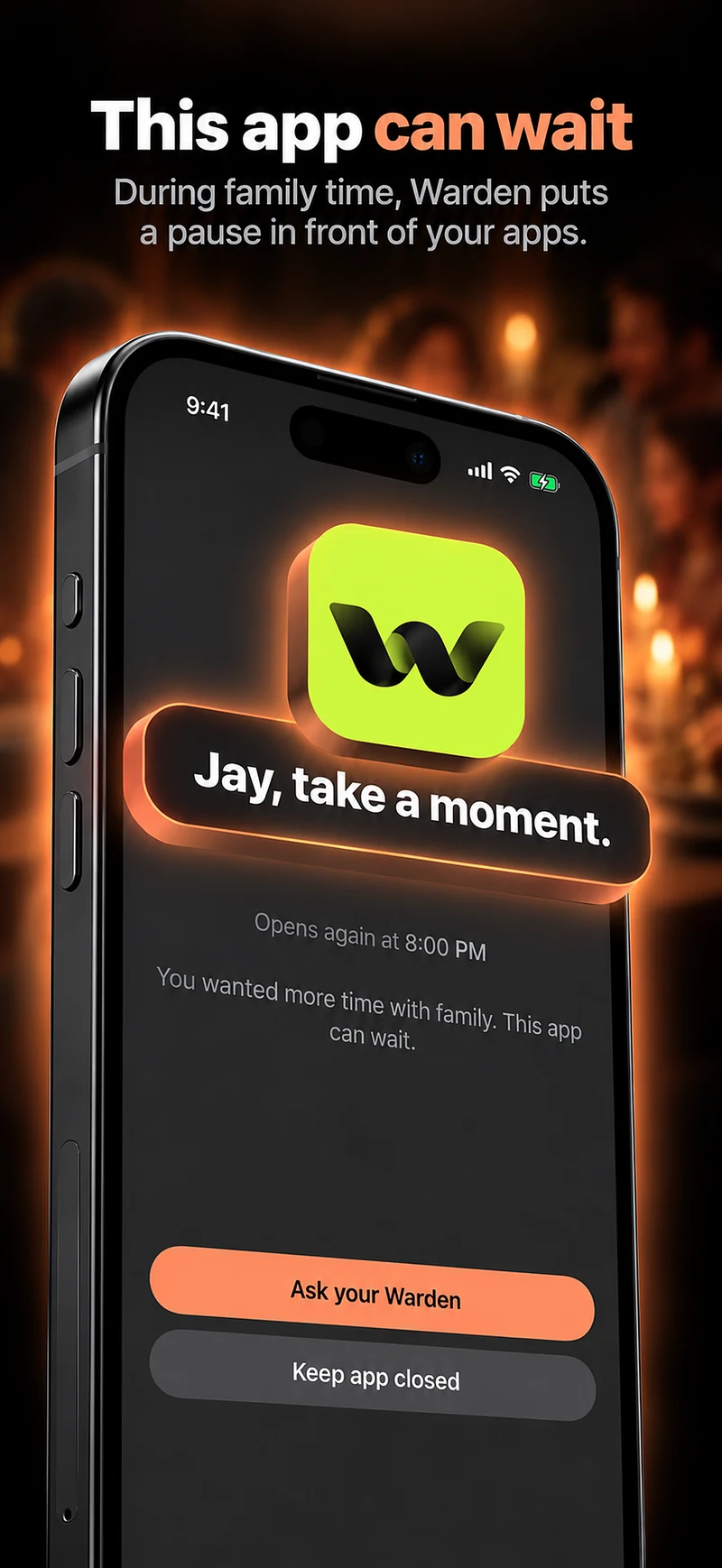
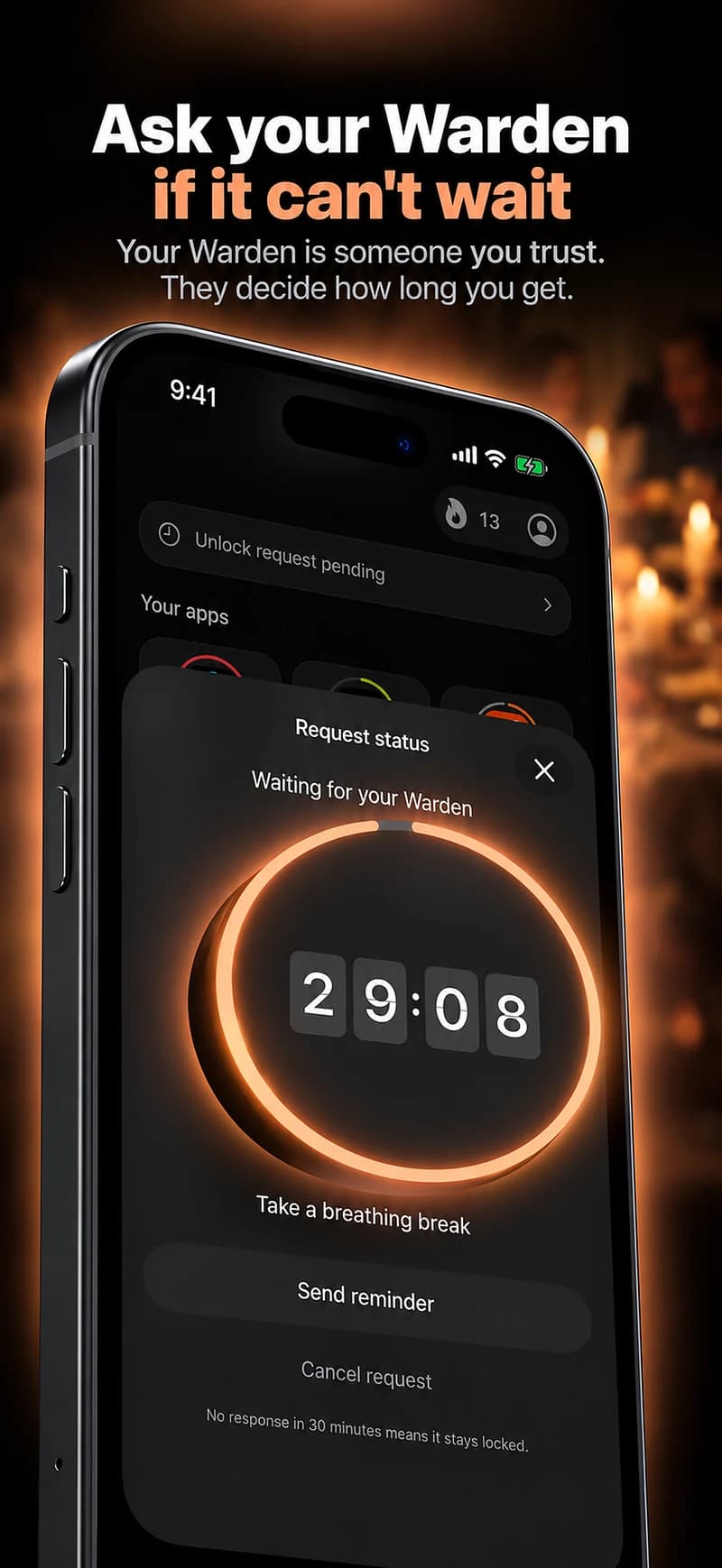
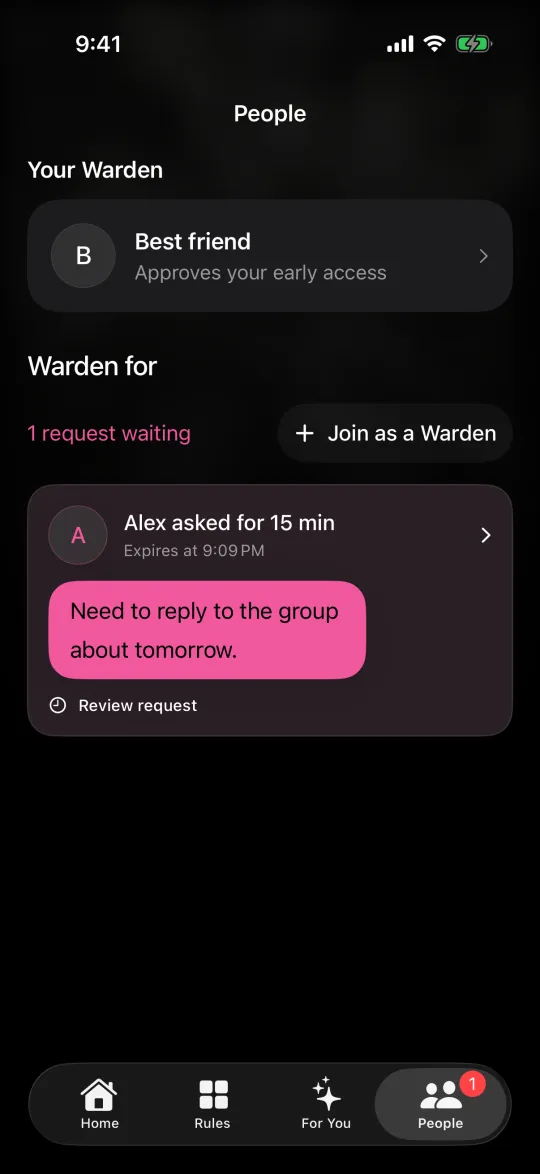
The Warden People screen below shows a different relationship: a trusted person can review requests for early access under Warden rules. Warden Pro supports this approval workflow alongside app limits and schedules. It is not Apple’s Ask to Browse inbox and does not change the family’s approved-website list.
Use Apple’s family controls when the task is approving a child’s websites. Consider Warden separately for an agreed boundary around distracting apps. Do not assume a Warden approval overrides an Apple website restriction, or that website approval removes a Warden app block. Test each layer with the person using the phone.
Example: prepare for the first week of a new term
A parent and child test the school portal, a reference site and an unfamiliar link on Sunday. The parent explains that replies may be delayed during meetings. They agree to ask the teacher about an urgent task or use a school-supervised device, rather than share the Screen Time passcode.
On Friday they review the allowed list together. One reference site stays; an unrelated site is blocked again. This is an example routine, not a feature or a safety guarantee. The useful result is knowing which step failed and who can help, rather than treating every blocked link as a reason to disable all controls.