 Warden
Reset it with your Apple Account
Open Settings, tap Screen Time, then tap Manage Screen Time. Tap Change Screen Time Passcode, then tap Change Screen Time Passcode again. If you are asked, enter the Apple Account email address and password that you used to set up the passcode. Then enter a new passcode and enter it again to confirm.
This works when Screen Time Passcode Recovery was set up with that Apple Account. Apple recommends not skipping recovery for exactly this reason.
Reference: Apple: Change your Screen Time passcode on an iPhone or iPad
If your Apple Account is not accepted
The reset needs the same Apple Account email address and password that you used when you set up the Screen Time passcode. That can be a different account from the one signed in on the iPhone.
If you are part of a Family Sharing group, it might be a family member's Apple Account or your child's. If you have more than one Apple Account, try the one you used for recovery.
Reference: Apple: Change your Screen Time passcode on an iPhone or iPad
Reset a child's Screen Time passcode
A child's passcode is reset from the family organizer's or a parent's device, not from the child's iPhone. On your device, open Settings, tap Screen Time, scroll down and tap the child's name under Family. Tap Manage Screen Time, tap Change Screen Time Passcode, then tap it again, and enter a new passcode twice.
Reference: Apple: Change your Screen Time passcode on an iPhone or iPad
This is not your iPhone passcode
The Screen Time passcode only protects Screen Time settings. The passcode that unlocks your iPhone is separate, and Apple's process for a forgotten device passcode is different and can erase the iPhone. Make sure you know which one you have forgotten before you follow any reset steps.
Reference: Apple: If you forgot your iPhone passcode
Set up recovery before you need it
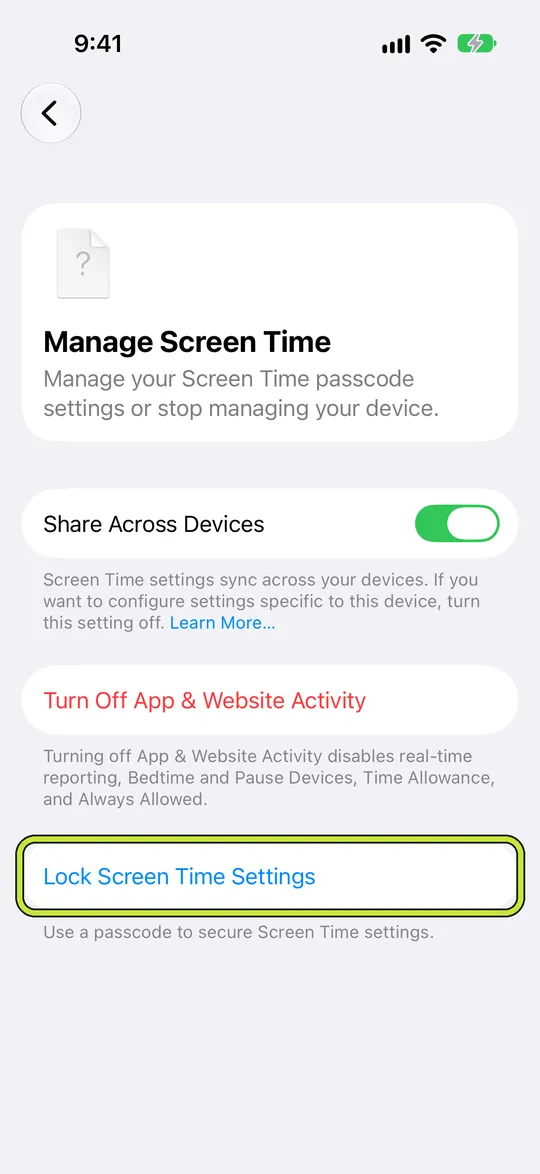
To create a passcode for your own settings, open Settings, tap Screen Time, tap Manage Screen Time, then tap Lock Screen Time Settings and enter a four-digit code twice. Afterwards, set up Screen Time Passcode Recovery so your Apple Account can reset it.
To change a passcode you remember, follow the reset steps above and enter the old code before the new one.
Reference: Apple: Create, change, or remove a Screen Time passcode
Example: the code chosen to be forgotten
Someone picks a random four-digit Screen Time code on purpose, so a late-night version of themselves cannot lift the limit. It works for a month. Then a work app needs a new allowance during the day, and the code is gone.
Because recovery was set up with their Apple Account, the reset takes a minute. The lesson they keep is different: a code you are meant to forget still has a way back, so the real protection has to come from somewhere else.
If the passcode was meant to keep you out
Many people set a Screen Time passcode to stop themselves, and a code you can reset with your own Apple Account is a speed bump rather than a lock. Some ask a partner to hold it instead.
Warden offers two other options without sharing codes. Lockdown keeps early unlocks and rule changes off until a rule ends, with emergency access still available. Or someone you trust approves extra time from their own iPhone.



