 Warden
Turn on Grayscale in Color Filters
Apple’s iOS 27 guide places Color Filters under Accessibility, then Display & Text Size. Enable the filter and select Grayscale rather than a color-vision filter or Color Tint. Check a familiar photo to see the result. This changes the appearance of the display, including images and videos; it does not close an app or remove its feed.
If the menu names differ, use search in Settings for Color Filters. Keep a note of the setting you changed so you can undo that specific choice instead of resetting your phone.
Reference: Apple: display colors
Add a way to switch back quickly
In Settings > Accessibility > Accessibility Shortcut, select Color Filters. Triple-click the side button, or the Home button on a model with one, to toggle the selected feature. If several features are selected, choose the one you need from the menu. Test the shortcut before relying on it.
Do not remove another accessibility shortcut that you already depend on just to simplify this experiment. Returning through Color Filters in Settings remains an option.
Reference: Apple: accessibility shortcuts
Restore color when the task needs it
To return to color, turn Color Filters off in the same settings, or use the shortcut you configured. If black and white returns after a button press, review Accessibility Shortcut. Distinguish this setting from Dark Mode and Night Shift; they are different display choices.
Keep an easy return to color for editing a photo, checking a color-coded chart or choosing an item whose color matters. A useful phone setup should support those tasks rather than make them frustrating.
Reference: Apple: display colors
Example: a less tempting screen after dinner
Suppose you often open a shopping app after dinner without needing anything. Try grayscale for that one period for three evenings. Before starting, check that your map and messaging apps are comfortable to use. Switch color back on for a photo or a task where it matters, then return to your chosen setting.
Afterward, note whether you opened the shopping app less often or simply browsed the same products in gray. That observation tells you whether this small change addresses your actual habit; the appearance of a quieter screen alone is not proof.
When grayscale is not the boundary you need
Grayscale leaves the apps available. If you keep opening the same feed, choose a separate access rule for that app or put the phone away for a short task. Avoid changing notifications, display colors and several limits at once; you will have a clearer idea of which change helped.
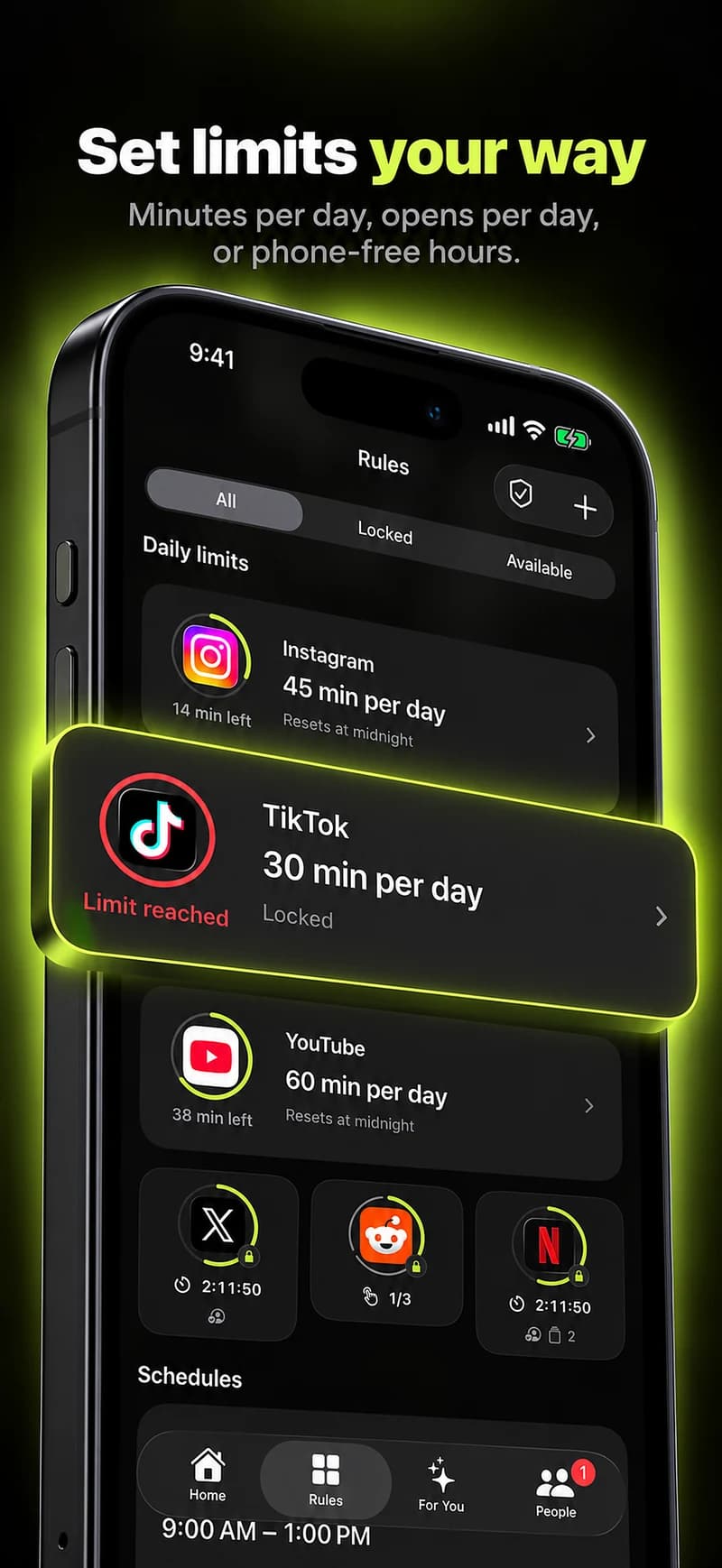
Warden’s selected-app limits and schedules address access separately. They do not control Apple’s Color Filters, and a gray screen does not confirm that any Warden rule is active. Test an access rule by opening the selected app during its block.



