Skip to content

Everyday focus

How to make your iPhone less distracting

Some people find their phone easier to put down once it is less inviting: fewer colours, fewer red badges, fewer apps on the first screen. None of this is a cure, and the effect varies from person to person, but it is free, quick to undo and worth a week's experiment.

In this guide

Turn on grayscale

Go to Settings, Accessibility, Display & Text Size, Color Filters, turn Color Filters on and choose Grayscale. You can also add Color Filters to the Accessibility Shortcut, so a triple-click of the side button switches colour back when you need it, for photos for example.

How to turn on grayscale on iPhone

Reference: Apple: Change display colors

Remove badges and most notifications

Red badges and alerts are invitations to open an app. Turn off badges for social, shopping and game apps, and keep notifications for people and things that genuinely need you. A Focus can silence the rest at set times.

Reference: Apple: Set up a Focus

Simplify your Home Screen

  • Keep only tools on the first screen: phone, messages, maps, calendar, camera.
  • Move social and video apps to the App Library so opening them takes a search.
  • Remove widgets that show feeds or recommendations.

When boring is not enough

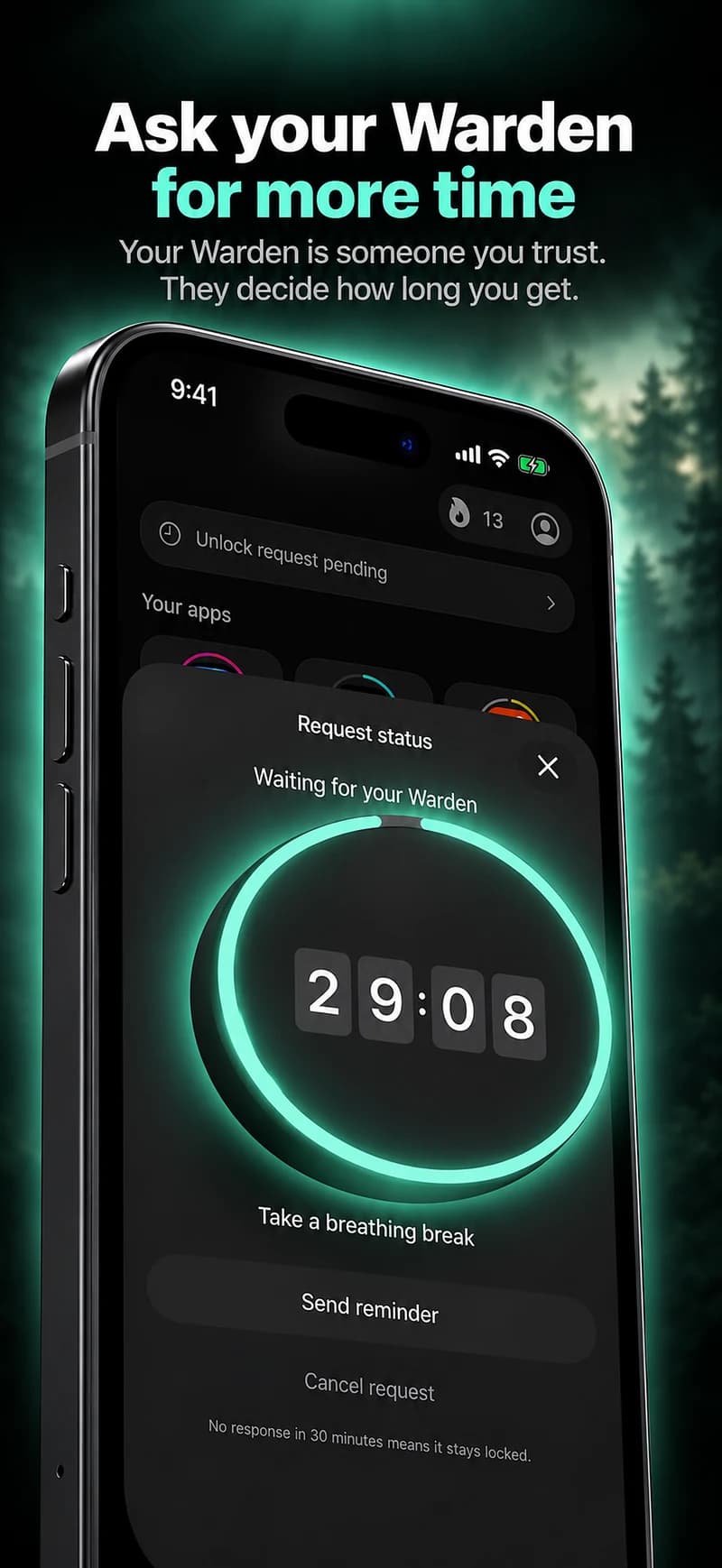
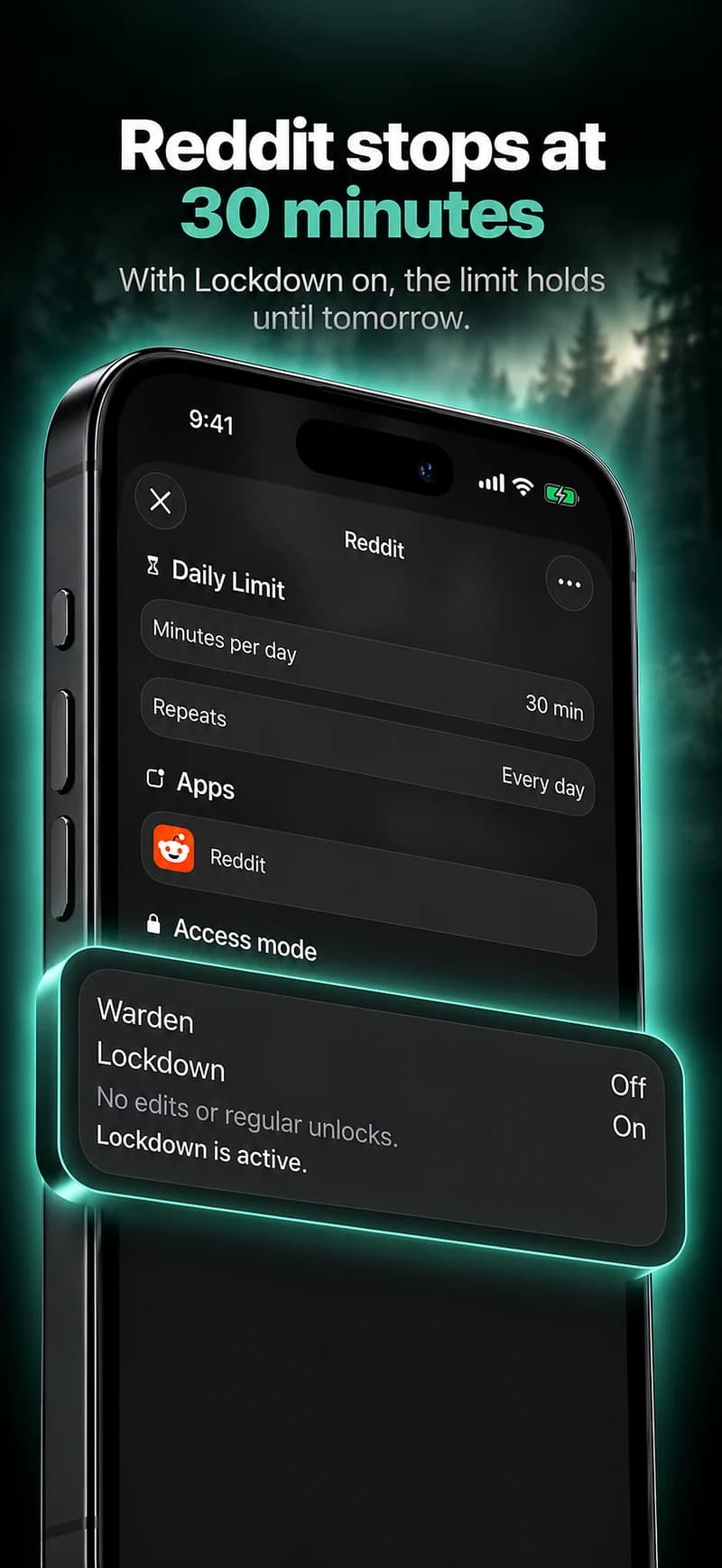
A grey feed is still a feed. If you keep opening the same apps, give them a schedule or a daily allowance. In Warden, Lockdown keeps ordinary early unlocks off until a block ends, and a trusted person can approve early access if you prefer.

How Warden unlock approval works

How to stop doomscrolling

Editing a schedule that blocks apps from 10:00 PM to 7:00 AM every day

Example: a grey week

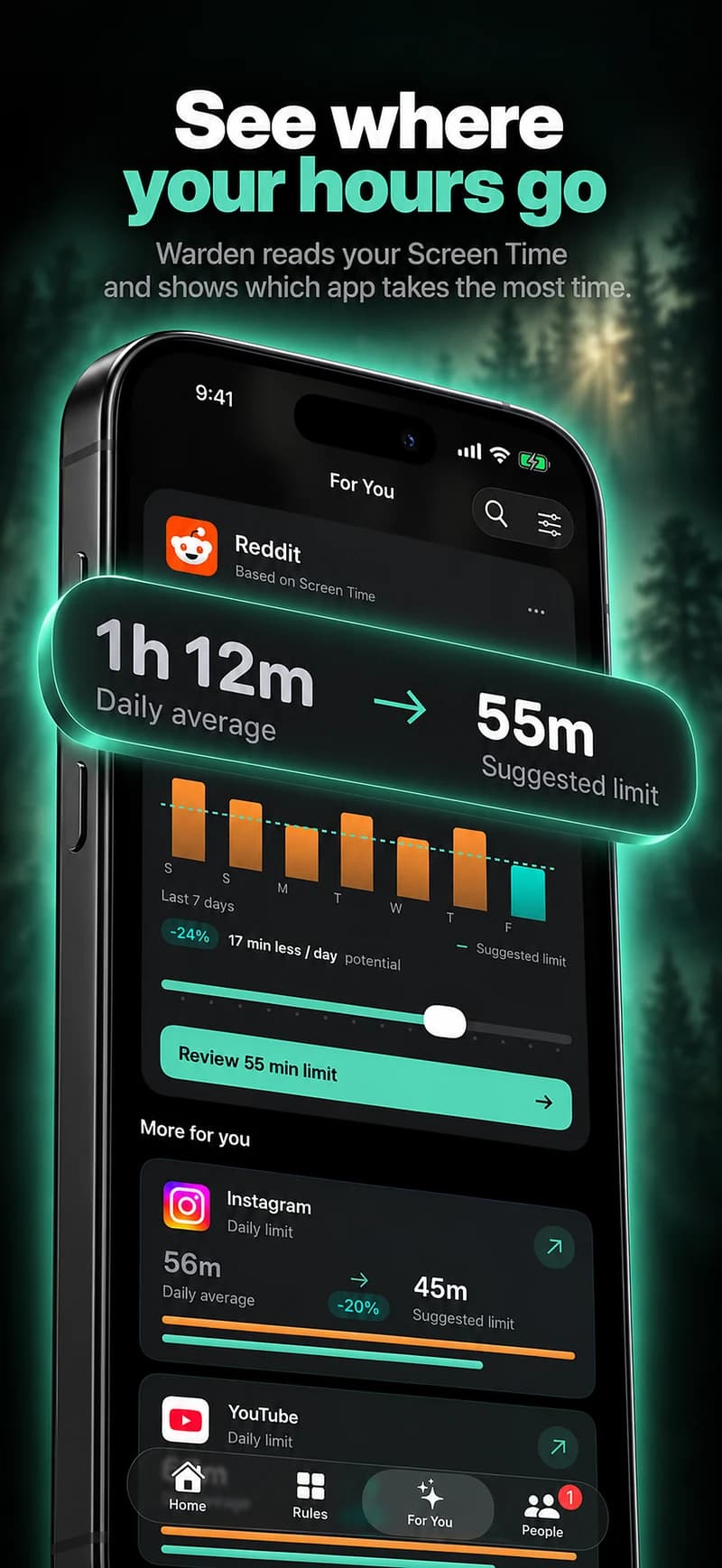
For one week, turn on grayscale, remove every badge except messages, and keep one screen of tools. Note your Screen Time total for the week before and the week after. If it barely moves but evenings feel calmer, keep the parts you liked. If nothing changes, add a schedule for the one app that still pulls you in.
Set it up without adding unnecessary rules

Daily limits, schedules and focus sessions

Install Warden and connect Screen Time when iOS asks. Then open Rules and tap the plus button.

Choose the apps or scope involved in this particular interruption. Use an allowance for total use, a schedule for recurring hours, or a session for a one-off task.

What Standard, Warden and Lockdown do

Choose Standard when you want to manage the limit yourself. Choose Warden when a person you trust should review early-access requests. Choose Lockdown to keep ordinary early unlocks off until the block ends.

Choose the access mode, then hold the save button to set the rule. Try a short block before using a long one. Emergency access remains separate from ordinary unlock requests.

How Warden approval works

Choose how many minutes you need, add a note and hold to send. If nobody answers within 30 minutes, the request expires and the app stays locked.

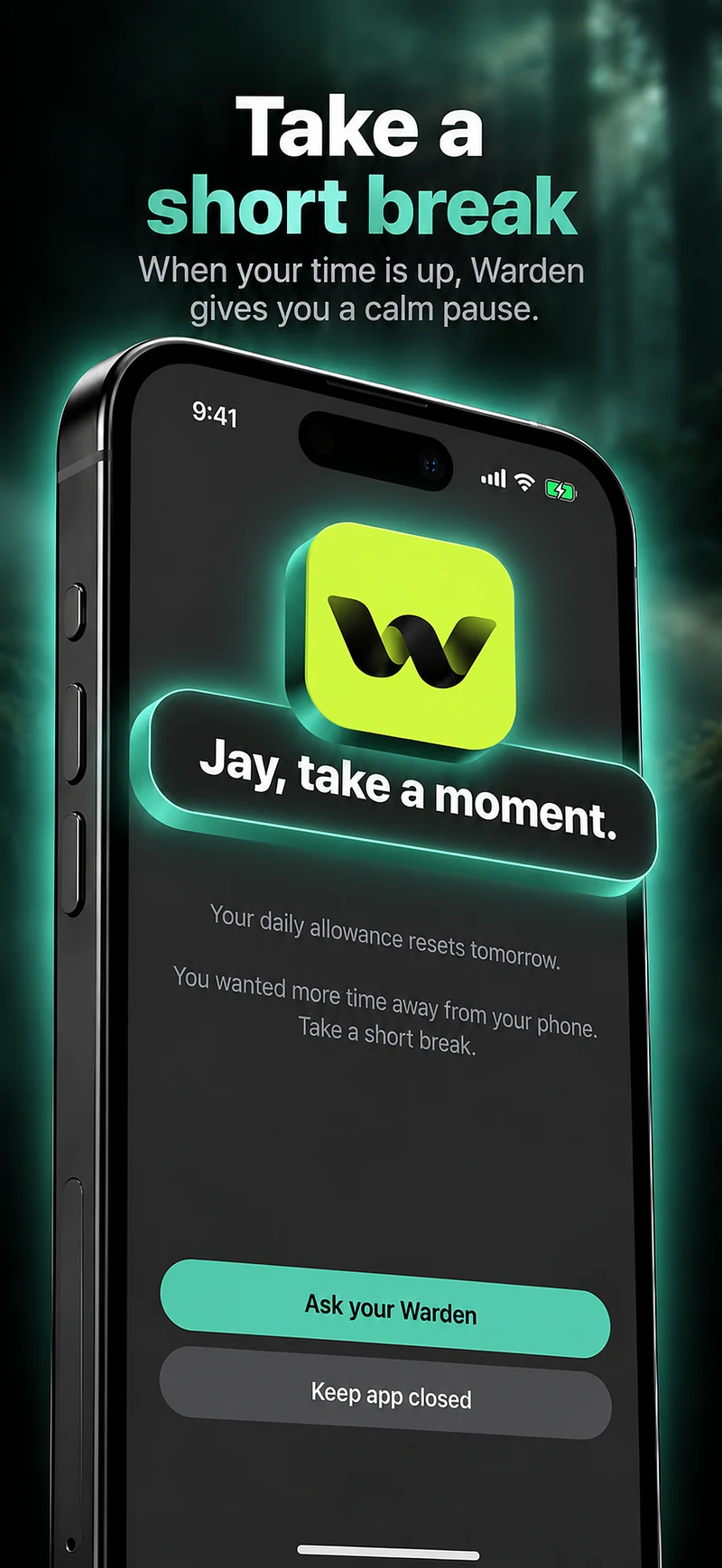
An approval applies to the scope and time shown in the app. A declined or unanswered request does not lift the block. Emergency access remains a separate option on your device.

Common questions

Does grayscale reduce screen time?
It can make feeds less inviting for some people, but there is no guarantee. Compare your Screen Time for a week before and a week after turning it on.
How do I switch grayscale off quickly?
Add Color Filters to the Accessibility Shortcut in Settings, Accessibility. Then a triple-click of the side button turns it on or off.