Warden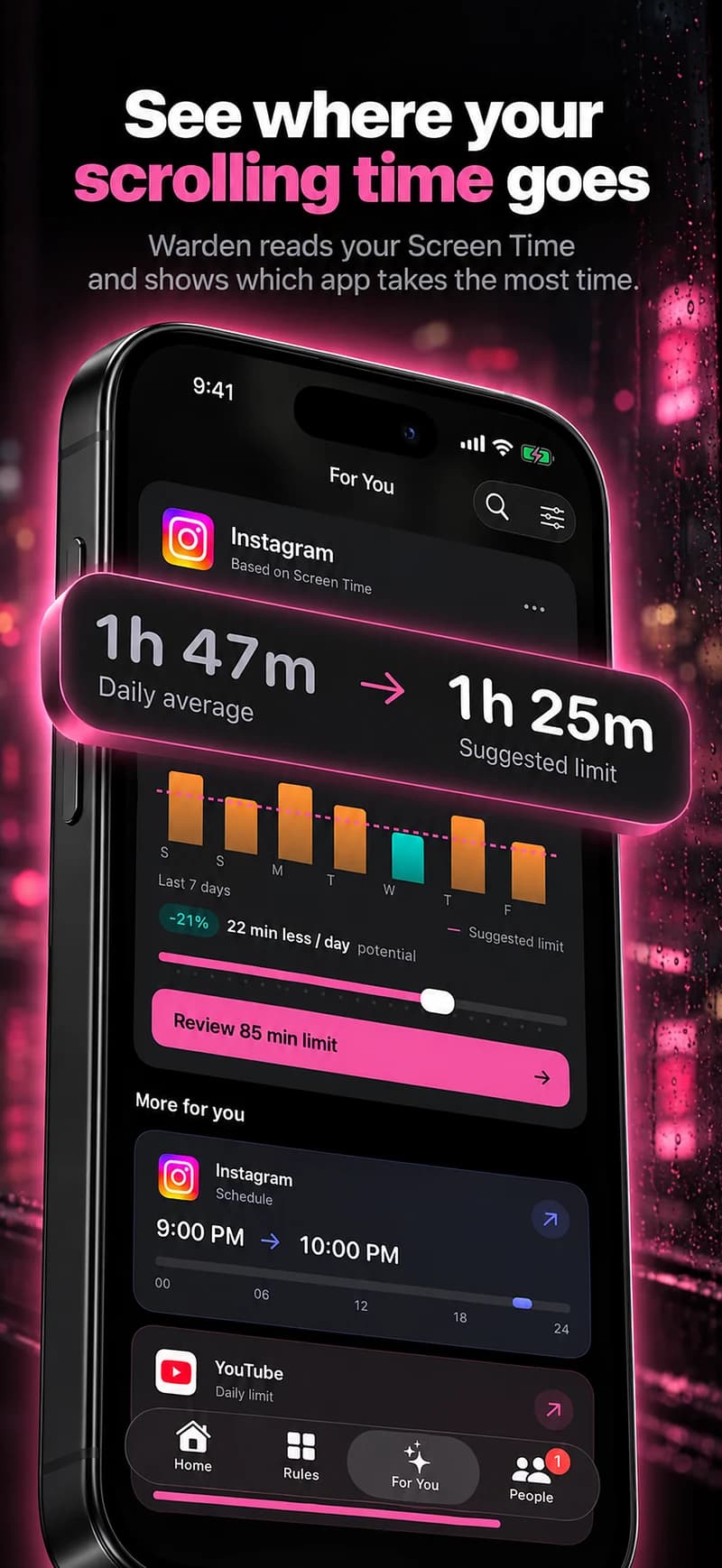
Notice when it starts, not how long it lasts
Open Screen Time and note the two or three apps that take most of your day. Then look for the pattern around them: straight after waking, in a work break, on the commute or late in the evening. A total tells you how much; the starting point tells you where a rule belongs.
Write the trigger down in one sentence, such as “I open the news app when a task gets hard” or “short videos keep playing after I get into bed”. That sentence decides which of the steps below matters most.
Make the feed slower to reach
- Move the apps off your Home Screen so opening them takes a search instead of a reflex.
- Turn off notifications from the feeds that pull you back. A Focus can silence them at set times while calls and messages from chosen people still come through.
- Try grayscale for a week in Settings, Accessibility, Display & Text Size, Color Filters. Some people find a grey feed less inviting; treat it as an experiment.
- Sign out of the website versions too, or the scroll may simply move to Safari.
Reference: Apple: Set up a Focus
Reference: Apple: Change display colors
Pick a limit or a schedule
A daily allowance caps the total, but the whole allowance can go in one late session. A schedule makes selected apps unavailable at the times your trigger happens, such as the first hour after waking or after 10:30 PM. If your doomscrolling has a clear time, start with a schedule.
Apple Screen Time can do both. In iOS 27 they are Time Allowances and Screen Time Schedules; in iOS 26, App Limits and Downtime. For an adult the weak point is the passcode you set and know yourself.
Where App Limits and Downtime went in iOS 27
Make the override harder than the scroll
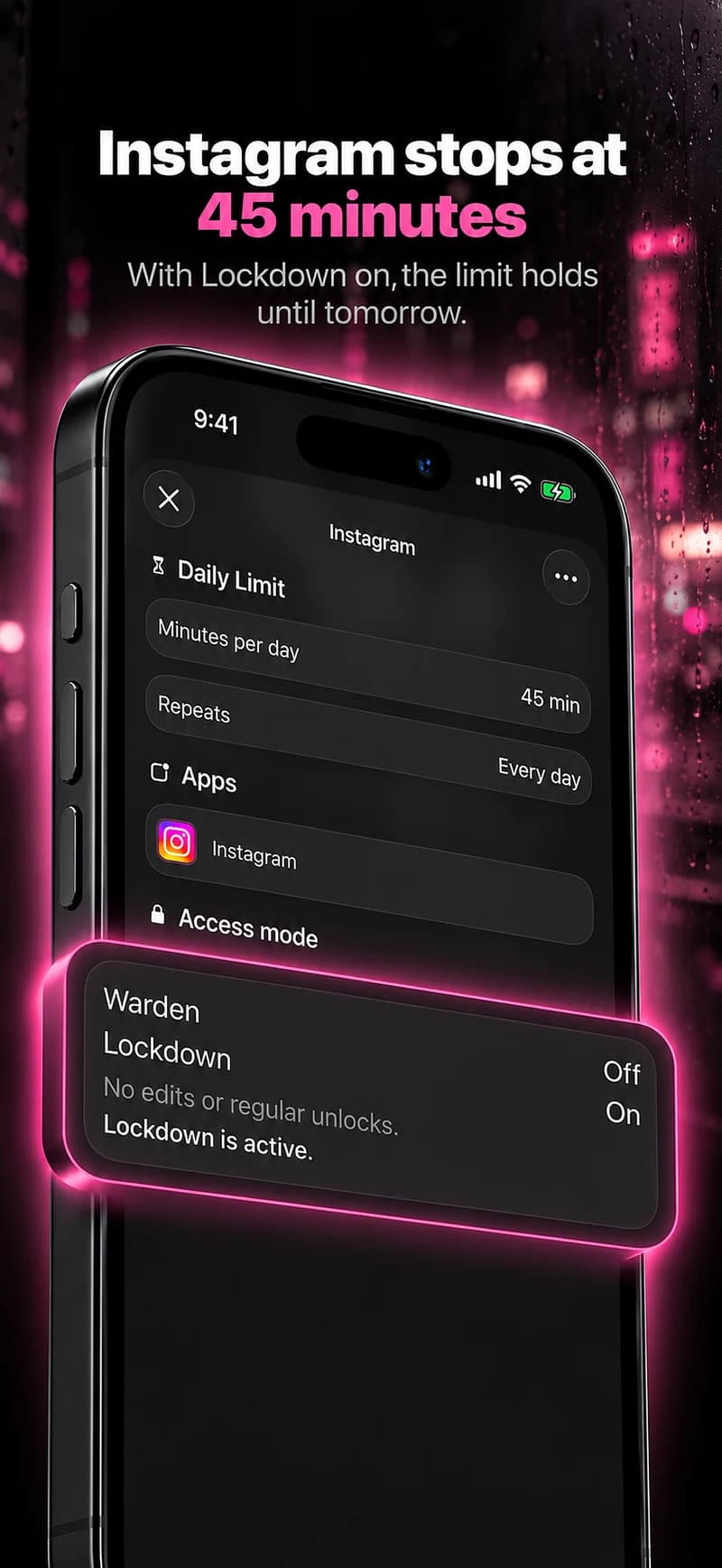
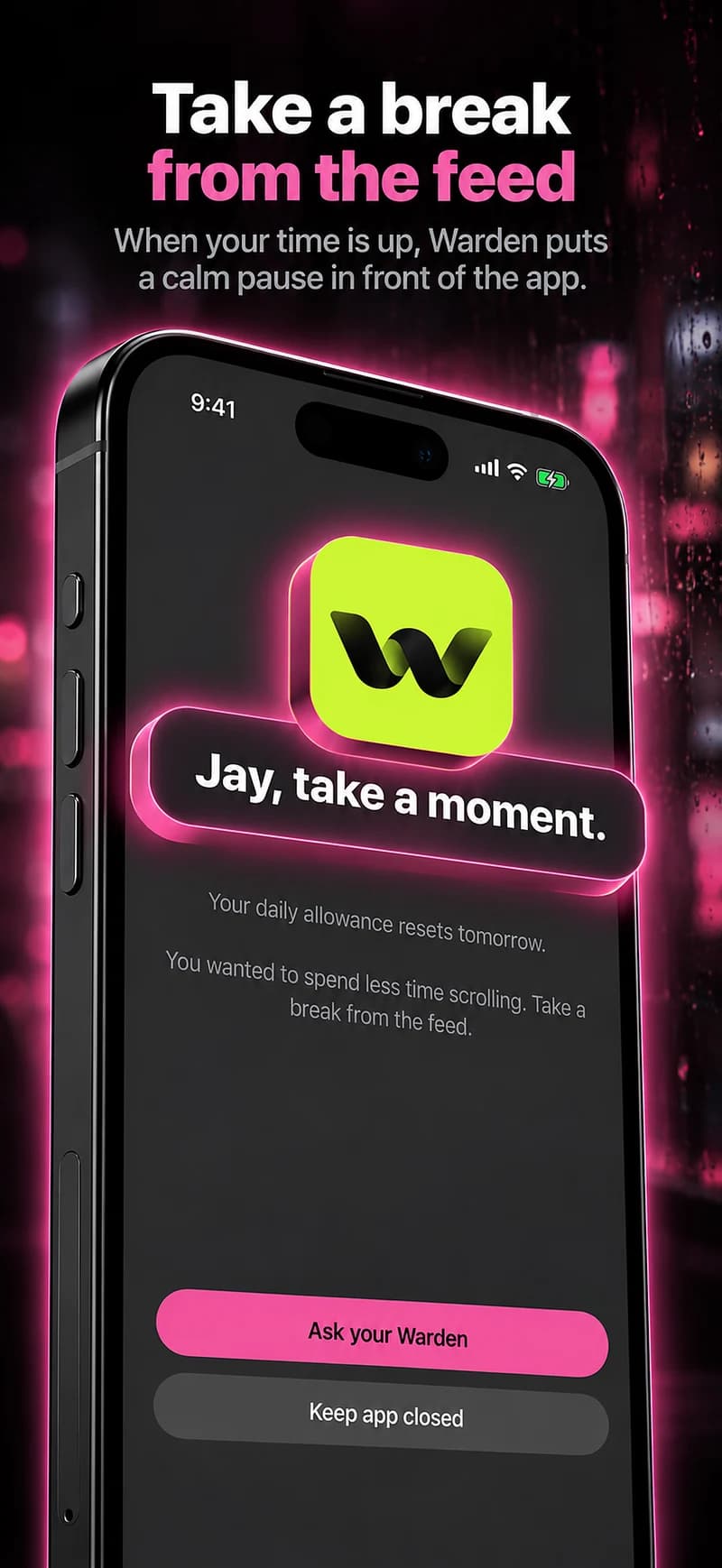
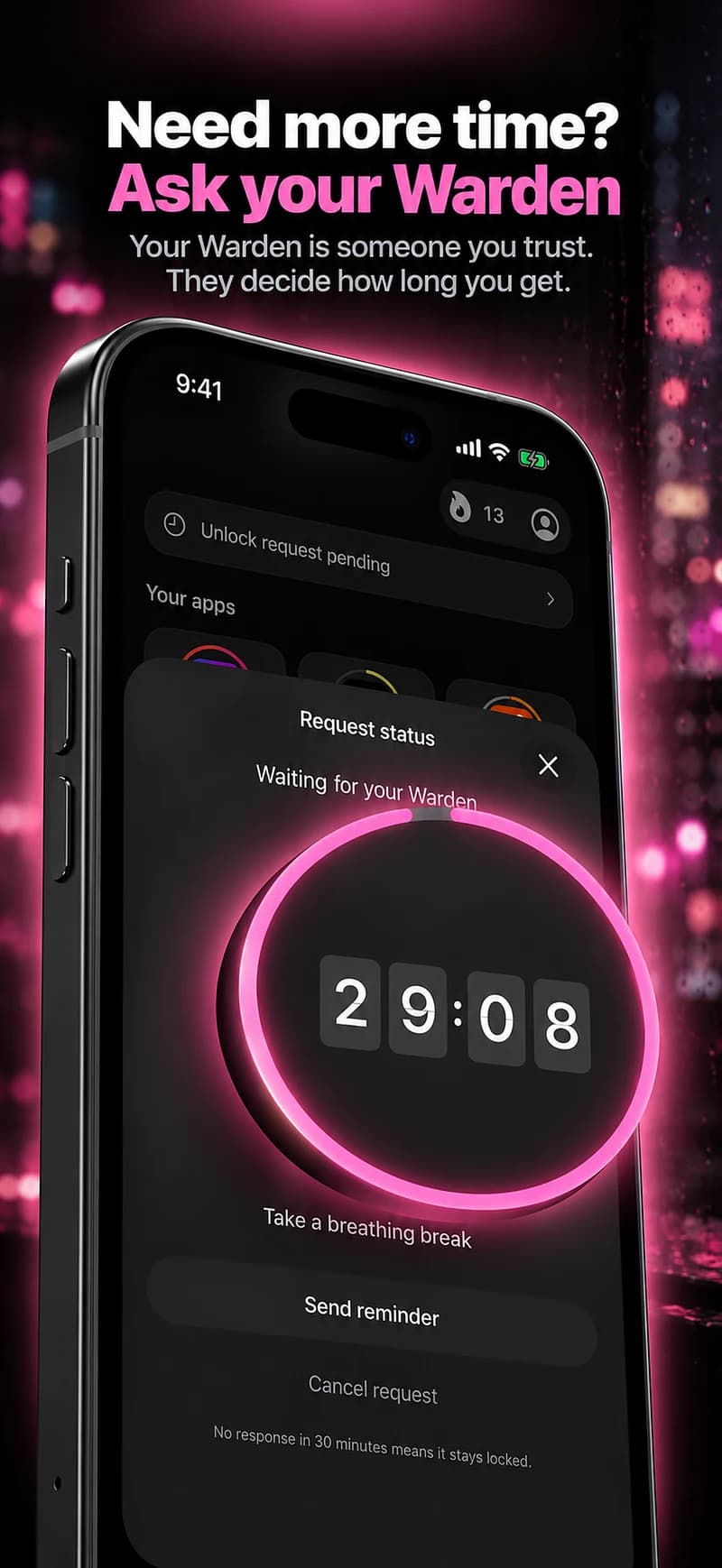
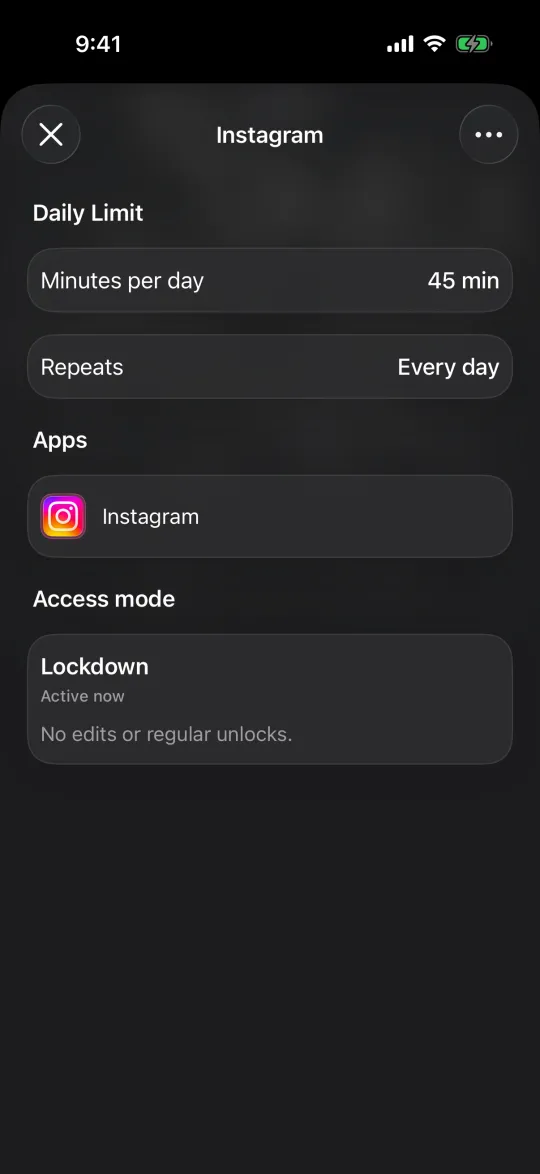
Most rules fail at the override: the limit appears and you tap past it. Decide in advance how early access works. In Warden you can manage it yourself in Standard, turn on Lockdown so ordinary early unlocks and rule edits stay off until the block ends, or ask a trusted person to approve extra time. Emergency access stays available.
Keep exceptions honest. If you need a feed for work, leave that app out of the rule rather than training yourself to tap past the limit.
Give the gap something to do
The block works better when you have already decided what comes next. Pick one easy, specific thing for the moment it appears: a podcast queued earlier, a book by the bed, a short walk or a message to a friend. Keep it smaller and easier than the habit it replaces.
A rule can protect part of your day, but it cannot resolve the worry behind the scrolling. If that worry feels hard to manage, talk to someone you trust or a professional.
Example: the 10:30 PM news loop
The news app stays open from 10:30 PM until after midnight most nights. The plan: move it off the Home Screen, turn off its alerts, and schedule it with two social apps from 10:30 PM to 7 AM in Lockdown.
After a week, count how many evenings the schedule held and whether any exception was genuinely needed, then move the start time if it was unrealistic. The rule says nothing about daytime reading or sleep; it only protects the window where the loop used to begin.