Warden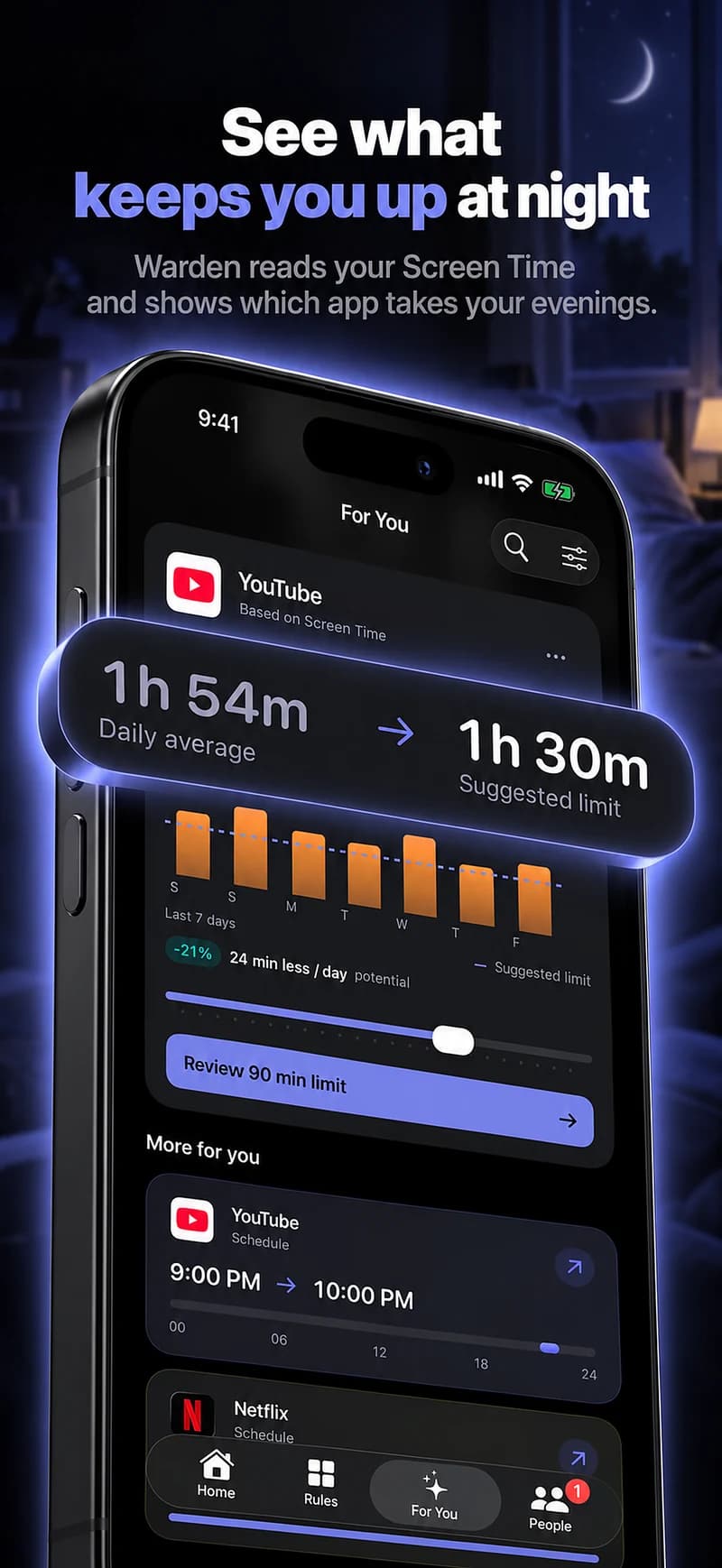
Find the moment the evening changes
Look at the part of the evening you actually want to protect. Perhaps a quick check after dinner becomes an hour of short videos, or a news feed stays open after you get into bed. Choose that moment rather than setting an idealized routine you cannot follow on ordinary days.
Available Screen Time readings can help identify app use and timing. They do not reveal exactly when you fell asleep or whether a late session was necessary. Use the readings alongside what you remember about the evening, not as a complete explanation.
Set a clock-based boundary
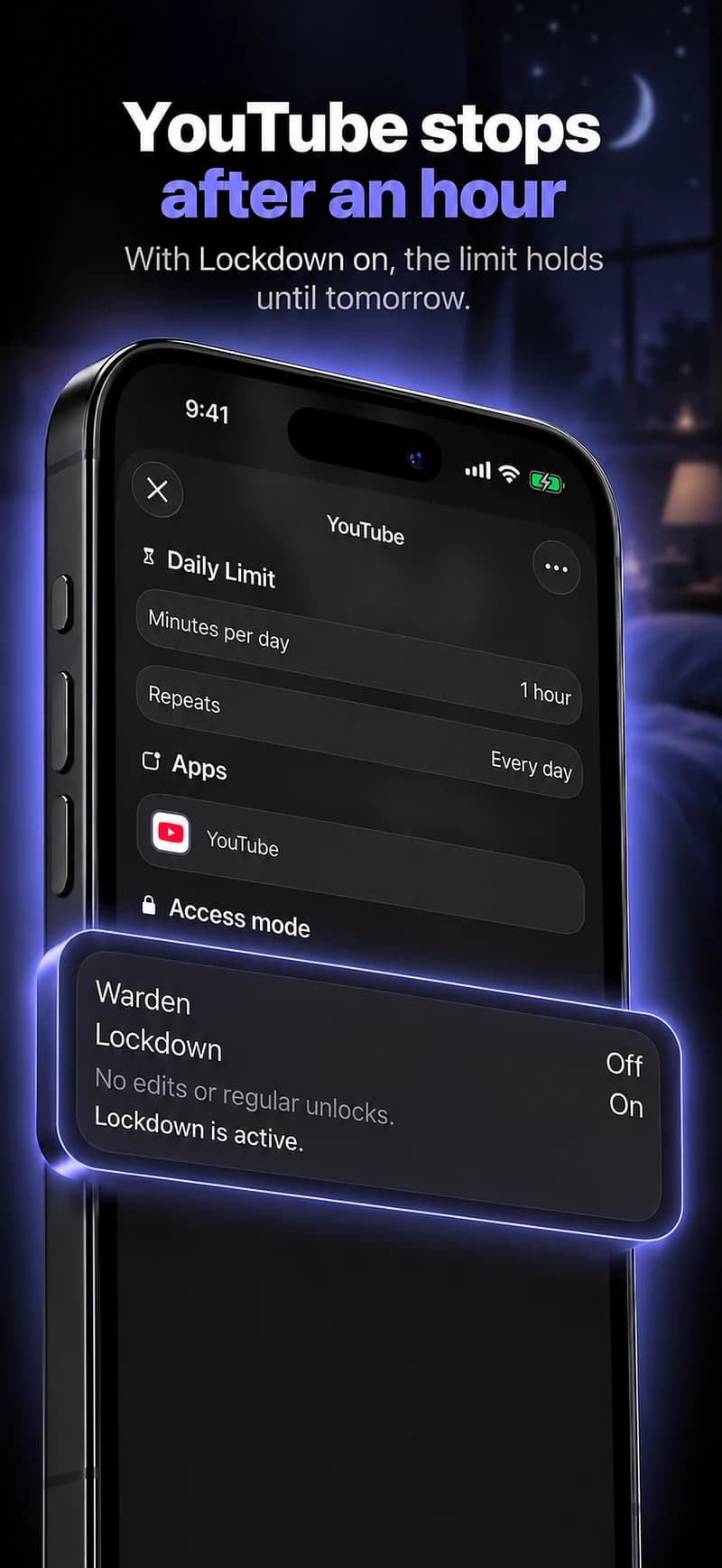
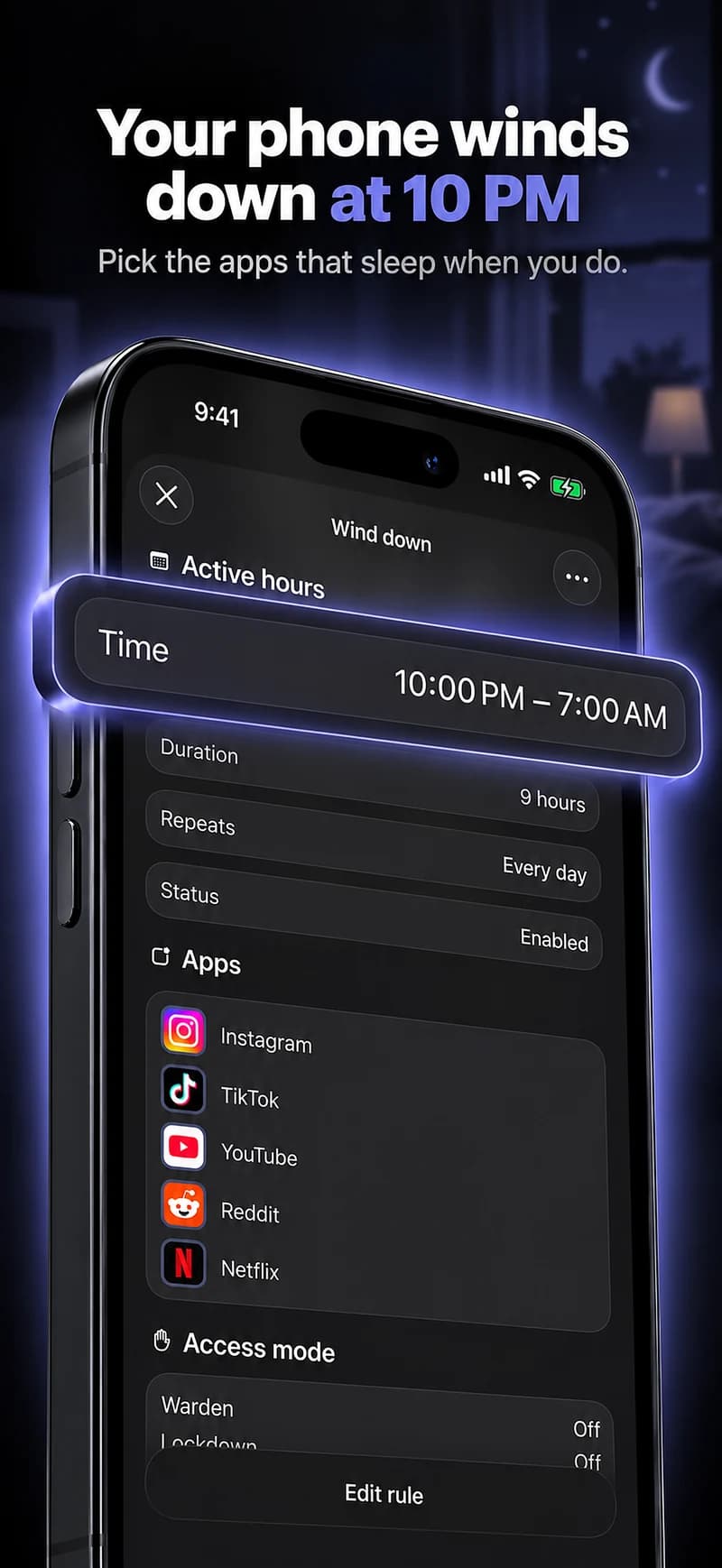
A schedule can make selected apps unavailable during the same window each night. A daily allowance alone may leave the whole budget available at bedtime. If the problem is timing, a schedule directly describes the desired boundary.
For example, use a 10 PM to 7 AM window for the selected feeds while keeping needed communication available. This is an example to adapt, not a prescription. Check overnight days carefully and review how the app handles a window crossing midnight.
Reference: Apple: schedule downtime and app allowances
Make the alternative easy to begin
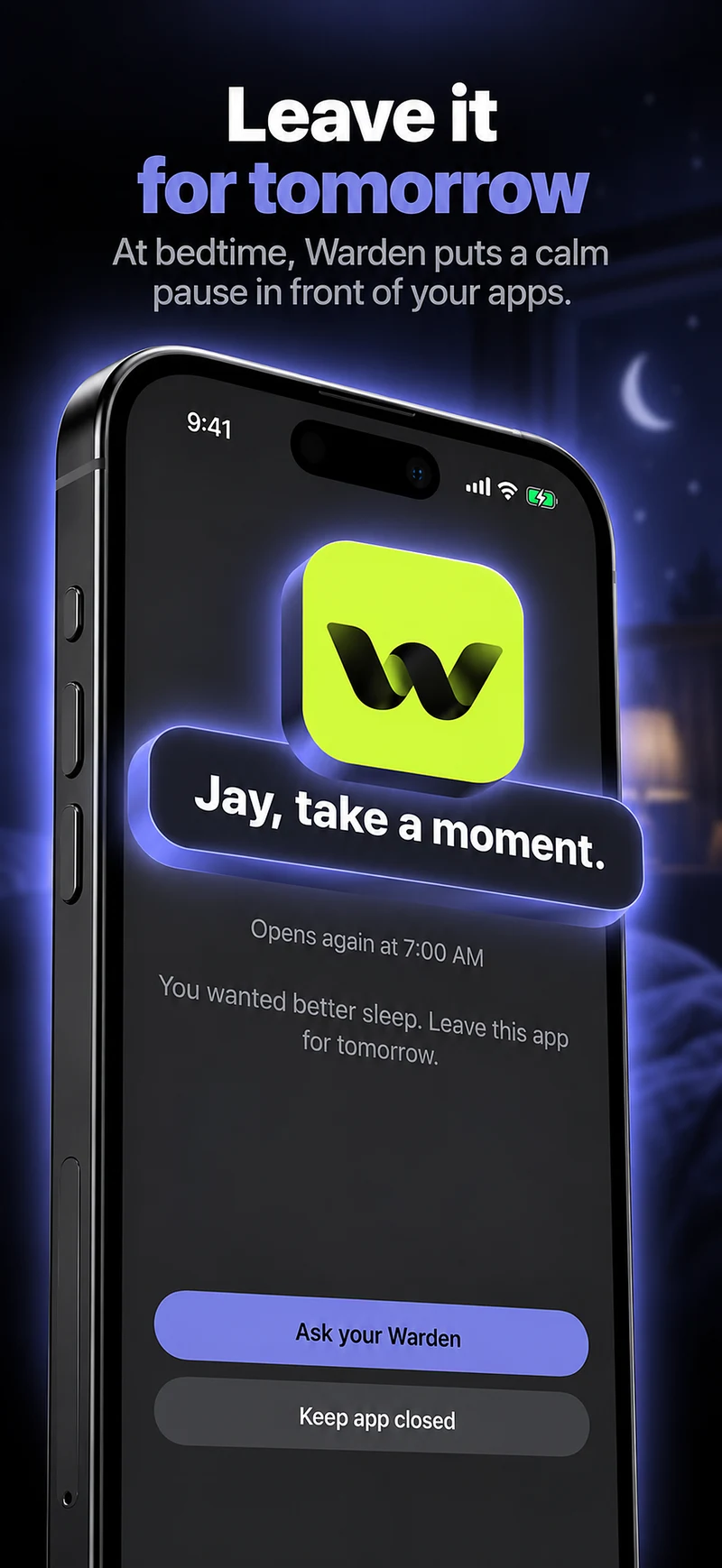
Decide what you will do when the block appears: put on audio you already chose, read a few pages, prepare tomorrow’s things or simply stop using the phone. Have that activity ready before the evening becomes tiring.
Do not replace one demanding tracking task with another. The purpose of the plan can be as small as getting out of a scrolling loop. A book beside the bed or a charging spot away from the pillow can make the intended next action more obvious.
Review the window, not a sleep claim
After several ordinary evenings, check whether the selected apps stayed out of the intended period and whether you needed reasonable exceptions. Adjust the start time or selection if the block consistently catches something necessary.
Warden can record protection and compare available app-use readings. It cannot conclude from a blocked feed that you slept earlier or better. Treat those as separate questions, and seek appropriate advice if sleep itself is a persistent concern.
Try a clock-based evening experiment
Choose a stop-scrolling time you can actually test for a few evenings. Select only the apps that usually keep you browsing, keep essential contacts reachable, and choose something modest to do instead. “Read a few pages after 10 PM” is easier to review than a promise to transform your whole sleep routine.
The next day, separate the observations: whether the block was active, what the report says about those apps and how you felt. Do not label a phone-free interval as sleep. If the chosen hours do not fit your shift, caring responsibilities or household, change the routine rather than treating an unsuitable schedule as a personal failure.