 Warden
Does an Apple Watch reduce screen time?
It can take over the quick reasons you pick up a phone: the time, a message, a call, the next turn on a walk. It has no feed to scroll. Whether your phone time goes down depends on what you let through to the watch, and on whether the phone stays out of your hand.
To find out, look at your iPhone's Screen Time report for a week before you change anything, then compare it with the week after.
Turn off the notifications that pull you back
On the watch itself, swipe left on a notification and tap the options button to mute that app for an hour or for the rest of the day.
- Open the Apple Watch app on your iPhone.
- Tap My Watch, then tap Notifications.
- Tap an app, tap Custom, then choose Notifications Off. Send to Notification Center keeps them without a sound or an alert.
Reference: Apple: Change notification settings on Apple Watch
Use one Focus on both devices
A Focus you turn on from the watch's Control Center turns on on your iPhone too, and the other way round. You choose which people and apps can reach you while it's on. In the iPhone's Focus settings you can also give each Focus a plainer watch face.
Reference: Apple: Use Focus on Apple Watch
Block the phone's apps from the watch
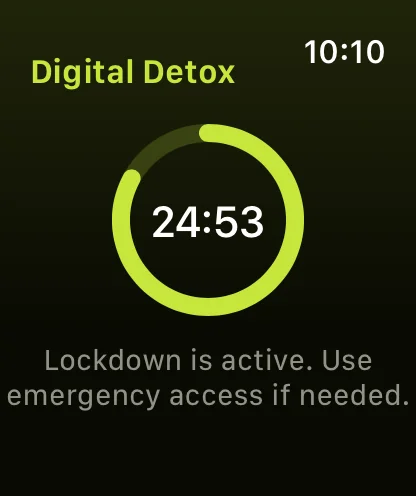
A Focus filters notifications. It doesn't stop you opening Instagram when you pick the phone up. To block the apps themselves, Warden on Apple Watch starts a digital detox on your iPhone: turn the Digital Crown to choose 15 minutes to 4 hours, then tap Start.
Every app outside Always Allowed stays blocked until the timer ends. Choose Lockdown if you don't want to be able to end it early.
What keeps working while the phone is away
- With Wi-Fi or cellular, the watch can make and answer calls, send and receive messages, give directions in Maps and stream music.
- With no connection at all, it still runs workouts, alarms and timers, Apple Pay and music you downloaded to it.
- A watch without cellular joins Wi-Fi networks your iPhone has used before. Away from them, it can't make calls or get messages.
Reference: Apple: Use your Apple Watch without your iPhone nearby
An evening with the phone in another room
Say you want the phone out of reach from 7 to 10 pm. At 7, put the iPhone on a charger in another room, turn on a Personal Focus that lets your family through, and start a 3-hour Standard detox from the watch. A call from home still rings on your wrist. If you walk past the charger at 8:30, the apps you usually open show the block screen.
If the watch starts to feel like a second phone
If you keep raising your wrist every few minutes, too many notifications are still getting through. Turn more of them off, starting with the apps you wouldn't miss for a day, and keep the ones from people.



