Skip to content

Everyday focus

Digital detox weekend: a simple plan

A digital detox weekend does not have to mean switching the phone off. It works better as a clear plan: what stays available, what is off, when it starts and ends, and what you will do instead. Here is a simple version you can try this Friday.

In this guide

Decide the scope

Pick the start and end, for example Friday 8 PM to Sunday 6 PM, and the apps that are off: social feeds, video, news and games. Decide what stays: calls, messages from people close to you, maps, payments and the camera.

Prepare before Friday

  • Tell the people who usually reach you online how to reach you instead.
  • Download any maps, tickets or music you will need.
  • Plan at least one thing for each day that does not involve a screen.

How to do a digital detox with an Apple Watch

Lock the rule in

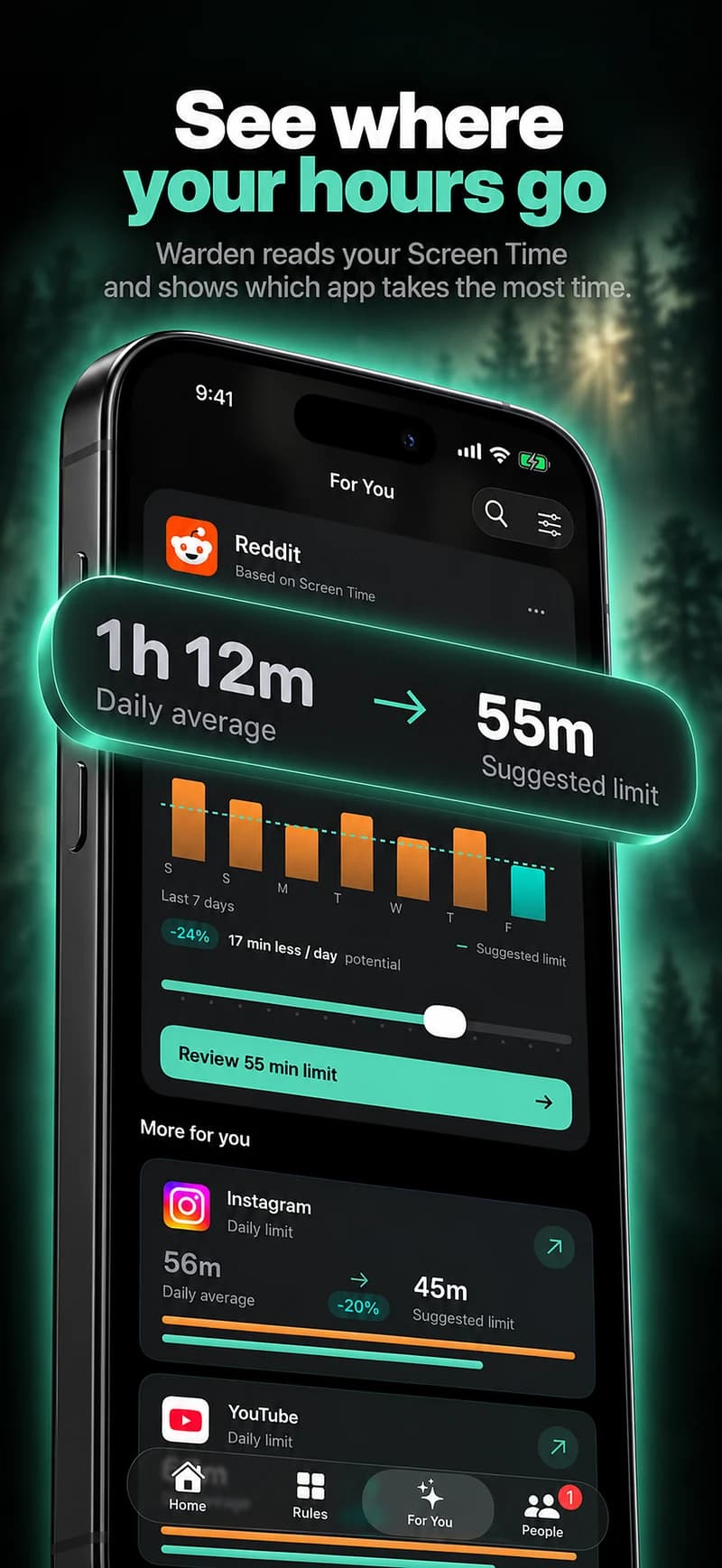
Set a schedule for the apps that are off, covering the whole weekend window. Screen Time can do this with Screen Time Schedules in iOS 27 or Downtime in iOS 26, though as an adult you know the passcode.

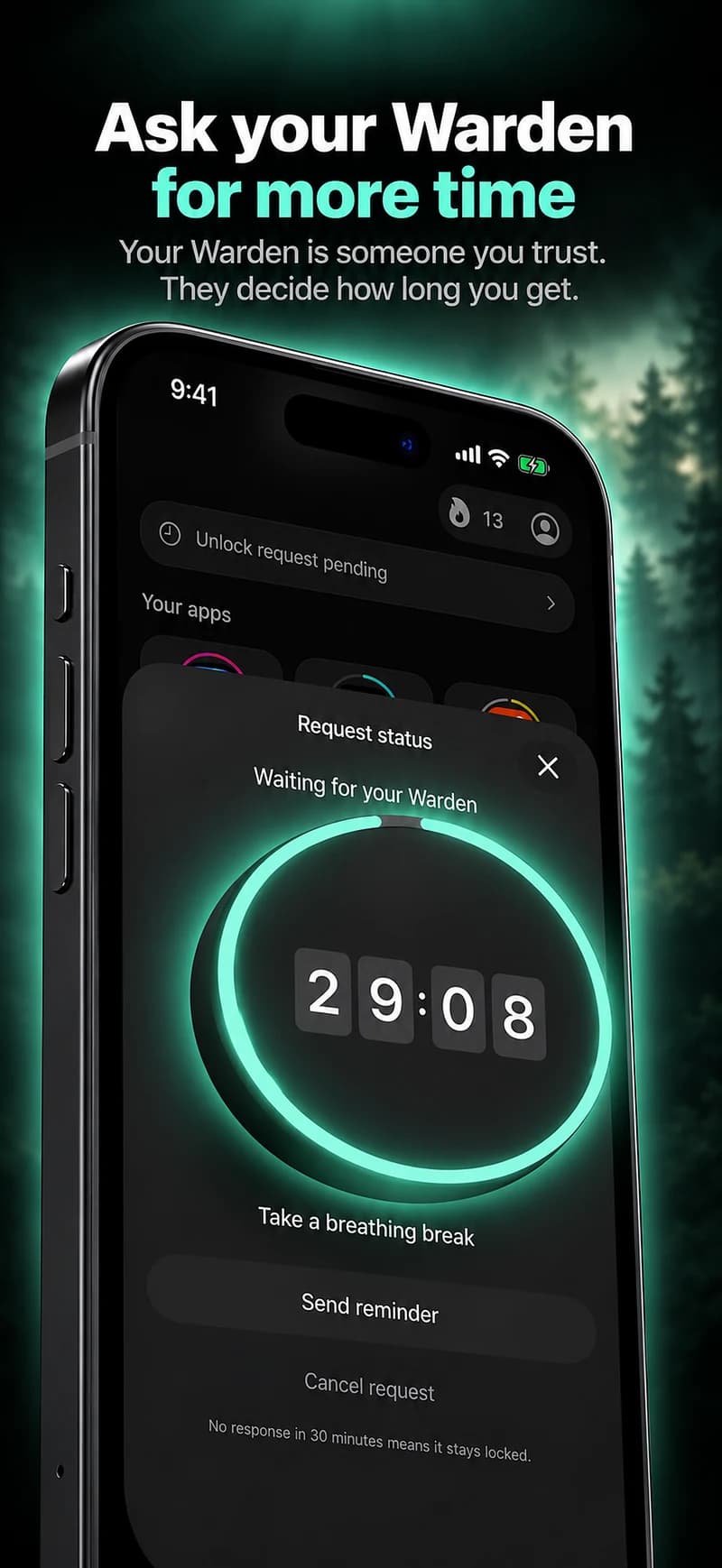
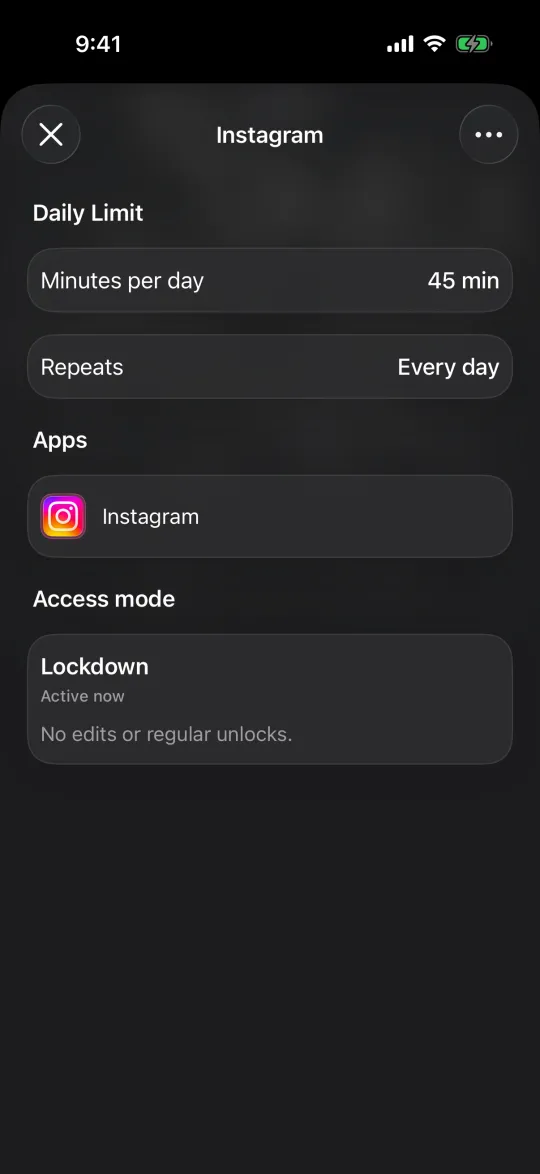
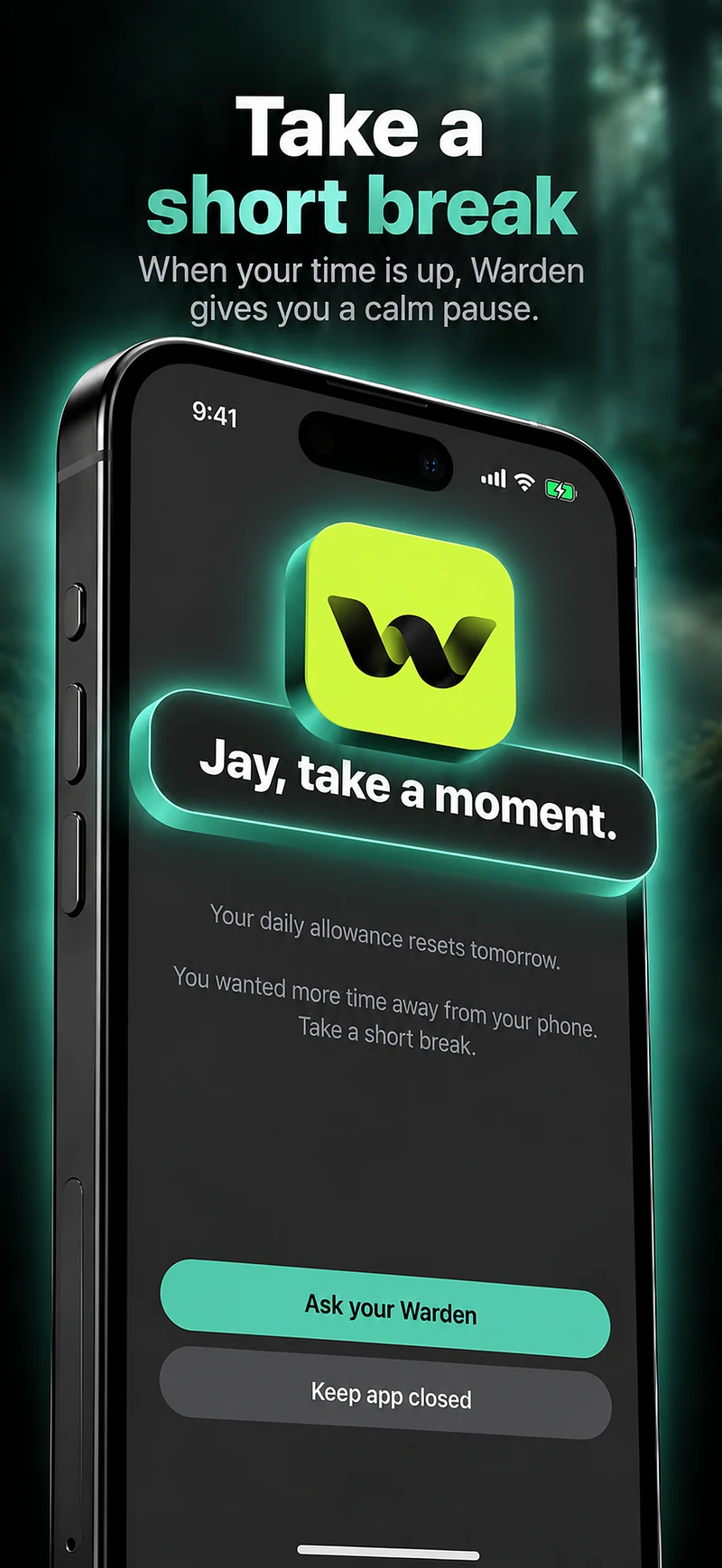
In Warden, the same rule can run in Lockdown, so ordinary early unlocks stay off until Sunday evening, and a trusted person can approve early access if you would rather ask someone. Emergency access stays available.
How Warden unlock approval works

Reference: Apple: Screen Time Schedules and Time Allowances

An Instagram limit in Lockdown, active now, with no edits or regular unlocks

Fill the time

The hardest moments are the small gaps: waking up, waiting, the first quiet evening. Have easy things ready for those gaps, such as a book by the bed, a walk planned for the morning or a friend to see.

Review on Sunday evening

When the weekend ends, write two lines: what you missed and what you did not. Keep the parts that felt good for the next weekend, and do not judge the experiment by how the first hour felt.

Does a social media detox work?

Example: Friday night to Sunday afternoon

Social apps, video and news are off from Friday 8 PM to Sunday 4 PM in Lockdown; calls, messages, maps and the camera stay. Saturday has a morning hike and dinner with friends planned. On Sunday afternoon you open the apps again, notice which ones you actually wanted, and keep the Saturday morning block for the following weekend.
Set it up without adding unnecessary rules

Daily limits, schedules and focus sessions

Install Warden and connect Screen Time when iOS asks. Then open Rules and tap the plus button.

Choose the apps or scope involved in this particular interruption. Use an allowance for total use, a schedule for recurring hours, or a session for a one-off task.

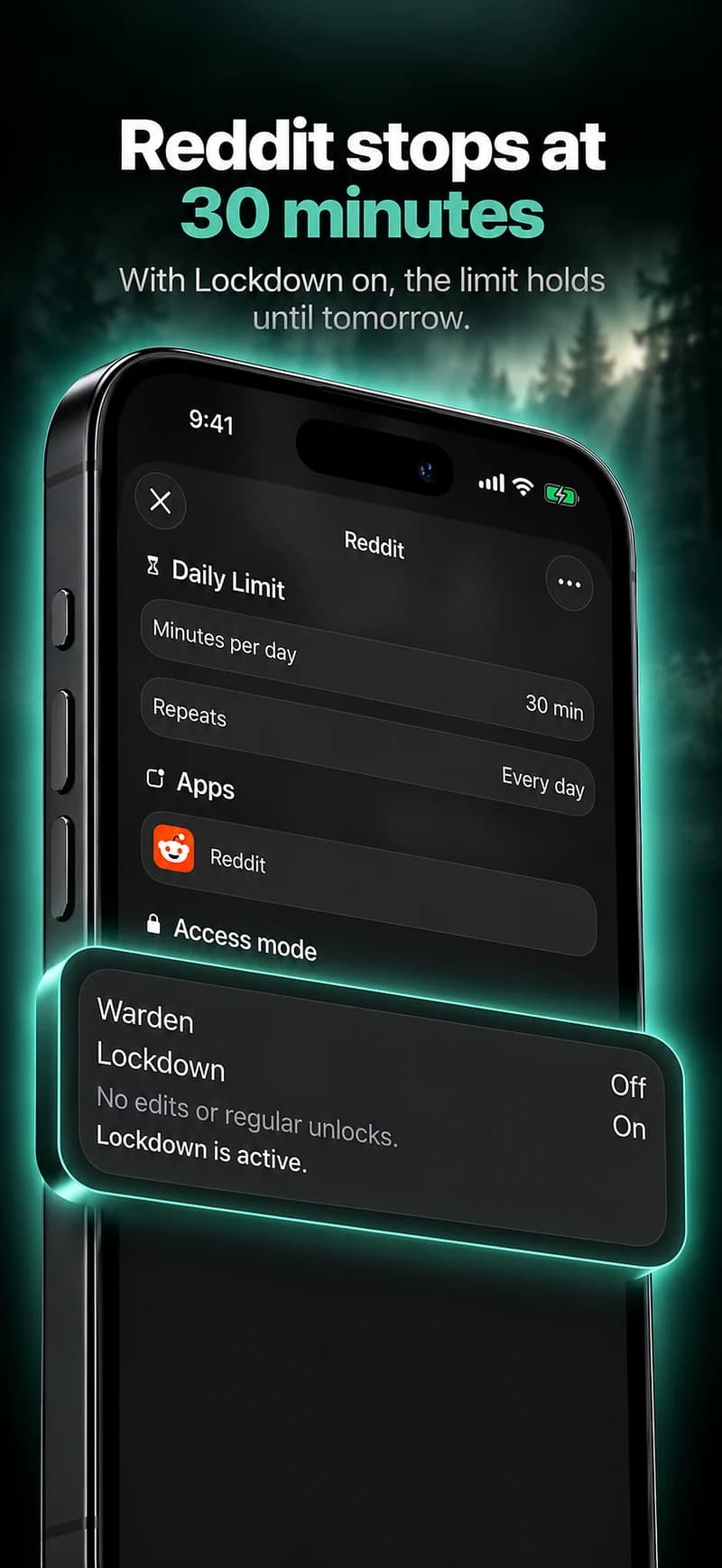
What Standard, Warden and Lockdown do

Choose Standard when you want to manage the limit yourself. Choose Warden when a person you trust should review early-access requests. Choose Lockdown to keep ordinary early unlocks off until the block ends.

Choose the access mode, then hold the save button to set the rule. Try a short block before using a long one. Emergency access remains separate from ordinary unlock requests.

How Warden approval works

Choose how many minutes you need, add a note and hold to send. If nobody answers within 30 minutes, the request expires and the app stays locked.

An approval applies to the scope and time shown in the app. A declined or unanswered request does not lift the block. Emergency access remains a separate option on your device.

Common questions

Can I still use maps and messages during a digital detox?
Yes, if you plan it that way. Block the apps you want a break from and leave calls, messages from close people, maps and payments available.
What if I need my phone in an emergency?
Keep calls available and do not block anything you need for safety. In Warden, emergency access stays available in every mode.