 Warden
Set up a small test together
Choose one app and an allowance you both understand. Review the relevant Screen Time settings on the actual device, including how additional time is granted and how the passcode can be recovered. Do not confuse a Screen Time passcode with the device unlock code or Apple Account password.
Apple provides different controls for your own device and a child in Family Sharing. Follow the instructions for the setup you actually have. An adult relationship does not become a family-management arrangement simply because one person chooses a code.
Reference: Apple: Screen Time schedules and allowances
Agree on exceptions before the first request
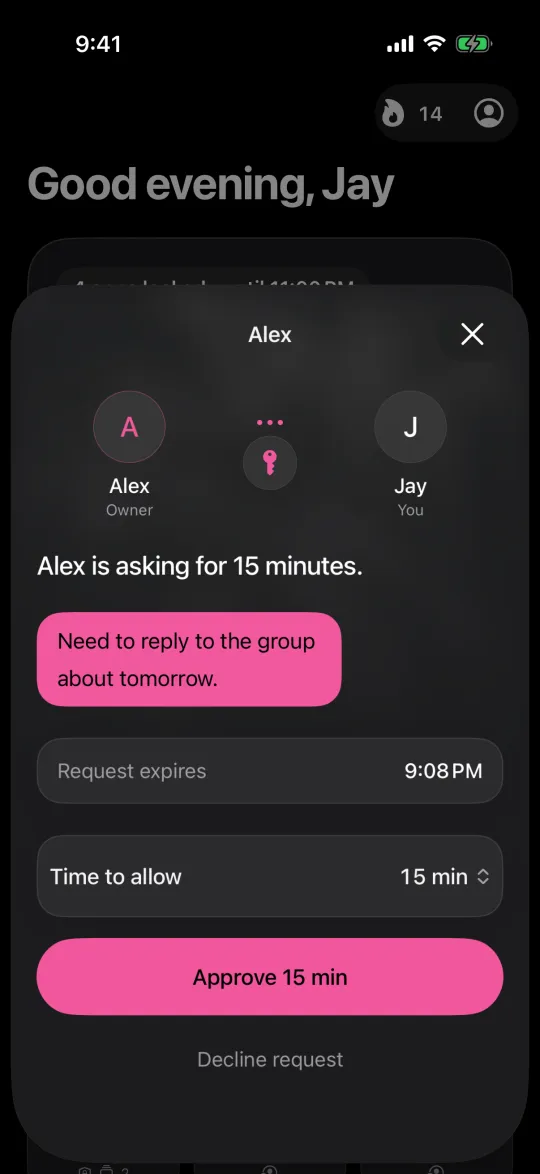
Write a short example of what you want approved: “A message from the group arranging tomorrow’s trip” is clearer than “Something important.” Decide whether a short allowance is enough, whether the partner must be available during those hours and what happens if they cannot answer.
Avoid making the request a test of affection or loyalty. A partner should not have to approve to end an argument. If the arrangement introduces tension, revise the boundary or stop the arrangement rather than increasing pressure.
Keep access and privacy proportionate
Do not give away account credentials or invite unrelated monitoring. The purpose is a chosen app limit, not permission to inspect conversations, purchases or location. Check which information is visible in the particular family or app setup you use.
Keep essential communication accessible and review recovery deliberately. A passcode is not a guarantee that a determined account owner has no way out. Understanding that limitation is better than discovering it during an urgent situation.
When a dedicated request flow makes sense
A dedicated app can put requests and decisions in one place instead of requiring you to coordinate a passcode entry. Warden supports a connected person approving early access from their iPhone; it does not require sharing an Apple Account password.
Use the built-in arrangement as long as it suits you. Consider another tool when you can name the missing part, such as clearer request duration or a recurring rule with a separate emergency exit. Buying a new interface does not replace the conversation about what the boundary is for.
Agree on the recovery path first
Before a partner holds a Screen Time passcode, discuss a lost code, an urgent work task and a change in the relationship. Decide who keeps recovery information and which account owns the device. Do not hand over your Apple Account password as a substitute for a clear, limited arrangement.
Apple’s built-in family controls and an agreement between two adults are not the same setup. Use the appropriate current instructions for your situation. You should understand what the other person can change and how you can recover access before relying on the restriction, not discover those details during an argument.


