 Warden
A passcode and an approval request solve different problems
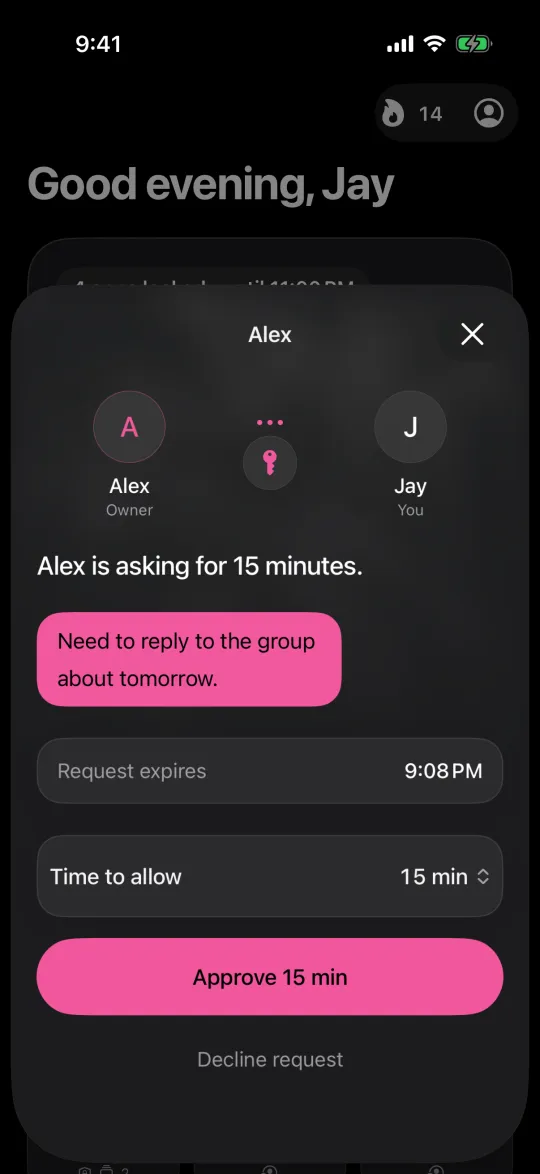
A passcode makes a settings change depend on a piece of information. A request system makes an exception depend on a decision. For example, a partner might keep a passcode private but still have to coordinate with you whenever it is needed. A dedicated request can carry the reason and requested duration to their own phone.
Neither arrangement automatically makes the relationship healthy or the rule suitable. Before selecting a product, decide whether you need help with changing the settings, making one exception, or remembering to start a block. Those are different jobs.
For a child, start with the family setup
Apple lets a parent manage a child’s Screen Time through Family Sharing, including app limits and exception requests. That is different from two adults making a voluntary agreement. An ordinary website signup is not a substitute for the platform’s family controls.
For adults, discuss privacy explicitly: which requests and messages can the other person see, and can they view an activity report? Do not assume that every app with the word accountability shares the same information.
Reference: Apple: Screen Time and family controls
Try a single, bounded arrangement
A useful first experiment is one app during one recurring hour. Tell the other person what normally deserves an exception, whether they are expected to answer immediately, and when you will review the arrangement.
For example: “I want social apps closed while I study from 7 to 8. Please approve a request if I need a specific message, not just because I ask twice.” This is sample wording to adapt, not a promise about how often requests will happen.
Where Warden fits
Warden combines schedules and app limits with optional trusted-person approval. Both people use the iPhone app for the connected arrangement. Being the person who responds does not require buying Pro. Requests require a connection; saved local blocks have a separate offline path.
You can also use self-managed rules or a hard stop without pretending another person has agreed to help. Review the emergency exit before starting. The strongest-looking restriction is not necessarily the one you can use sensibly every day.
A practical comparison: the same 30-minute rule
Suppose you want a 30-minute social-app allowance. Compare what happens at minute 31: can you change it yourself, does a second person need to approve, or must you interact with a physical device? Then compare the exception for a necessary message. The right answer depends on the arrangement you can live with, not the largest feature list.
Ask every provider the same questions: which devices does it support, what information reaches another person, what still works offline, and how do you cancel or leave? Write down the answers from current documentation. A price or feature missing from this article should never be interpreted as missing from the product.



