 Warden
Write down the decision you want help with
If your issue is forgetting to start, a recurring schedule may matter more than approvals. If you constantly extend a timer, look closely at early access. If notifications interrupt you, investigate notification controls before buying a stronger blocker.
For a concrete comparison, use one scenario: “I want Instagram unavailable during revision, but I may need a message from my project group.” Ask how each product handles exactly that case, including who must install or pay for what.
Inspect the other person’s role
Read what the invited person can view and change. A request with a note is not the same as a full activity report. Check whether the arrangement is mutual, one-way, or managed through a family account, and do not assume those models are interchangeable.
The person helping should see what they are agreeing to before they accept. A good introduction explains the request flow, expected availability and how to step away. Surprise notifications and surprise charges make a simple favor unnecessarily difficult.
Compare ordinary exceptions with emergencies
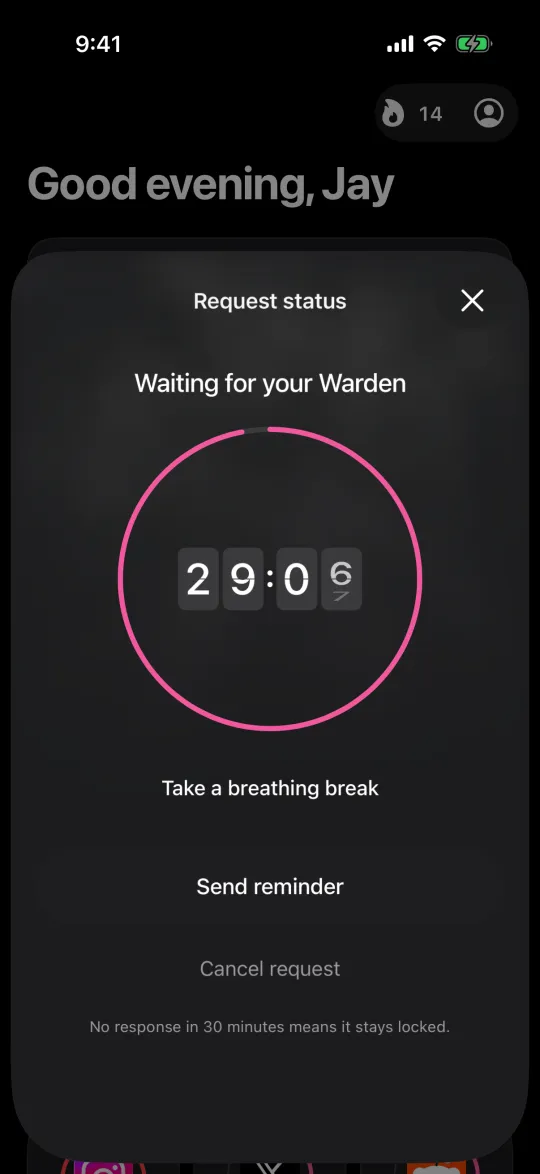
Find the normal path for a small exception and the separate path for something urgent. Ask what happens when the other person is offline, when a notification is delayed, and when the blocked user cannot reach a server.
Also inspect subscription expiry and account deletion. A purchase should not be the only way to regain an essential communication tool. Do not rely on an advertisement that simply says “impossible to bypass” without documenting platform and safety limitations.
Run one real test before committing
Use a nonessential app, a short block and a cooperative person. Create the rule, let it start, send a request, decline one and approve another. Confirm when access ends and what information appears on each side.
Then compare the cost and device support against that result. Warden’s connected arrangement uses the iPhone app on both sides; the responder does not need Pro. Other products may serve different needs, so check their current official documentation instead of assuming an omission means a feature is absent.
Build a short decision checklist
Start with the devices you really use and one interruption you want to change. Then check whether the tool handles daily allowances, recurring windows or a one-off timer in the way you need. Open its pricing and cancellation information before making an annual commitment.
Finally, test the exit: an ordinary early unlock, a legitimate urgent need and leaving the service are different situations. Ask what each one requires. If someone else is involved, check that they are willing and that they see only the information needed for the role. Do not choose a tool just because it describes itself as strict or intelligent.


