 Warden
Start with willingness and availability
Explain the actual job before sending an invite. A person may be happy to help with an evening study window but unable to answer during work. Ask what response time is realistic rather than assuming that a notification creates an obligation.
Choose someone who can decline without turning the request into an argument. You should also be comfortable accepting an unanswered request without repeatedly calling them. The arrangement is a form of support, not round-the-clock supervision.
A partner, friend or sibling can work differently
A partner may understand why an exception matters, but a phone limit can become tangled with unrelated disagreements. A friend may bring distance, but have a different schedule. A sibling may be an easy person to ask, yet still need a clear explanation of what you expect.
There is no universal best relationship for this. Consider one recent situation: “I need to check a specific message during the block.” Imagine explaining it to each candidate. Choose the person with whom that conversation is clearest and least loaded.
Use a specific invitation
For example: “I’m setting a block for social apps while I study from 7 to 8. Would you review early-access requests during that hour? It’s fine to say no, and we can stop doing this if it becomes a chore.”
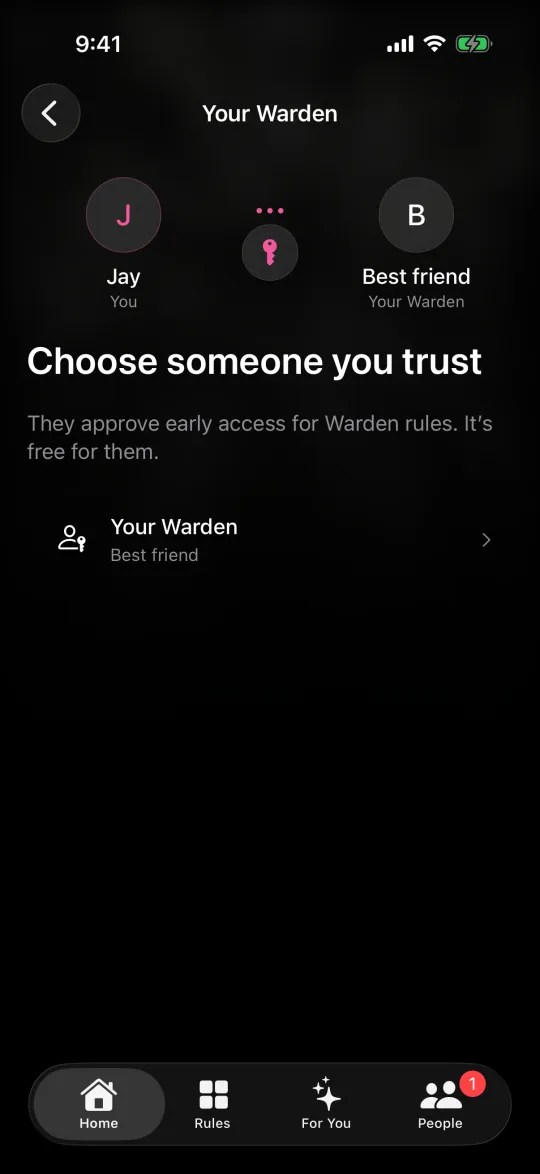
Tell them that being a Warden does not require buying a subscription, that both sides use the iPhone app, and that emergencies have a separate exit. Avoid promising that they will receive only a particular number of requests; that depends on your actual use.
Agree on a review point
Try the arrangement for a short, named period and then discuss the hours, requests and workload. Ask whether the rule caught the intended distraction or mostly blocked necessary tasks. Change the rule rather than expecting the other person to compensate for poor settings.
If nobody is suitable right now, begin with a self-managed daily allowance or schedule. You do not need to invent a relationship to use the app, and a later invitation is easier to explain when you can show the routine you already chose.
An invitation you can actually send
“I keep reopening social apps during my 7–8 PM study session. Would you be comfortable reviewing an occasional request for extra access? You do not need to watch my phone or answer immediately. I would like us to try it for a week and then check whether it is useful.”
That request names the window, the job and a review point. It also gives the other person a real way to decline. If they agree, discuss one genuine exception and one request you would usually decline. Keep the arrangement about a specific block rather than giving someone authority over every decision you make on your phone.



