 Warden
Answer the reason and the duration
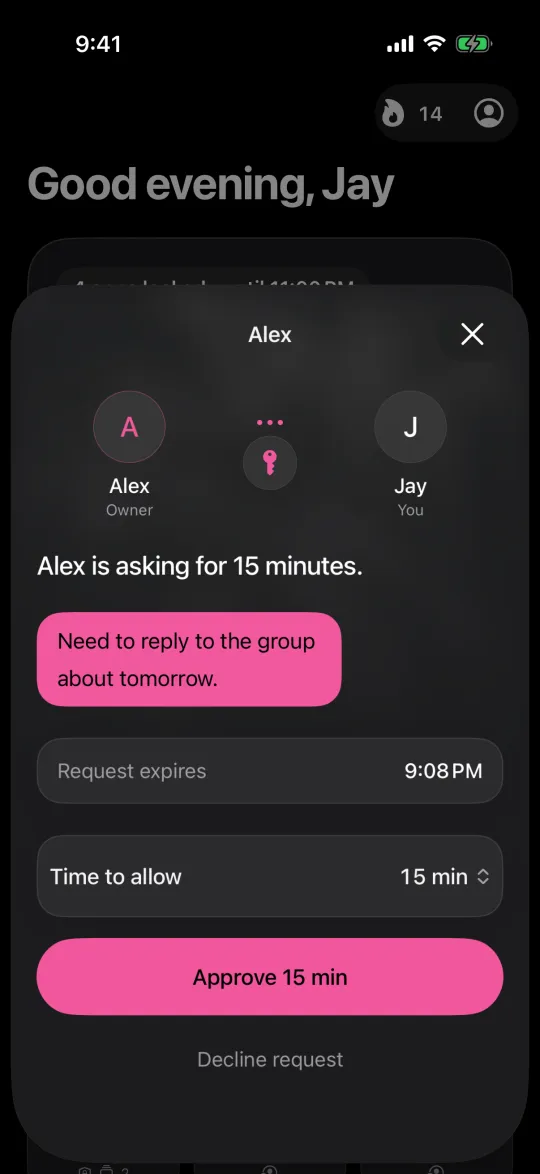
A request is easier to assess when it says what the person needs to do. “Reply to the lift home” is a task; “I need my phone” gives little context. One short clarifying question can be more useful than a quick yes or a long lecture.
Match the allowance to the task when the app permits it. You do not need to debate every possible future use of the phone. Decide the current exception and let the underlying routine continue afterward.
Use language that keeps the agreement visible
For an approval, try: “Yes, enough time to reply, then back to the plan.” For a refusal: “Not for another browse. Let’s keep the hour we agreed on.” If context is missing: “What do you need to finish, and how long will it take?”
These are example messages, not preset judgments you must apply. Avoid labels such as lazy, weak or addicted. A phone request is a narrow decision, not a summary of the person or a reason to revisit an unrelated disagreement.
Know when the rule needs changing
If the same legitimate exception appears repeatedly, the selection or hours may be wrong. A work chat that is needed every evening may belong outside the block. A meeting that moved permanently calls for a schedule update, not endless special permission.
Keep the review separate from the immediate request. It is easier to agree on a better rule when neither person is frustrated about needing access right now.
Do not promise constant availability
A trusted person may be working, sleeping or away from the phone. State when you can reasonably respond. In Warden, an unanswered request is not approval, so a user should understand that before relying on the connection.
Emergency access is a separate path on the owner’s device. Do not treat responding instantly as the safety plan, and do not tell someone to wait for a reply when they need urgent help. The arrangement should remain voluntary on both sides.
Three short replies, without an argument
For a necessary task: “Approved for the time shown. Please use this for the document you mentioned.” For an unclear request: “What do you need to finish, and how much time does it need?” For the agreed distraction: “That is the app we said could wait until the block ends, so I am declining this request.”
These are examples to adapt, not scripts you must enforce. Avoid asking for private evidence that is not needed to answer the request. When requests become frequent or tense, discuss the overall rule outside the blocked moment rather than turning every approval into a negotiation.


