 Warden
Name what being finished looks like
Before choosing minutes, describe the action: send a message, retrieve a ticket, or confirm an address. A request that includes a finish point is easier to grant narrowly than “I want to use the app.”
For example, an event ticket may need one brief opening, while coordinating a pickup may require several exchanges. The right duration is an estimate for the actual task, not a number that proves how disciplined either person is.
Check which kind of time is being counted
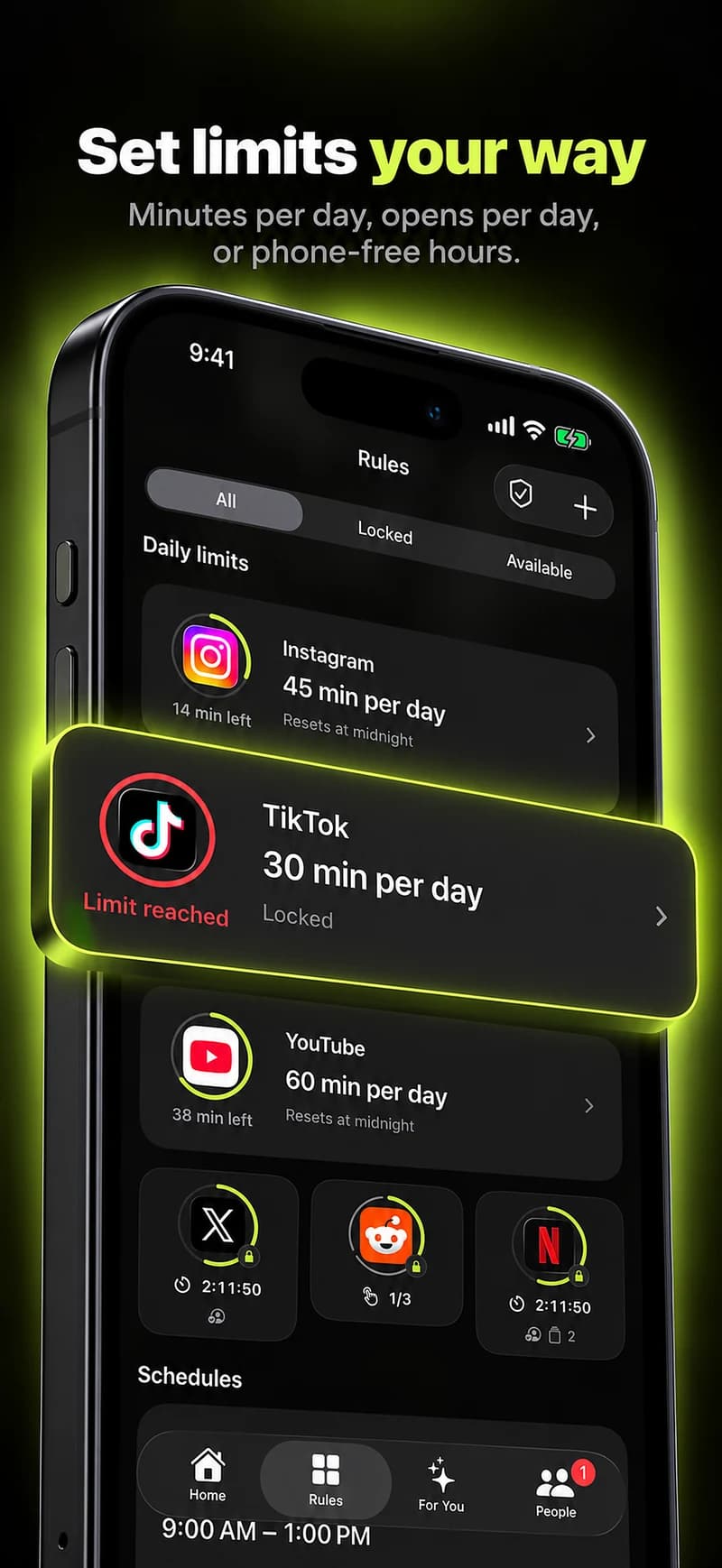
A timer can count elapsed clock time, time used inside selected apps, or the duration of a scheduled window. Read the rule and grant summary instead of assuming every allowance uses the same mechanism.
This matters if someone switches away from the app or puts the phone down. In an elapsed-time grant, that period can still use up the window. In a usage-based allowance, the interpretation differs. Confirm the chosen behavior in the app before making an agreement around it.
Prefer a limited exception to changing the whole routine
Where a temporary grant covers the need, it can preserve the recurring rule around the exception. Changing tomorrow’s settings to solve tonight’s one-off request makes the original plan harder to understand.
After approving, check the displayed expiry or remaining allowance. The person requesting access should know when the restriction returns. An unclear “approved” message without a duration can create avoidable confusion.
Use repeated requests as a review signal
If a particular task keeps needing more time, revise the estimate or reconsider whether the app belongs in that window. Repeated extensions do not automatically mean bad intent, but they do mean the current arrangement deserves a closer look.
Review a few concrete requests rather than a vague impression. Was the task predictable? Was the allowance too small? Did the exception turn into the activity the rule was meant to reduce? Each answer suggests a different change.
Match the exception to the task
A quick reply, checking a travel detail and joining a scheduled call have different access needs. Name the task and choose a duration that fits it, rather than selecting a large allowance just to avoid another request. Confirm whether the screen describes elapsed time or time spent using the app.
After access ends, review whether the original rule resumes and whether that is what you intended. Repeated requests for the same necessary task can be a sign that the routine needs a permanent adjustment. A short grant should solve the immediate exception without hiding a larger mismatch in the plan.


