
Skip to content

Accountability

How to end a Screen Time accountability agreement

You can decide that an accountability arrangement has finished without deciding that either person failed. Separate the conversation from the app change: agree what support is ending, then review the connection and the rules that depended on it.

In this guide

Decide whether you are stopping or changing the arrangement

Name the reason in practical terms: different schedules, too many routine requests or a preference for managing rules yourself. A replacement person needs their own invitation and consent; they should not inherit an obligation by surprise. Avoid sharing account passwords to transfer the role. You can discuss a new arrangement without disclosing old request notes or private conversations.

Review the connection in Warden

On the owner phone, open Your Warden and its options. Current versions provide Remove Warden and Replace Warden. Read the confirmation before completing either action. The current confirmation explains that requests to that person stop, saved rules stay, and Warden rules need a new connection. If your version shows different options, inspect its message rather than guessing from this article.
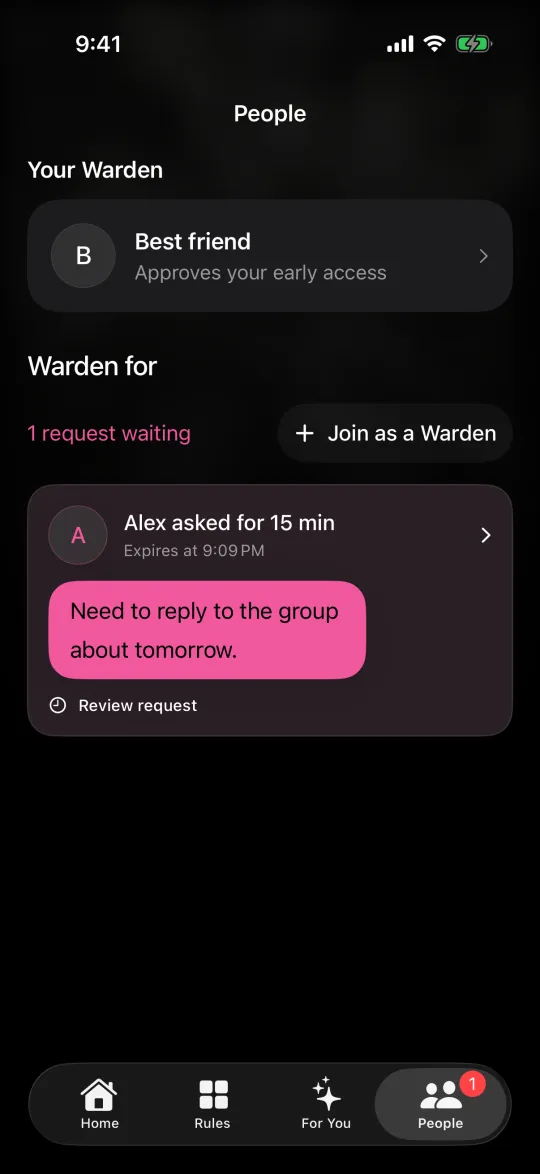
The People screen showing your Warden and a request from a friend

Check saved rules and outstanding requests afterward

Disconnecting a person is not a promise to clear every local restriction. Review Standard, Warden and Lockdown rules individually and inspect any active commitment. Check the displayed status of pending requests; do not rely on an old notification as a current approval. Reconnect or change eligible rules deliberately, and keep emergency access separate from ordinary editing.

Example: a one-week study agreement ends

Two friends agreed to try evening support for a week. At the review, one says work makes replies difficult. They thank each other and end the arrangement without extending it by default. The owner removes the connection, verifies that the saved study schedule is still listed and reviews its access mode. A future invitation is a new agreement, not an automatic continuation of the old one.

Keep account and subscription decisions separate

Removing a Warden connection is different from deleting your account, signing out or cancelling a subscription. Do not perform those broader actions merely to end a relationship in the app. If the change fails, check connectivity and the current connection state before trying again. Use support for an unclear state, without sending passwords or sensitive request contents.


Who should hold your key

App blockers with an accountability partner: how they work

Set it up without adding unnecessary rules

Daily limits, schedules and focus sessions

Install Warden and connect Screen Time when iOS asks. Then open Rules and tap the plus button.

Choose the apps or scope involved in this particular interruption. Use an allowance for total use, a schedule for recurring hours, or a session for a one-off task.

Editing a schedule that blocks apps from 10:00 PM to 7:00 AM every day

What Standard, Warden and Lockdown do

Choose Standard when you want to manage the limit yourself. Choose Warden when a person you trust should review early-access requests. Choose Lockdown to keep ordinary early unlocks off until the block ends.

Choose the access mode, then hold the save button to set the rule. Try a short block before using a long one. Emergency access remains separate from ordinary unlock requests.

The block screen with Ask your Warden and Keep app closed buttons

How Warden approval works

Choose how many minutes you need, add a note and hold to send. If nobody answers within 30 minutes, the request expires and the app stays locked.

An approval applies to the scope and time shown in the app. A declined or unanswered request does not lift the block. Emergency access remains a separate option on your device.

Common questions

Does removing a Warden delete my saved rules?
The current removal confirmation says saved rules remain. Review each rule and its access mode afterward; do not assume removing a person ends an active Lockdown.
Do I need to share my Apple Account or Warden password?
No. Use the supported connection controls and a fresh invitation for a new person. Keep account credentials private.
