Warden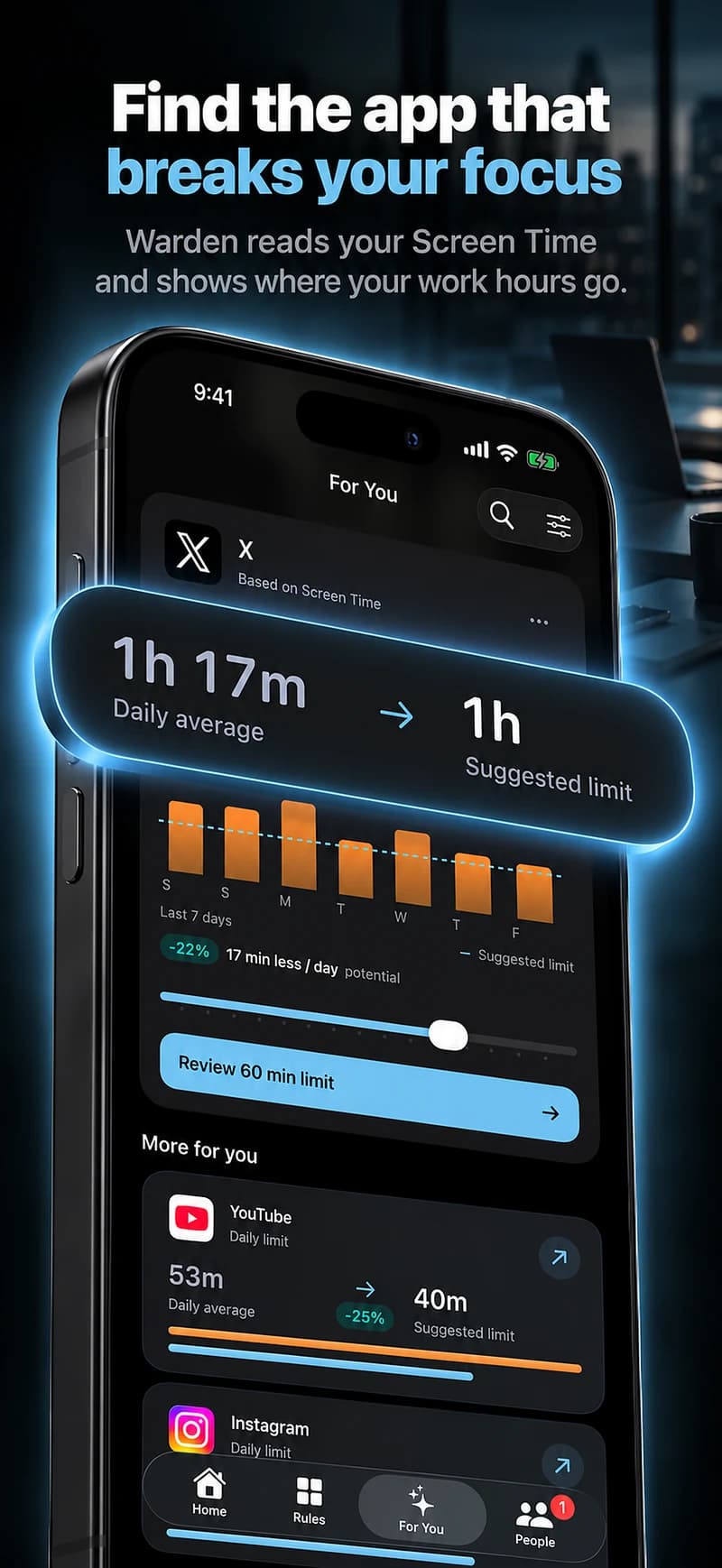
Define a work block, not a whole identity
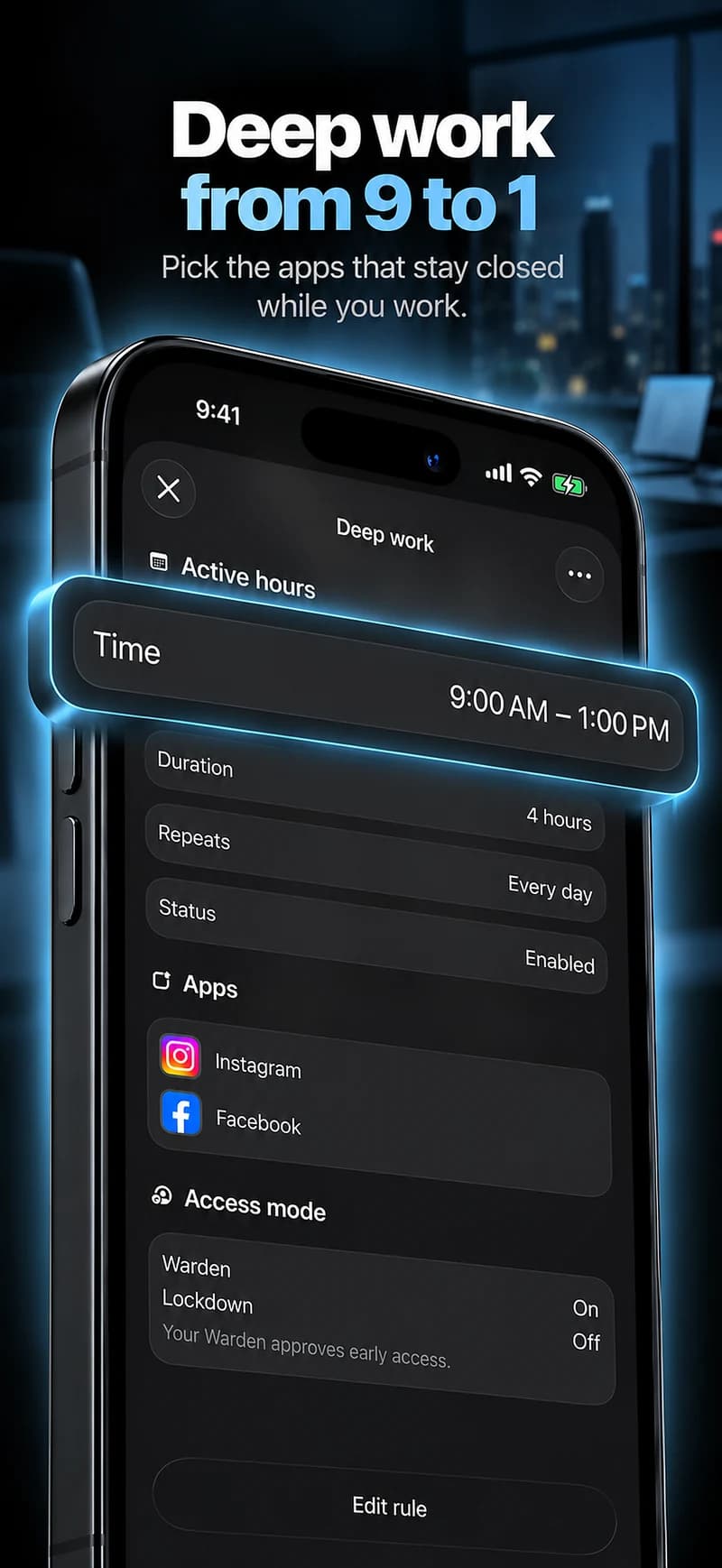
Choose one task that benefits from fewer interruptions: drafting, coding, reviewing a document or preparing for a meeting. Give it a start and an end. “Write the first section from 9 to 10” is easier to configure than “be focused all day.”
A short, deliberate work block can coexist with normal messages and breaks. Avoid copying an all-day schedule from someone in a different role. The apps and availability needed by an on-call worker differ from those of someone doing uninterrupted desk work.
Separate distracting apps from required tools
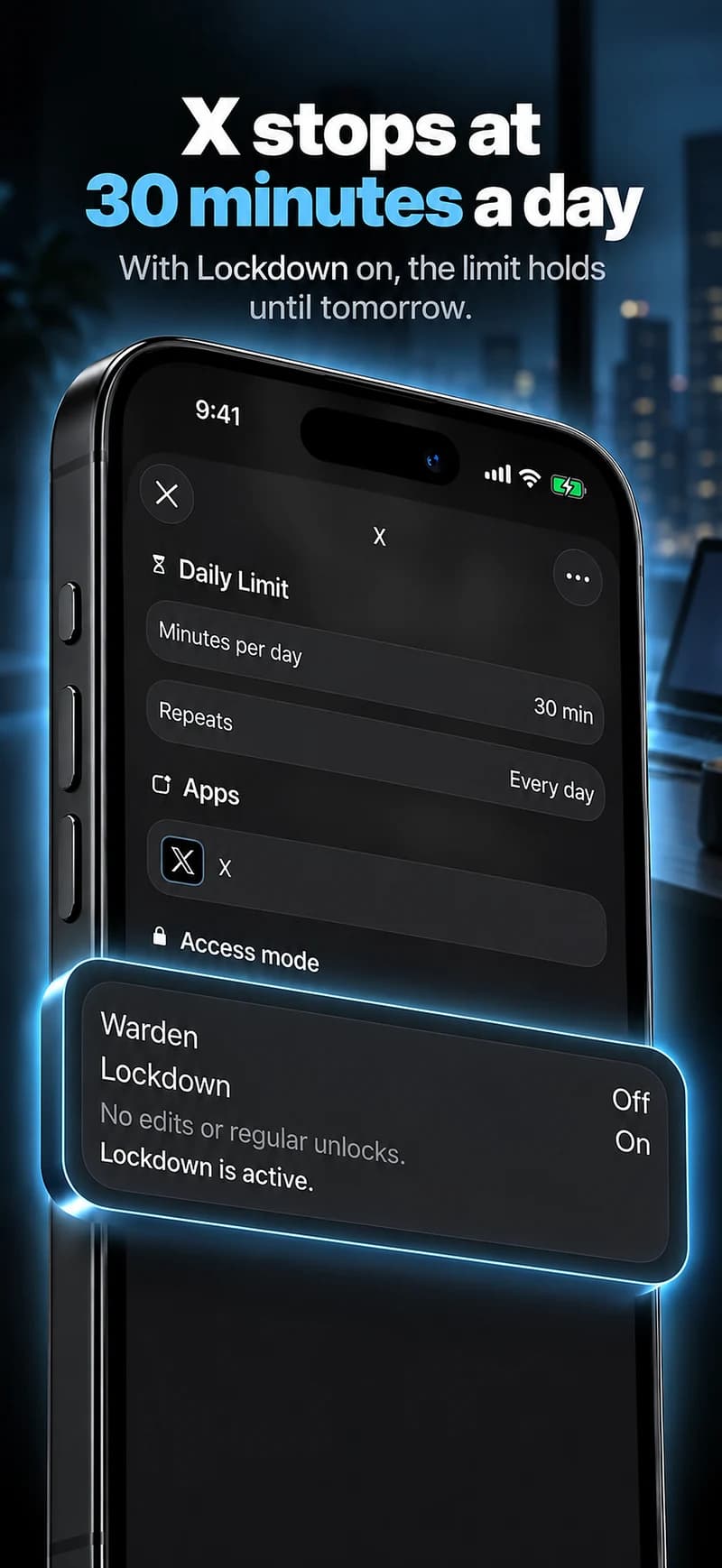
List the apps used for authentication, communication, transport, customer contact or research. Do not sweep them into a broad category without checking. If a single app serves both work and distraction, a narrow schedule may fit better than an aggressive daily cap.
Test the selection during a low-risk task. Confirm that required apps open and that the chosen distraction is actually covered. If a rule interrupts a work obligation, revise its scope rather than asking a colleague to approve predictable exceptions.
Use notifications and app access deliberately
Apple Focus can help manage which notifications arrive during a work context. App Limits and blocking rules address whether a selected app can be used. You may need either or both, but they are not substitutes for one another.
For instance, silencing social notifications will not necessarily stop you opening the feed yourself. A block may address that, while selected work contacts still need a notification path. Test the combined behavior rather than assuming more settings mean better protection.
iPhone Focus modes versus app blockers
Reference: Apple: set up a Focus
Keep accountability voluntary
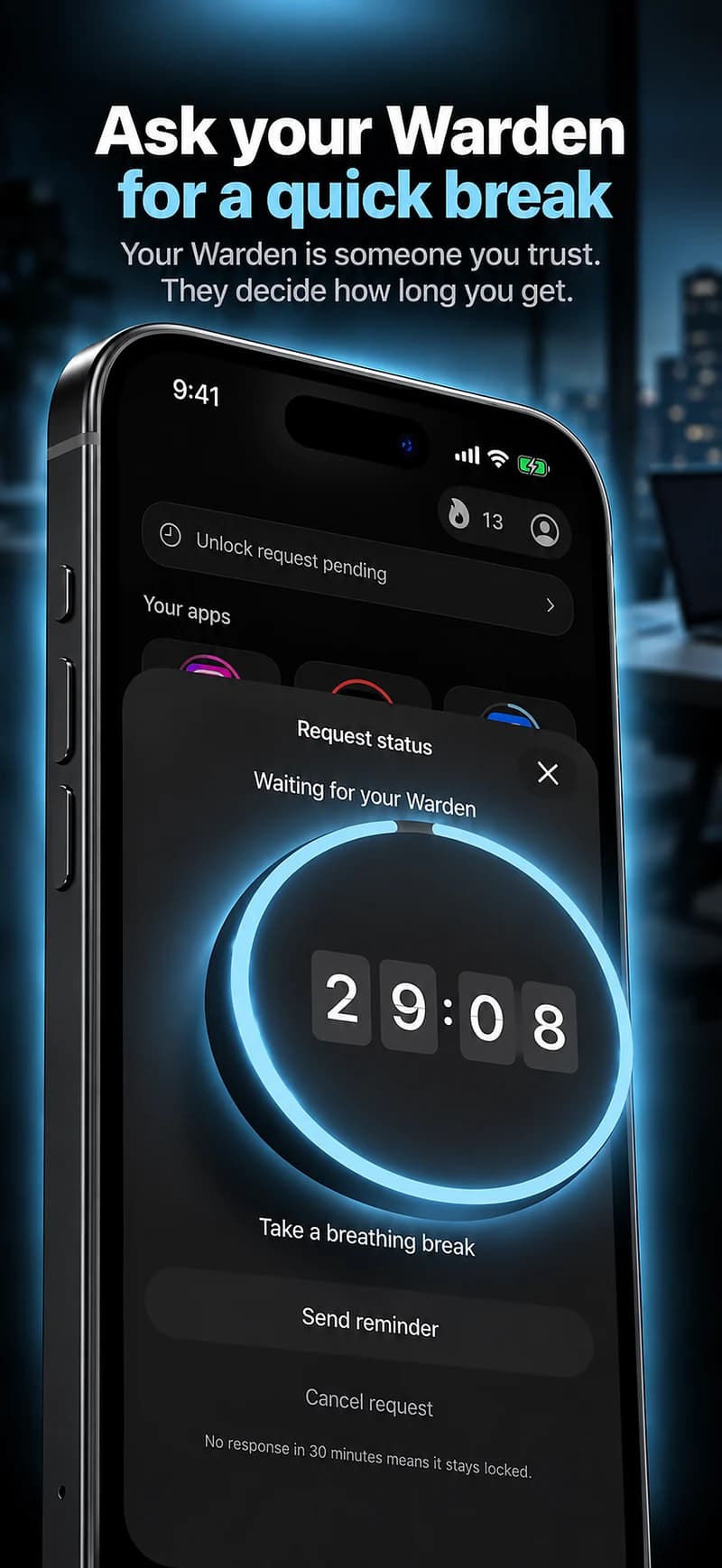
A personal Warden arrangement should not become an employer-monitoring requirement. Discuss the limited task and expected availability with anyone you ask to help. Do not share account credentials or a broader activity history merely to demonstrate focus.
Review the actual work window and whether it helped you finish the task you chose. Recorded protection can show that restrictions were active; it does not prove work was completed. Use that evidence to improve the plan, not to score coworkers.
A focused work window, not a whole-phone ban
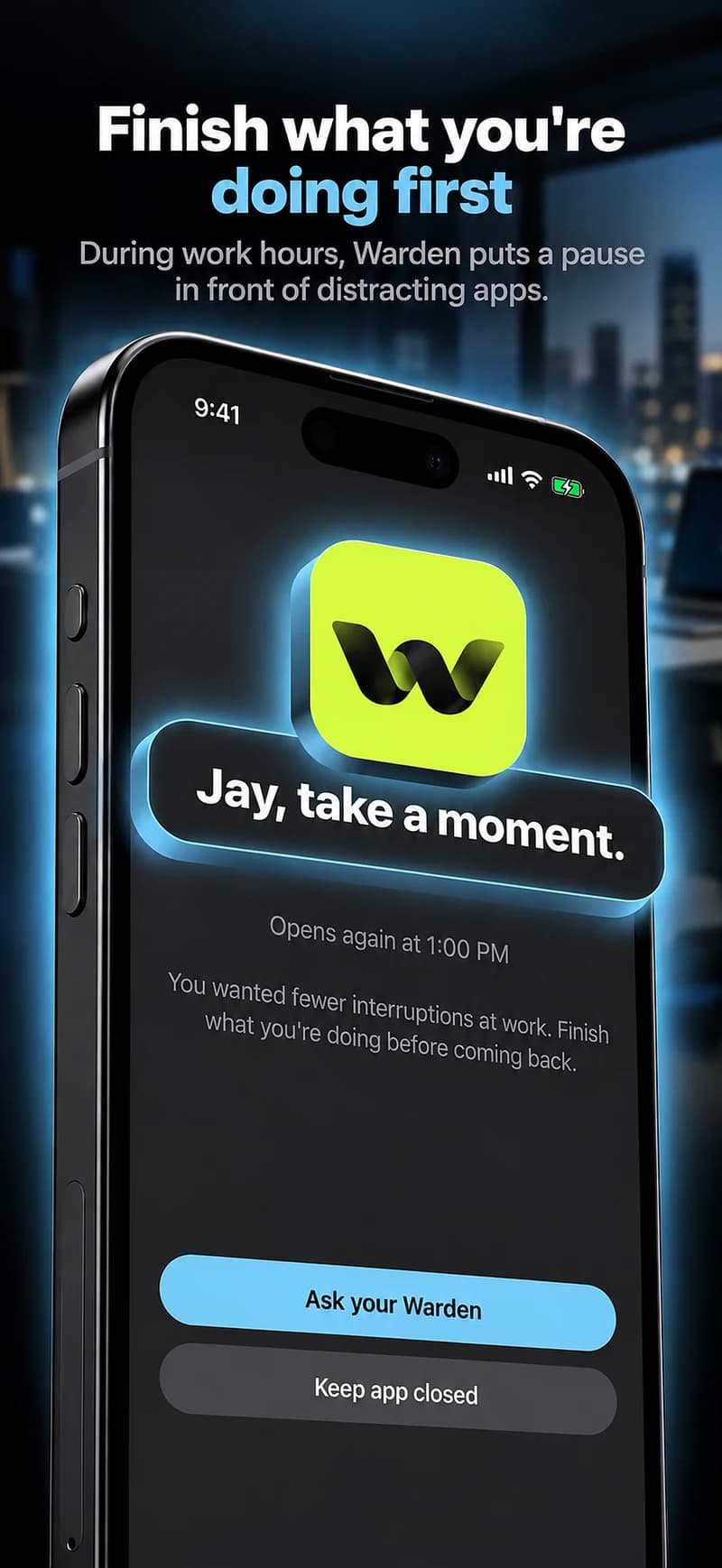
For a writing task between 9 and 10 AM, keep the tools needed for authentication, calls and source material available. Select the feeds that interrupt the task. If your job requires one of those apps, a narrower time window or a different selection may make more sense than blocking it for the entire workday.
Use only an arrangement you are authorized to set up. A personal productivity goal does not create permission to monitor colleagues or impose restrictions on their devices. When another person helps you follow through, agree on the scope and what they can see before connecting them.