Warden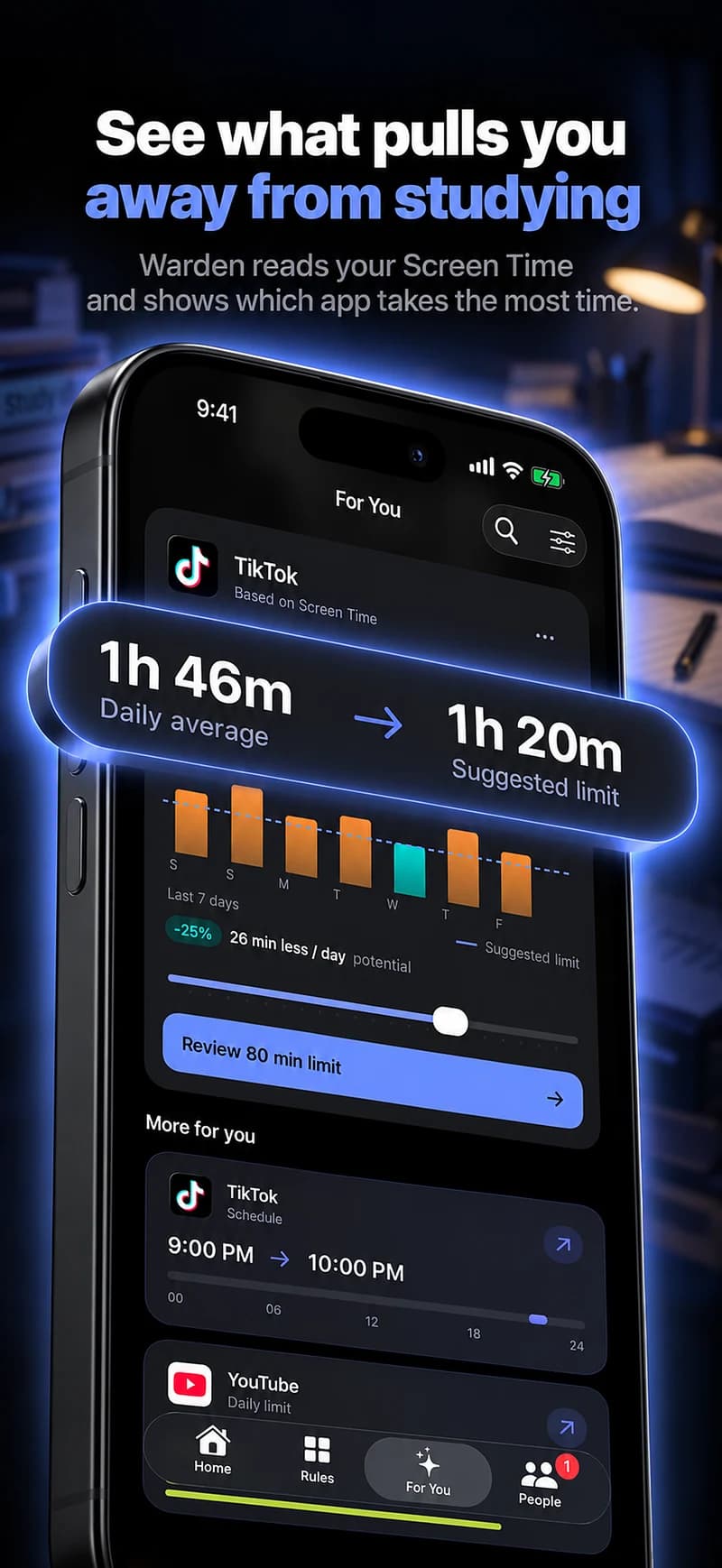
Choose a task with a visible finish point
A chapter, a small set of problems or one revision topic gives the session a purpose. “Study everything” leaves it unclear when a break is reasonable. Choose the next piece of work and a realistic period to work on it.
If the phone contains a calculator, class group, notes or an authentication tool you need, account for that before blocking a broad category. A useful study boundary separates resources from distractions rather than treating the device as uniformly bad.
Decide where the phone belongs
Putting it away may be enough when you do not need it for the task. If it must stay nearby, open the required resource first and use a rule for the apps that interrupt you. Notification controls can be used separately to keep important contacts reachable.
There is no requirement to buy a blocker before trying a simple arrangement. Use the physical location, built-in settings and app rules that fit your workspace. Test one change so you can tell whether it helped.
Protect the session, not only the daily total
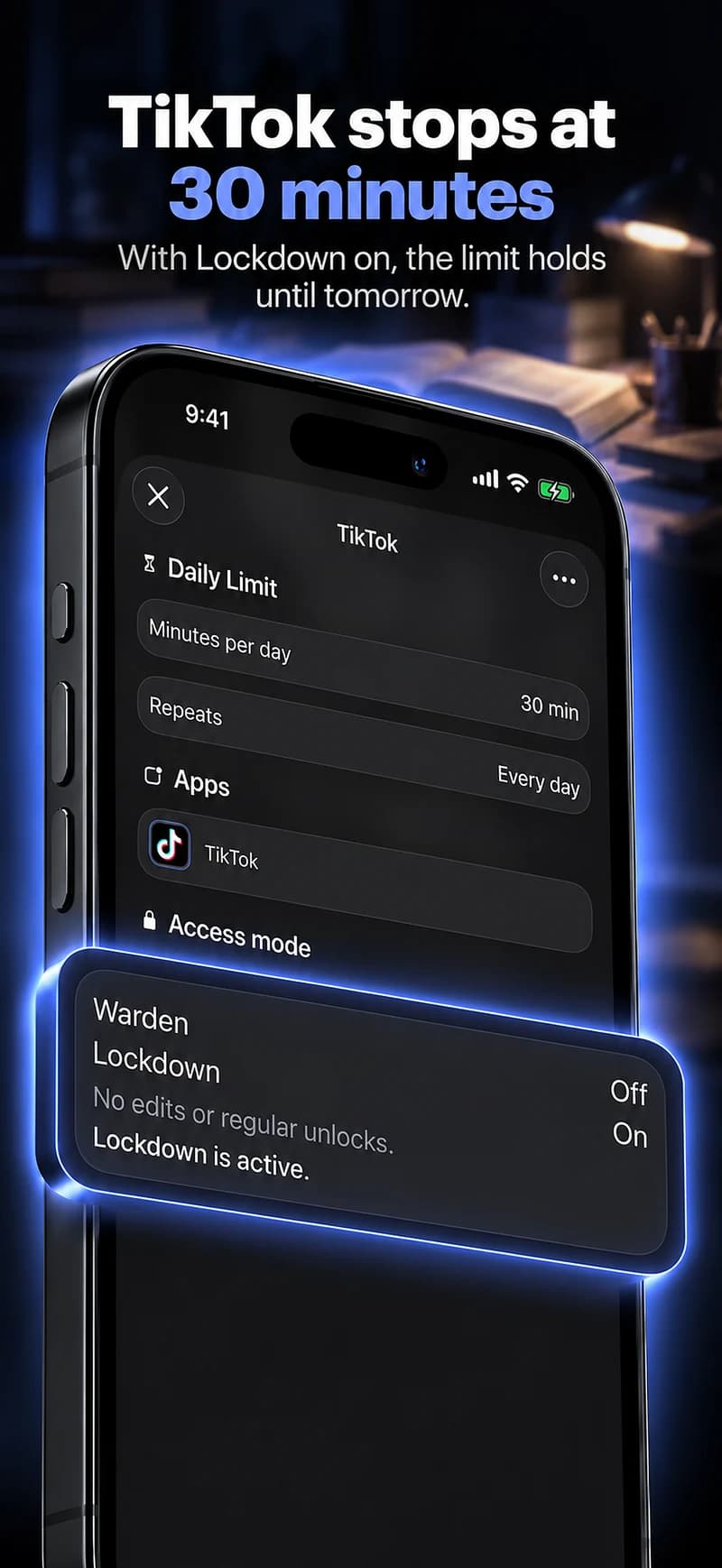
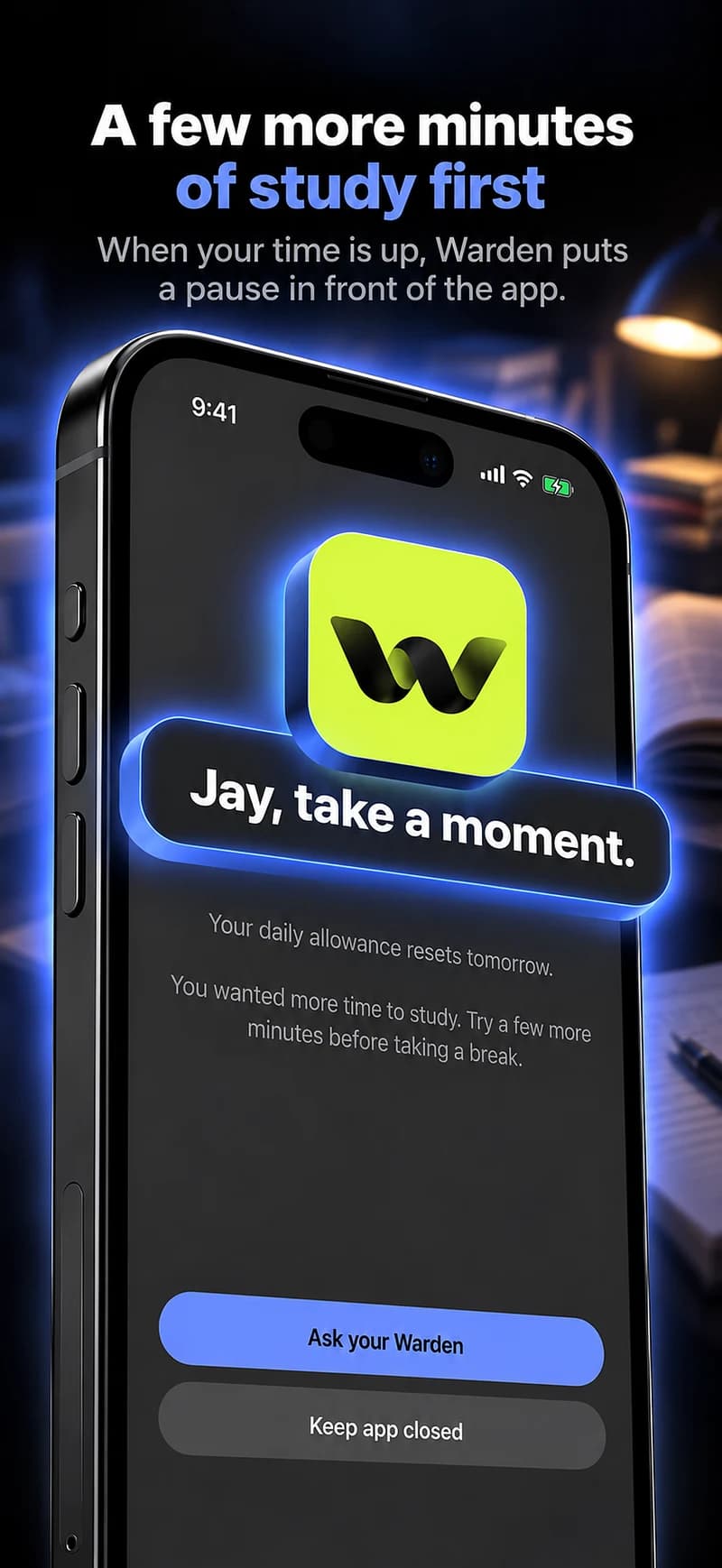
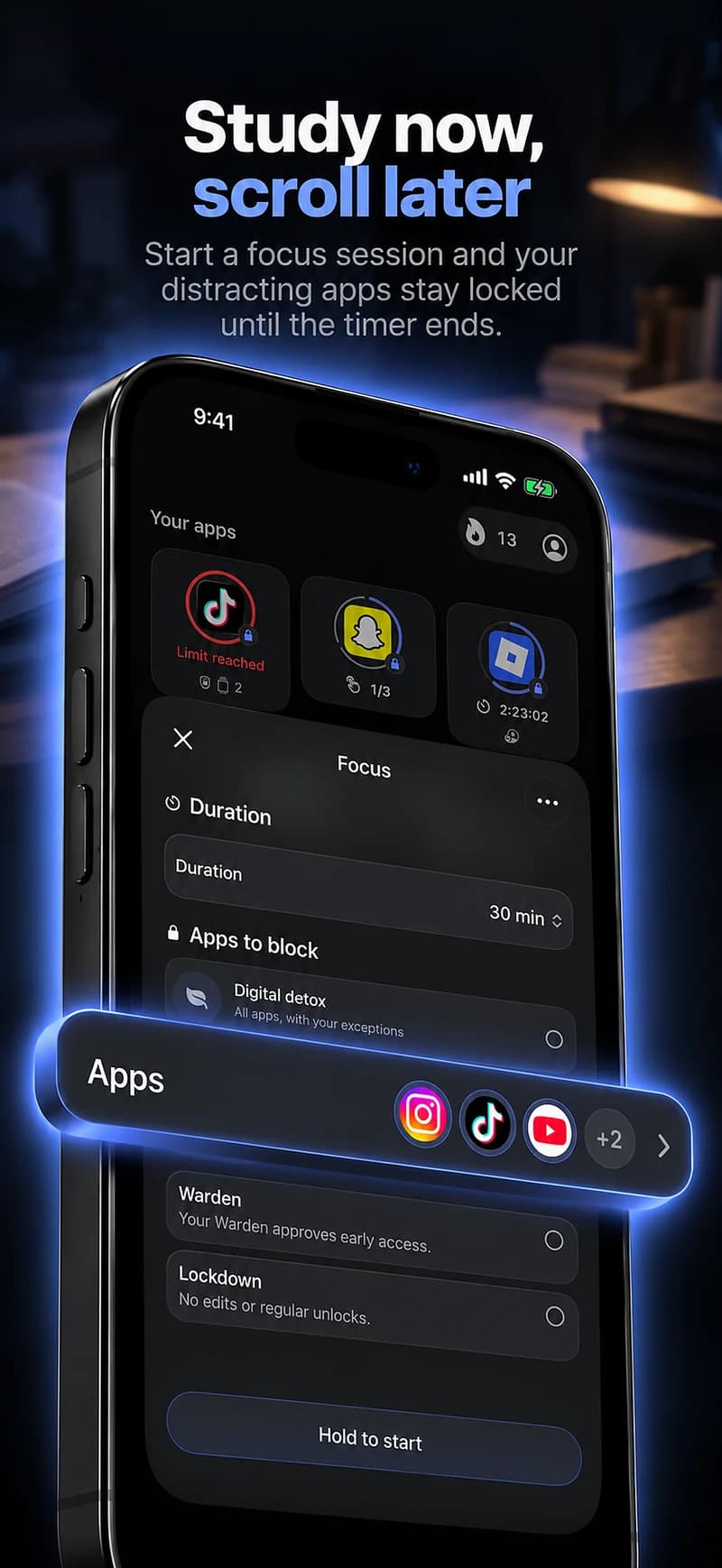
A daily allowance may still let you spend its whole budget in the middle of revision. A session or schedule directly describes the time you want to keep clear. For example, block selected feeds for the next 45 minutes while you finish a named exercise set.
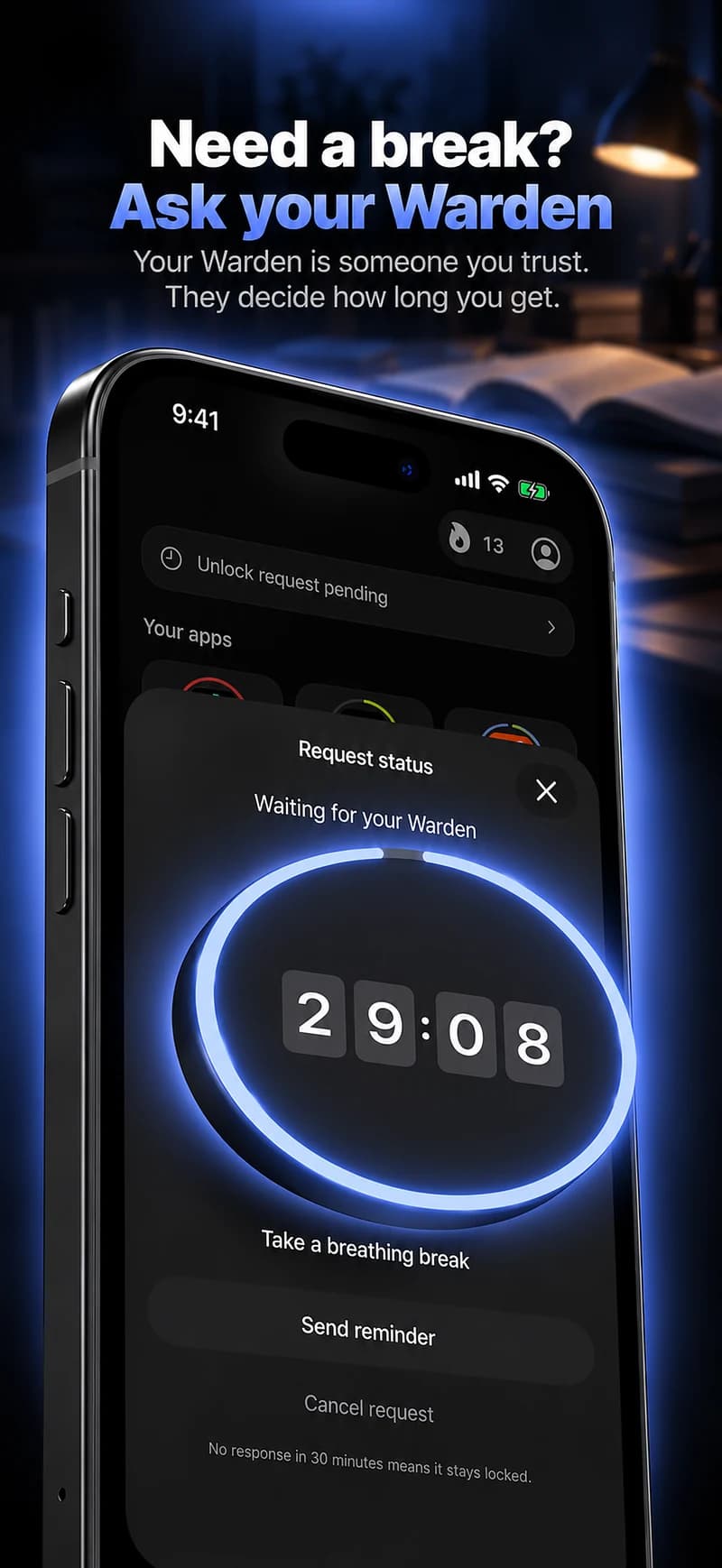
If you choose a connected Warden, explain what a legitimate study-related exception looks like. A request for a class message should not require sharing the message itself. Keep the role narrow and the expected availability realistic.
Review the work and the record separately
After the session, ask whether you did the intended work and whether the block prevented the interruptions you identified. A timer reaching zero is not evidence of learning, and an app should not tell you that a chapter was completed without confirmation.
Warden’s recorded protection can help describe the session’s conditions. Your own review supplies the outcome. Use both to adjust the next block, whether that means a different length, fewer selected apps or a more specific starting task.
A study session with a finish line
Choose one problem set, chapter or revision task, then choose a time window that fits it. Put unrelated feeds in the blocked selection and leave the materials you need accessible. If a resource lives in a mixed-use app, decide whether you need the entire app or can use a narrower alternative.
At the end, review the task yourself. Warden can show a recorded protected stretch, but it cannot know whether you understood the chapter or solved the problems. Use the goal target to make the next session easier to start, not as an automatic completion badge.