Warden
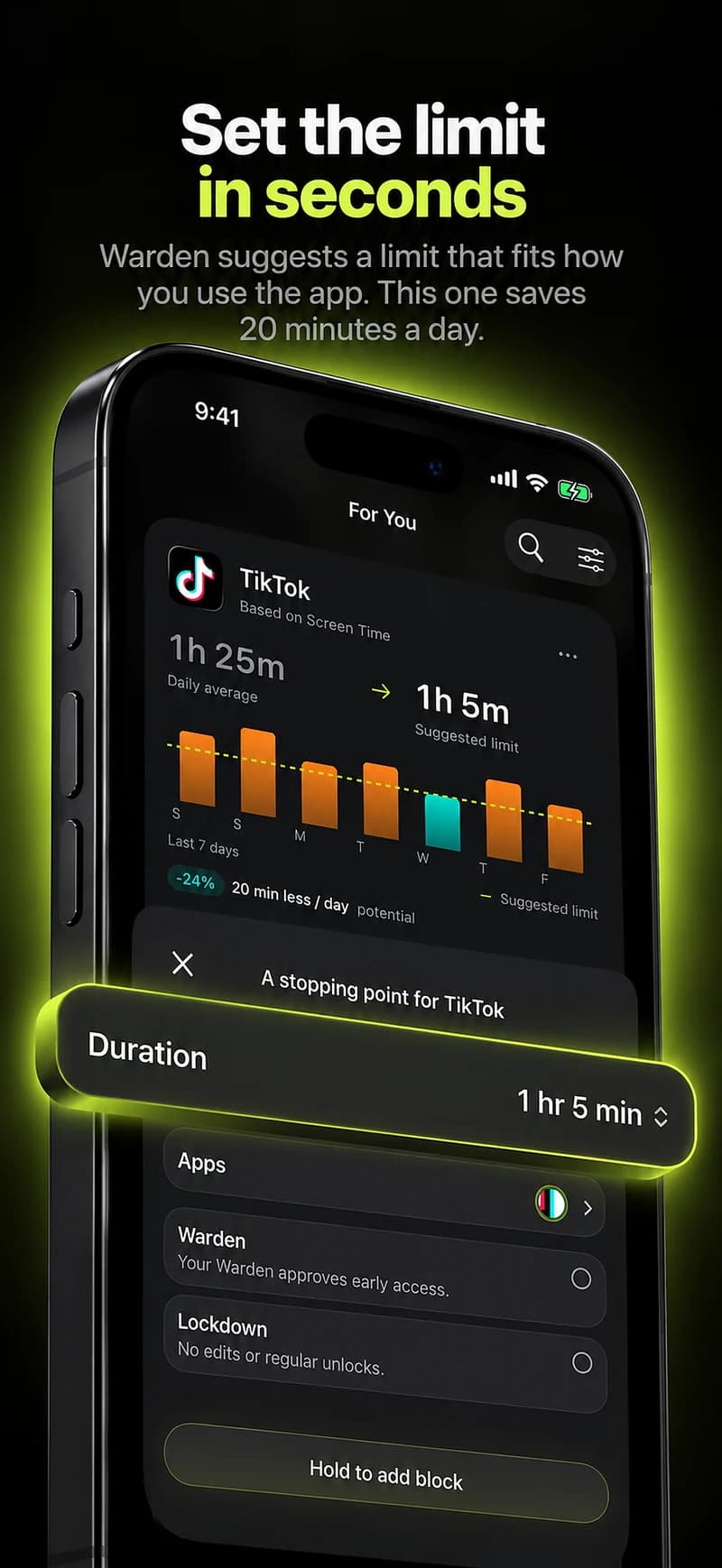
Short answer: test the exact restriction
An app may be restricted from opening while its notification setting remains turned on. That setting alone does not prove alerts will arrive or appear while a Screen Time shield is active.
Apple explains how to manage notifications and shield apps, but does not promise a notification-only exception for a shielded app. Developers have also reported alerts disappearing during a shield. Verify the behavior on your device instead of treating it as a blocker guarantee.
Three controls can overlap
Notification settings decide whether an app can send alerts and how they appear. Focus can allow or silence selected people and apps during a period. Screen Time or a third-party shield controls whether you can open selected apps. They can interact, but solve different problems.
Even if a banner appears, tapping it may lead to the app shield. Seeing a preview is not the same as being able to read the current conversation or reply.
- App notifications: check Settings > Apps > [app] > Notifications.
- Focus filters alerts that can interrupt; it does not block the app from opening.
- An app shield restricts access; Apple does not document a universal alert-delivery guarantee while shielded.
Test your setup before you rely on it
Use a test account or a harmless message, not an emergency. Previews, Focus, Scheduled Summary, or the app’s own settings can also hide alerts; record these conditions when comparing results.
- Note your iPhone model, iOS version, app, and whether the restriction comes from Apple Screen Time, Warden, another blocker, or more than one.
- Check the app’s notification permission and note whether Focus or Scheduled Summary is active. Avoid changing several settings at once.
- With the rule on, ask someone you trust to send a harmless test message. Check the Lock Screen and Notification Center without opening the blocked app.
- Turn the rule off and repeat the same test. Compare what appears, when it appears, and whether tapping opens the app or shows a shield.
- Repeat after an iOS update or a change to the app, Focus, or block rule.
Choose a dependable route for essential messages
If someone only reaches you through the app you plan to block, agree on another route first, such as a phone call, SMS, or an app that will remain available. Keep that channel outside the blocker’s selection and test it.
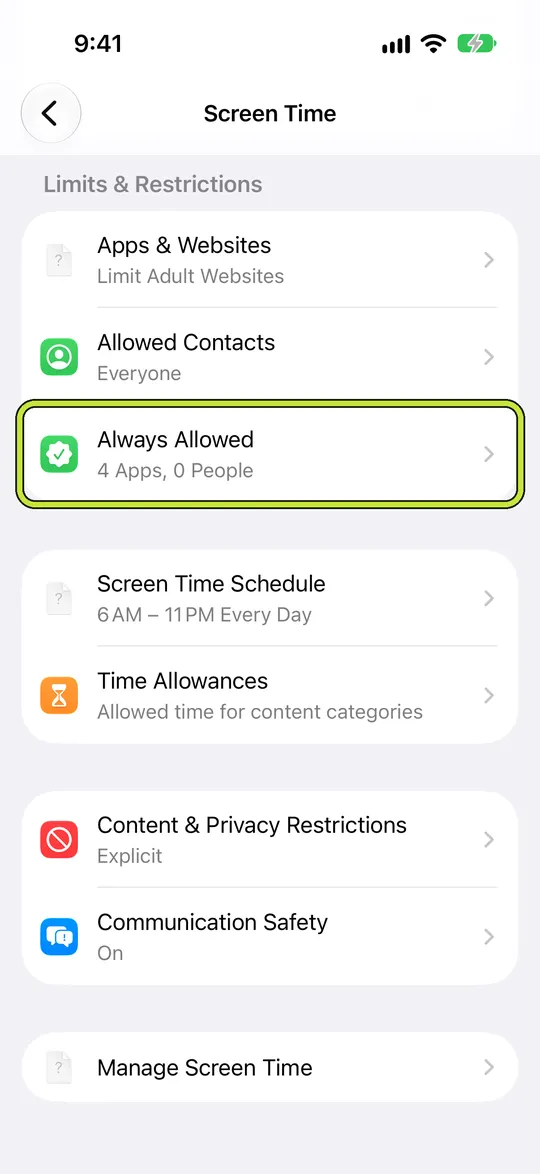
Focus can reduce interruptions while leaving an app available, but does not prevent you opening it. Apple’s Always Allowed keeps apps available during Apple Screen Time schedules; it is not a notification-only exception and should not be expected to override a separate Warden shield.
- For urgent contact, use a channel tested while the block is active.
- If you need the social app for messages, plan a short check-in rather than assuming alerts bypass the shield.
- Review essential apps and backup contacts before starting a strict block.
What Warden controls
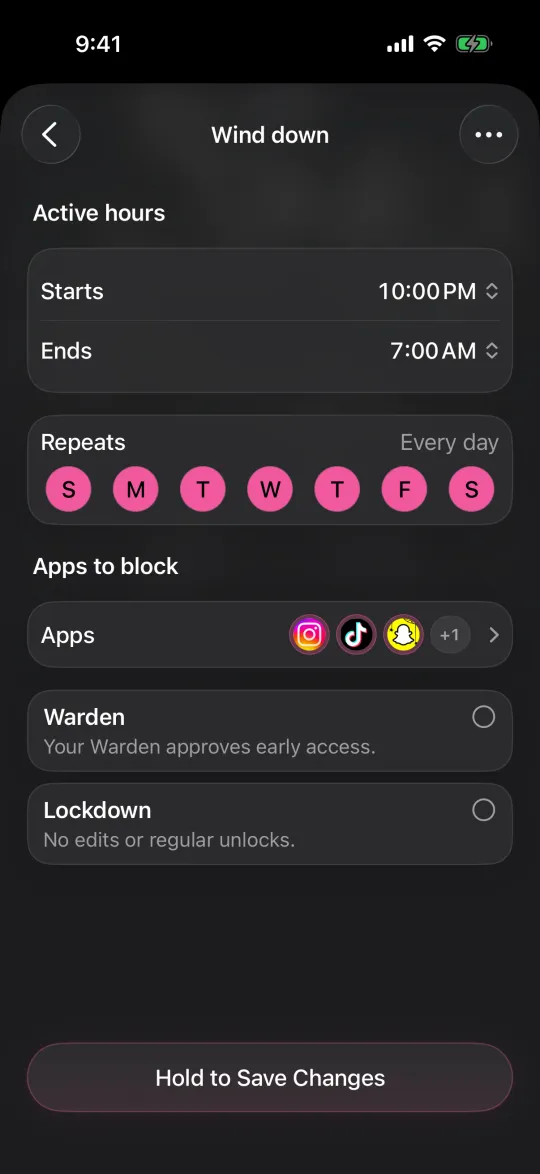
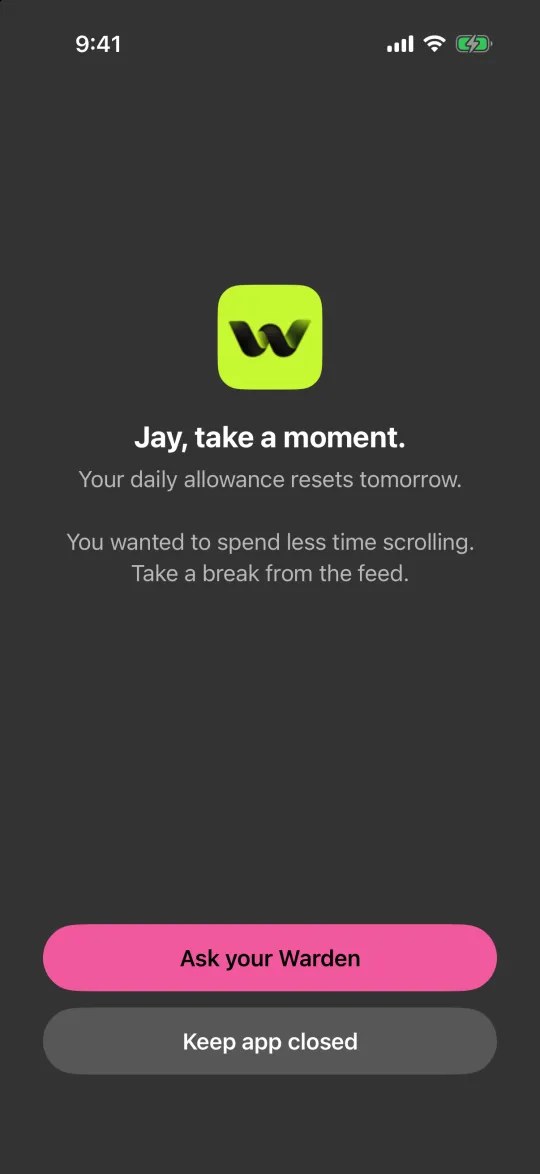
Warden applies an Apple Screen Time shield to the apps you select. Its app rule does not change iOS notification permissions or provide a separate switch that blocks opening while guaranteeing notifications from the same app remain visible.
If alerts matter, leave the essential communication app out of the Warden selection or arrange a tested backup channel. A saved rule and notification permission do not prove a message will appear during a shield.
Turn off or schedule iPhone app notifications
Example: keep urgent messages separate
Maya is blocking Instagram for a focused writing session, but a relative sometimes sends time-sensitive messages there. Before starting the block, they agree that urgent messages will come by phone or SMS. She tests a harmless Instagram alert with the Warden rule on and off. If it does not appear during the block, she keeps Instagram blocked and relies on the tested backup channel; she does not assume every iPhone behaves the same.