Warden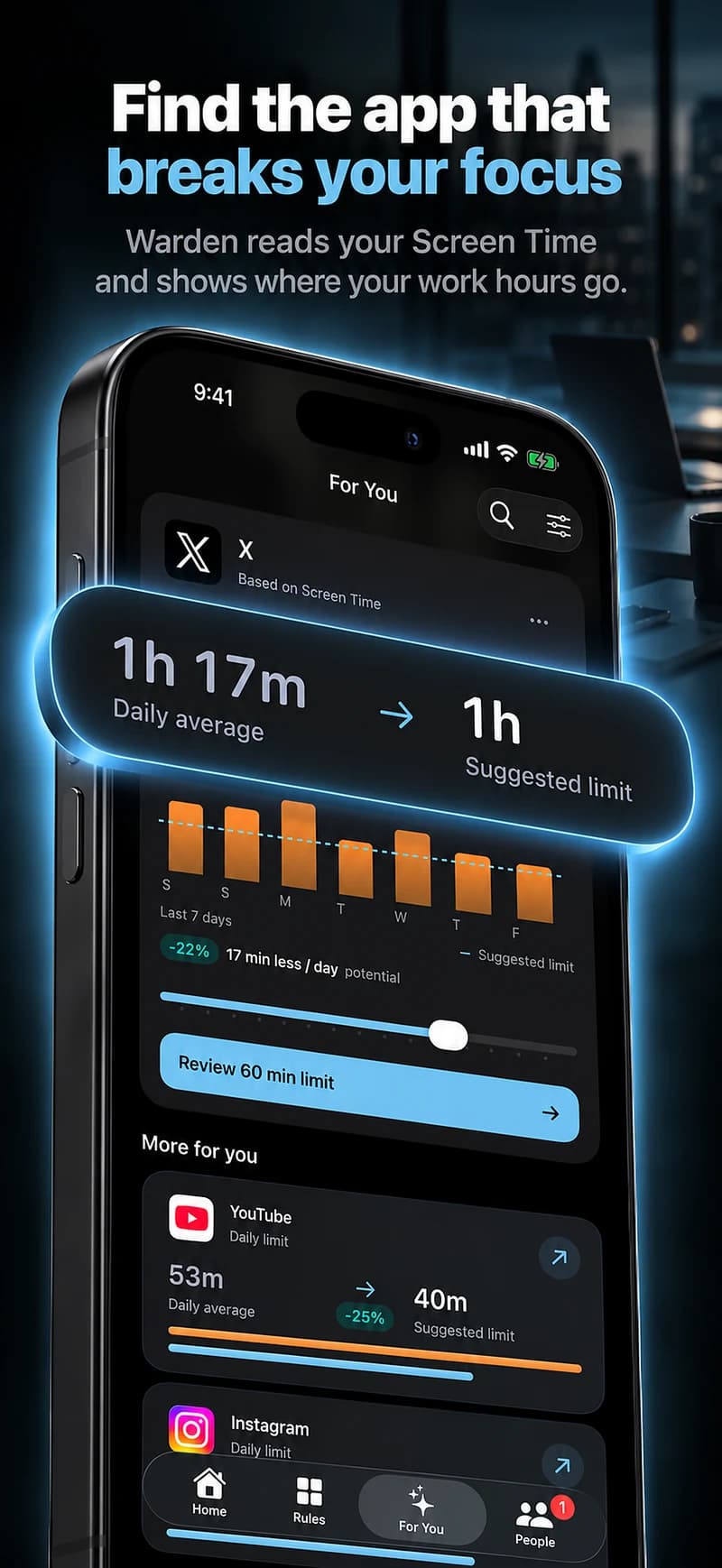
Choose the apps for your quiet window
Open Settings > Focus and choose a Focus, such as Work. Under Apps, use Silence Notifications From and add the apps you want quiet. Check the selection carefully: Allow Notifications From creates a list of exceptions instead.
Use a name that tells you what the setting does. If you already use Work Focus for meetings, inspect its existing settings before changing them. A separate quiet period should not accidentally alter a setup you depend on.
Add the hours and days
For bedtime, Apple’s Sleep Focus follows the sleep schedule in Health. Use its Open Sleep in Health option to review those hours. For a work window, keep the schedule attached to your chosen work Focus.
Pick hours when you can respond later without creating a problem. A short writing session is easier to assess than an entire day. You can extend the window after checking that useful alerts still reach you.
- Return to that Focus’s settings and find Set a Schedule.
- Tap Add Schedule and choose the time option. Set the start, end and days for your quiet period.
- Review the saved schedule. If a time is already listed, tap it to adjust the existing window.
Reference: Apple: turn on or schedule a Focus
Review people and alerts that can interrupt
Open People in the same Focus and review permitted contacts, calls and repeated calls. Under Apps, inspect Time Sensitive Notifications. That option can let time-sensitive alerts arrive immediately. On supported devices, Intelligent Breakthrough & Silencing can also admit alerts judged important.
Choose exceptions deliberately. Write down the one or two interruptions you need, then test those alongside an app you want quiet. Do not judge the setup only by whether the phone stays silent: a missed necessary call is also a failed test.
Reference: Apple: notification and contact exceptions
Test a short window before relying on it
Suppose shopping and game alerts interrupt your first hour at work. Set a five-minute trial window for those apps before using the full hour. At the start, check that the intended Focus is active. During it, check a routine alert from a selected app and ask a willing contact to test an allowed call.
At the end, confirm that the Focus turns off and check a fresh notification. Record which app sent anything unexpected and whether it was marked time-sensitive. Change one exception at a time, then repeat the short test. Once both quiet and necessary contact work as intended, replace the trial with your normal hours.
If notifications still arrive
- Confirm which Focus is active. Turning on a different Focus replaces the previous one.
- Recheck whether your app is in the silence list or the allow list.
- Inspect the time-sensitive and intelligent notification exceptions, plus contact and repeated-call settings.
- If you want an app silent at every hour, use its notification settings instead of adding a longer Focus schedule.
A quiet app can still be opened
Focus addresses incoming interruptions. If you open a feed yourself during the quiet window, the schedule has not necessarily failed; opening the app is a separate behavior. Decide whether fewer alerts solve the problem before adding another control.
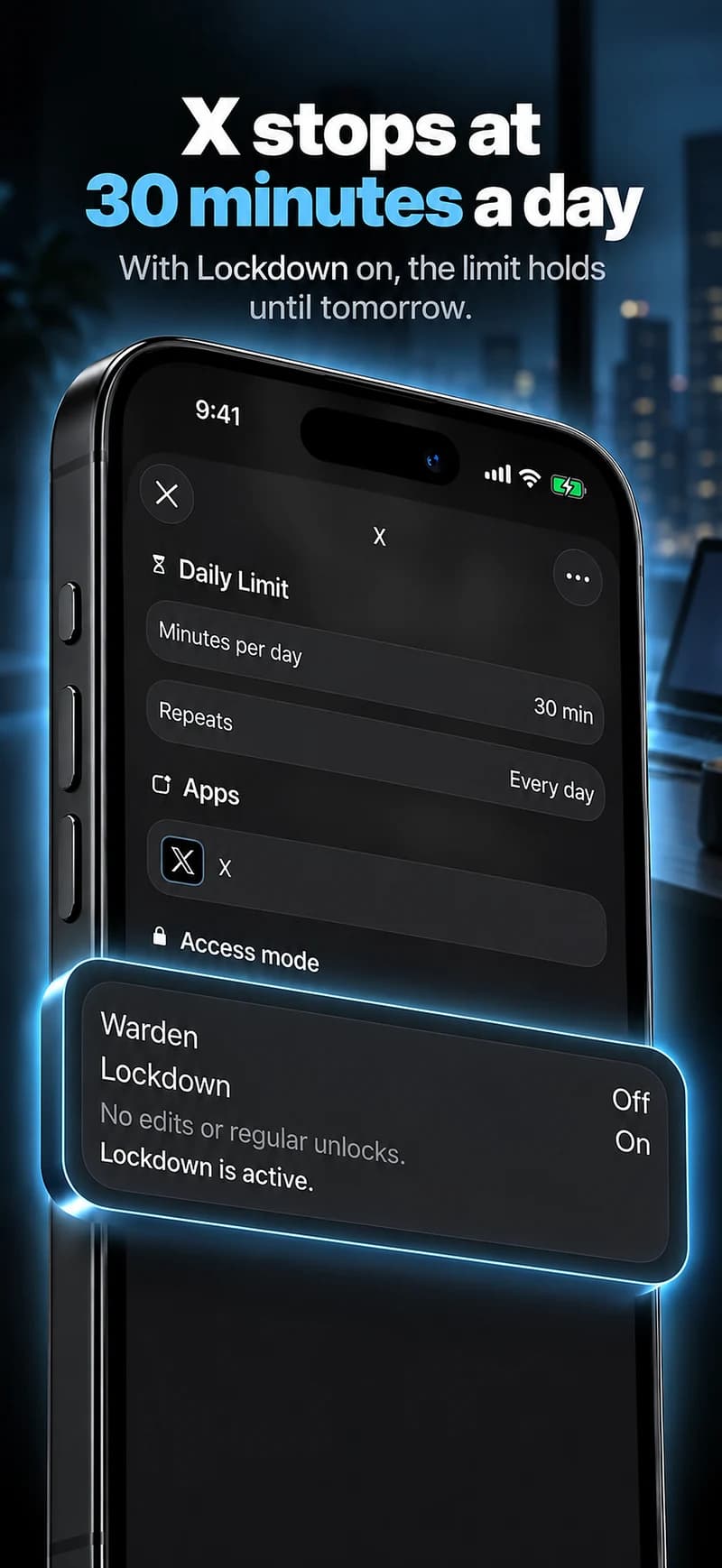
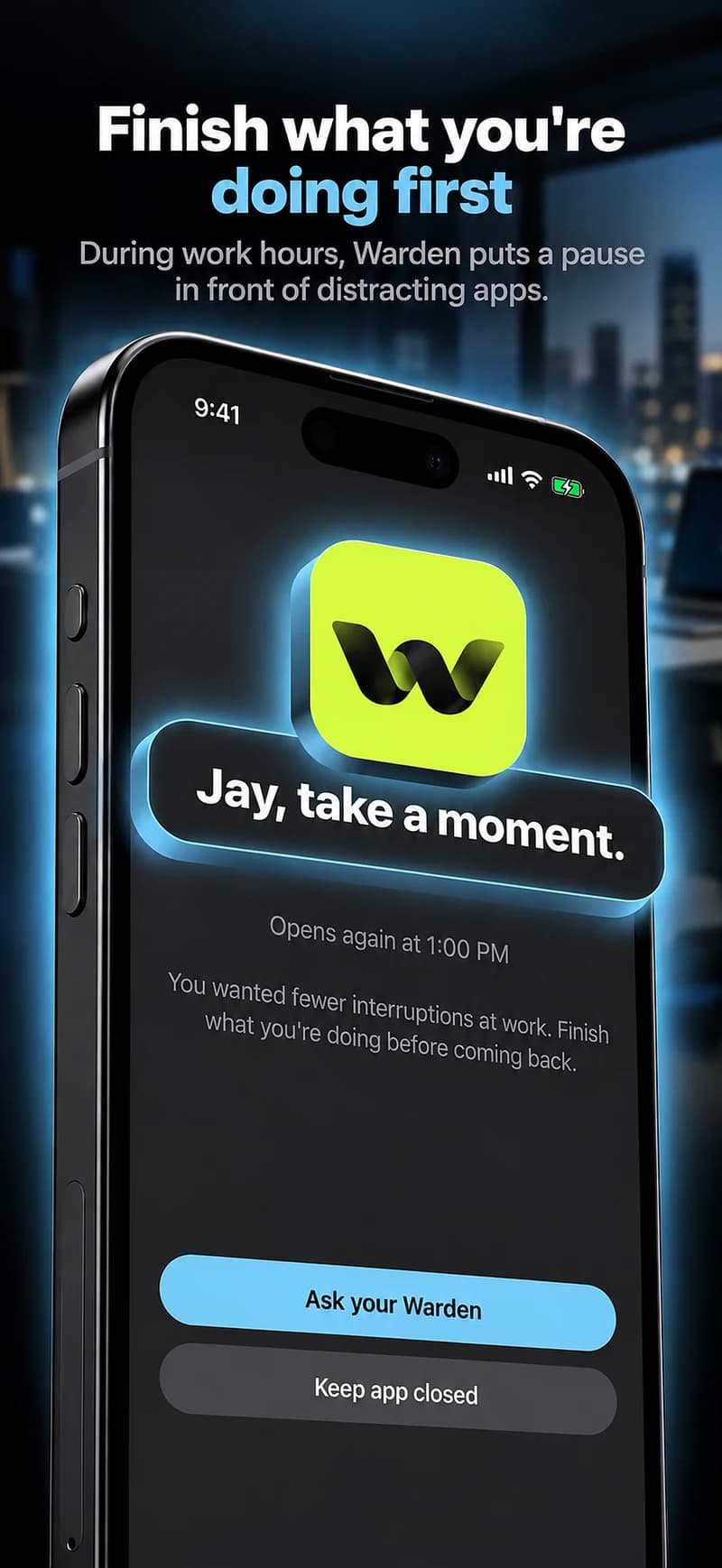
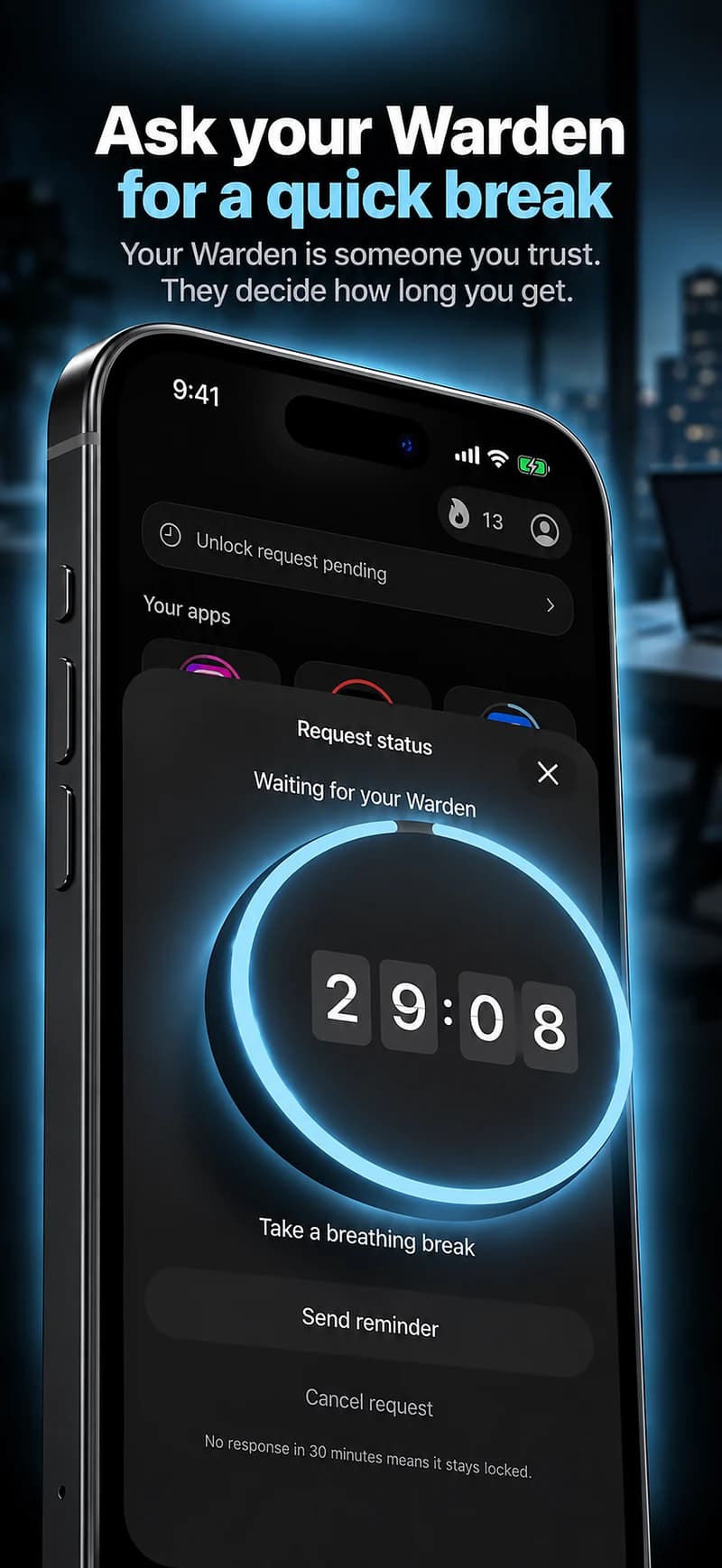
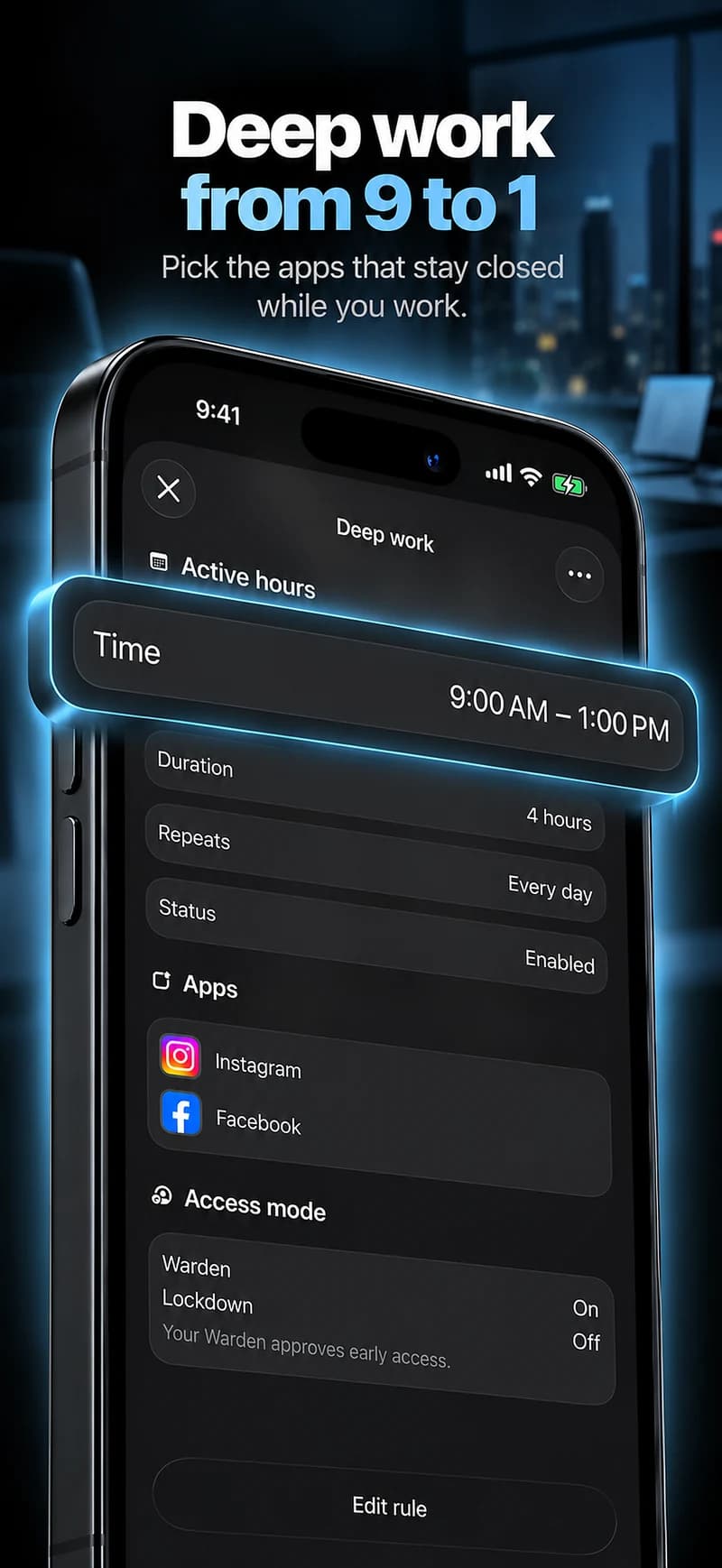
If you also want to restrict access, use an app limit or an app-blocking schedule for the selected apps. Warden’s limits and approval options address access separately from Apple Focus. Test the notification settings and the access rule independently so you know which setting to adjust.