Warden
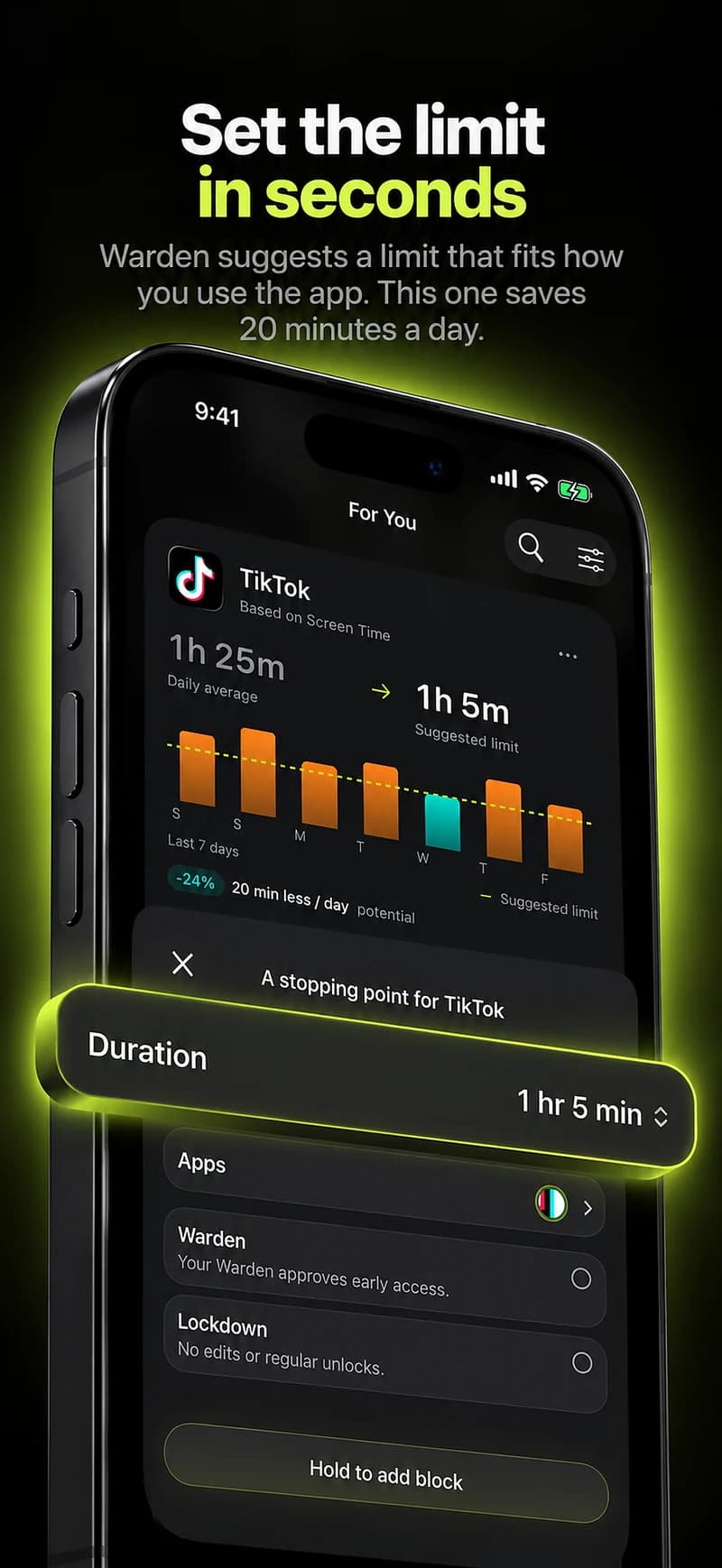
First define the reset you mean
A daily allowance counts use across a day. An hourly allowance gives a fresh amount at a defined hourly boundary. A rolling window might instead return time one hour after you used it. Those are three different clocks.
A schedule answers when selected apps can be used. A daily opening limit counts how many times you can open an app. Neither one automatically means a new batch of minutes arrives every hour.
| Daily limit | A total amount for the day |
|---|---|
| Hourly refill | A fresh amount at each stated hour boundary |
| Schedule | An access window based on clock time and days |
| Opening limit | A set number of app openings, usually per day |
What Apple Screen Time supports
Apple’s current guide describes daily Time Allowances and scheduled windows, including when categories can be used. It does not document an automatic fresh allowance at the start of every hour. If you need that exact behavior, verify it on your iOS version before relying on it.
- On iOS 27, open Settings > Screen Time > Time Allowances to set daily time for categories or the device total.
Open Screen Time Schedule to choose the time windows when categories are available.
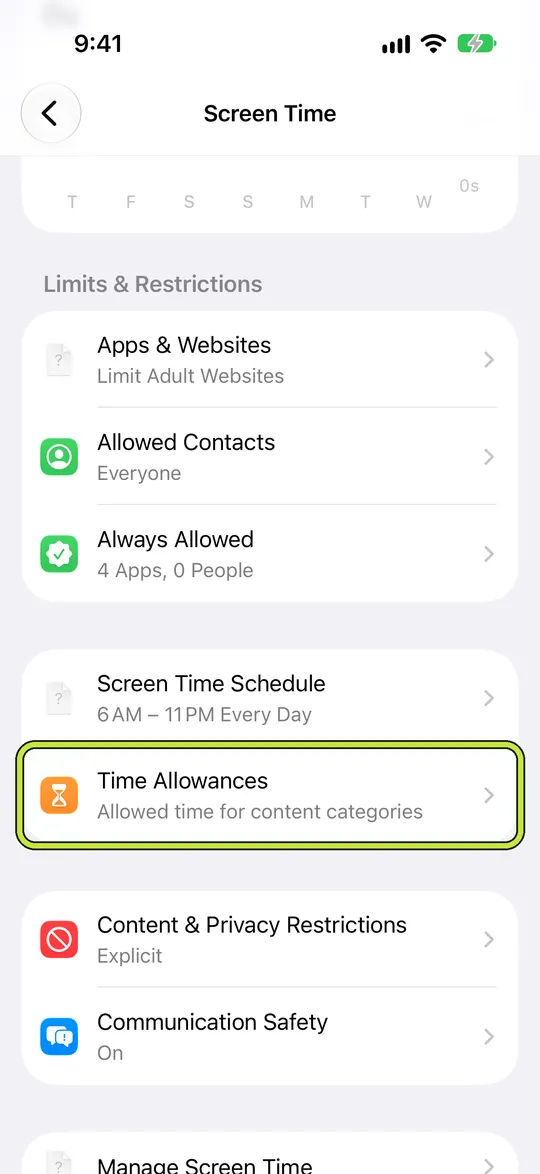
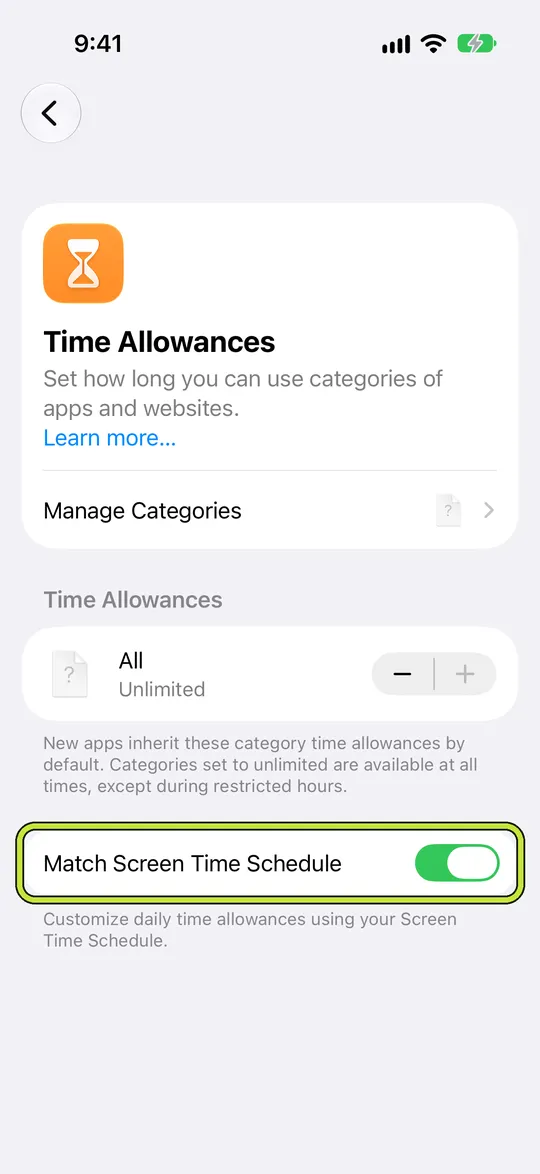
- Under Time Allowances, check Match Screen Time Schedule if you want allowances to follow those windows.
On iOS 26 and earlier, look for App Limits for daily amounts and Downtime for scheduled hours. App Limits can use different amounts on different days.
Reference: Apple: Screen Time schedules and Time Allowances
Reference: Apple: schedules with Screen Time on iOS 26
What Warden can do today
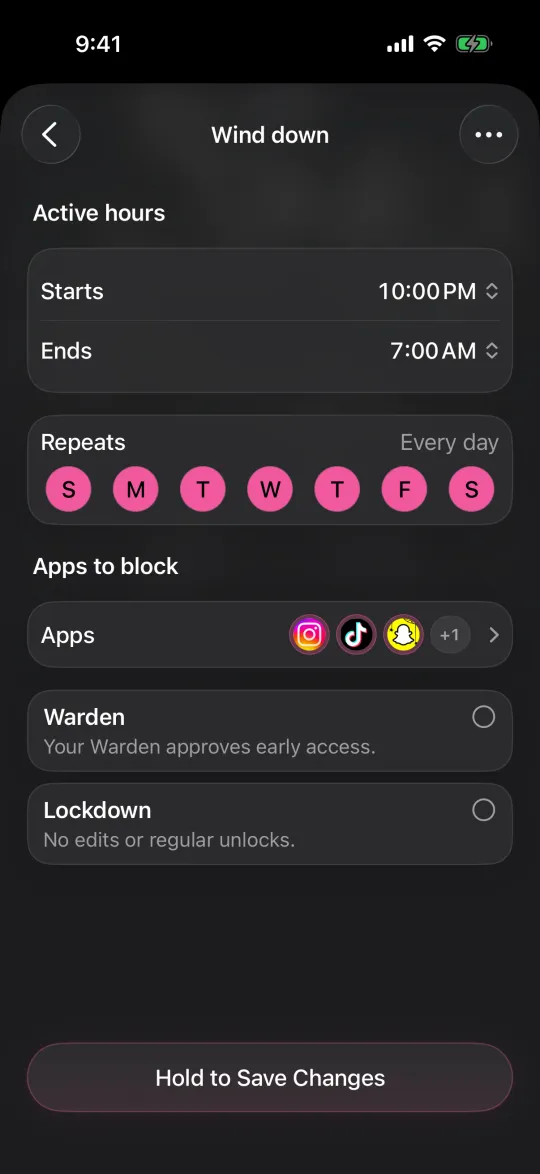
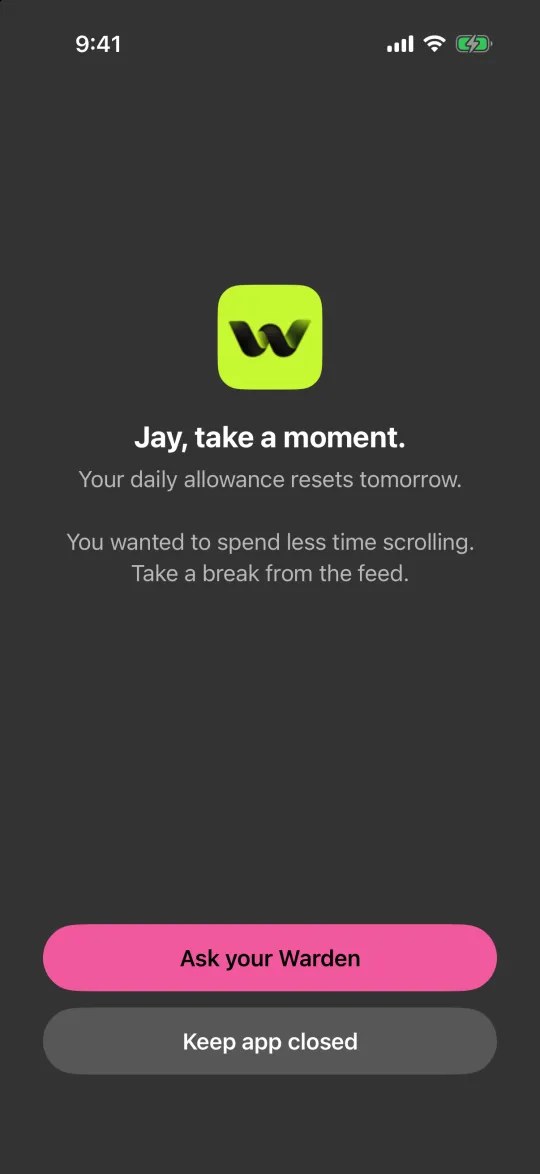
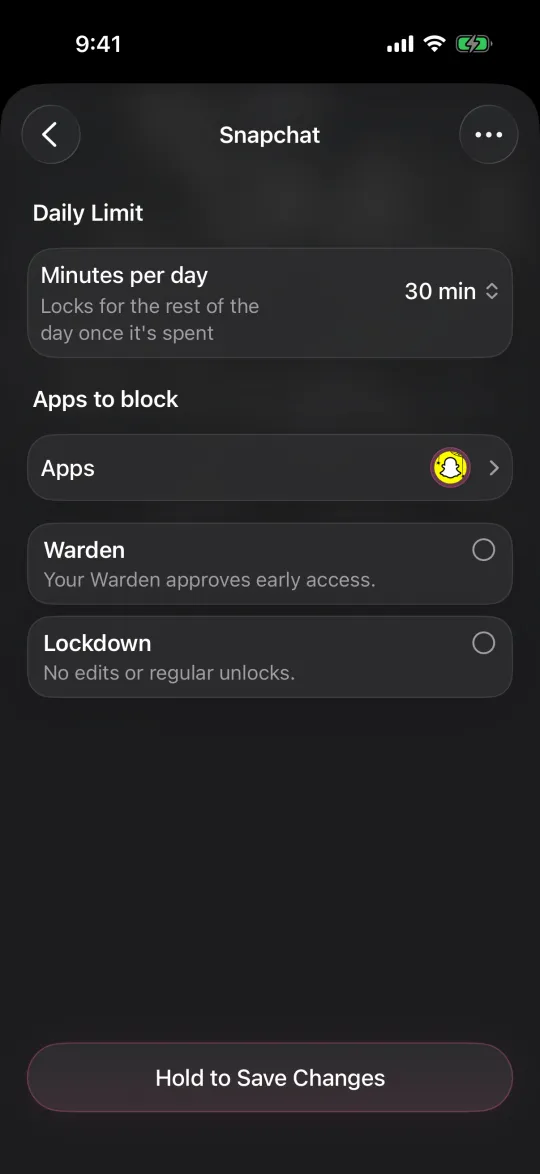
Warden offers a daily time limit, a recurring schedule and a one-time focus session. A daily limit is minutes per day; a schedule restricts selected apps during chosen days and clock hours. A focus session is a single timed block, not a repeating hourly allowance.
Warden also has an opening limit: it counts a chosen number of app openings for the day, with a set duration for each opening. That can suit a few planned check-ins, but it does not refill minutes at the top of each hour. Choose the rule that matches the boundary you want.
How Warden opening limits work
Choose a boundary that matches your day
If your goal is “no more than 40 minutes today,” use a daily budget. If the goal is “keep this app unavailable from 9 to 11,” use a schedule. If you want three short visits, an opening count with a duration may fit.
If your exact goal is “give me five minutes at the start of every hour,” look for a tool that explicitly documents an hourly refill and whether it follows the clock or a rolling window. A daily total plus a schedule can limit total use or availability, but do not assume it guarantees five new minutes every hour.
- Write down whether you mean a fixed clock hour or a rolling 60-minute window.
- Decide whether the allowance is for one app or a group of apps.
- Check what happens when the allowance runs out and when it returns.
- Keep essential communication, navigation and emergency access in mind before blocking anything.
Test the reset before you rely on it
Test during a time when you can safely change the rule if it behaves differently than expected. Keep essential apps available and check for overlapping rules; another active restriction can still prevent access even if one budget resets.
- Choose one nonessential app and a small test amount; do not change every limit at once.
- Record the phone’s iOS version, local time zone, selected days and the exact reset wording.
- Use the allowance close to the claimed boundary, then check whether access returns when expected.
- Repeat on another boundary. A notification or displayed countdown alone does not prove that a fresh allowance is available.
- If the result differs, capture the rule settings and the time of the test without sharing account or payment details.