Warden
What a location-based Focus changes
Apple lets you schedule a Focus to turn on automatically at a chosen location. A Work Focus can filter notifications, allowed people and apps, and the Home Screen pages shown while it is active.
Focus is not an app-access restriction. Hiding a Home Screen page or silencing a notification does not stop you opening an app from the App Library or another route. If you need a selected app unavailable, set an access rule and check its actual shield behavior.
Reference: Apple: set up a Focus on iPhone
Turn on a Focus when you arrive
Open Settings, tap Focus, choose or create Work, then add a location schedule. Choose the place and check which people and apps can still notify you. Shortcuts also offers an Arrive trigger for location automations; check the automation's run settings before relying on it.
Test the setup on a normal visit. Confirm the Focus indicator changes, review allowed notifications, and see what happens when you leave. Keep essential contacts and work apps available. A location trigger is a context cue, not a guarantee of an exact change at the doorway.
Reference: Apple: travel triggers in Shortcuts
For app access, use a rule about time
Apple Screen Time separates daily Time Allowances from Screen Time Schedules: one controls how long selected apps or categories are available, the other controls when they are available. On iOS 26 and earlier, look for App Limits and Downtime. Neither is a GPS fence.
Warden's rules use selected apps, days, clock times or a one-time session. They do not start when your phone reaches a location. A schedule can approximate regular work hours, but it follows the clock even when you are somewhere else.
Compare Focus modes and app blockers
Plan limits around changing work hours
Reference: Apple: Screen Time schedules and allowances
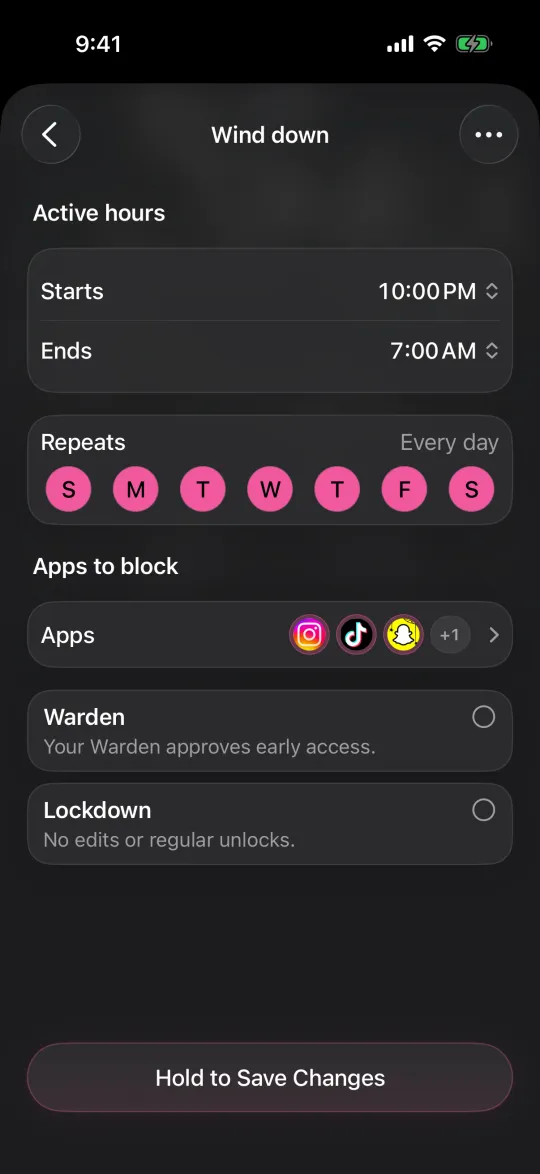
Choose the control that matches the boundary
If you want fewer work alerts at home, location- or time-based Focus may be enough. If you want an app blocked during predictable hours, use a Screen Time or Warden schedule and test the selected apps. If your location or hours vary, a manually started one-time rule may fit better.
Do not rely on Focus to enforce access, or on a clock schedule to know where you are. Check emergency contacts, navigation, authentication and other essential apps before restricting anything. Change one setting at a time so you can tell which control caused the result.
Example: a workday that starts at the office
Suppose you want to quiet personal notifications when you arrive at the office, then keep social apps unavailable during a regular 9-to-5 block. Set a location-based Work Focus for notifications, and separately create a recurring app schedule if you want an access restriction. Test both controls independently on a normal day.
If you work from different places or leave early, the app schedule still follows its selected days and clock hours. Review it when your routine changes. The location-based Focus does not start, pause or modify the Warden rule.