Warden
Decide what “work” means before opening the app
Write down the one outcome you need: publish a prepared post, answer client messages, check a campaign, or collect a reference. Give it a short time window and a stopping point. “Reply to the five open enquiries” is more concrete than “check Instagram.”
Keep planning separate from browsing. Draft captions, choose images, and list replies before opening a feed. If a task needs research or inspiration, decide what you are looking for and stop when you have it; the feed can mix useful material with unrelated recommendations.
Move suitable publishing and replies to a desktop workflow
If your account is eligible, Meta Business Suite can schedule supported Facebook and Instagram content and manage some business messages in its Inbox. Prepare a small batch, review it in the planner, then use the desktop for tasks it supports instead of opening the phone app for every reminder. Feature availability depends on account type, connection, content format, and current Meta rules.
Do not assume every Story, Reel, audio choice, collaboration feature, or account action is available through the same tool. Check the current composer before building a workflow around it. For something that still requires the mobile app, make that a named task rather than an open-ended “quick check.”
Reference: Meta: Schedule Facebook and Instagram content
Reference: Meta: Create and manage posts on desktop
Reference: Meta: About Inbox in Business Suite
Protect the useful communication channel
Choose when you will check messages and tell clients what response window to expect. If a business Inbox or desktop workflow covers the message type you need, use it for that window. Keep a separate urgent contact route for genuine time-sensitive matters; do not rely on social notifications as an emergency system.
Apple Focus can silence or allow selected notifications, but it does not block you from opening an app. Notification settings and app restrictions solve different problems. Test that calls or work contacts you need can still reach you before relying on a Focus schedule.
Reference: Apple: Set up a Focus on iPhone
Set a boundary around the whole app, not just its feed
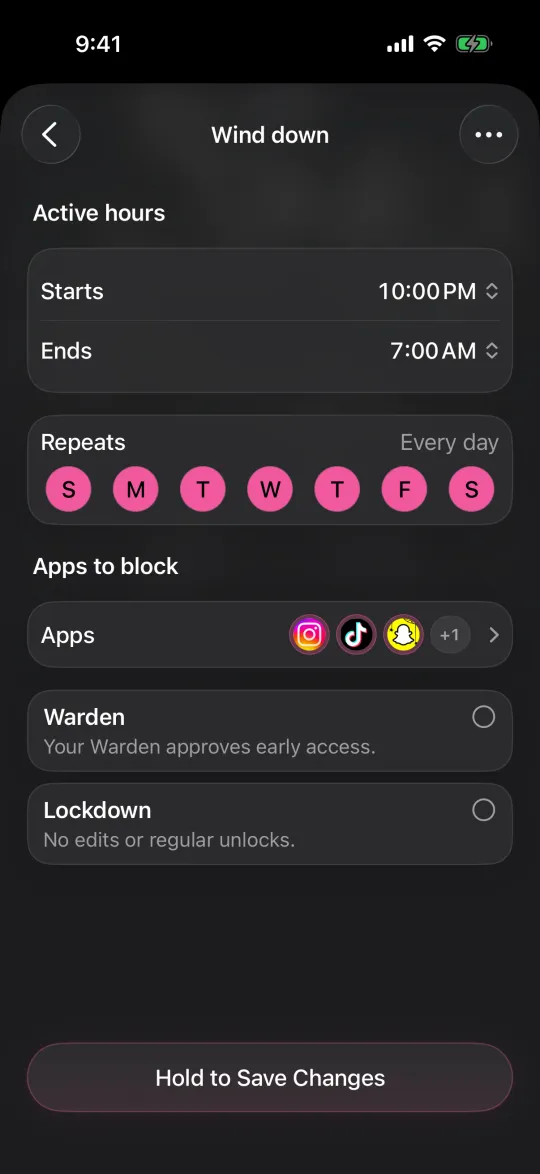
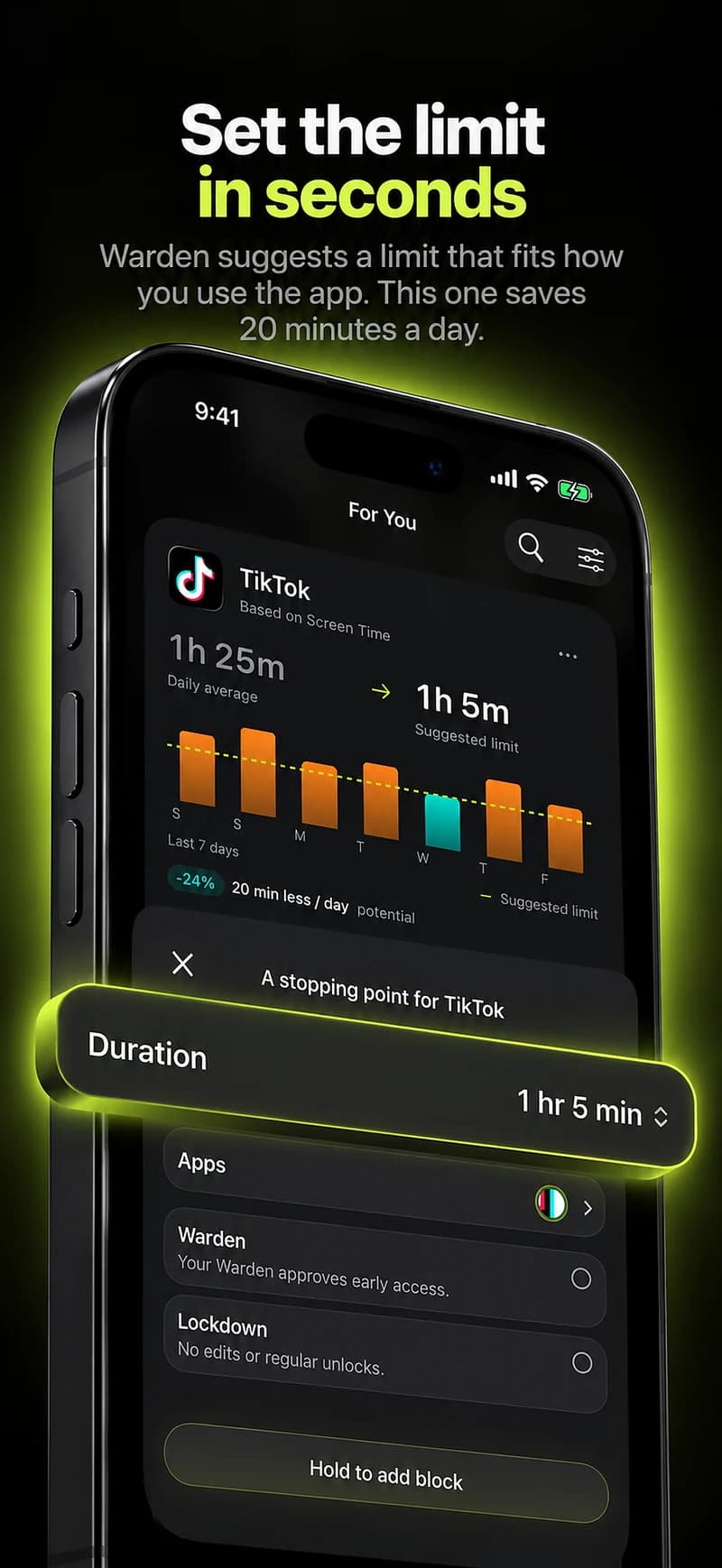
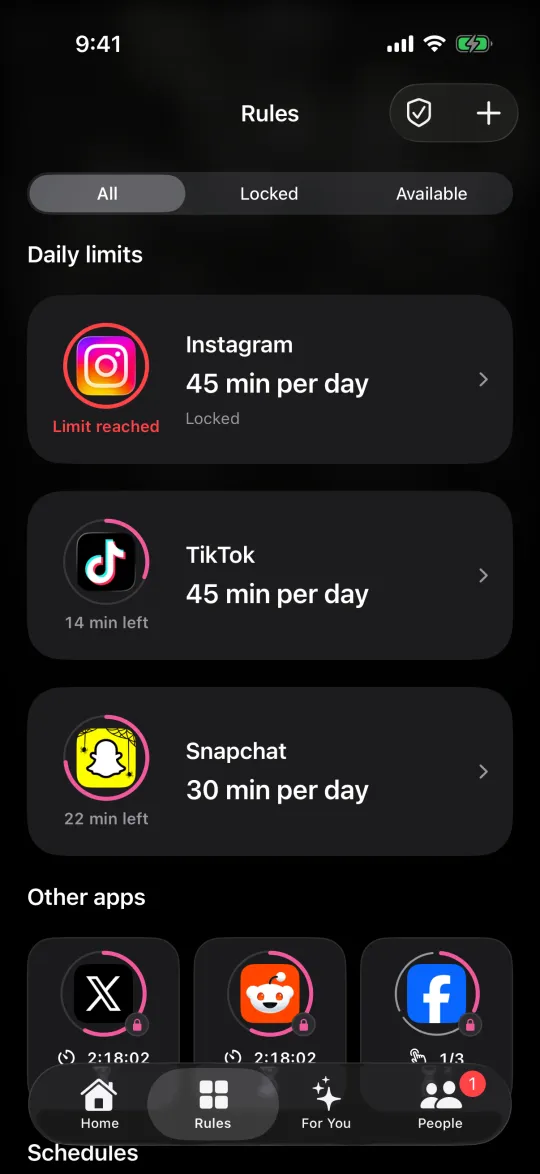
On iPhone, Screen Time schedules and time allowances can set periods or budgets for app access. Warden can also apply a rule to selected apps or supported website domains. These controls work at the app or domain level: they cannot leave Instagram messages available while blocking only Reels or the feed inside the same app.
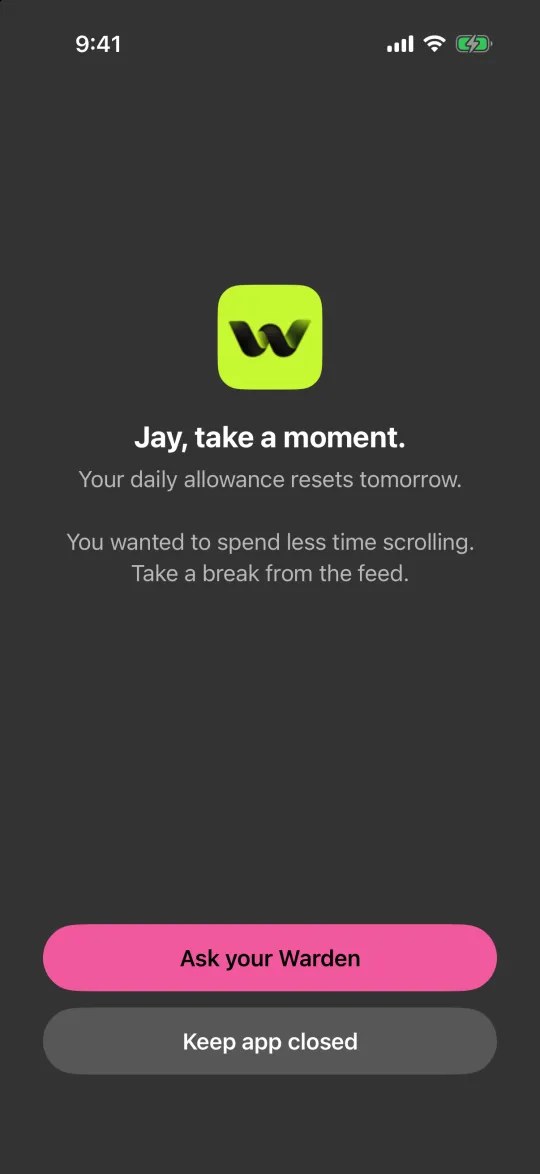
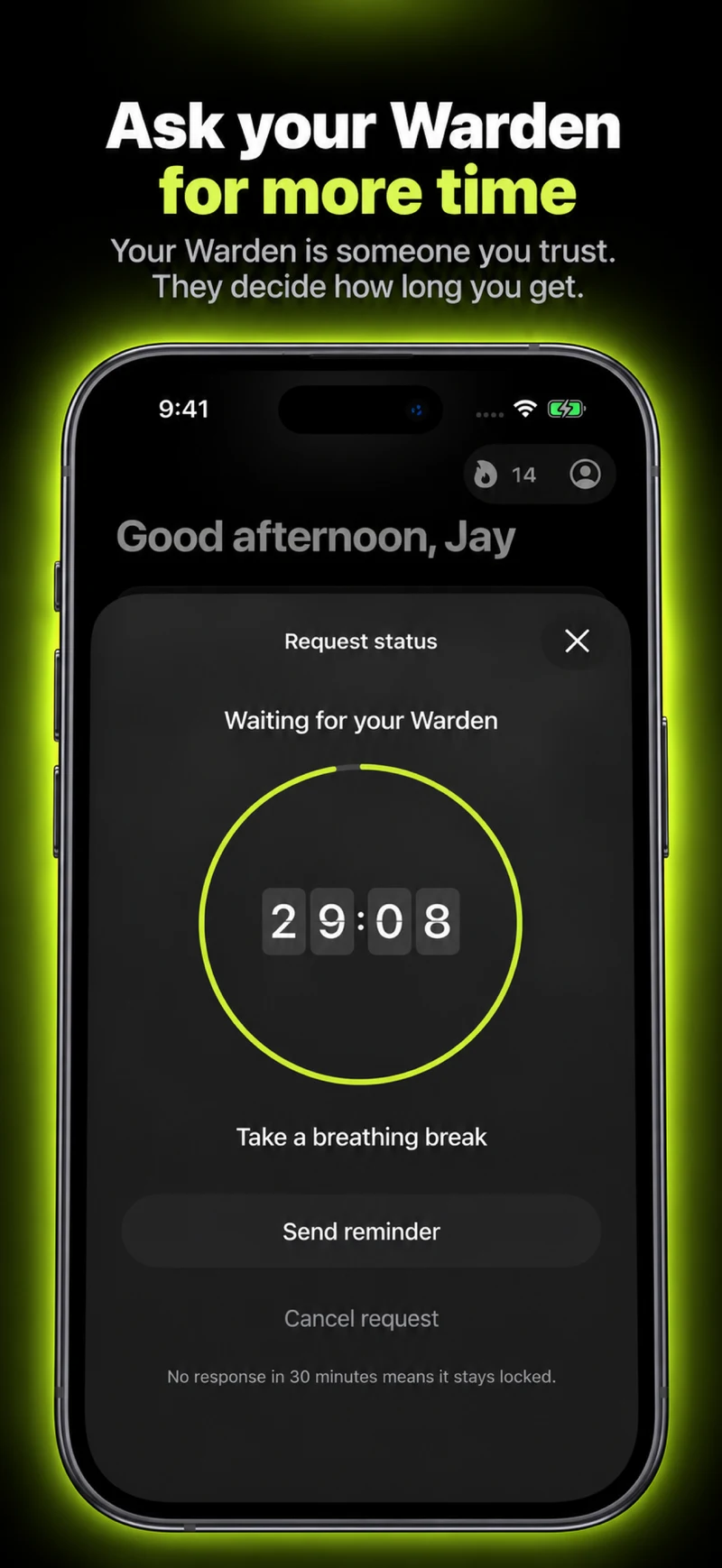
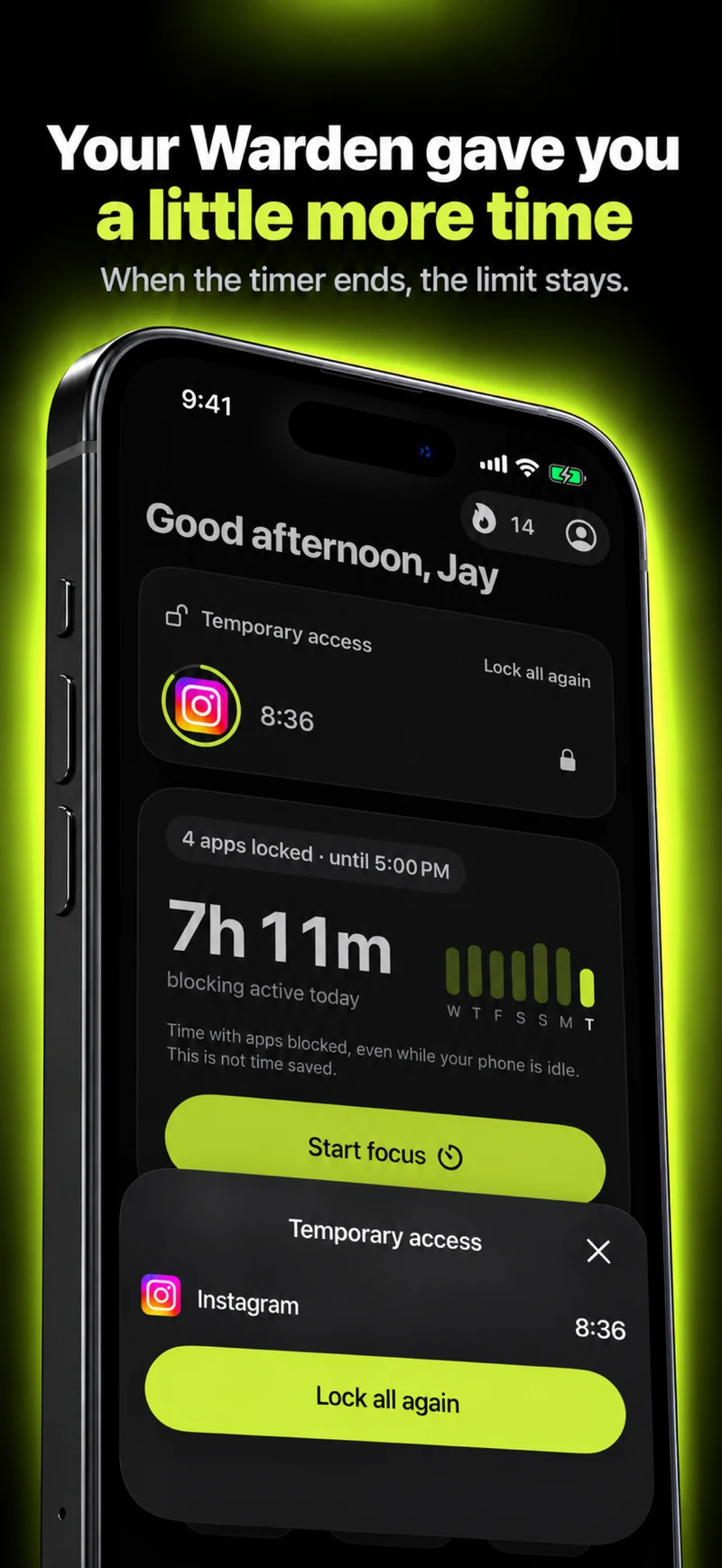
Start with the times you do not need the app, not the longest block you can tolerate. Check that your posting window is open, your selected app or domain is correct, and any essential communication has another path. Warden’s mode affects how early access works, so understand the selected mode before you rely on a rule.
Limit social media apps on iPhone
Compare an Instagram limit with a scheduled block
Reference: Apple: Set Screen Time schedules and time allowances
Example: publish, reply, then close the work window
Suppose you run a small studio and need Instagram for a portfolio post and new-client enquiries. Prepare the image and caption earlier. At 11:30, publish the planned item, answer the messages that need a response, and note anything that can wait. At noon, close the app and return to the next task.
If the post cannot be scheduled and must be published on the phone, use a short, specific window. Do not count on an app blocker to distinguish the post composer from the feed. After a week, adjust the window around real work rather than allowing the feed to decide when the workday ends.
A quick setup checklist
- Choose one work task and define what “done” means.
- Prepare captions, media and replies before opening a social app.
- Move supported publishing or messages to a desktop tool if it suits your account.
- Set an iPhone notification plan separately from any app or website rule.
- Test the rule outside a critical client window and keep an alternative urgent contact route.
- Review after a few days: did the boundary preserve needed work access and reduce unplanned checks?