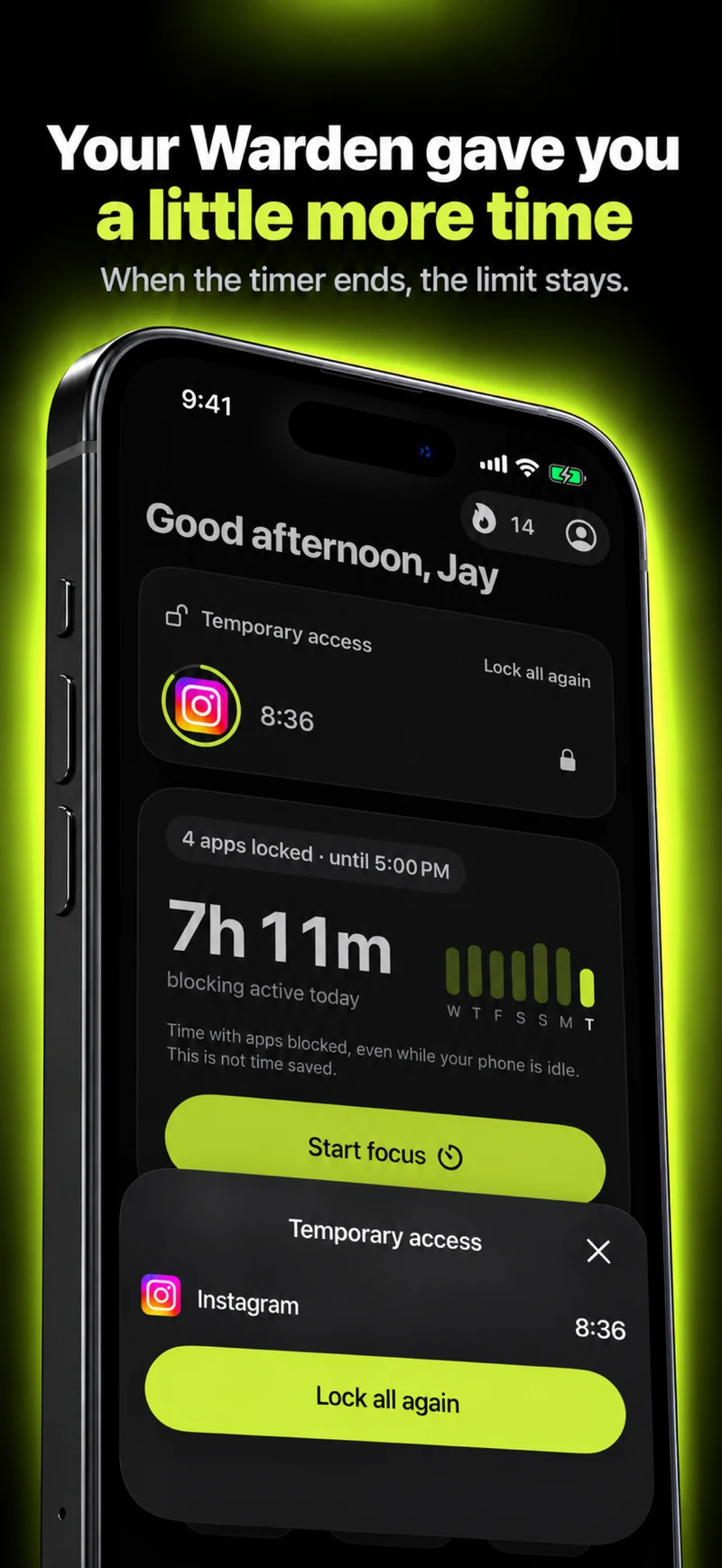
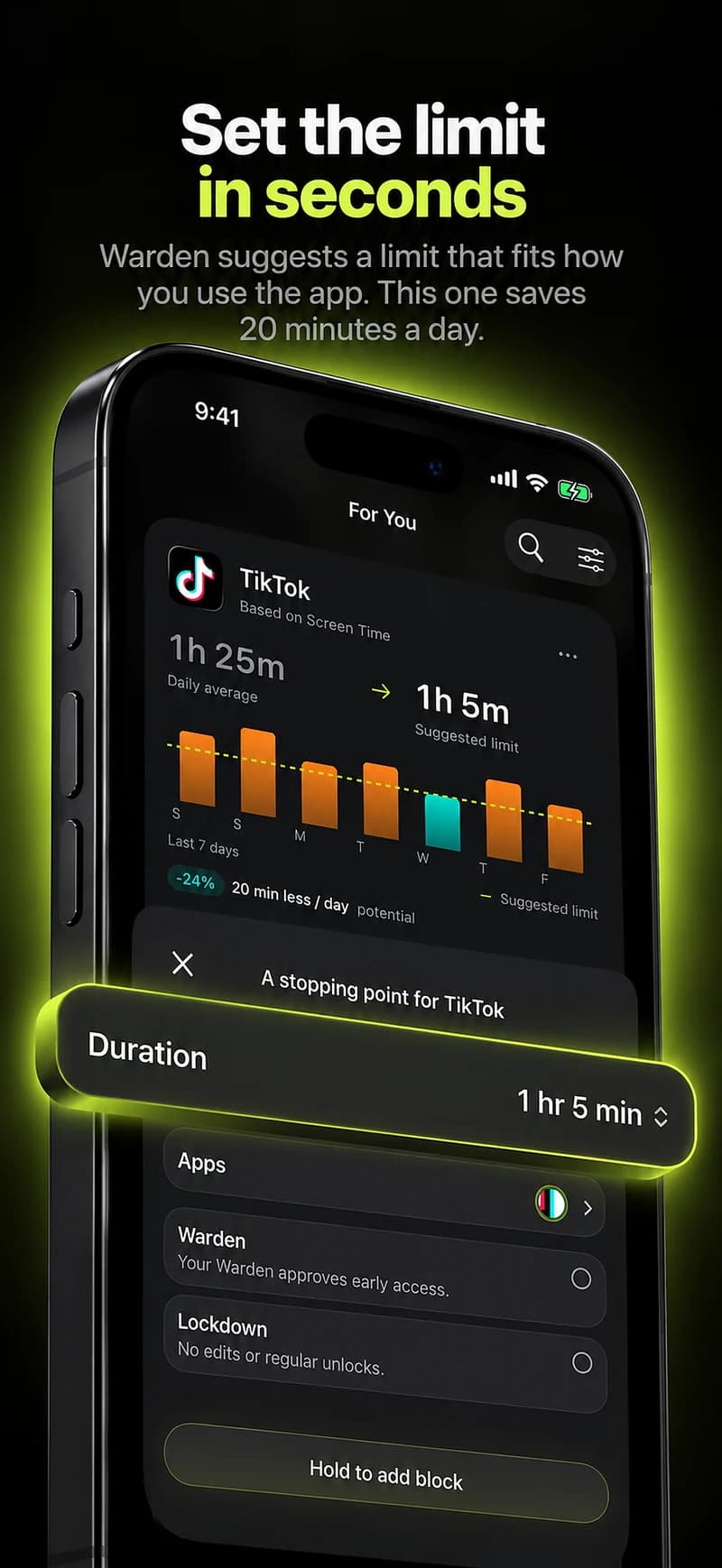
Warden
There are two separate approvals
In iOS 27, Apple lets a parent or guardian manage a child’s contacts through Family Sharing. The child first has to accept the request to let the parent manage contacts. After that, keeping Allow Contact Editing off lets the child request approval before adding a new contact.
These are separate decisions: the child accepts who may manage the contact list; the parent or guardian decides whether a new person can be added or contacted. Apple documents these limits for Phone, Messages and FaceTime. Don’t assume they control every third-party messaging app.
Check the family setup first
Use the child’s own Apple Account in your Family Sharing group. Apple’s newer contact controls require the family’s relevant devices to be updated to iOS 27, iPadOS 27, macOS 27, watchOS 27 or visionOS 27, as applicable. Some controls also vary by a child’s age, country or region.
Add the Family Sharing organizer or a parent or guardian to the child’s contacts so requests can reach them. Allowed Contacts uses the child’s iCloud contacts; make sure Contacts is enabled in iCloud on the child’s device.
- Use a separate Apple Account for the child, not a shared family login.
- Check the parent’s Family Sharing role and the child’s device version before troubleshooting a missing request.
Choose who can communicate during Screen Time
On the parent or guardian’s iPhone or iPad, open Settings > Family > the child’s name > Allowed Contacts > During Screen Time. The labels can vary with the system language and region.
For approval before a new person, Apple specifically recommends Contacts Only. The group option is broader because it includes groups with at least one saved contact; choose it only if that matches your family’s needs and test the behavior.
- Choose Contacts Only to limit communication to saved contacts.
- Choose Contacts & Groups with at Least One Contact if the child should also reach people in a group that contains a saved contact.
- Choose Everyone if you don’t want this Screen Time setting to restrict who can communicate.
Turn on contact management, then leave editing off
From the child’s Family settings, open Allowed Contacts and turn on Manage Contacts. Apple says the child must approve this management request on their own device before you can manage the list. The request can appear in the child’s Screen Time settings or notifications.
Keep Allow Contact Editing off if the child should ask before adding a new contact. Apple says turning it on lets the child edit contacts. With editing off, when the child tries to communicate with someone new, they can ask for approval; a parent or guardian in the Family Sharing group can approve or decline.
- On the parent’s device, open Settings > Family > the child > Allowed Contacts.
- Turn on Manage Contacts and wait for the child to accept on their device.
- Choose the contacts you approve, then leave Allow Contact Editing off to require a request for additions.
Example: test with someone you trust
Before relying on the setup, test with your child and a consenting trusted adult whose details aren’t already in the child’s contacts. Use an ordinary call or message, never an emergency number. Ask the child to request the new contact, then check that the parent receives a prompt and can approve or decline. Apple notes that a message from someone new may stay hidden until a parent or guardian approves.
If no request appears, confirm the child accepted Manage Contacts, Allow Contact Editing is still off, the parent is listed in the child’s contacts, iCloud Contacts is on, and both accounts are in the expected Family Sharing group. Check the child’s Screen Time settings or notifications for the first management request. Avoid resetting devices or deleting contacts as a first troubleshooting step.
Keep contact rules separate from Always Allowed and schedules
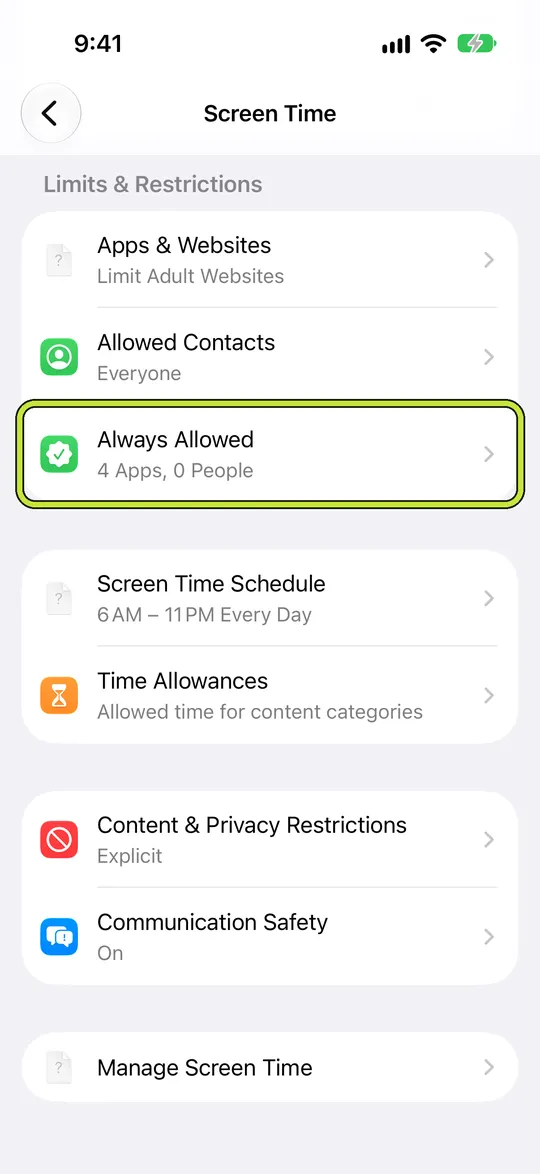
Allowed Contacts > During Screen Time answers who the child can call, message or FaceTime while Screen Time rules apply. The separate When Device Paused or Unavailable choice sets who can communicate when the device is paused. Always Allowed is another list: Apple says its selected people and apps remain available regardless of Screen Time schedules or Time Allowances. An app schedule controls when apps are available; it isn’t the same as asking permission to add a contact.
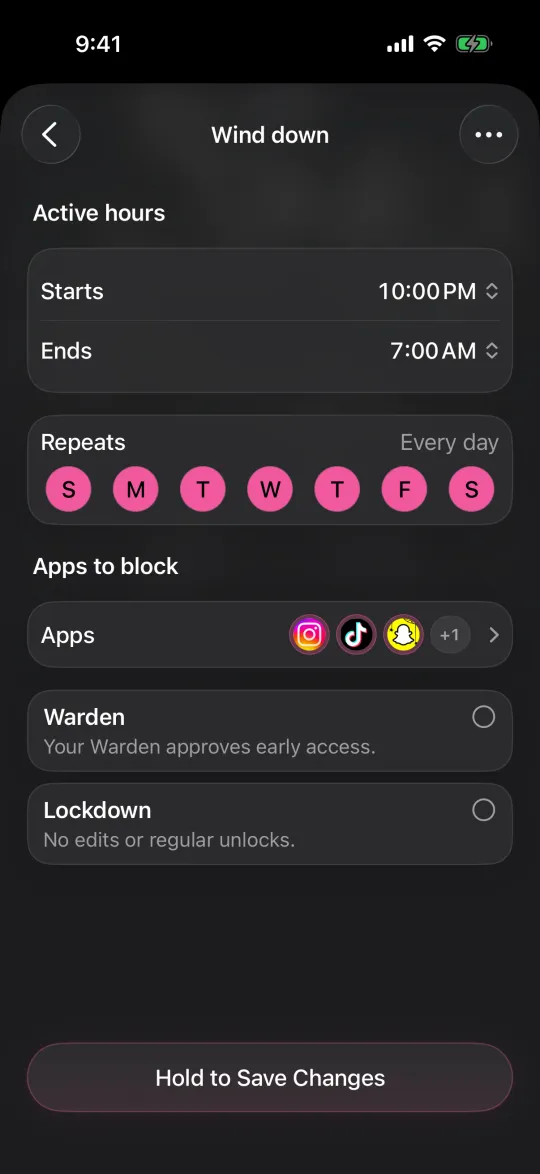
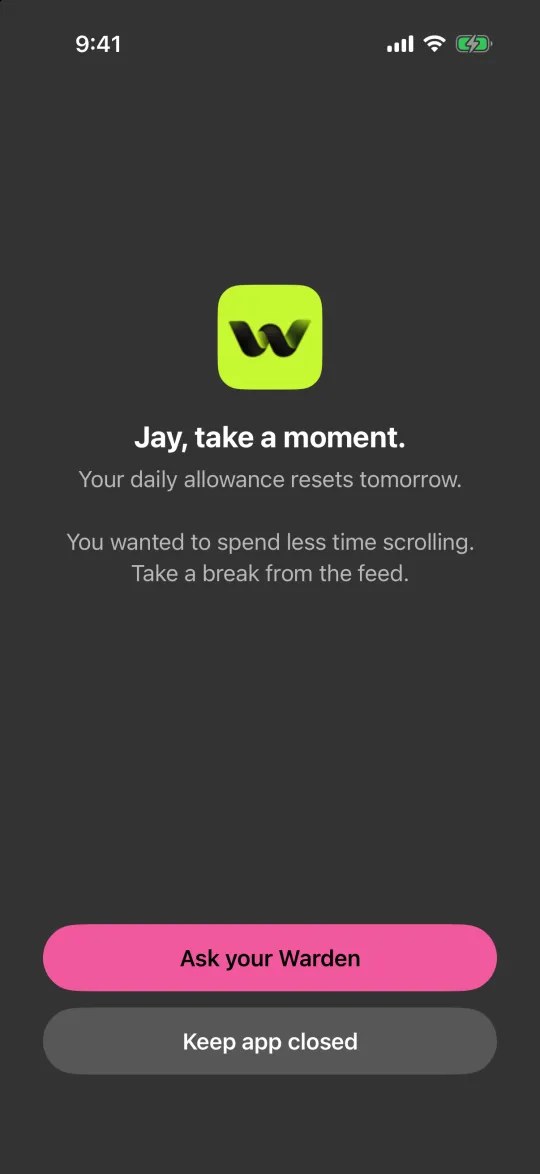
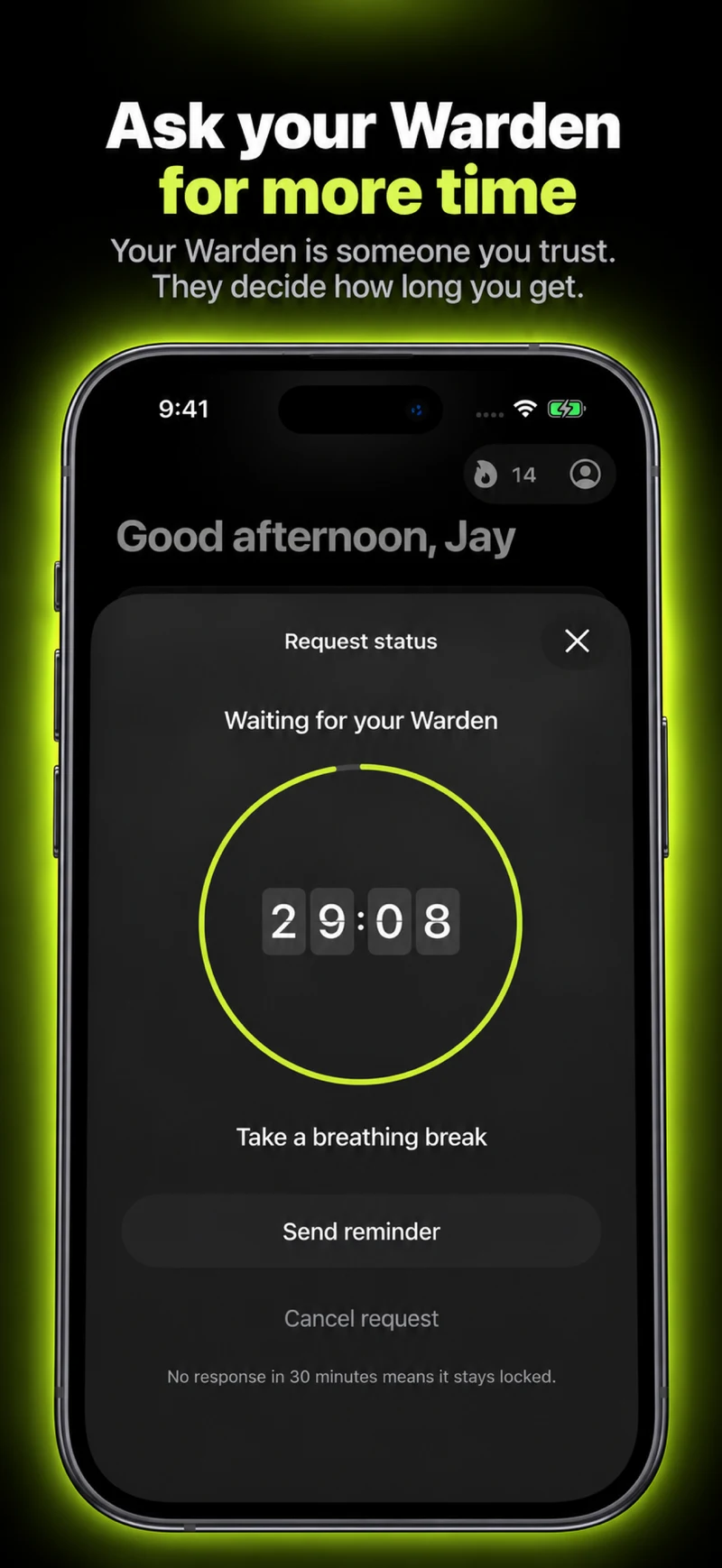
The image shows Apple’s Screen Time settings list with the Always Allowed row highlighted, not the contact-approval screen. Use it to review essential people or apps, but return to Allowed Contacts to manage new-contact requests. Warden’s app blocking and trusted-person approval are separate from Apple Family Sharing and do not manage a child’s Apple contact list.
Set up Screen Time for a child on iPhone
Screen Time Always Allowed: setup and limits