Warden
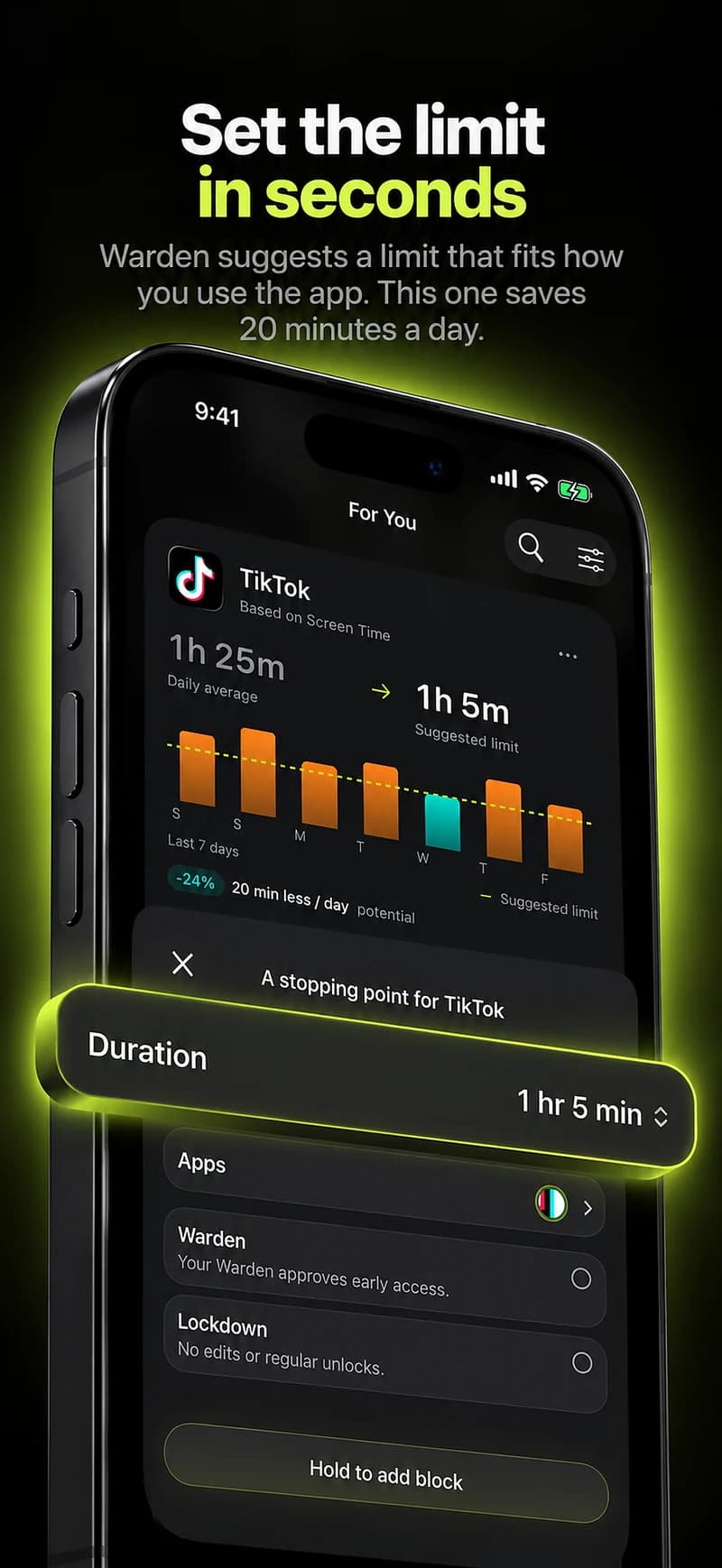
A Screen Time passcode locks settings, not the phone
Apple’s Screen Time passcode is a separate four-digit code required before changing Screen Time settings. It is not the passcode your child uses to unlock the iPhone. Apple says a child can still view Screen Time activity and settings after the lock is on, but cannot change those settings without entering the Screen Time passcode.
This is the control to check when a child can open the settings page and alter an allowance or schedule. Seeing the page does not by itself mean the lock is off. First verify which account and profile you are managing, then confirm that Lock Screen Time Settings is enabled for that child.
Check the Family setup first
For a child in Family Sharing, use the child’s own Apple Account in the family group and manage Screen Time from the family organizer’s or parent/guardian’s device. Apple says the parent or guardian must set the child’s Screen Time passcode from their own device, not from the child’s iPhone.
Update the devices in the Family Sharing group before changing Screen Time settings so they can sync. iOS 27 uses a new parental-control setup. If the family has not upgraded, or some devices cannot run the required software, the available screens and steps can differ. Age and region can also affect which controls are available.
Set the child’s passcode from your device
On the parent or guardian’s iPhone or iPad, open Settings, tap Family, then tap the child’s name. Open Passcode & Management and choose Lock Screen Time Settings. Enter a four-digit code, then enter it again to confirm. Menu labels can differ with system language or version.
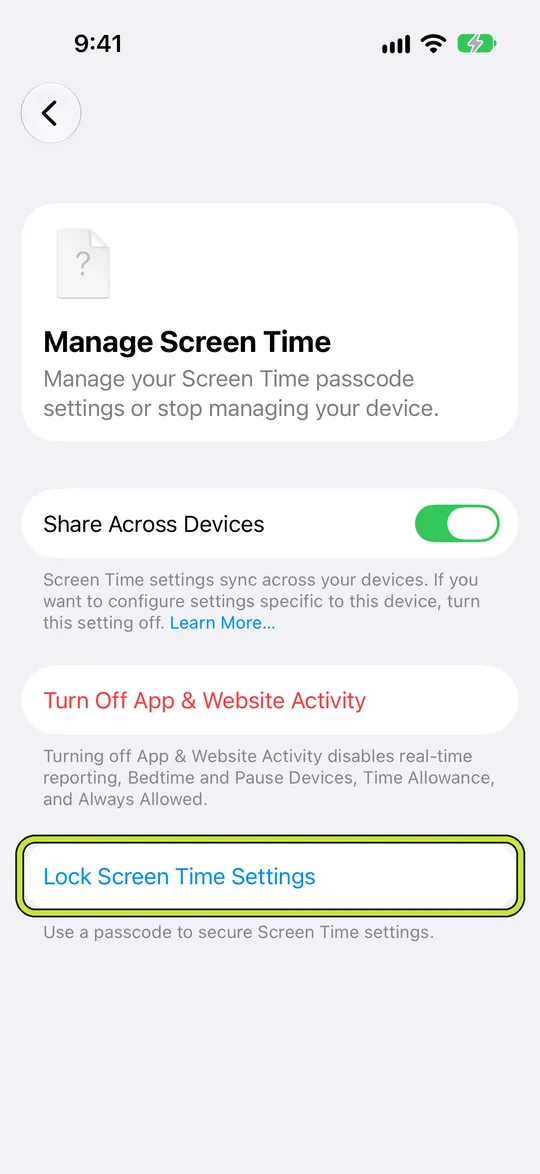
Choose a code the child is unlikely to guess. Keep it private and do not reuse the device unlock code. The screenshot in this guide shows the same Lock Screen Time Settings option in a self-managed Screen Time view; for a child in Family Sharing, start from Settings > Family > the child’s profile on the parent’s device.
- On the parent or guardian’s iPhone or iPad, open Settings and tap Family.
- Tap the child’s name, then tap Passcode & Management.
- Tap Lock Screen Time Settings and enter a four-digit code twice.
Check whether the passcode was used
Return to the child’s Passcode & Management screen. Apple’s current child guide says it can show when the Screen Time passcode was last used. That timestamp can help you check whether the code was entered, but it does not identify who entered it or explain why a particular setting changed.
If you know the current code and think your child may know it too, change it from the parent’s device under the same child profile. If you have forgotten it, use Apple’s current recovery instructions for your software version and Family Sharing setup; the recovery route differs from the passcode used to unlock a phone.
If a setting still seems changeable
Start with the least disruptive checks. Confirm that the child is selected under Family, that you are using the child’s own Apple Account, and that Passcode & Management shows the lock enabled. If that screen is missing, Apple says you may need to finish setting up usage and parental controls before setting a Screen Time passcode.
Check that the family’s devices are up to date and that you changed the rule in the child’s profile rather than your own Screen Time settings. Apple documents the passcode as required for changes; the Reddit report that prompted this guide does not establish why one family saw different behavior. Do not assume a single cause or erase devices as a first step.
If the lock is enabled but the child can still change a setting without entering the Screen Time passcode, note the exact setting, time, and software versions on the family’s devices. Contact Apple Support with that focused reproduction. Avoid sharing the passcode or private account information in a public post.
Example: test one ordinary setting
A parent sets a 30-minute Games allowance and locks the child’s Screen Time settings from the parent’s Family profile. They then check the child’s iPhone together: the child can view the allowance, but an attempt to edit it should ask for the Screen Time passcode. If it does not, they record the device versions and the exact screen before changing anything else.
Use a nonessential setting for a check like this. The purpose is to confirm where the lock is applied, not to test a child by secretly changing important rules.
Keep Apple controls and Warden separate
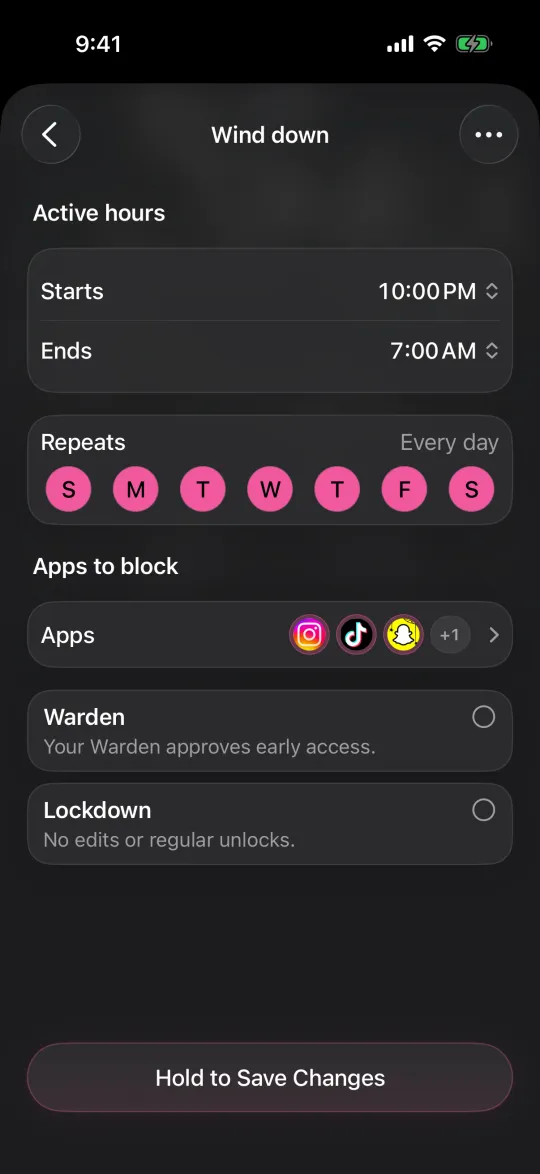
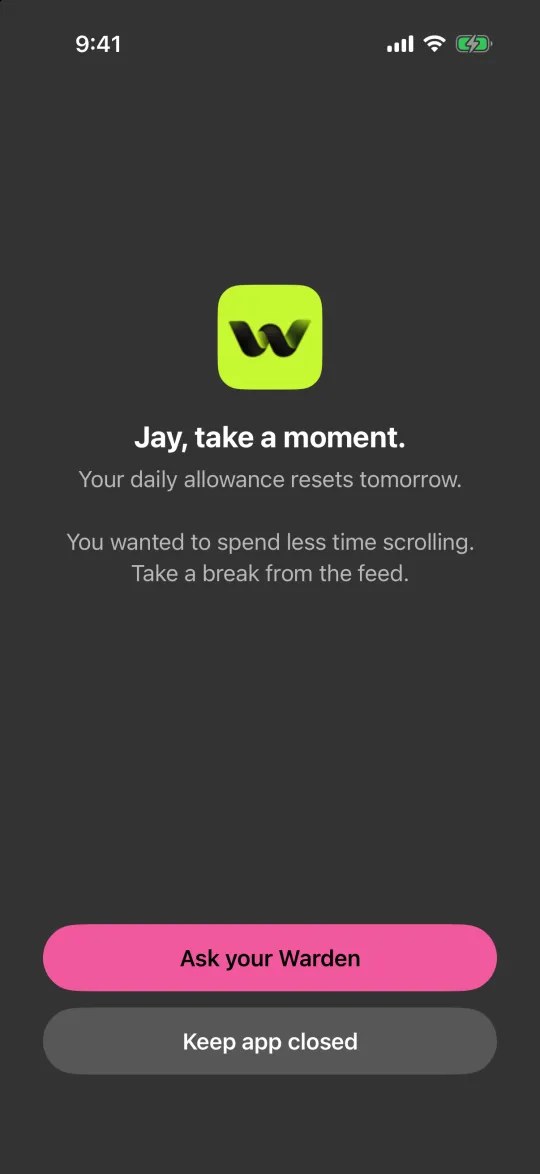
A Screen Time passcode protects Apple’s Screen Time settings. It does not make every iPhone setting unavailable, and it is not the same as a Warden rule or a device unlock code. Apple’s Family Sharing controls are the appropriate place to manage a child’s Apple Screen Time.
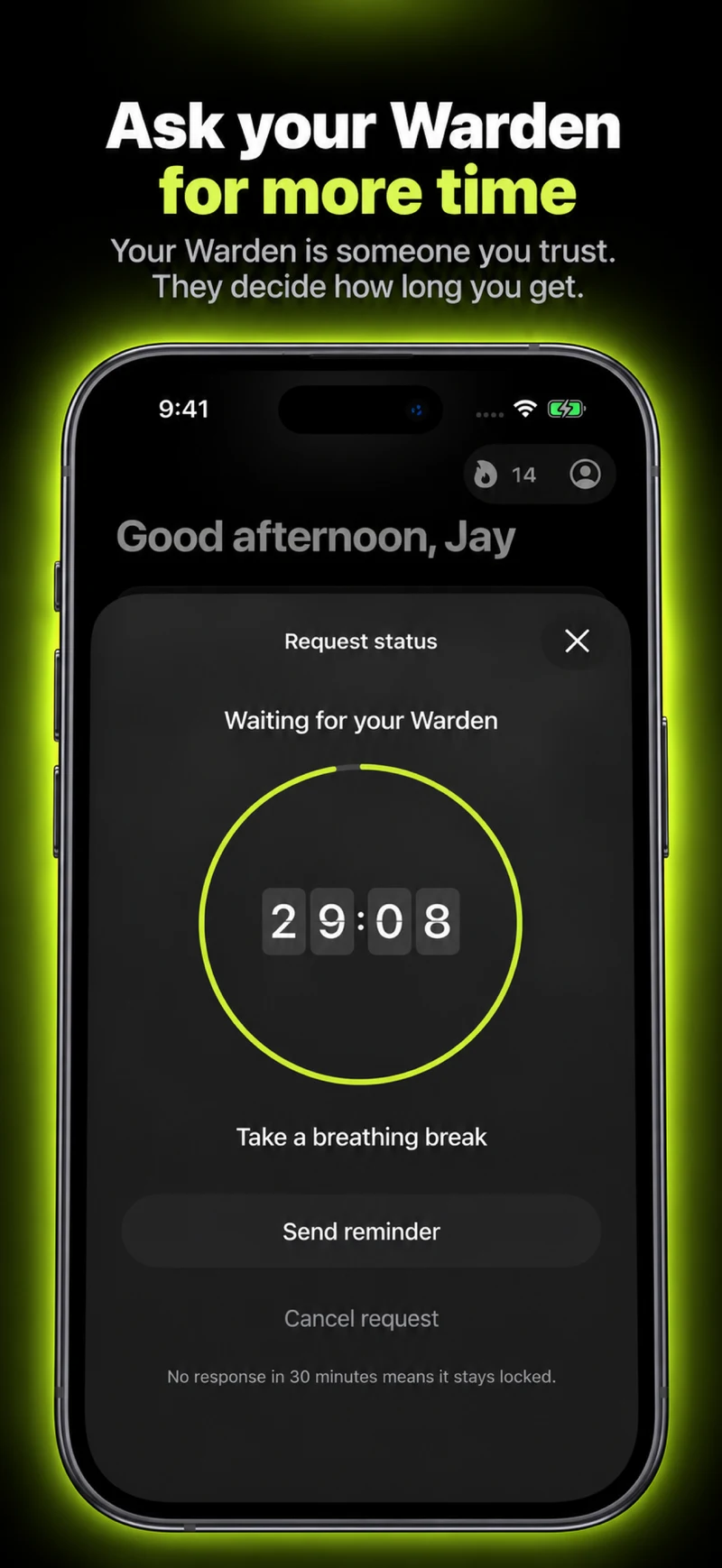
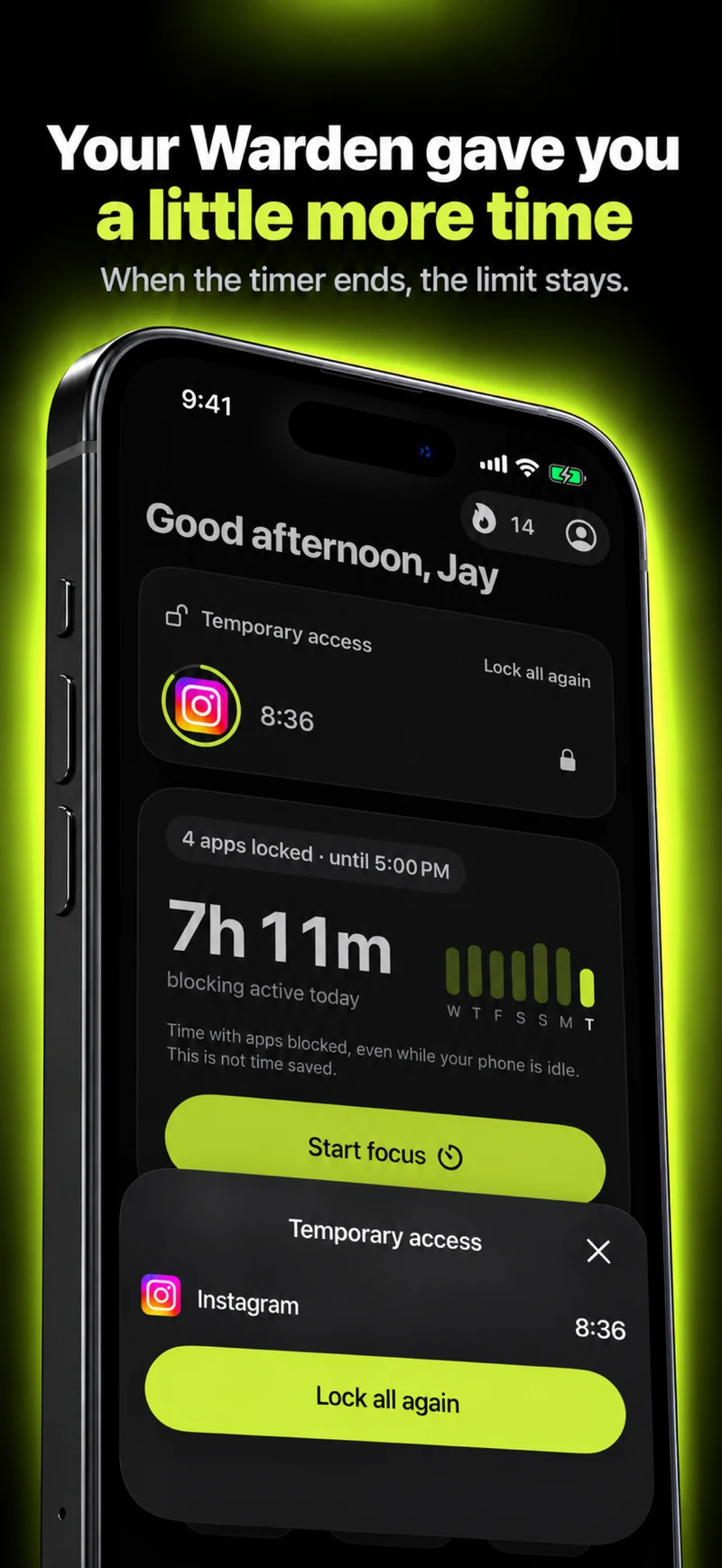
Warden is separate from Apple Family Sharing. Its app-blocking and trusted-person features do not set or recover a child’s Apple Screen Time passcode, and should not be treated as a replacement for Apple’s parental controls. For an overview of the family setup, see our guide to setting up Screen Time for a child.