Warden
Block the website, not the browser
Safari is an app; a website is a domain you visit inside a browser. If you select Safari, you can lose access to every site in Safari. If you select only a website in Warden, the rule targets that selected domain while leaving the Safari app unselected.
A site can also open from Chrome, another browser, or inside an app. Apple’s web-domain controls use selected domain tokens, but you should test each browser or in-app route you rely on instead of assuming every embedded page behaves the same.
Choose the exact site and the right rule
Before opening the picker, write down the website you mean. A service may use separate domains for its home page, sign-in, video, or checkout. Blocking one domain does not automatically mean every related site is covered.
Choose a timing rule that matches the problem: a schedule for predictable work or sleep hours, or a daily allowance for a short visit budget. Start with a low-stakes rule. If a site is needed for work, school, account recovery, or payments, plan an exception before blocking it.
For example, if you want to avoid one video site during work but still need Safari for your bank, select the video site in the rule and leave Safari unselected. Test the bank sign-in before relying on the setup.
- Keep essential sign-in and payment routes available until you have tested them.
- Do not select Safari if you want the browser itself to remain usable.
- In Warden, categories and websites can share one allowance in the shared-pool rule; read the saved rule summary before combining them.
Create a website rule in Warden
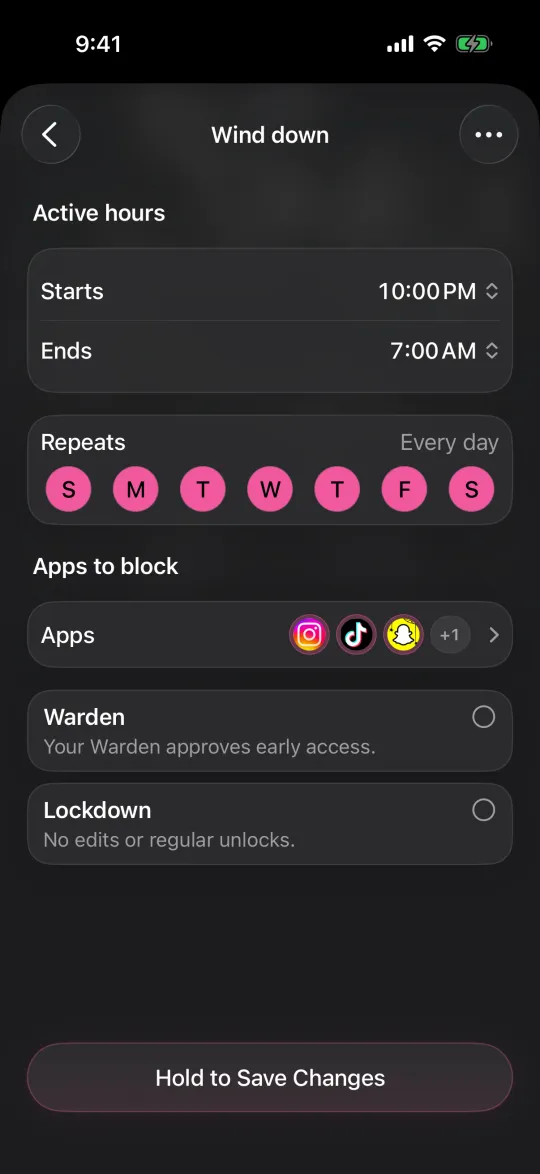
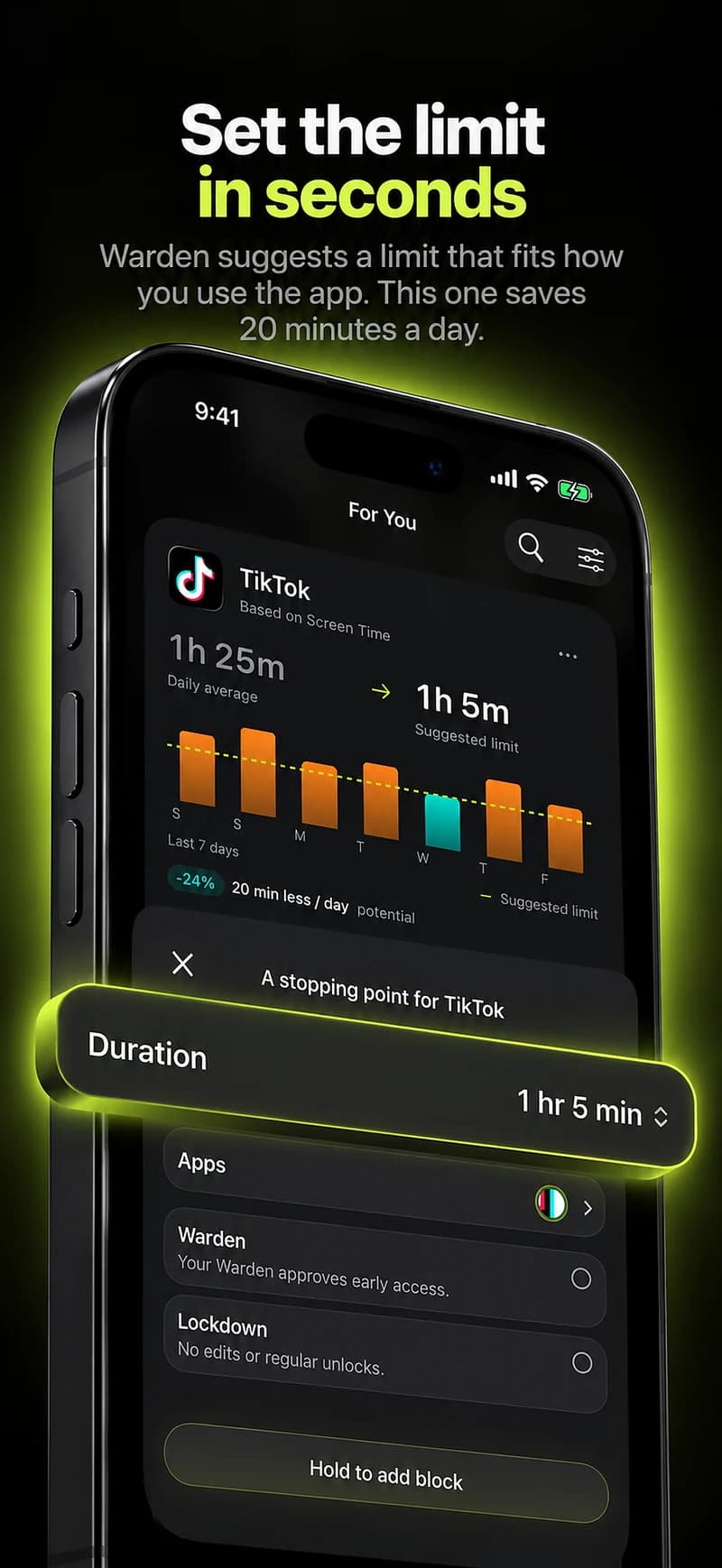
Warden’s rule editor opens Apple’s Family Activity picker, which can present apps, categories, and websites. The selection values for websites are privacy-preserving tokens; Apple describes them as opaque to the app. That describes the token, not every analytics practice of a particular app, so consult Warden’s privacy notice for broader data questions.
- Open Rules in Warden and add a rule, or edit an existing rule.
- Tap the app-selection control. Depending on the screen it may say “Choose apps” or “Choose apps & websites.”
- In Apple’s picker, choose the website you want to limit. Leave Safari unselected if you want to keep using the browser for other sites.
- Choose the schedule or allowance that fits your goal. Review the rule summary, including any shared category-and-website budget.
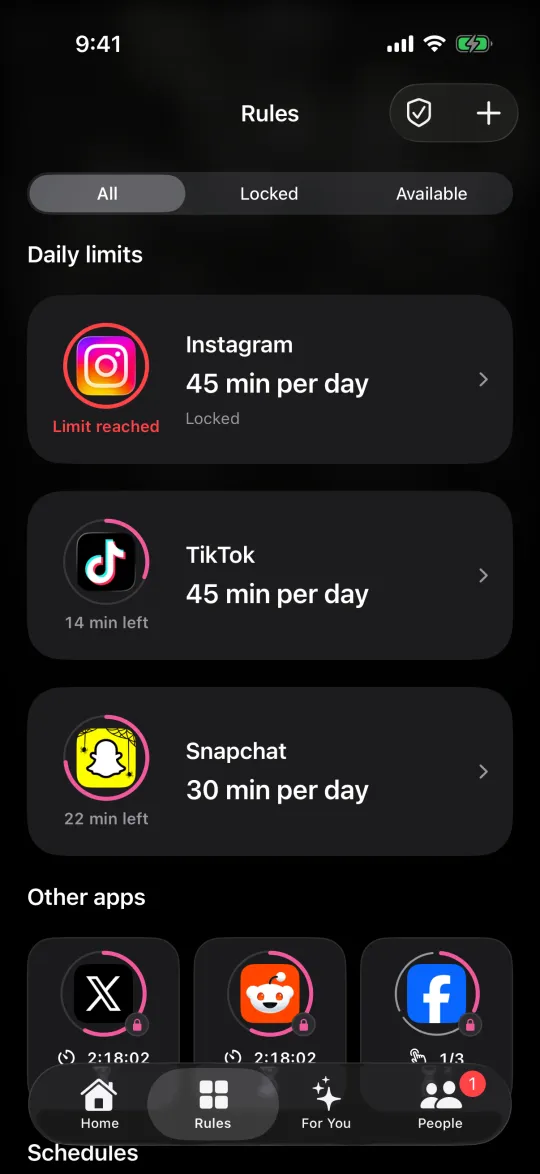
- Save the rule and confirm it appears in Rules with the intended timing and protection mode.
Reference: Apple Developer: FamilyActivitySelection
Reference: Apple Developer: Shield selected web domains
Test the route before relying on the block
Try the selected site in Safari first. Then check any other browser, private-browsing mode, app link, or sign-in page that matters to you. Follow a redirect and confirm which domain appears. If a related page still opens, decide whether it is a separate domain worth selecting; do not add the entire browser as a workaround unless you mean to block it.
For a fair test, check that the Warden rule is saved and active, and note the iOS version and time. Test one change at a time. Do not rely on a website rule for an essential login or payment until you have confirmed that you can still reach the services you need.
- Test the home page, sign-in, and any redirect used by the site.
- Check an in-app link only if that route matters to you.
- If access does not match the rule, reopen Warden and verify the selected website and rule timing before changing broader restrictions.
Keep child approval separate from adult self-blocking
Apple’s Ask to Browse and approved-website lists are part of its family parental-control flow. They let a parent or guardian manage a child’s website access. That is different from choosing one distracting domain for your own Warden rule. Use the family controls when the goal is a child’s allowlist, and follow the age, region, and software requirements Apple lists.
For self-management, keep the rule narrow and understandable. If the site is useful at some times, schedule the block instead of removing Safari or treating the whole internet as the problem.
Ask to Browse on iPhone: approve websites for your child
Reference: Apple: parental controls and website approval for children