Warden
Check the family setup first
Use the child’s own Apple Account and add it to your Family Sharing group. The organizer or a parent or guardian can manage the child’s Screen Time from their own device. Avoid sharing one Apple Account between a parent and child; it makes settings and requests harder to understand.
Apple’s updated parental controls require the family devices to meet the stated software requirements and the family to upgrade Screen Time. Add the parent or guardian who needs to receive requests to the child’s contacts. Some defaults and options depend on age and region.
Reference: Apple: Set up parental controls for a child
Decide which apps and websites need approval
Ask to Buy, Ask to Browse, and manually blocking an app or site answer different questions. Approval adds an item to an allowed list; it does not set a schedule or time budget. Keep the school sites and apps the child needs available.
- On the parent device, open Settings, tap Family, choose the child, then open Apps & Websites. Review the Allowed and Blocked lists before changing anything.
- For eligible downloads, configure Ask to Buy under the child’s family settings. A request is for a download or purchase, not a daily time limit.
- For new websites, open Apps & Websites, Restrictions, then Filtering. Choose Approved Websites Only to use Ask to Browse. Apple limits this feature to Safari and supported browsers after the parental-control upgrade.
Set a schedule and a daily time allowance
These screenshots show the iOS 27 Screen Time controls. On a parent’s device, open the child’s Family profile first; available controls can vary by age and region.
iOS 27 uses Screen Time Schedules for when and Time Allowances for how long. A category allowance and the total daily allowance can both matter. Always Allowed is a separate exception list, so review it deliberately rather than adding every app by default.
In the child’s Screen Time settings, open Screen Time Schedule, turn on the schedule, and add a time window for the days you choose.
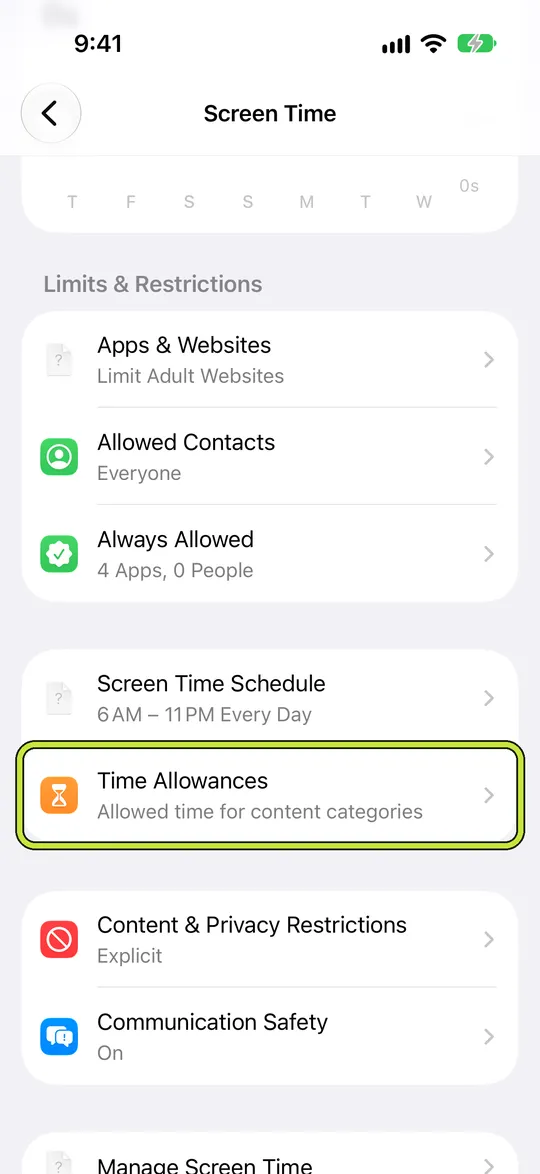
Open Time Allowances and set a daily total or allowances for categories such as Games or Social Media. Use the schedule to decide when categories are available; use the allowance to set how long they can be used.
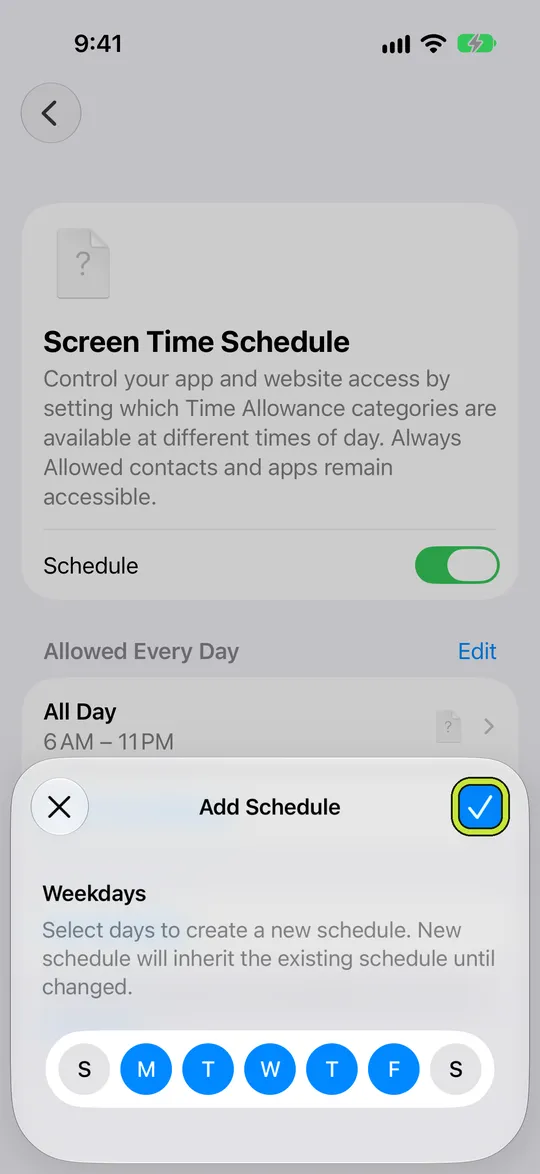
- Review Always Allowed for necessary apps and contacts, then check the schedule against the child’s real routine.
Reference: Apple: Screen Time Schedules and Time Allowances in iOS 27
Review contacts, content, and privacy separately
Use Allowed Contacts to decide who can communicate during Screen Time and whether contact changes require approval. Content & Privacy Restrictions cover other settings, including age ratings and privacy changes. They are separate from an app’s time allowance.
Apple says some settings are turned on by default or cannot be turned off depending on the child’s age and region. Check Apple’s current regional guidance instead of assuming every family sees identical controls. Do not remove a necessary contact just to make an app restriction stricter.
Reference: Apple: Set up parental controls for a child
Test the setup before a busy day
- Pick one ordinary evening or school day and explain which rules you are trying. Start with a short, understandable schedule rather than changing every setting at once.
- Check that an allowed school site opens, a blocked app follows the intended rule, and the parent can find the request if the child asks to browse a new site.
- Keep a reachable parent or guardian and emergency contacts available. If a request does not arrive, verify Family Sharing roles, the child’s contacts, device updates, and the exact feature that generated it.
Example: one school-night routine
For a school night, set a window that covers homework and bedtime, then allow only the categories that fit each part of the evening. Keep the school site and the contacts the child needs available. Try the routine once together, notice what interrupts homework, and adjust one setting at a time. This is a starting point, not a universal schedule.
Where Warden fits
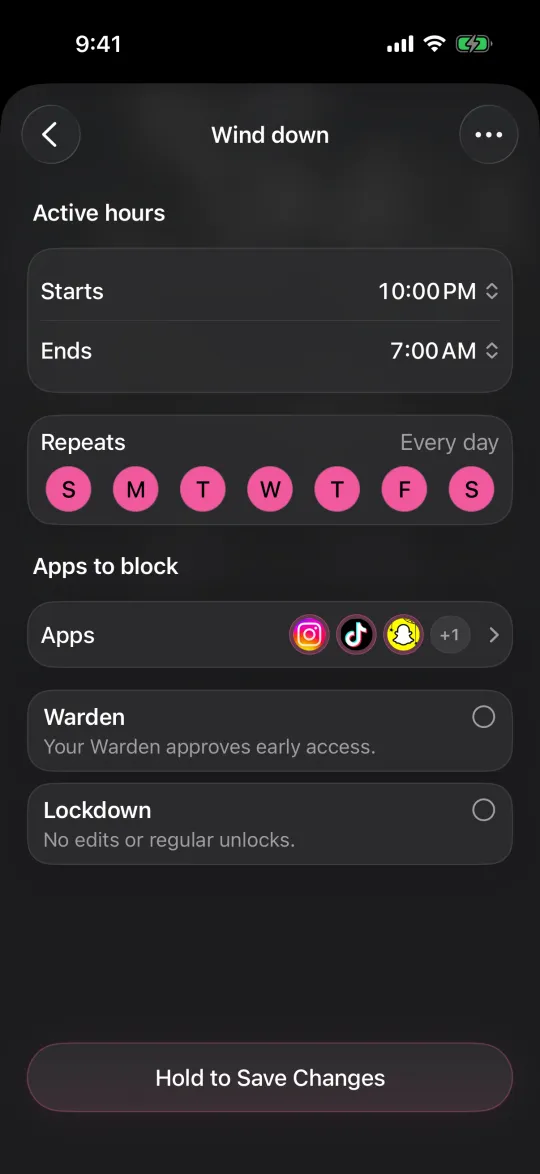
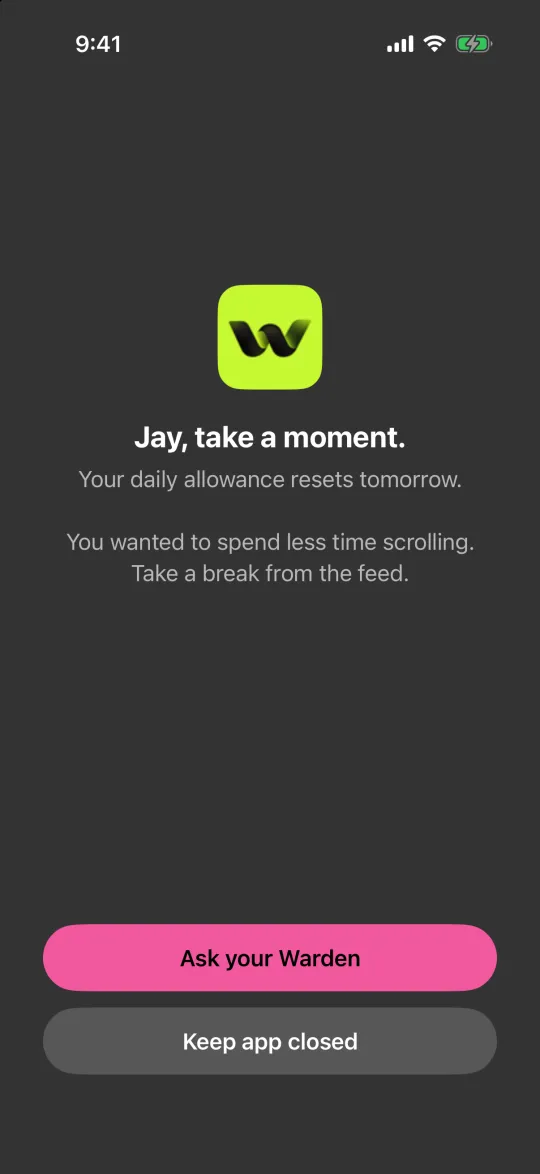
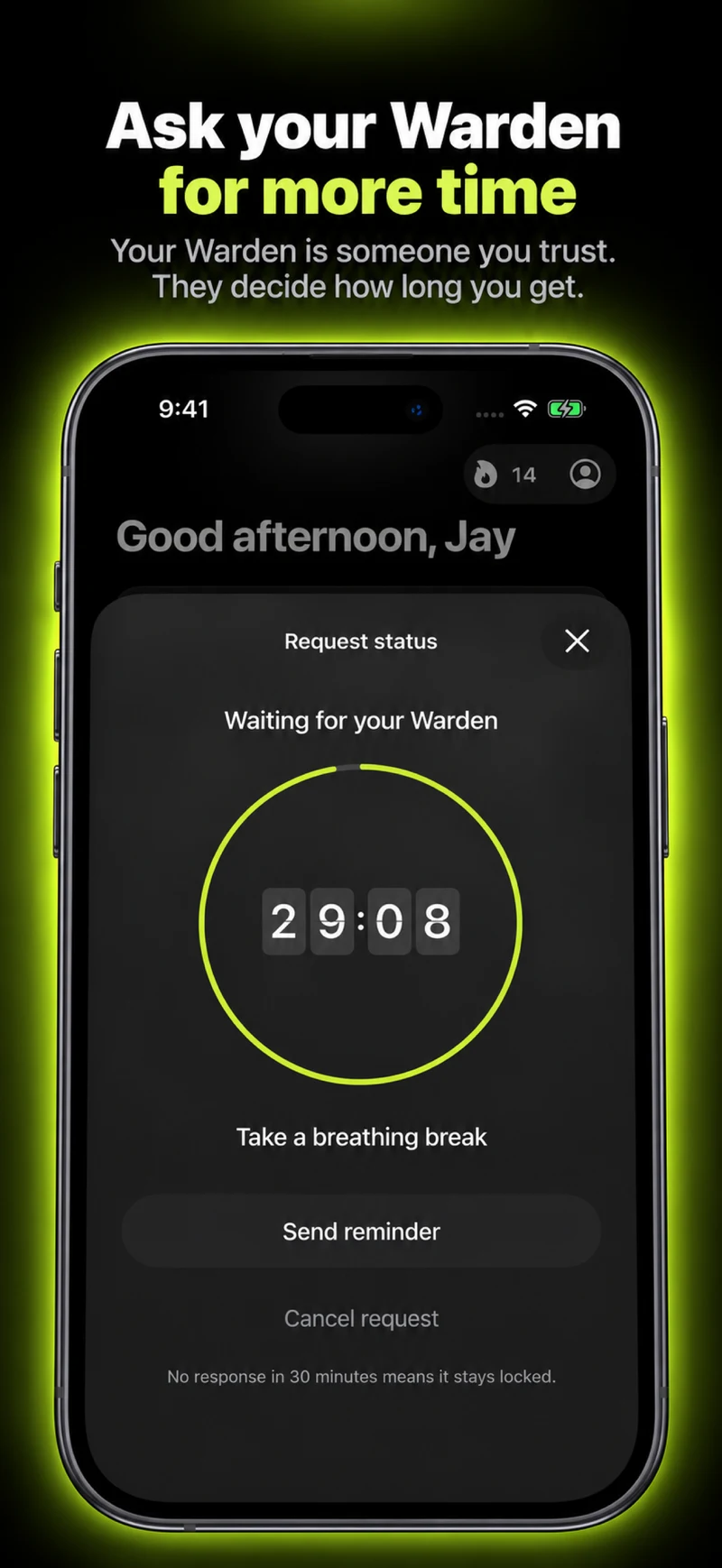
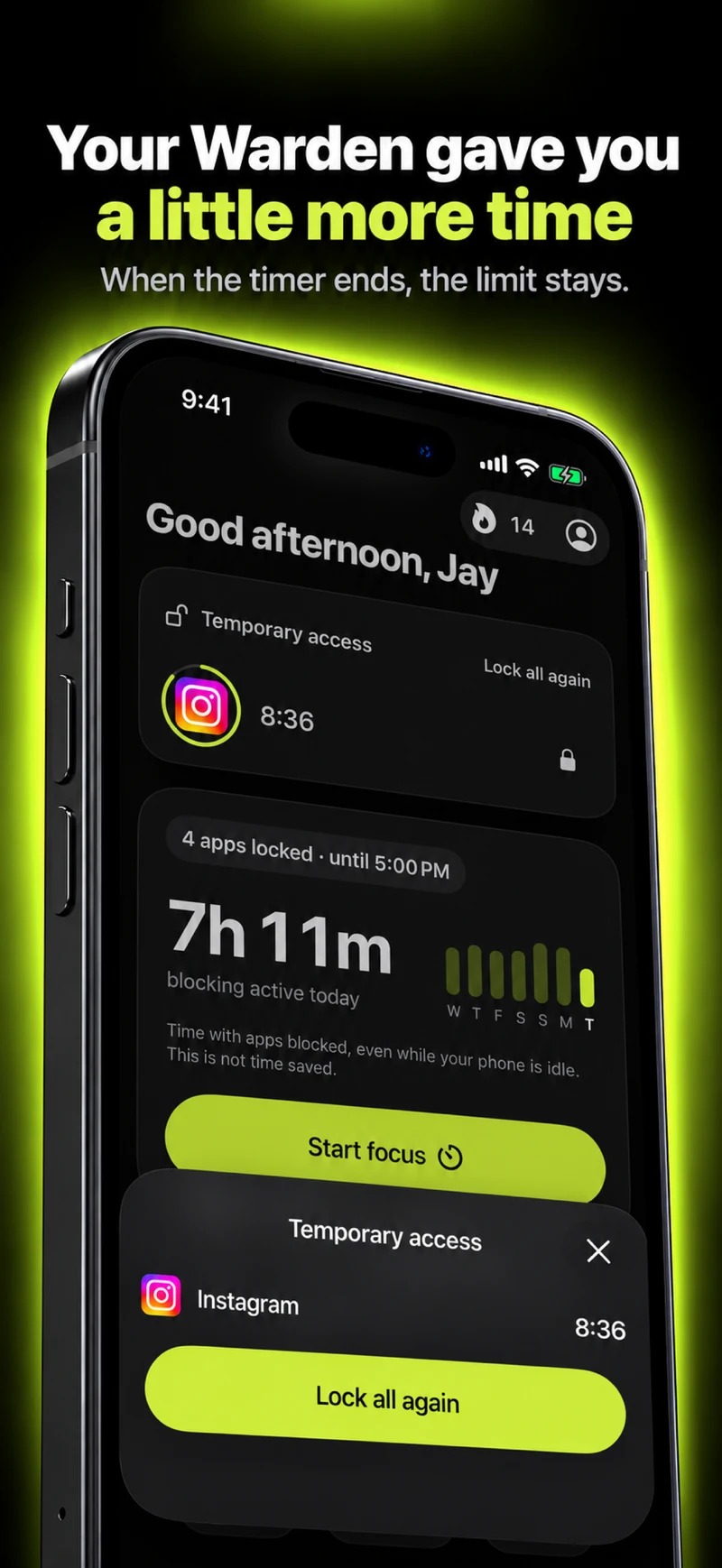
Warden’s app rules and trusted-person flows are separate from Apple’s Family Sharing and parental controls. This guide does not recommend replacing a child’s family settings with Warden or using an adult account for a child. Check the product’s current eligibility and setup before choosing any third-party app.