
Skip to content

App limits

How to stop checking WhatsApp all the time

WhatsApp is harder to cut back than a social feed, because the messages come from people you care about. Blocking it all day usually fails, and it can cost you something that matters. The goal is not to miss less, but to check less: on purpose, at times you choose, with the urgent people still able to reach you.

In this guide

Why WhatsApp is different from a feed

A feed is optional; a family group or a work chat often is not. That is why the usual advice to delete the app does not fit. What usually drives the checking is volume: busy groups, status updates and the small red number that never quite reaches zero.

So start with the noise, then the timing, and only then a block.

Mute the chats that are not urgent

WhatsApp lets you mute a chat or group for 8 hours, 1 week or always. You still receive the messages; your phone just stops buzzing for them. In a muted group, WhatsApp says you still get notified for mentions and replies.

Mute every large group first, then any chat you only need to read once a day. On iPhone you can also turn off WhatsApp's badge in Settings, then Notifications, so the unread count stops calling you back.

Reference: WhatsApp Help Center: mute notifications

Reference: Apple: Change notification settings

Check at set times, not every buzz

  • Pick three or four check times, such as mid-morning, lunch, after work and evening.
  • Reply in one sitting rather than one message at a time, which ends more conversations.
  • Tell the people close to you to call if something cannot wait. Most things can.

Keep the urgent people reachable

Before you add any limit, decide who must always get through. In iOS 27, Apple's Always Allowed list keeps the apps and contacts you choose available regardless of any Screen Time schedule or allowance. Put family and anyone you care for on it, and make sure they know a phone call is the way to reach you quickly.

Reference: Apple: Screen Time Schedules and Time Allowances

If you still open it every few minutes

Add one short block at the time the checking hurts most, such as the first two hours of work or the hour before bed. A schedule suits WhatsApp better than a daily allowance, because an allowance can run out in the evening when family actually messages.

In Warden, a Standard rule lets you open WhatsApp early if you need it, while Lockdown keeps the block until it ends, with emergency access still available. Start with Standard and tighten only if you keep reaching past it.
How to lock yourself out of your phone for an hour

How Warden unlock approval works

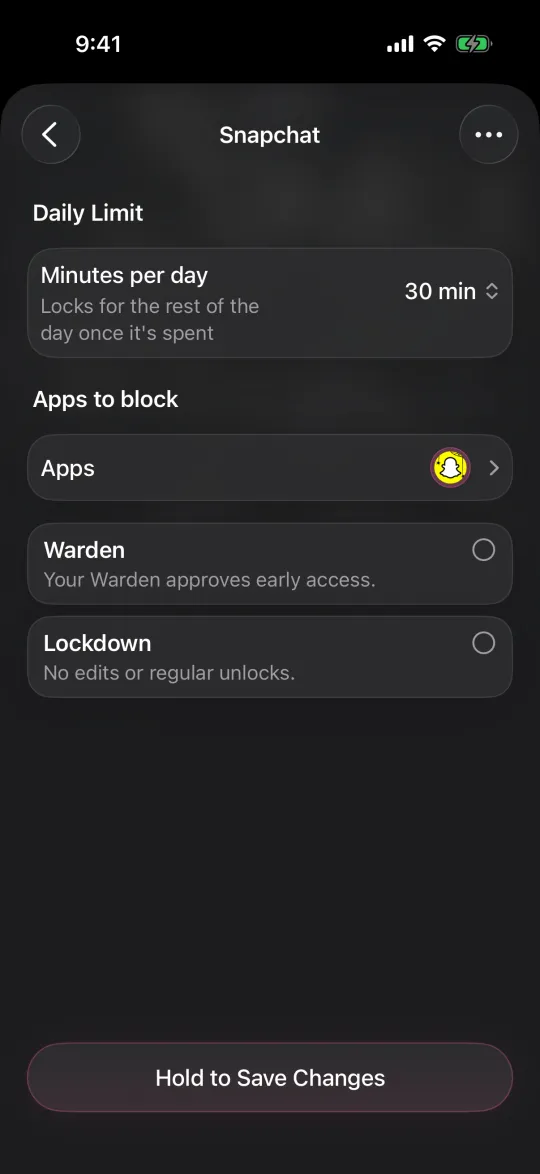
Editing a 30-minute daily limit, with Warden and Lockdown options

Example: the family group that never sleeps

A family group sends a couple of hundred messages a day, mostly photos and reactions, and each one pulls the phone out during work. Mute the group for always, keep a direct chat with a parent unmuted, and read the group at lunch and after dinner.

For the mornings, block WhatsApp from 9 to 11 with a Standard rule and put the parent on the Always Allowed list. After two weeks, count how often the block was ended early. If the answer is almost never, the mornings were never as urgent as they felt.


Set it up without adding unnecessary rules

Daily limits, schedules and focus sessions

Install Warden and connect Screen Time when iOS asks. Then open Rules and tap the plus button.

Choose the apps or scope involved in this particular interruption. Use an allowance for total use, a schedule for recurring hours, or a session for a one-off task.

Editing a schedule that blocks apps from 10:00 PM to 7:00 AM every day

What Standard, Warden and Lockdown do

Choose Standard when you want to manage the limit yourself. Choose Warden when a person you trust should review early-access requests. Choose Lockdown to keep ordinary early unlocks off until the block ends.

Choose the access mode, then hold the save button to set the rule. Try a short block before using a long one. Emergency access remains separate from ordinary unlock requests.

The block screen with Ask your Warden and Keep app closed buttons

How Warden approval works

Choose how many minutes you need, add a note and hold to send. If nobody answers within 30 minutes, the request expires and the app stays locked.

An approval applies to the scope and time shown in the app. A declined or unanswered request does not lift the block. Emergency access remains a separate option on your device.

Common questions

Can I limit WhatsApp without missing important messages?
Yes. Mute busy groups instead of blocking the app all day, check at set times, and keep the people who might need you urgently on your Always Allowed list with a phone call as the fallback.
Should I use a daily limit or a schedule for WhatsApp?
A schedule is usually better. It protects the hours you want clear, while a daily limit can run out just when family or friends are most likely to message.
Does muting a group stop me receiving messages?
No. WhatsApp says muted chats still receive messages; only the notification sound and vibration stop. In groups, mentions and replies still notify you.

