Warden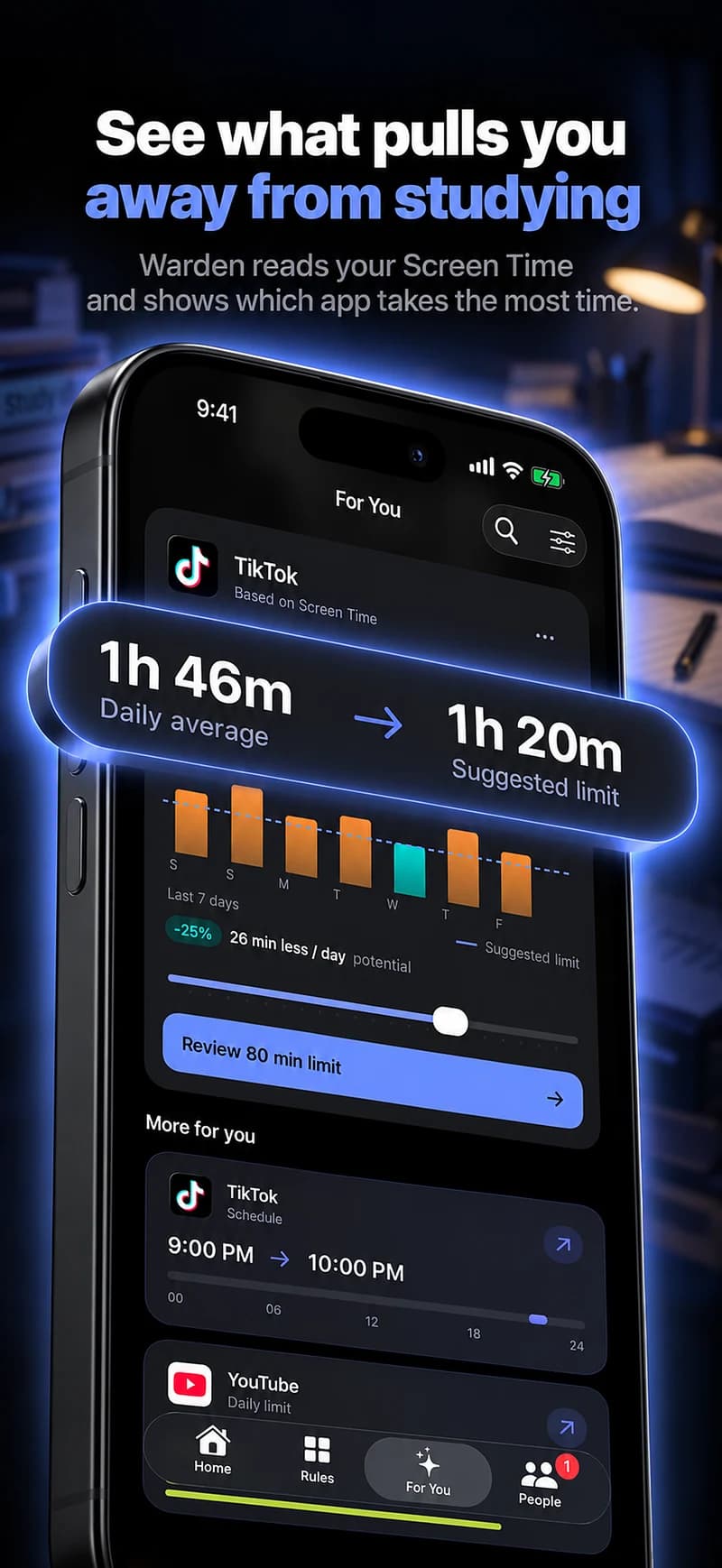
Decide whether amount or timing is the problem
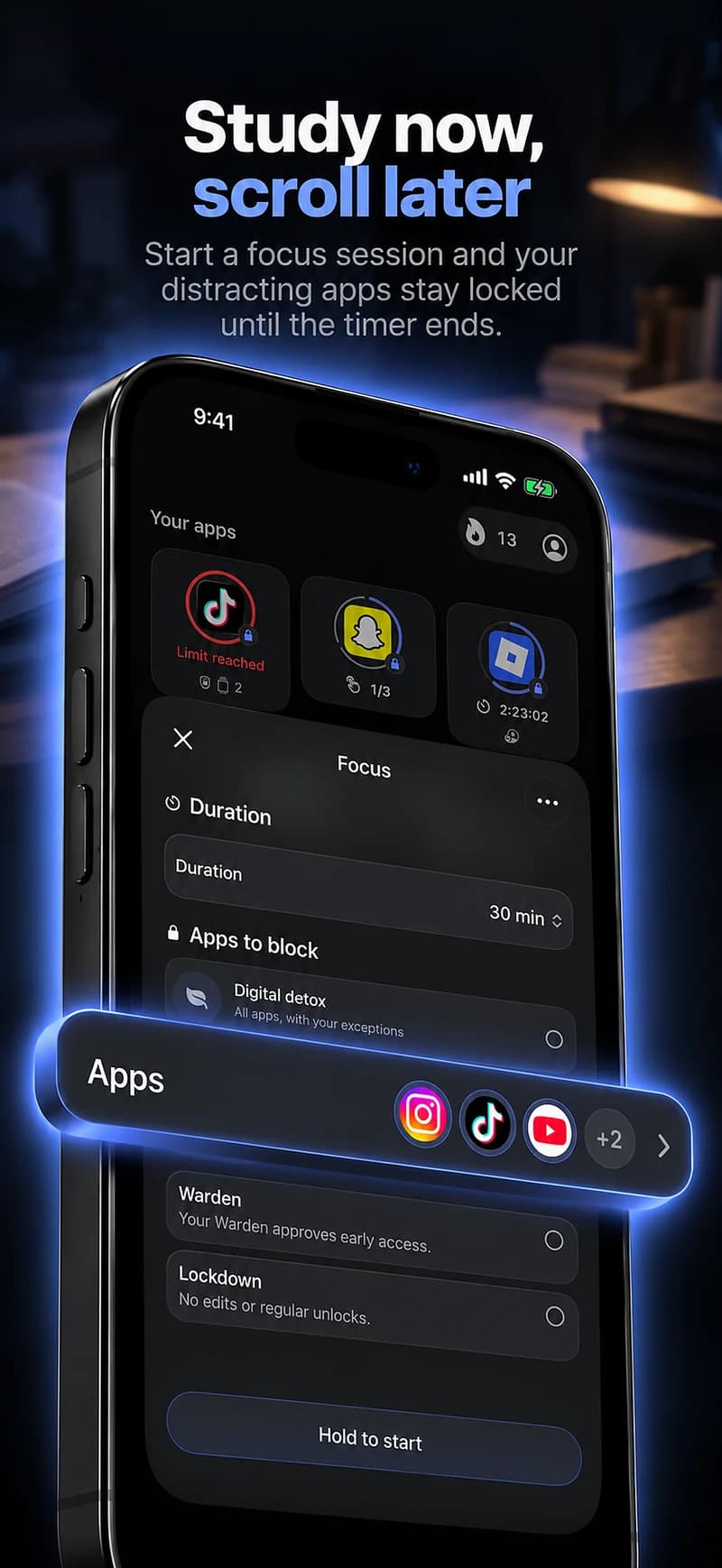
If TikTok repeatedly interrupts a study hour, protect that hour. If short sessions add up across the entire day, a daily allowance may be more useful. A large daily allowance does not prevent spending all of it during an important task.
Start from one observable problem. “I open TikTok between every practice question” points to a focus window. “I want room for other things after dinner” suggests an evening boundary. Avoid copying a number simply because it sounds strict.
Make a rule you can inspect
In Screen Time, review a limit for TikTok and how additional time is granted. In Warden, choose a manual rule or review a supported suggestion before saving. Inspect the selected app, allowance or hours, and ordinary early-access arrangement.
For an initial experiment, choose a modest duration and a short review period. A thirty-minute budget is an example, not a universal recommendation. Keep essential apps separate rather than blocking a whole category by default.
Reference: Apple: set app limits
Decide what happens at the stopping point
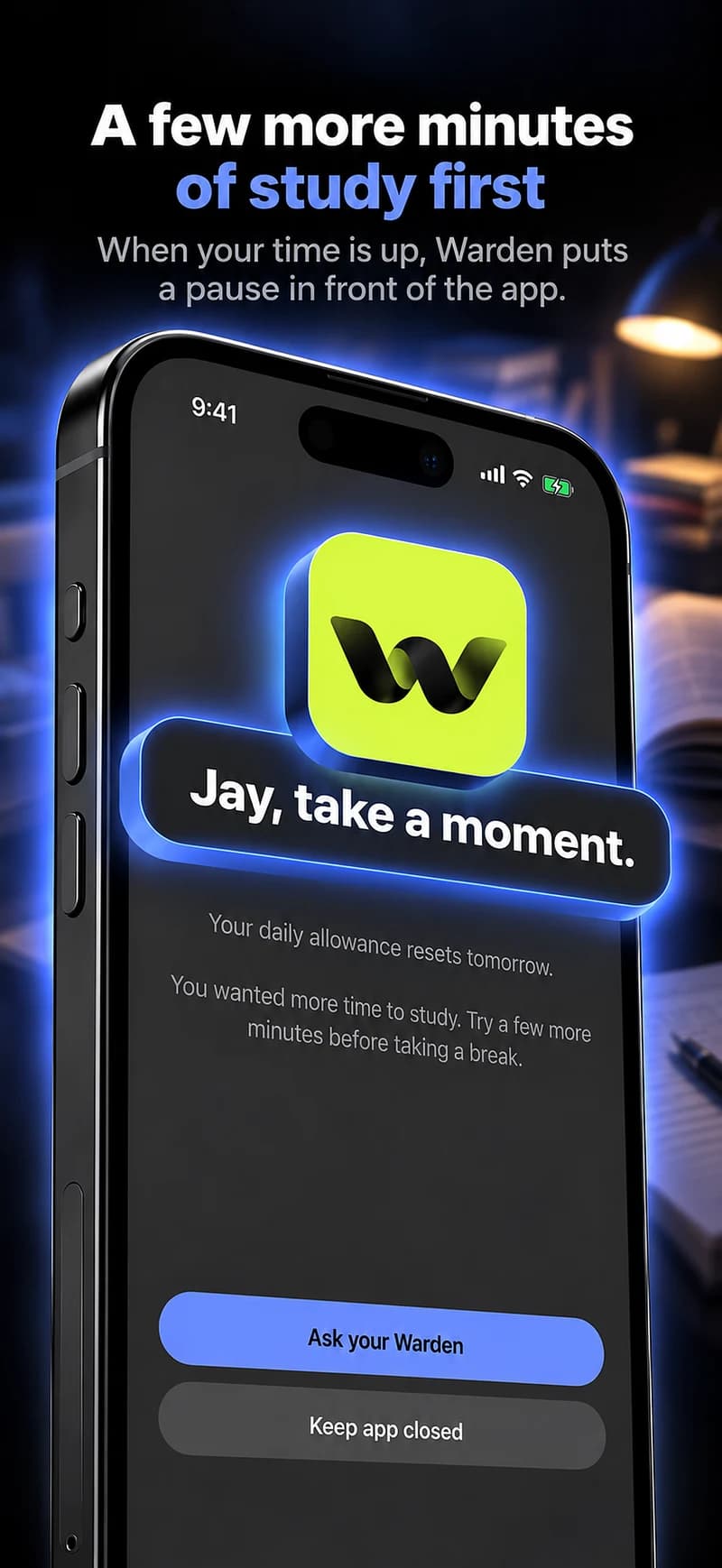
When the limit appears, have a next action in mind: return to the problem set, make food, message someone directly or put the phone down. Without that decision, it is easy to move the same browsing session to another feed.
This does not mean you need a long list of replacement activities. Name the thing the time was intended for and keep it visible. If the app is useful for a particular task, plan that use deliberately instead of treating every opening as failure.
Use your own readings for the next revision
Look at reported use in the relevant period and note whether exceptions were needed. A comparison with the same point in your own day is more informative than a claim that everyone should stay under a certain total.
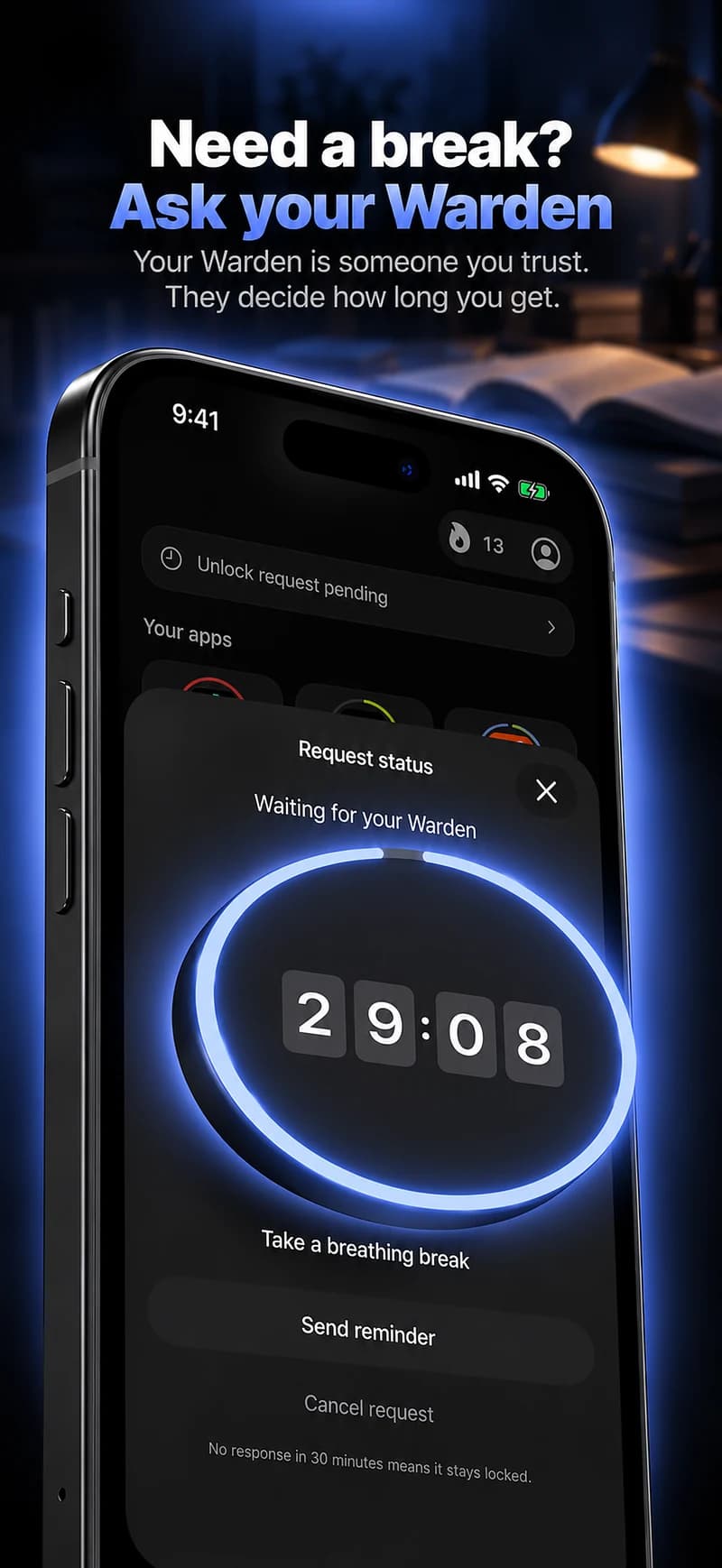
If the limit is repeatedly too small for a legitimate use, revise it. If ordinary extensions defeat the boundary you meant to keep, consider trusted-person approval or a hard stop. Those choices should support your plan, not turn the review into punishment.
Separate an allowance from a browsing window
Suppose TikTok is useful or enjoyable after work but keeps extending into bedtime. A daily allowance changes the total you can use; an evening cutoff changes when you can use it. Pick the one that addresses the situation you described, then review it for a few ordinary days.
When you look at a report, compare the same device and time period. A shorter total can help you judge the rule, but the rest of the day may have changed too. If you mainly switched to another feed, deciding whether to include it is a new choice, not an automatic reason to block every social category.