
Skip to content

App limits

When your app-blocking routine stops helping

When a blocker stops helping, inspect the rule before adding more friction. The problem may be the apps, the timing, the exception process or a technical failure.

In this guide

Separate a bypass from a broken rule

Did the app remain available after the intended limit, or did you intentionally use an allowed exception? Those are different problems. Record the visible rule state, selected day and whether a temporary unlock was active. A technical problem needs diagnosis, not a tougher personal promise.

If the rule worked but you ended it repeatedly, look at why. “I needed directions” suggests a selection problem. “The meeting moved” suggests a schedule problem. “I wanted one more video” may be the case where a different early-access arrangement helps.

How to test an iPhone app blocker before you rely on it

Review the first exception

Think through one recent exception from beginning to end. What task did you open the app for, how long did it need, and what happened after it was done? A messaging app may be both useful and distracting, so blocking it all evening can force unnecessary requests.

Try a smaller change: keep the essential tool available, narrow the blocked hours, or use a daily allowance instead of a complete window. The point is not to prove you can tolerate an unsuitable block; it is to remove the interruption you actually identified.

Can you block Reels without deleting Instagram?

Choose the appropriate kind of commitment

A self-managed timer gives you flexibility. A trusted-person request makes an ordinary early exception visible to someone you chose. A hard stop removes ordinary early access until the end. None of these changes whether the original hours make sense.

Start with a short test when changing commitment strength. Make sure necessary apps and emergency access are clear, and avoid stacking several rules at once when you need to learn which one caused a problem.
Lockdown mode

Judge the week by useful outcomes

Review the intended window rather than only a total for the entire phone. Did the selected apps interrupt your study hour? Were the necessary exceptions handled? Did the arrangement fit the person helping you? Those questions are more actionable than whether your number beat someone else’s.

Available usage reports can inform that review, but they do not explain every reason behind a change. Keep a rule that fits, revise one that creates needless requests, and report a repeatable enforcement problem with its actual settings.

Diagnose the friction before adding more

Keep a brief note for three uses of the rule: what you needed to do, which app was blocked, and why you ended the block. If all three exceptions were necessary work, the selected scope is probably wrong for that window. If the task was the same feed you wanted to avoid, the issue may be the early-access arrangement.

Change only the part that failed. Moving a routine by half an hour, excluding an essential app or shortening an unrealistic block may solve a different problem than adding trusted-person approval. Review again after a few ordinary days. A single unusual day should not automatically become a permanent restriction.


Set it up without adding unnecessary rules

Daily limits, schedules and focus sessions

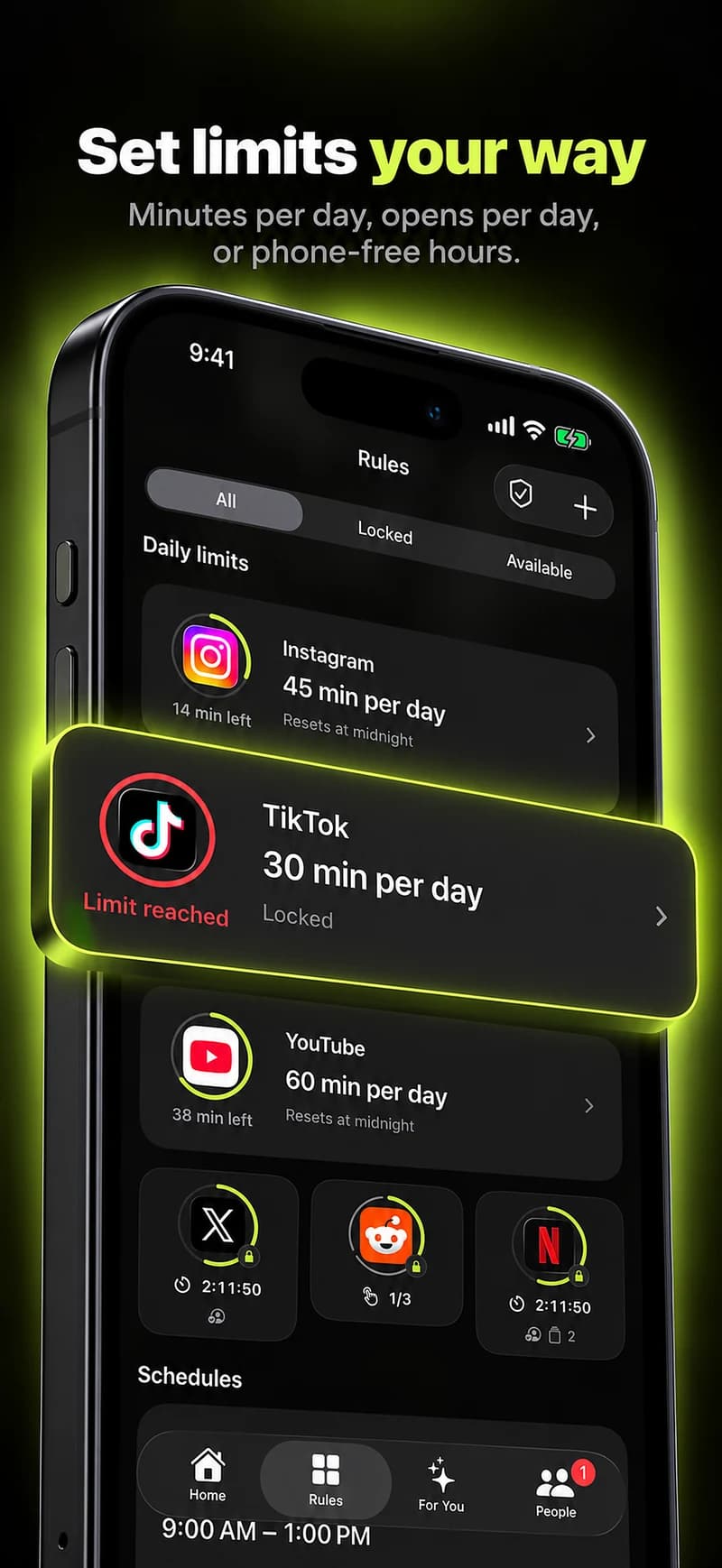
Install Warden and connect Screen Time when iOS asks. Then open Rules and tap the plus button.

Choose the apps or scope involved in this particular interruption. Use an allowance for total use, a schedule for recurring hours, or a session for a one-off task.

Editing a schedule that blocks apps from 10:00 PM to 7:00 AM every day

What Standard, Warden and Lockdown do

Choose Standard when you want to manage the limit yourself. Choose Warden when a person you trust should review early-access requests. Choose Lockdown to keep ordinary early unlocks off until the block ends.

Choose the access mode, then hold the save button to set the rule. Try a short block before using a long one. Emergency access remains separate from ordinary unlock requests.

The block screen with Ask your Warden and Keep app closed buttons

How Warden approval works

Choose how many minutes you need, add a note and hold to send. If nobody answers within 30 minutes, the request expires and the app stays locked.

An approval applies to the scope and time shown in the app. A declined or unanswered request does not lift the block. Emergency access remains a separate option on your device.

Common questions

Do blockers always stop working after two weeks?
No fixed timeline is established here. Routines and responses differ. The useful signal is what is happening in your own rule, not an invented schedule of failure.
Should I reset everything?
Usually start by changing one relevant part. Keeping the rest stable makes the result easier to understand and avoids losing a setup that was partly useful.
What if I keep overriding or uninstalling my blocker?
First distinguish a failed restriction from deliberately ending it. Note what you needed at the first override, keep necessary study tools available, and try a shorter window. If you want trusted-person approval, agree on when they can respond and what requests are reasonable. No blocker should be described as impossible to bypass; keep emergency access and a clear way to review the arrangement.
Can I keep Instagram messages while blocking only Reels?
Warden cannot select features inside Instagram. Blocking the app also closes its messages. Plan a short message-checking window, use an allowance instead of an all-evening block, or use another agreed communication channel. Do not ask someone to approve every routine message when a narrower rule would fit better.

