 Warden
What Brick does, and what you would be replacing
Brick's site describes choosing apps and starting a session by tapping your phone against the Brick, with support for iOS and Android, a strict option and emergency unbricks. The device is the point: ending the session means going back to it.
So the question for an alternative is not which has more features, but what stands between you and ending a block early once the Brick is gone.
Reference: Brick
Software that makes the early exit harder
Opal describes Deep Focus, which restricts ending a session early, alongside Focus Rules and a Focus Timer on iPhone, Mac and Android. Freedom describes a Locked Mode intended to prevent quitting a running session, across supported phones and computers.
Jomo describes different block strengths for rules tied to set times, allowances or actions on iPhone, iPad and Mac. ScreenZen describes a lock mode intended to make limits harder to bypass, and is free with optional donations.
Reference: Opal
Reference: Freedom
Reference: Jomo
Reference: ScreenZen
A person instead of an object: Warden
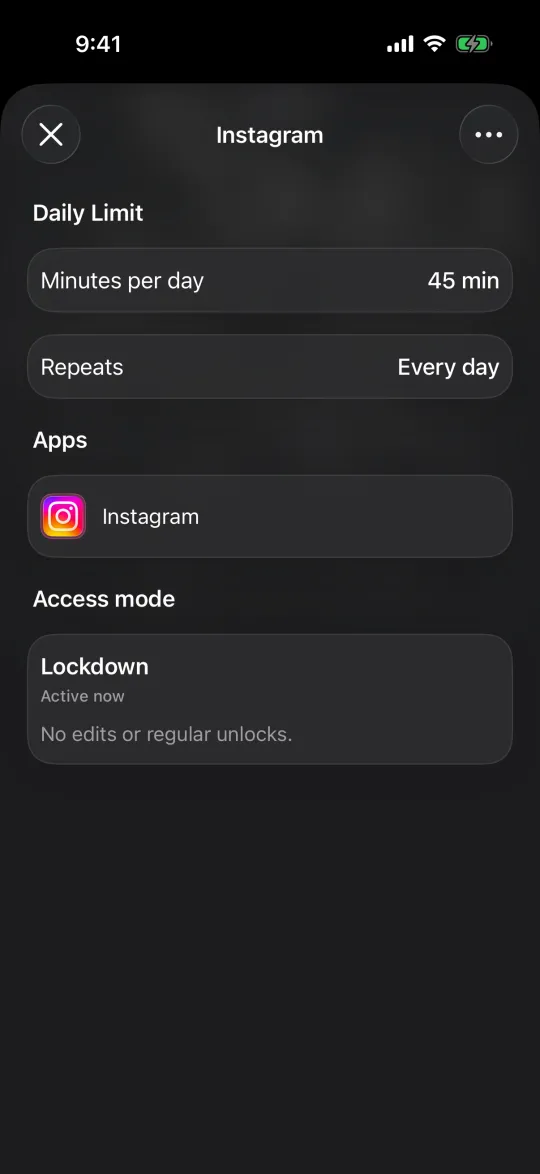
Warden replaces the physical step with a choice. Lockdown prevents ordinary early unlocks and edits to active rules until the block ends. Or you can connect a trusted person, your Warden, who approves early access for the rules you choose, so ending a block early means asking someone rather than walking to a device.
Warden supports iPhone and iPad, and emergency access stays available in every mode.
A pause instead of a lock
If Brick appealed because you open apps without deciding to, a lock may be more than you need. one sec describes a breathing pause and other actions before a selected app opens, plus scheduled blocking and time limits.
Apple Screen Time is free and built in, with schedules and allowances, but as an adult you know your own passcode.
Reference: one sec
Questions to ask before switching
- Where does the stopping point live: in an object, a locked session, a mode or another person?
- What happens in an emergency, and how quickly can you get access?
- Does it cover the devices where your plan actually breaks?
- Will you still use the strict option after the first week?
Example: keeping a hard stop while travelling
Your Brick lives on the hallway shelf, which works at home. On a week away it stays behind, and your evenings slip. Instead of packing it, set a schedule for the same hours in Lockdown before you leave, or ask a friend to approve any early unlock while you are away. Back home, return to the Brick if it suits you better.
The test is simple: did the week away look like a week at home? If it did, the stopping point worked, whatever form it took.



