
Skip to content

App limits

ScreenZen alternatives for iPhone in 2026

ScreenZen is a strong free option: daily limits, scheduled blocks for apps and websites, and a lock mode intended to make limits harder to bypass. People usually look elsewhere for a reason ScreenZen was not designed around. This guide starts from those reasons.

In this guide

What ScreenZen offers

ScreenZen offers daily limits and scheduled blocks for selected apps and websites, and its site describes a lock mode intended to make limits harder to bypass. The app is free with optional donations, and the company sells a separate device called halo. Its website lists iOS, macOS, Windows and Android.

If it is working, keep it. The alternatives below make sense when a specific part of your plan keeps breaking.

Warden vs ScreenZen

Reference: ScreenZen

If you want another person involved

A lock you set for yourself is still yours to work around. Warden lets you connect a trusted person, your Warden, who approves early access for the rules you choose, or use Lockdown to prevent ordinary early unlocks and edits to active rules until the block ends.

Warden supports iPhone and iPad, includes a free plan, and keeps emergency access available.
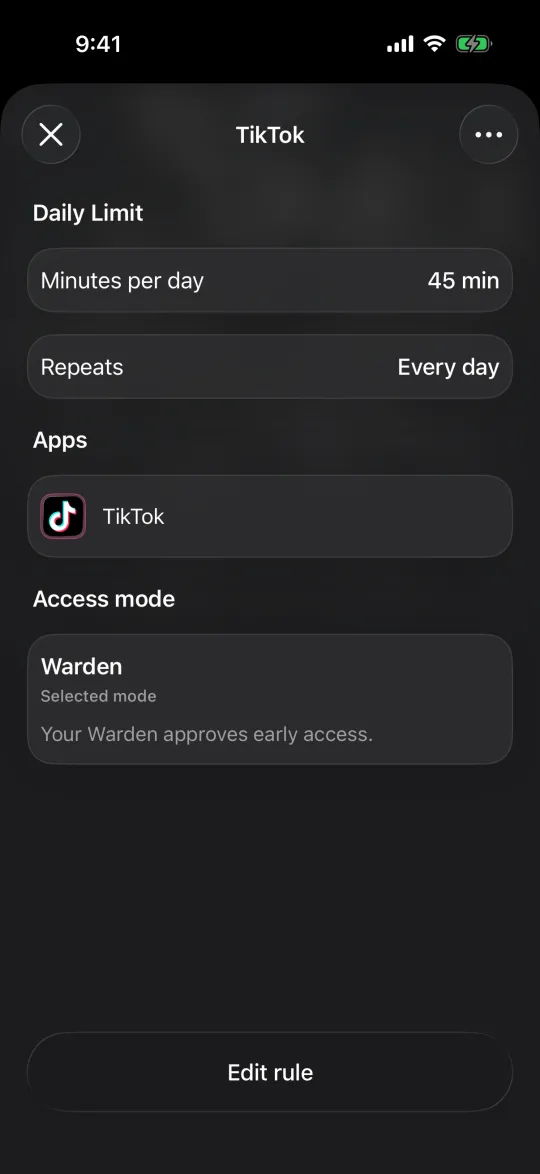
How Warden unlock approval works

A TikTok limit in Warden mode, where your Warden approves early access

If you want structured focus sessions

Opal describes Focus Rules, a Focus Timer, an Opal Score and milestone rewards, with a Deep Focus option that restricts ending a session early, on iPhone, Mac and Android.

Jomo describes blocks at set times, after a limit or until you complete an action, with different block strengths, on iPhone, iPad and Mac.

Reference: Opal

Reference: Jomo

If you want the stopping point off the phone

Brick uses a physical device: you choose apps and start a session by tapping your phone against it. Its site lists iOS and Android support, a strict option and emergency unbricks.

Freedom stays in software but covers supported phones and computers, with recurring schedules and a Locked Mode for running sessions.

Reference: Brick

Reference: Freedom

If you only want a pause, or nothing new

one sec describes a breathing pause and other actions before a selected app opens, plus scheduled blocking.

Apple Screen Time is already on your iPhone, with schedules and allowances, if you would rather not add an app at all.

Reference: one sec

Reference: Apple: Screen Time Schedules and Time Allowances

Example: the lock holds, the evenings do not

Your ScreenZen limits hold during the day, but at 9 PM you change a setting and carry on. The lock mode is not the issue; being the only person involved is. Keep ScreenZen for daytime limits and try a single evening rule where a friend approves any early unlock for a week.

At the end of the week, count the evenings the rule held and the requests you actually sent. Together they tell you whether a second person helped.


Set it up without adding unnecessary rules

Daily limits, schedules and focus sessions

Install Warden and connect Screen Time when iOS asks. Then open Rules and tap the plus button.

Choose the apps or scope involved in this particular interruption. Use an allowance for total use, a schedule for recurring hours, or a session for a one-off task.

Editing a schedule that blocks apps from 10:00 PM to 7:00 AM every day

What Standard, Warden and Lockdown do

Choose Standard when you want to manage the limit yourself. Choose Warden when a person you trust should review early-access requests. Choose Lockdown to keep ordinary early unlocks off until the block ends.

Choose the access mode, then hold the save button to set the rule. Try a short block before using a long one. Emergency access remains separate from ordinary unlock requests.

The block screen with Ask your Warden and Keep app closed buttons

How Warden approval works

Choose how many minutes you need, add a note and hold to send. If nobody answers within 30 minutes, the request expires and the app stays locked.

An approval applies to the scope and time shown in the app. A declined or unanswered request does not lift the block. Emergency access remains a separate option on your device.

Common questions

Is ScreenZen really free?
ScreenZen's site describes the app as free with optional donations. It also sells a separate device called halo. Check the current details on its site.
Which ScreenZen alternative involves another person?
Warden. You can connect a trusted person who approves early access for the rules you choose, and Standard rules and Lockdown also work without anyone else.

